

Projects
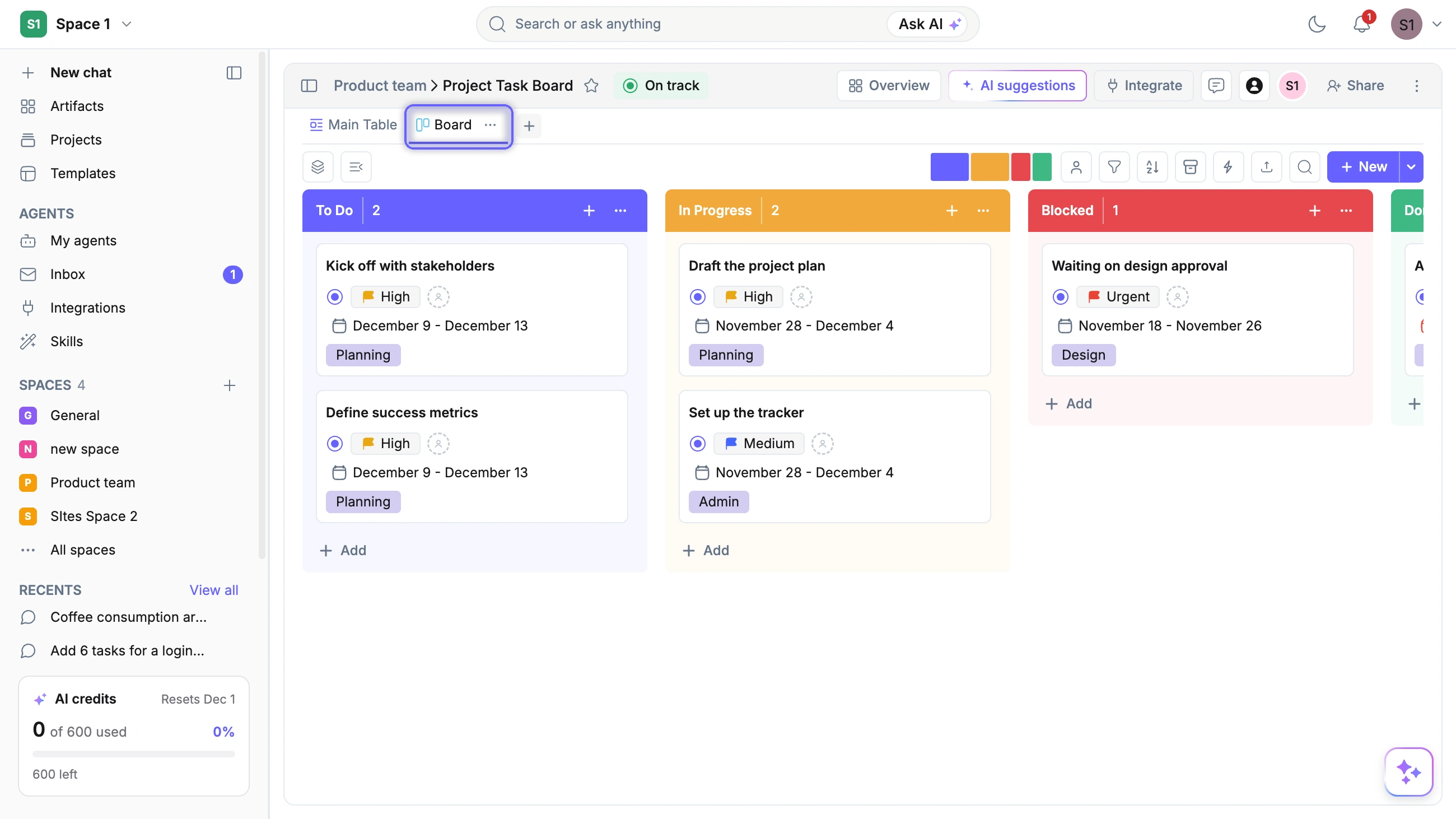
A project is a home for one piece of work: task boards with tables, kanban, timelines and automation, plus the docs, forms, dashboards and canvases that go with them.
These are the projects you make from the Projects card on the Artifacts page. The Projects row in the left sidebar is something else: it groups AI chats (see Projects: group your AI chats).
What you can do
Keep everything for a project in one place
The project page lists its boards, docs, wikis, forms, dashboards, canvases, sites and folders, with a cover, a description, and Recents, Content and Favourites tabs.
Plan work on task boards
Start a board from AI, by hand or from templates such as Product launch, Program rollout, Client delivery, Quarterly roadmap and Construction phases.
See the work your way
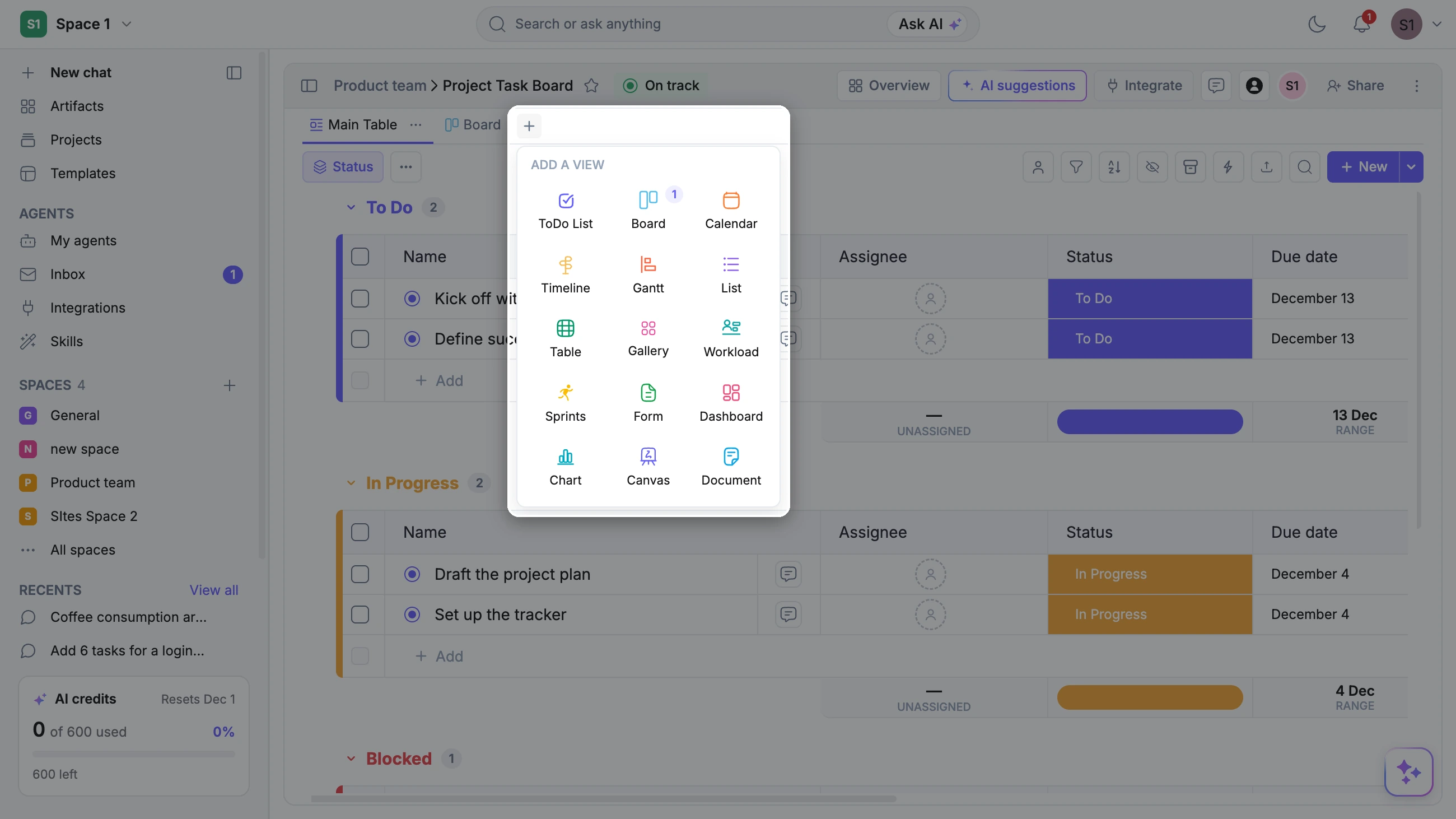
Add views: ToDo List, Board, Calendar, Timeline, Gantt, List, Table, Gallery, Workload, Sprints, Form, Dashboard, Chart, Canvas and Document.
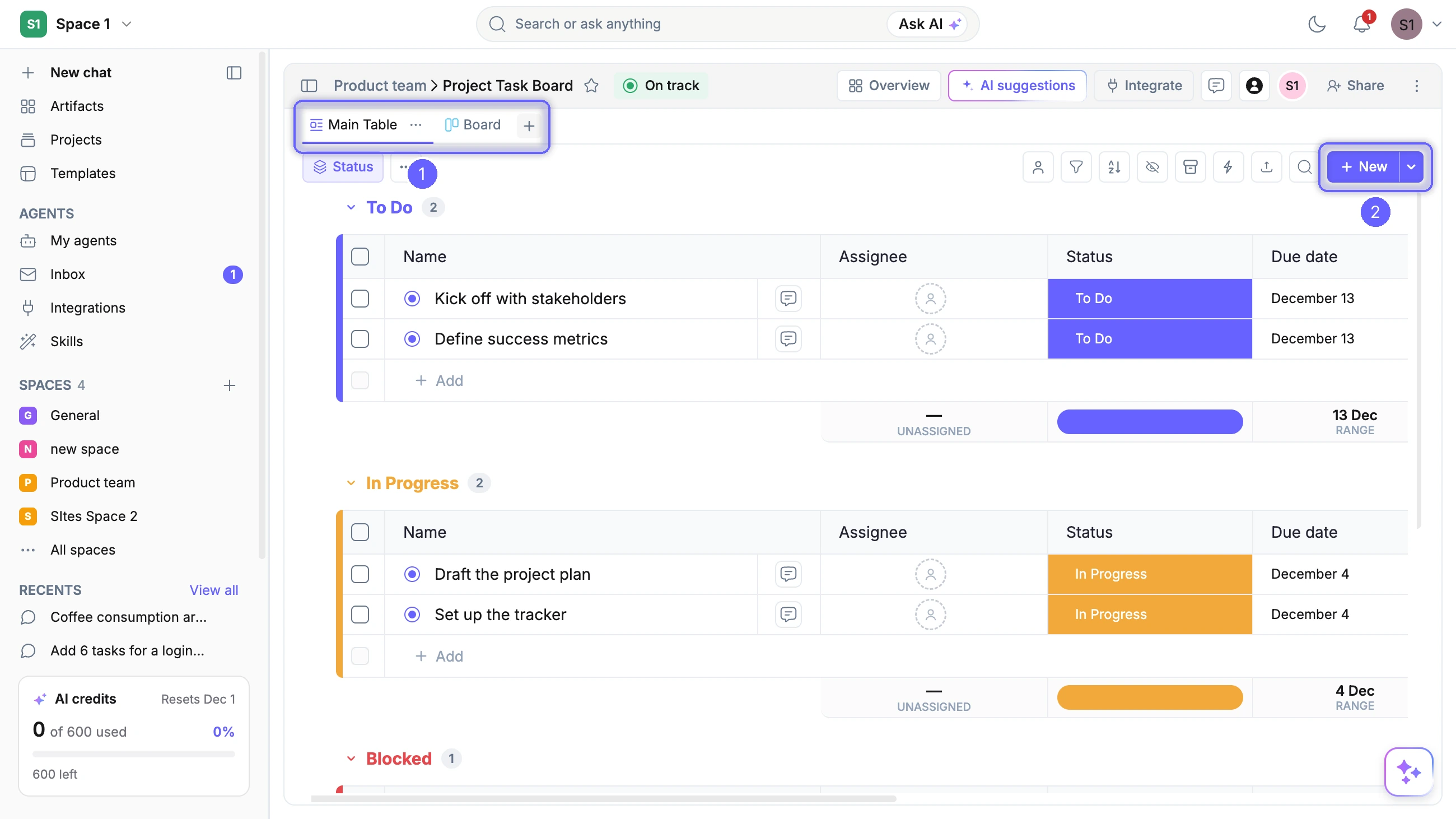
Shape the table with 27 column types
From Status, Person and Date to Formula, Relation, Rollup, Voting and Signature. Let AI fill a column for you.
Track every detail of a task
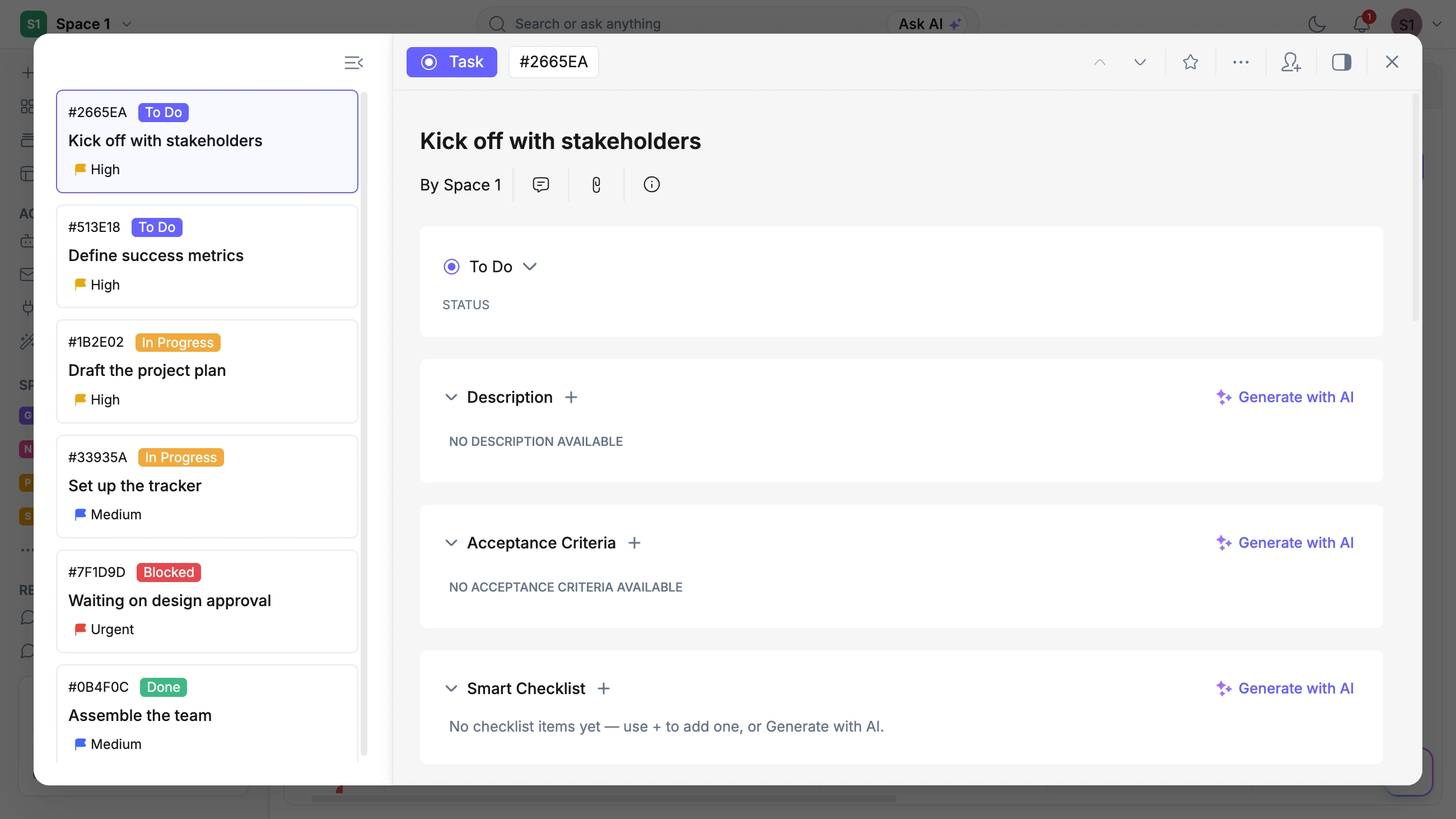
Each task card has a description, acceptance criteria, a smart checklist, subtasks, time logs, dependencies and an activity stream.
Automate and report
Set WHEN / IF / THEN automations, check project health and insights in Overview, and export to JSON, CSV or Excel.
Made for
- Sprints and agile delivery, with story points and sprint backlogs.
- Product launches, roadmaps and client delivery.
- Content calendars and hiring pipelines.
- Any team tracking items, budgets, leads or campaigns.
Start one
| Where | What to click |
|---|---|
| Artifacts | Make something new > Projects. An "Untitled project" is created and opens. |
| New chat | Click Create and pick Projects, then describe the work. AI asks a question or two, then fills one project with a board, docs and a canvas. |
| A project page | + > Project ▸ Project opens Create a new project for a task board. |
| A space | Create new > Project. |
| Templates | Left sidebar > Templates > type Projects > Use. |
| Import | Project page + > Import data ▸ (Excel / CSV, Google Sheets, Asana, Trello, Basecamp and more). |
With Cloudairy AI
- Create a new project: describe the board, or use chips Sprint plan, Content calendar and Hiring pipeline.
- Generate with AI on a task's Description, Acceptance Criteria, Smart Checklist and Subtasks.
- AI-powered actions on a custom column: Autofill this column with a prompt, a preview, and Only fill empty cells.
- The board's sparkle button opens the Let's plan AI panel. AI suggestions is in the board header.
Share and export
- Share in the board header. Share a single view from its tab ⋯ > Share view.
- Export the board as JSON, CSV or Excel. More actions ▸ Export to Excel and Build a report.
- Save as template from More actions.
On your plan
| Free | Pro | Business | Enterprise | |
|---|---|---|---|---|
| Projects and boards | Count toward 3 items in total | Unlimited | Unlimited | Unlimited |
| AI credits | 100 | 1,000 | 2,500 | Unlimited |