

Canvas
An infinite board for diagrams, flowcharts, mind maps and whiteboards that you draw by hand, build with AI, and work on with your team at the same time.
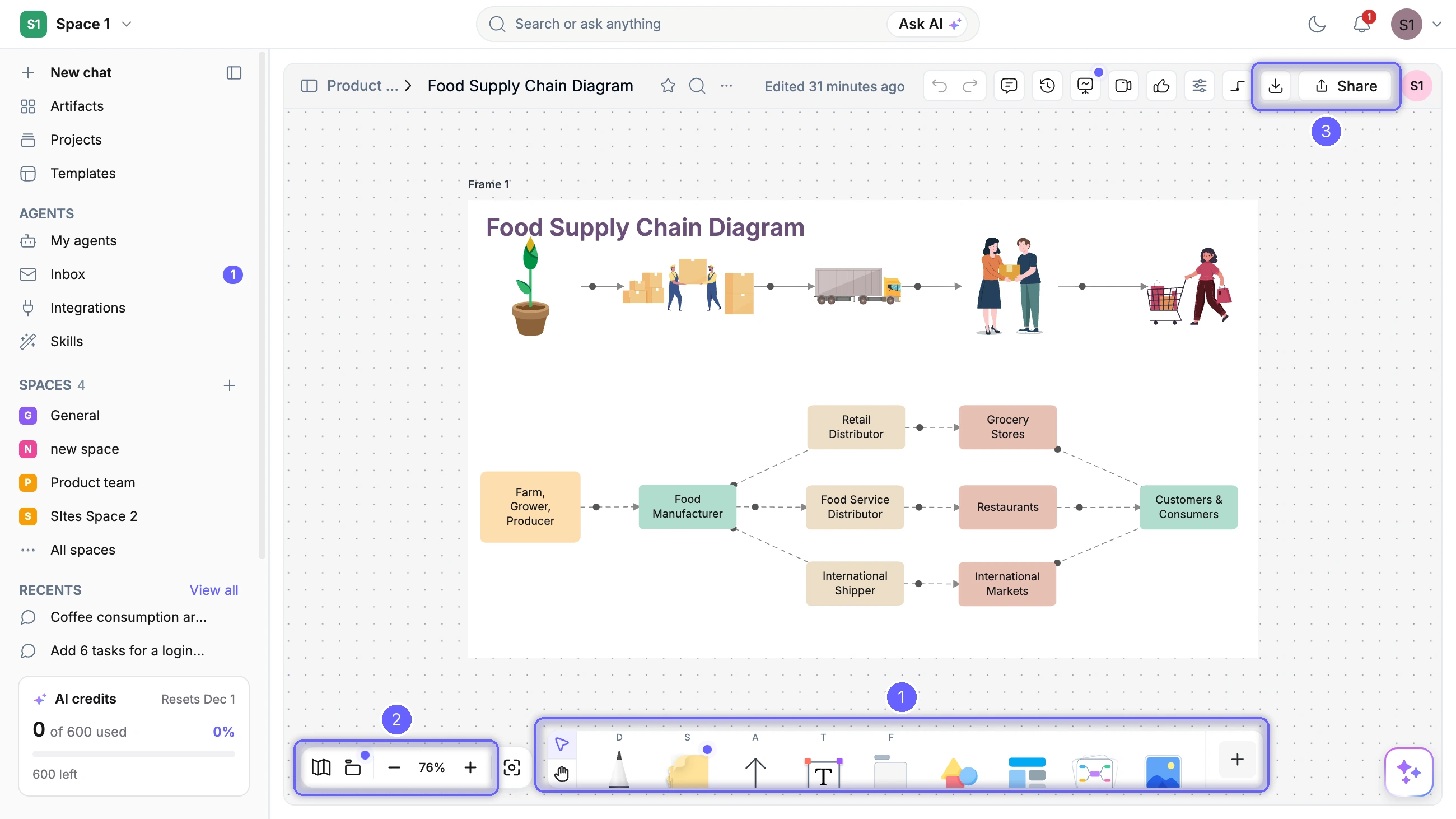
Use a canvas when an idea is easier to draw than to write: a process, a system, a plan or a brainstorm. Everything saves as you work.
What you can do
Draw diagrams with shapes and lines
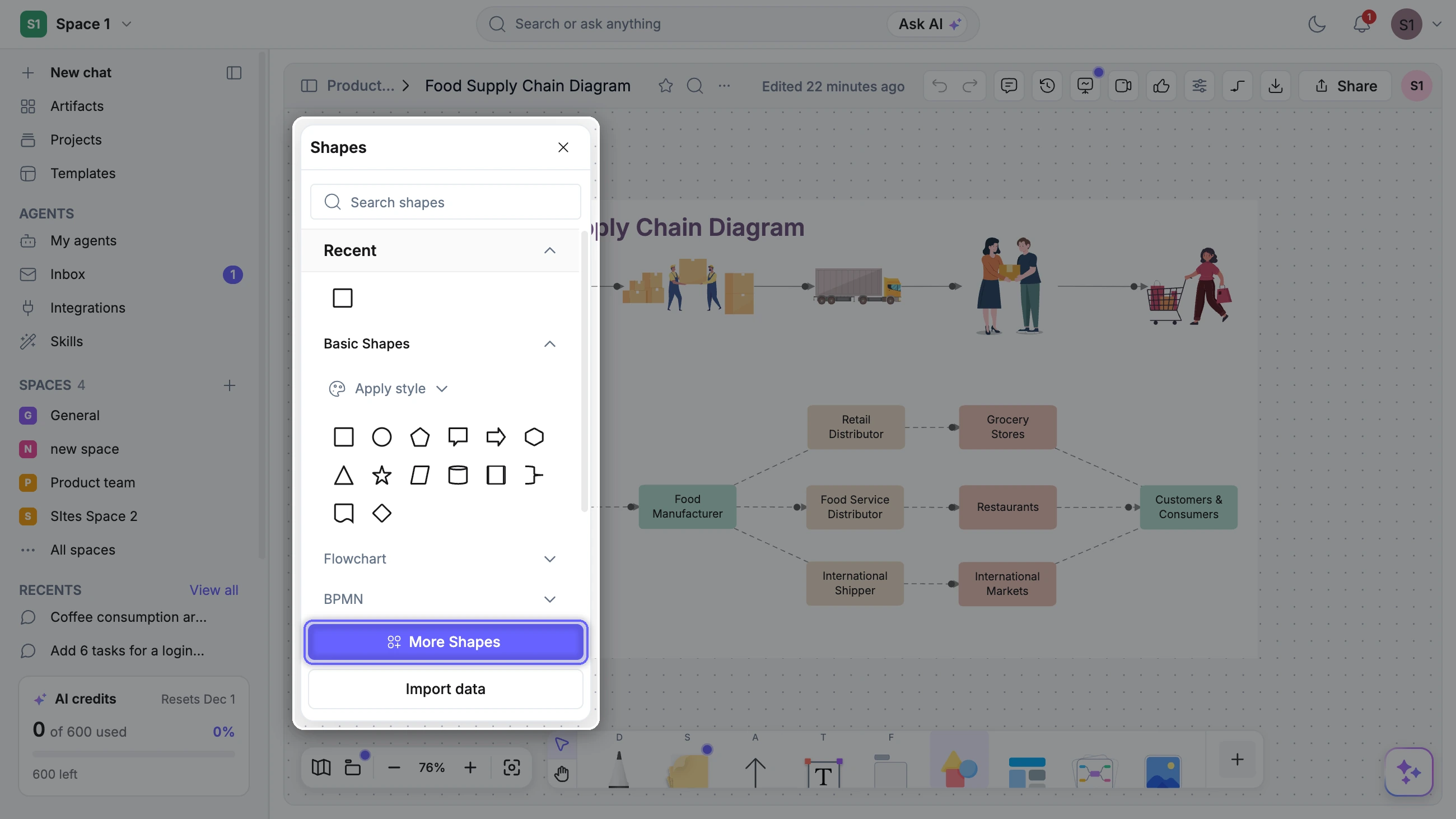
Pick from basic and flowchart shapes, or open the full shapes panel for BPMN, data flow, ERD, UML, icons and cloud architecture libraries such as AWS and Cisco. Connect shapes with four line types, markers and labels.
Brainstorm with sticky notes, text and a pen
Drop sticky notes with colours, tags and reactions, peel new ones off a Sticky Stack, write with text styles, and sketch with a pen, highlighter, eraser or magic pen.
Build mind maps
Add a mind map from the dock and switch between 10 layouts.
Add widgets from More tools
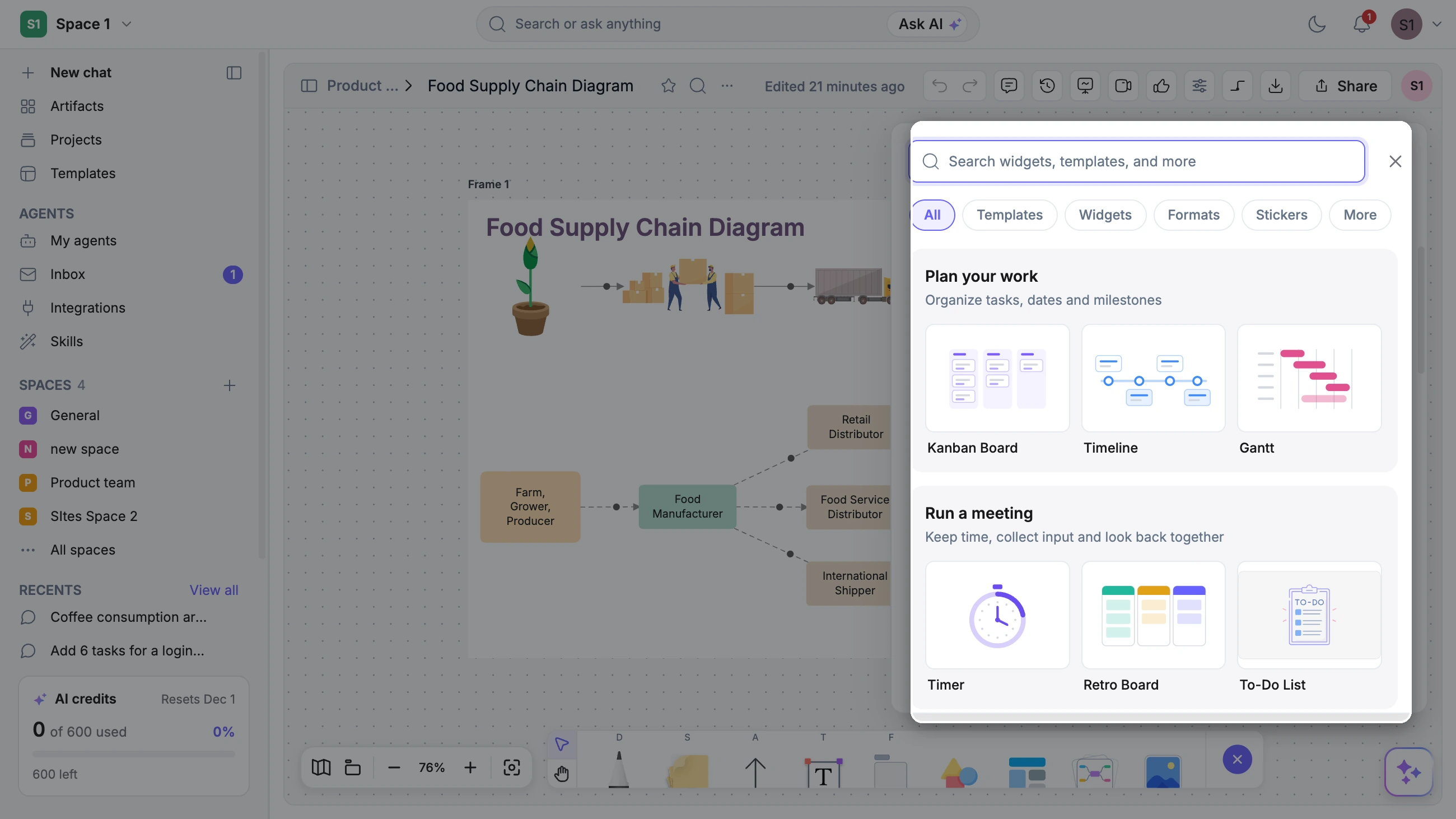
Place a Kanban, Timeline, Gantt, Task Table, To-Do list, Timer, Retro Board, SWOT or Weekly Planner right on the board, plus stickers, emoji and GIFs.
Present frames as slides
Group content into frames, then Present them one at a time with a timer and a frame list.
Work together
See each other's changes live, leave comments with @mentions, send reactions, run a shared timer, and go back to any earlier save in Version history.
Made for
- Process maps and flowcharts for operations and support teams.
- System and cloud architecture diagrams for engineers.
- Workshops, retros and brainstorms on a shared whiteboard.
- Org charts built from a spreadsheet.
- Roadmaps and plans with timeline, Gantt and kanban widgets.
Start one
| Where | What to click |
|---|---|
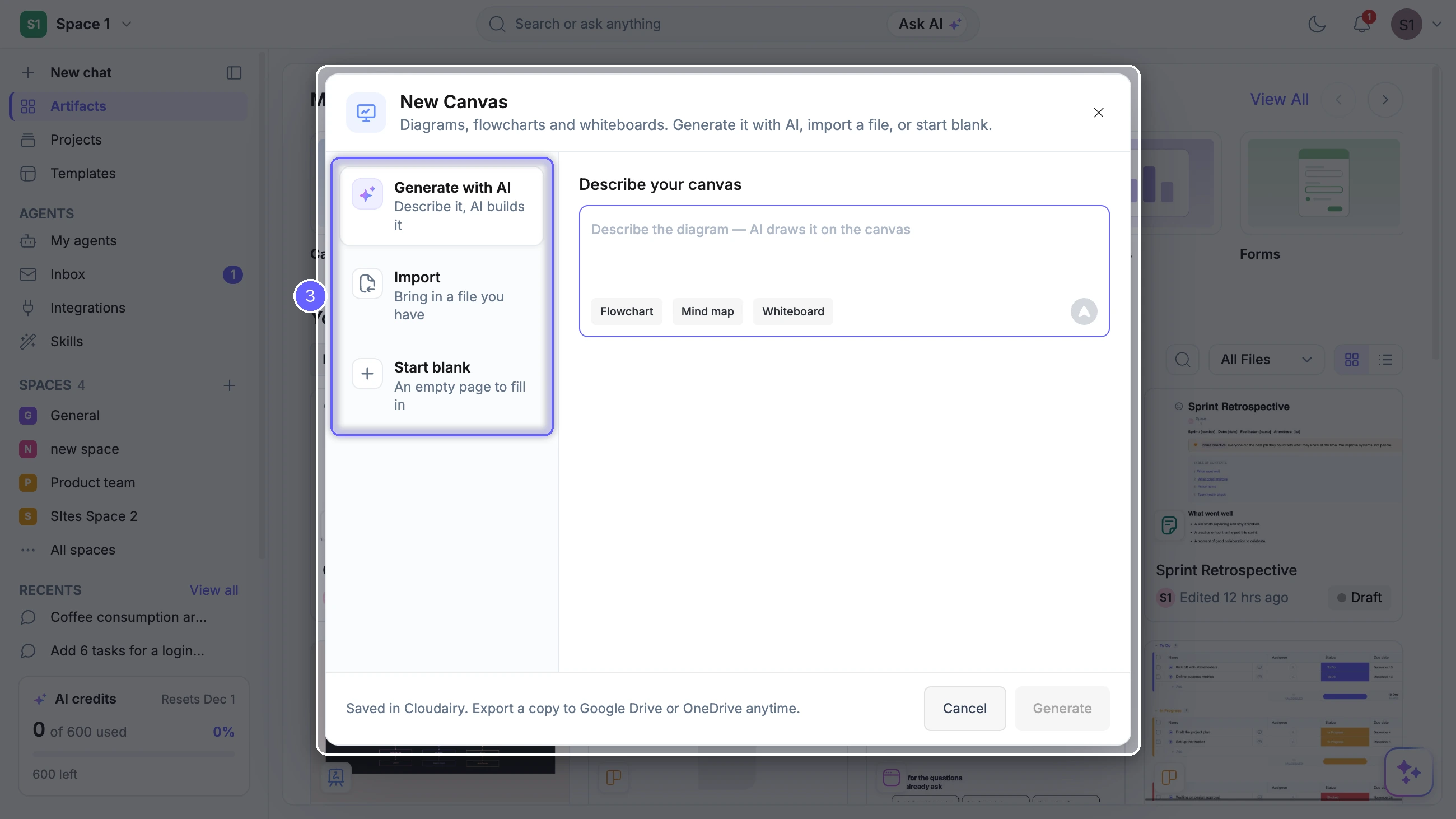
| Artifacts | Make something new > Canvas. The New Canvas dialog opens with Generate with AI, Import and Start blank. |
| New chat | Click Create and pick Canvas, then describe the diagram. |
| A space | Open the space, click Create new, then Canvas. |
| A project | On the project page, click +, then Canvas. |
| Templates | In the left sidebar, click Templates, filter by Canvas or Whiteboard, and click Use. |
See Create a canvas for each option step by step.
With Cloudairy AI
- Generate with AI in the New Canvas dialog: describe the diagram, or click a chip: Flowchart, Mind map or Whiteboard.
- AI chat on the board: click the AI chat toggle at the top left. Use chips such as ER diagram, Flowchart, AWS architecture, Mind map, Sequence and Image, or attach an image (PNG, JPG or WebP, up to 7 MB). Show the chat as Sidebar, Floating or Full screen.
- AI on selected text: the selection toolbar's AI button offers Fix grammar, Rewrite, Change tone and Translate.
- Make an image: in Images, ask AI for a picture.
AI uses AI credits. See AI credits.
Share and export
- Share: add people by email as Can Edit or Can View, set link access, and Copy link.
- Export: PNG, JPG, SVG or PDF, the whole board or selected items only, at 1x or 2x, to your computer, Google Drive or OneDrive.
- Save backup file keeps a full copy. Convert to Template shares the board as a template.
See Import and export a canvas.
On your plan
| Free | Pro | Business | Enterprise | |
|---|---|---|---|---|
| Canvases | Counts toward 3 items in total | Unlimited | Unlimited | Unlimited |
| Export PNG and JPG | Yes | Yes | Yes | Yes |
| Export SVG and PDF | Upgrade prompt | Yes | Yes | Yes |
| Import a file into a new canvas | Upgrade prompt | Yes | Yes | Yes |
| AI credits | 100 | 1,000 | 2,500 | Unlimited |
See Plans.