

Artifacts›Docs
Write with blocks and the slash menu
Add any block to a doc with the slash menu, the Insert panel or the block handle.
Use the slash menu
Click an empty line and type /.
Keep typing to filter, for example /table or /callout.
Press Enter to add the block, or Esc to close.
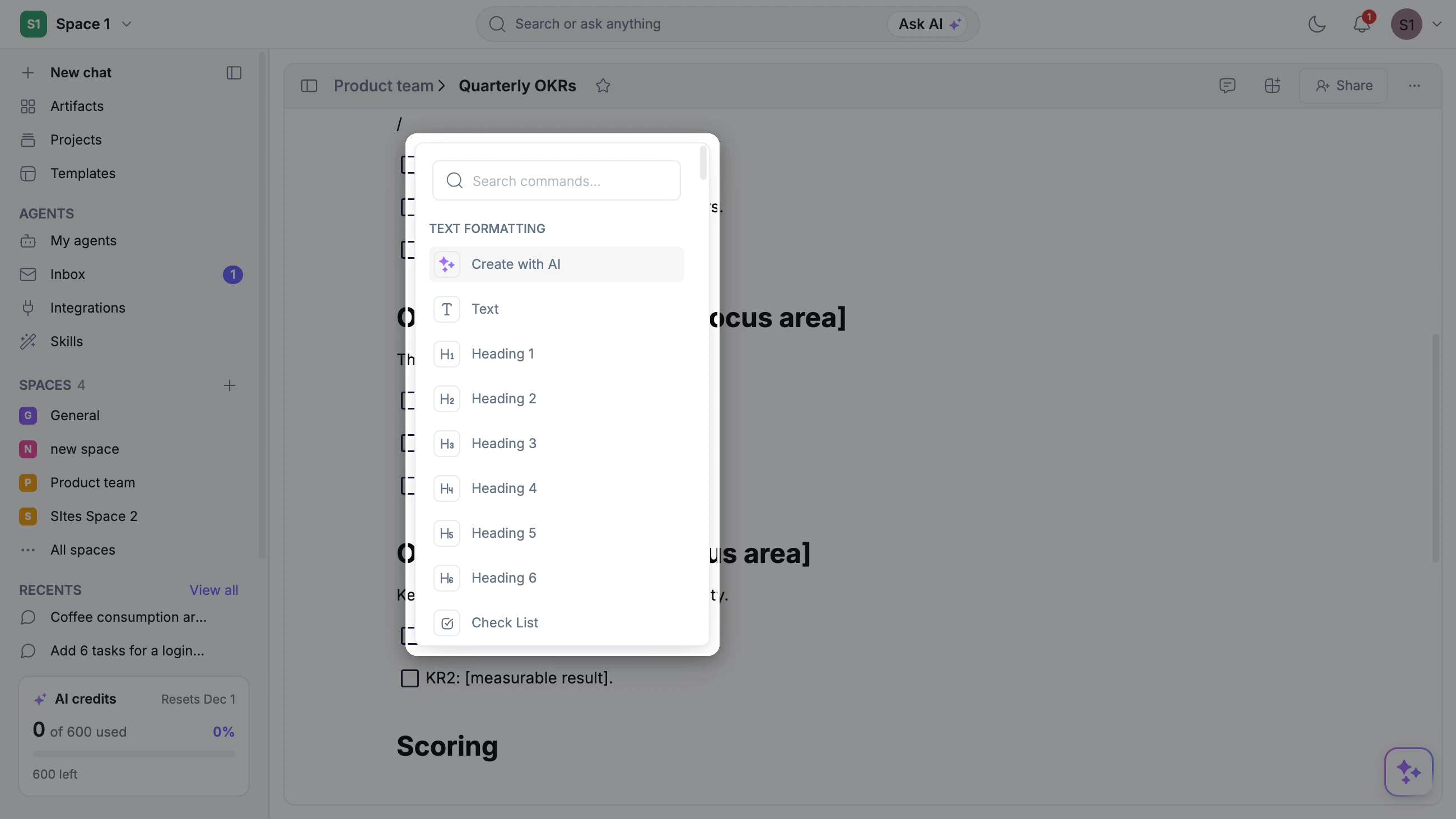
Blocks by group
| Group | Blocks |
|---|---|
| Text formatting | Text, Heading 1–6, lists (bullet, numbered, task, toggle), Quote, Code, Banners |
| Inline | Mention a Person, Mention a Page |
| General | Table, Sticky Note, line separators, Spacer, Page Break, Button, Table of Contents, iFrame, Signature, Web Bookmark, Block Equation, Breadcrumb, Tabs, Mermaid, callouts |
| Layout | 1 Column to 4 Column |
| Media | Image, Video, Audio, File |
| Embeds | Website, Figma, Google Drive, Google Maps, Miro, Loom, YouTube, GIPHY |
| Views | Task Table, List, Board, Calendar, Timeline, Gallery, Cards, Canvas |
| Smart Layout | Card designs such as images with text |
| Charts | Area, Bar, Bubble, Line, Pie, Scatter |
| Field chips | Date, Date Range, Date and Time, Time, Reminder, Checkbox, Toggle, Slider, Scale, Progress |
Handy blocks
- Callouts: "/callout" lists Info, Tip, Alert and Critical. "/tip", "/alert" and "/critical" go straight to one.
- Divider: Line, Thick, Dashed, Dotted, Wavy or Paragraph.
- Banner: 19 colours. Quote: its own Quote Color.
- Spacer: set the height in pixels.
- Page Break: starts a new page in PDF and Word exports.
- Code: set the language, line numbers, a caption and wrap; copy; light or dark.
- Signature: draw, type or upload.
- Tabs: double-click a tab to rename it.
- Mention a Page: pick a doc from My Files. The chip shows a preview card and can display as an inline link, a preview or a URL.
Move and edit blocks
Hover a block. A + (add block) and a grip appear on the left.
Drag the grip to move the block.
Click the grip for Comment, Move block up, Move block down and Delete.
Images and media
Click an image for Replace image (Upload from device or Upload via URL), Flip, Crop, Align, Comment and ⋯ (Download, Border, Add caption, Duplicate, Delete). Videos have Align, a caption, View original and Download.
Next steps
Was this helpful?