

Docs
Write anything from quick notes to full specs in a block editor with tables, embeds, charts and live task views, and with AI next to you.
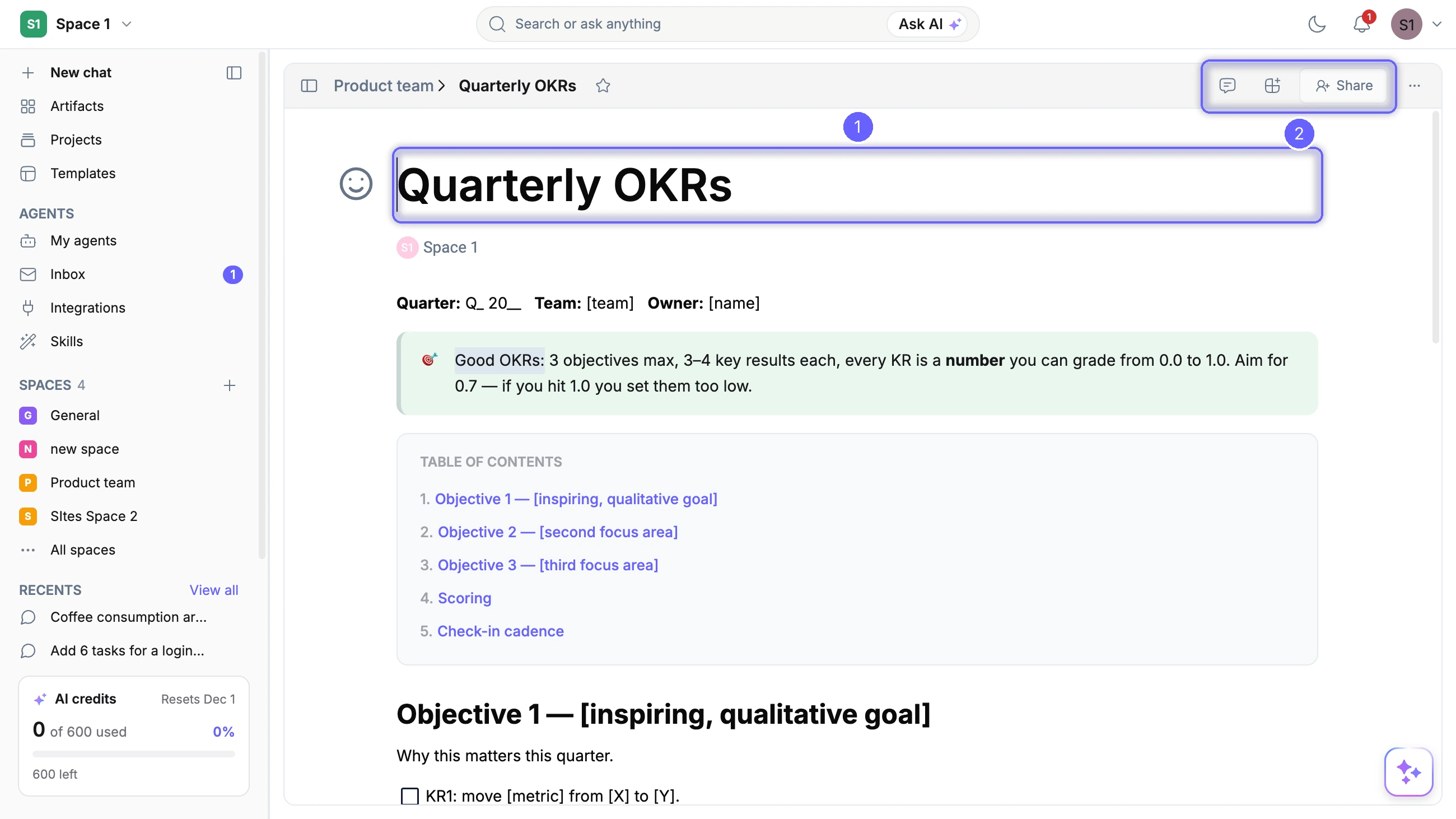
What you can do
Write with blocks and the slash menu
Type / for headings, lists, tables, callouts, code, columns, media, embeds, charts and more, or open the Insert panel (Ctrl+/).
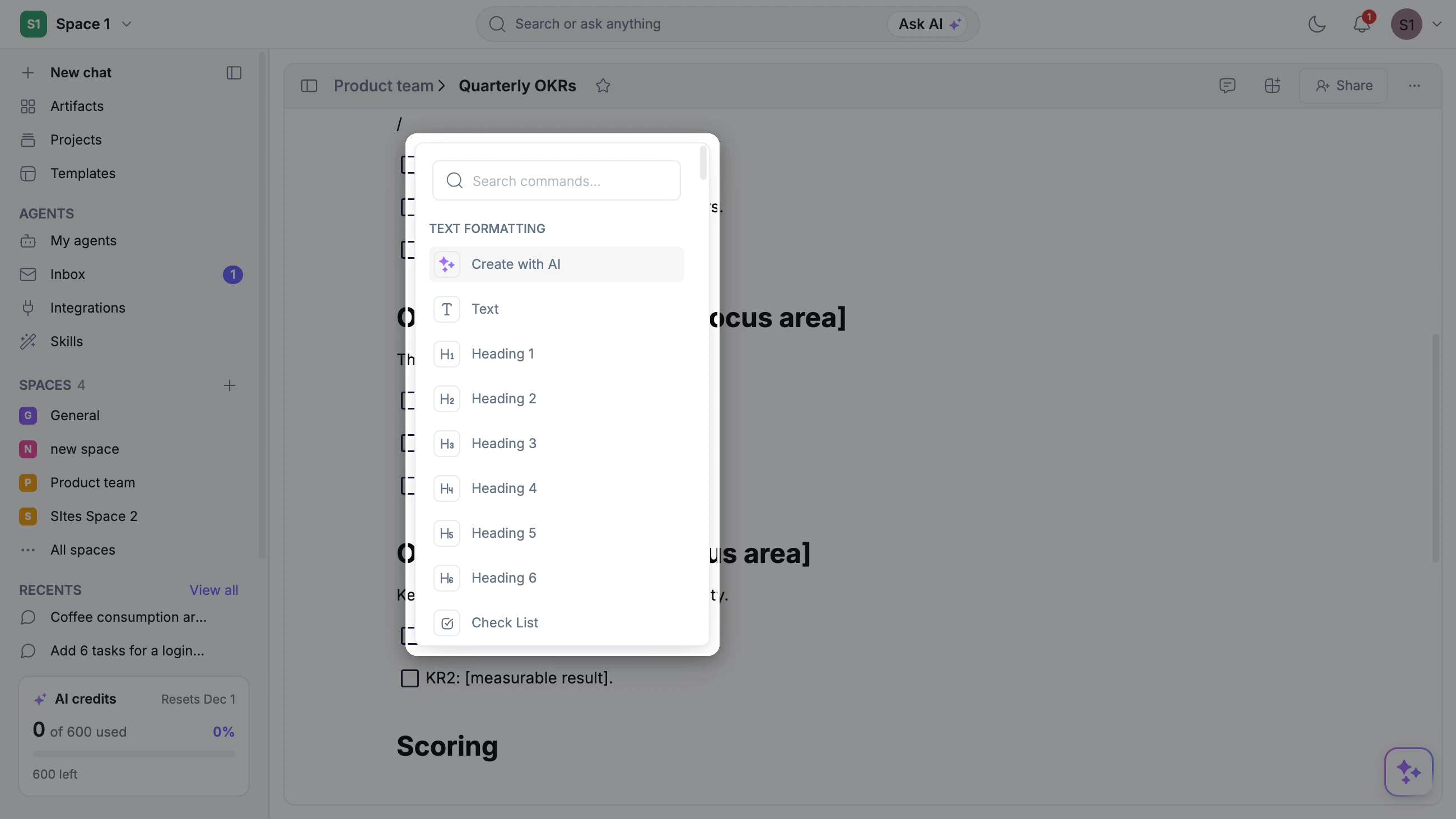
Build tables and databases
Give table columns types such as Number, Date, People, Select and Status, or Turn into database to make a task database.
Embed live boards and other tools
Show a task board as a Task Table, List, Board, Calendar, Timeline or Gallery view inside the doc, a canvas as a view-only preview, or embed Figma, Google Drive, Maps, Miro, Loom, YouTube and GIPHY.
Add charts, diagrams and layouts
Insert an Area, Bar, Bubble, Line, Pie or Scatter chart, a Mermaid diagram you can open on a canvas, smart layouts of cards, and math equations.
Review together
Comment inline, @mention teammates, and switch on Suggest edits so changes arrive as tracked suggestions to Accept or Reject.
Export and restore
Export to PDF, Word or Markdown with page size, margins and a page picker, and restore any version from Version History.
Made for
- Product specs, PRDs and design docs.
- Meeting notes with action items.
- Plans and briefs with live task views and charts.
- Policies and handbooks that others review with suggested edits.
Start one
| Where | What to click |
|---|---|
| Artifacts | Make something new > Docs. The New Doc dialog opens with Generate with AI, Import and Start blank. |
| New chat | Create ▾ > Docs, then describe the doc. |
| A space | Create new > Doc. The dialog says "This doc will be created in ." |
| A project | Project page + > Doc. |
| Templates | Left sidebar > Templates > type Docs > Preview or Use. |
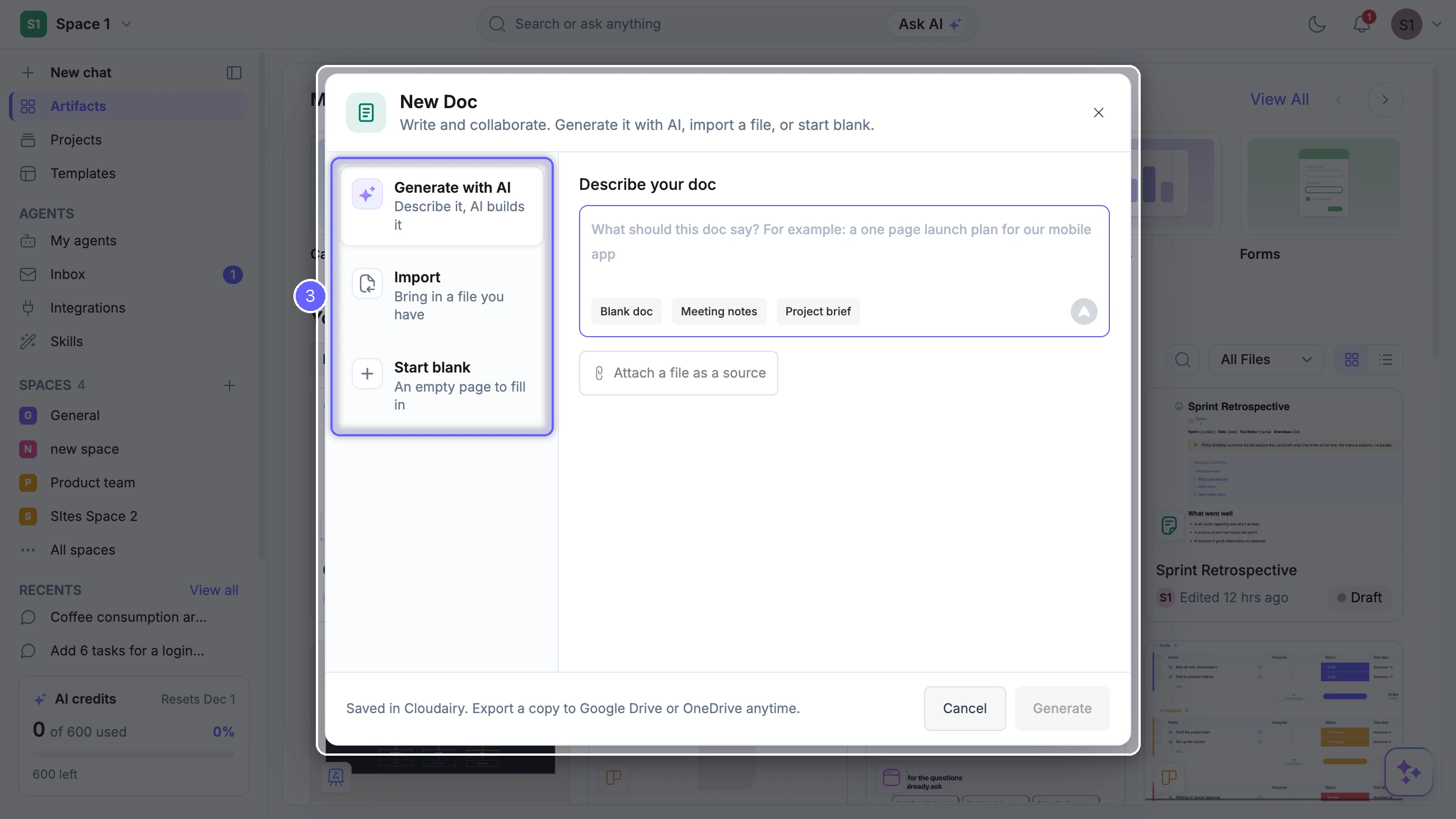
With Cloudairy AI
- Generate with AI in the New Doc dialog: describe the doc, use an example chip, or Attach a file as a source (.png, .jpg, .jpeg or .webp).
- AI chat beside the doc: click the AI chat toggle in the top bar.
- On an empty line, press Space for the inline AI line, or type /Create with AI for a prompt bar in the doc.
- Select text for AI actions in the selection bubble. The lightning button opens AI Suggestions with visual templates.
Share and export
- Share: invite by email as Can View or Can Edit, set link access, Copy link.
- Export: PDF, Word or Markdown, to your computer or Google Drive.
- Save as Template from the ⋯ menu.
On your plan
| Free | Pro | Business | Enterprise | |
|---|---|---|---|---|
| Docs | Count toward 3 items in total | Unlimited | Unlimited | Unlimited |
| AI credits | 100 | 1,000 | 2,500 | Unlimited |