

Wiki
Publish a branded help centre, product docs or team handbook, built from spaces and pages, with an AI assistant for readers and analytics for you.
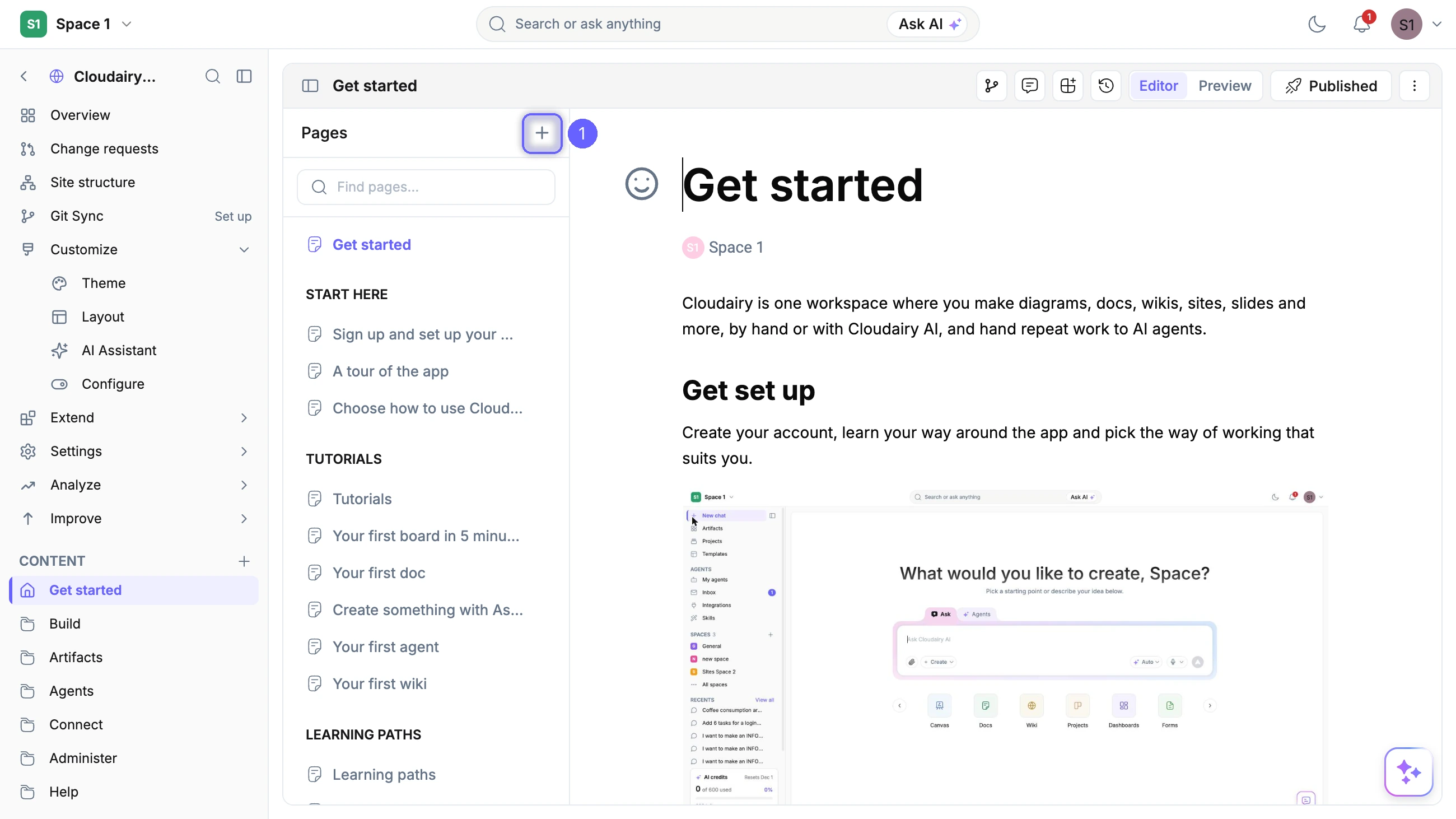
Every wiki page is a doc, so you write with the same blocks and slash menu as in Docs.
What you can do
Start from a template, an import or Git
Pick a starter wiki, import files or a public docs site, start blank, or sync with Git.
Organise spaces, groups and pages
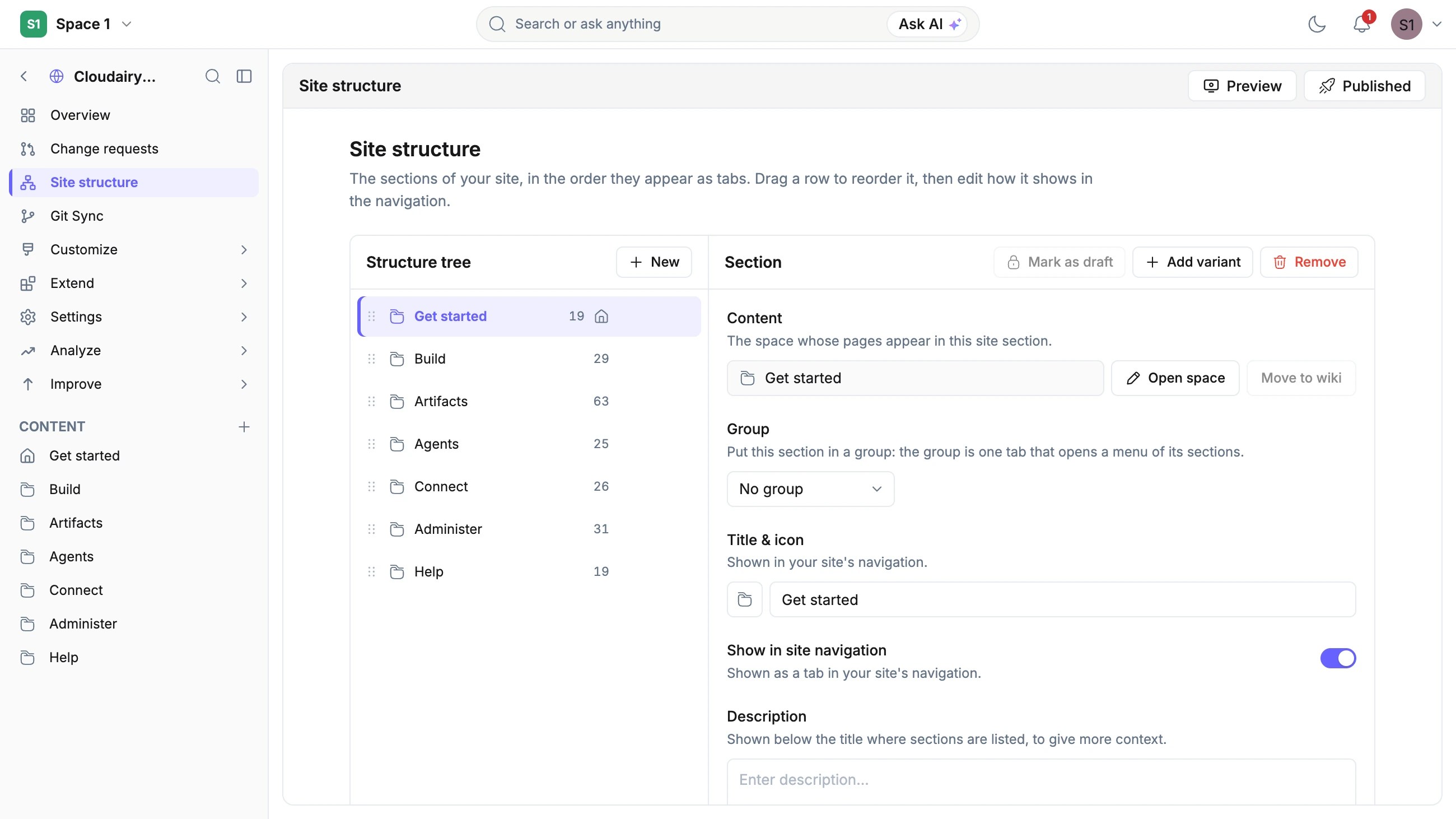
Spaces become the tabs of your site. Drag pages into order, group them, hide them, duplicate them or export them as PDF.
Shape the navigation
In Site structure, set each section's title, icon, slug and draft state, and pick the home section.
Brand the site
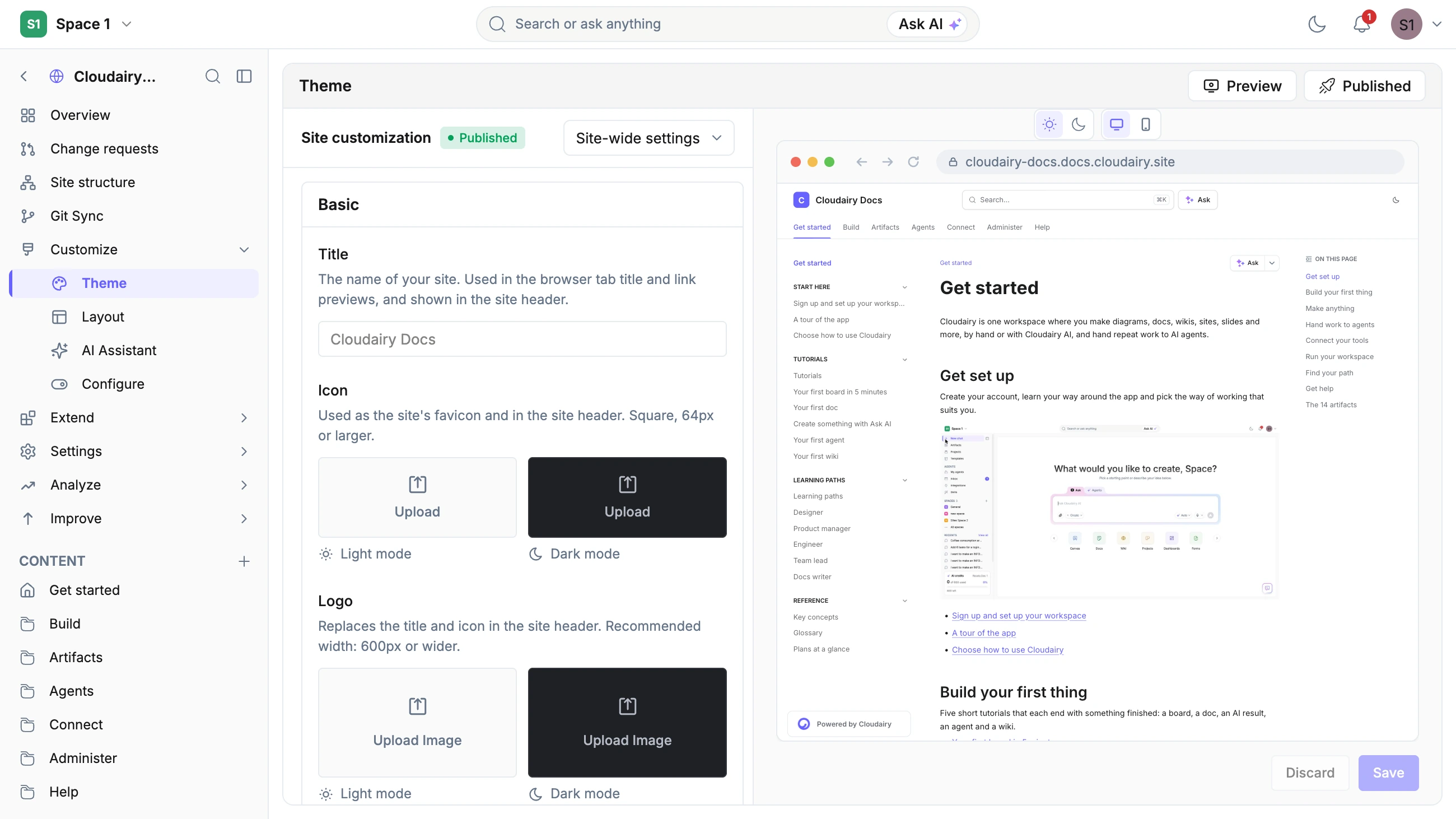
Set logos, theme, colours and fonts, the header, announcement, footer and social links, with a live preview in light or dark and on desktop or phone.
Give readers an AI assistant
Turn on the AI Assistant so readers get answers from your content. Every page also offers Copy page, View as Markdown, open in ChatGPT, Claude or Perplexity, and Connect with MCP.
Publish, review and improve
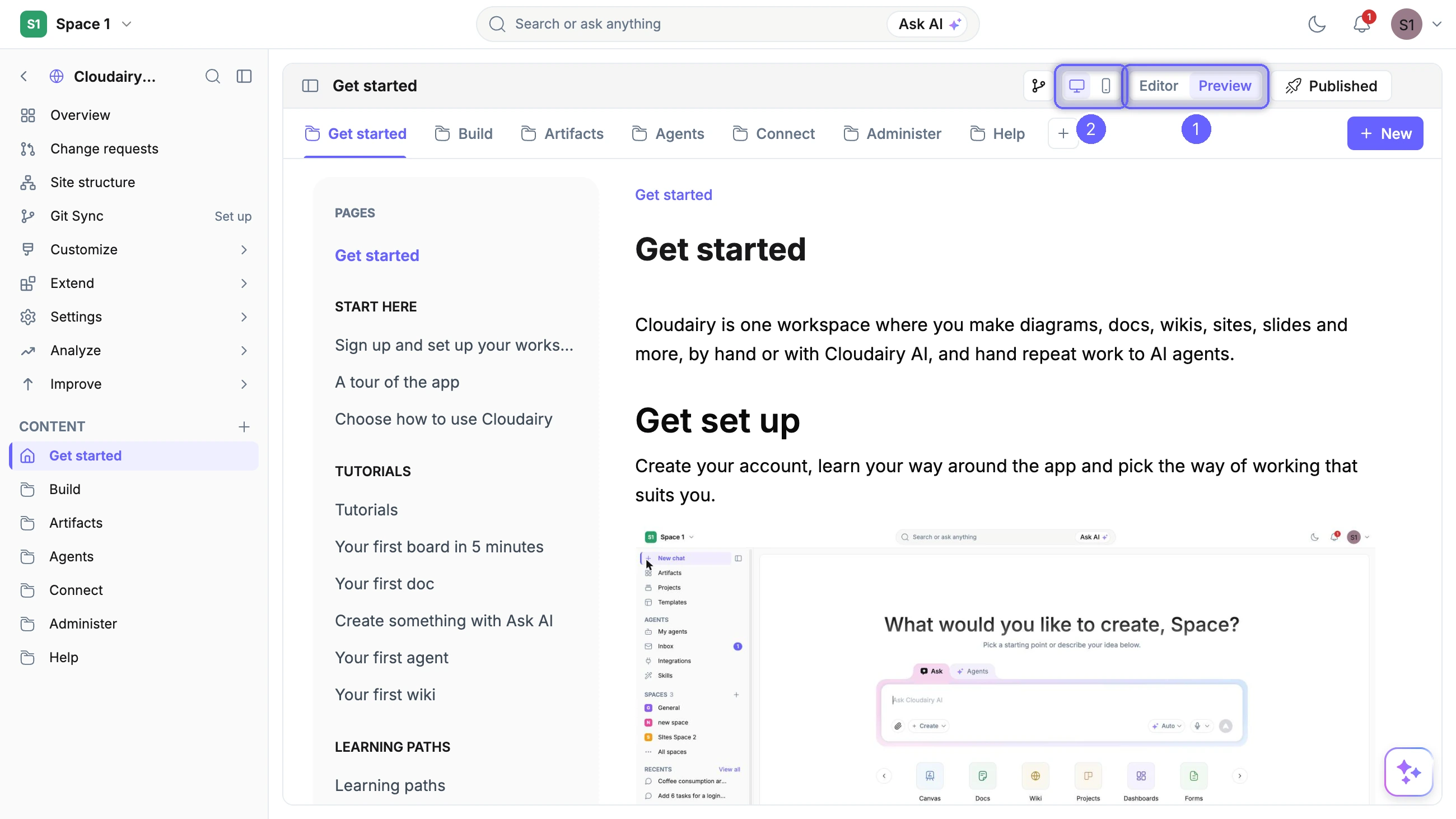
Publish as Public or Private, propose edits in Change requests without touching the live site, and use Analyze and Improve to see traffic, content gaps and broken links.
Made for
- Public product docs and help centres.
- Internal handbooks and knowledge bases.
- API and developer docs.
- Onboarding guides for customers or new staff.
Start one
| Where | What to click |
|---|---|
| Artifacts | Make something new > Wiki. An "Untitled wiki" is created and opens on Choose how you want to start. |
| New chat | Click Create and pick Wiki, then describe it. Cloudairy AI plans the spaces and writes the pages. |
| A space or project | Create new (space) or + (project) > Wiki. |
| Your Files | Artifacts > Your Files > a wiki. |
See Start a wiki.
With Cloudairy AI
- Ask AI with Wiki: describe the wiki in New chat with Wiki picked. AI plans the spaces and writes every page.
- AI in pages: every page has the doc editor's AI tools.
- AI Assistant for readers: set its placement, greeting, instructions and suggested questions in Customize > AI Assistant.
- MCP access: let readers' AI tools use your docs (Extend > MCP access).
Share and export
- Publish as Public or Private, at your wiki address or your own domain.
- Settings > Members to invite editors.
- Export as PDF for a page, or the whole wiki as a .zip from the reader's page actions.
- Docs Embed gives a snippet to put your docs on another site.
On your plan
| Free | Pro | Business | Enterprise | |
|---|---|---|---|---|
| Wikis | A wiki counts once toward 3 items in total; its pages do not count | Unlimited | Unlimited | Unlimited |
| AI credits | 100 | 1,000 | 2,500 | Unlimited |