

Create a canvas
Start a canvas with AI, from a file, blank, or from a template.
From the Artifacts page
In the left sidebar, click Artifacts.
Under Make something new, click Canvas. The New Canvas dialog opens.
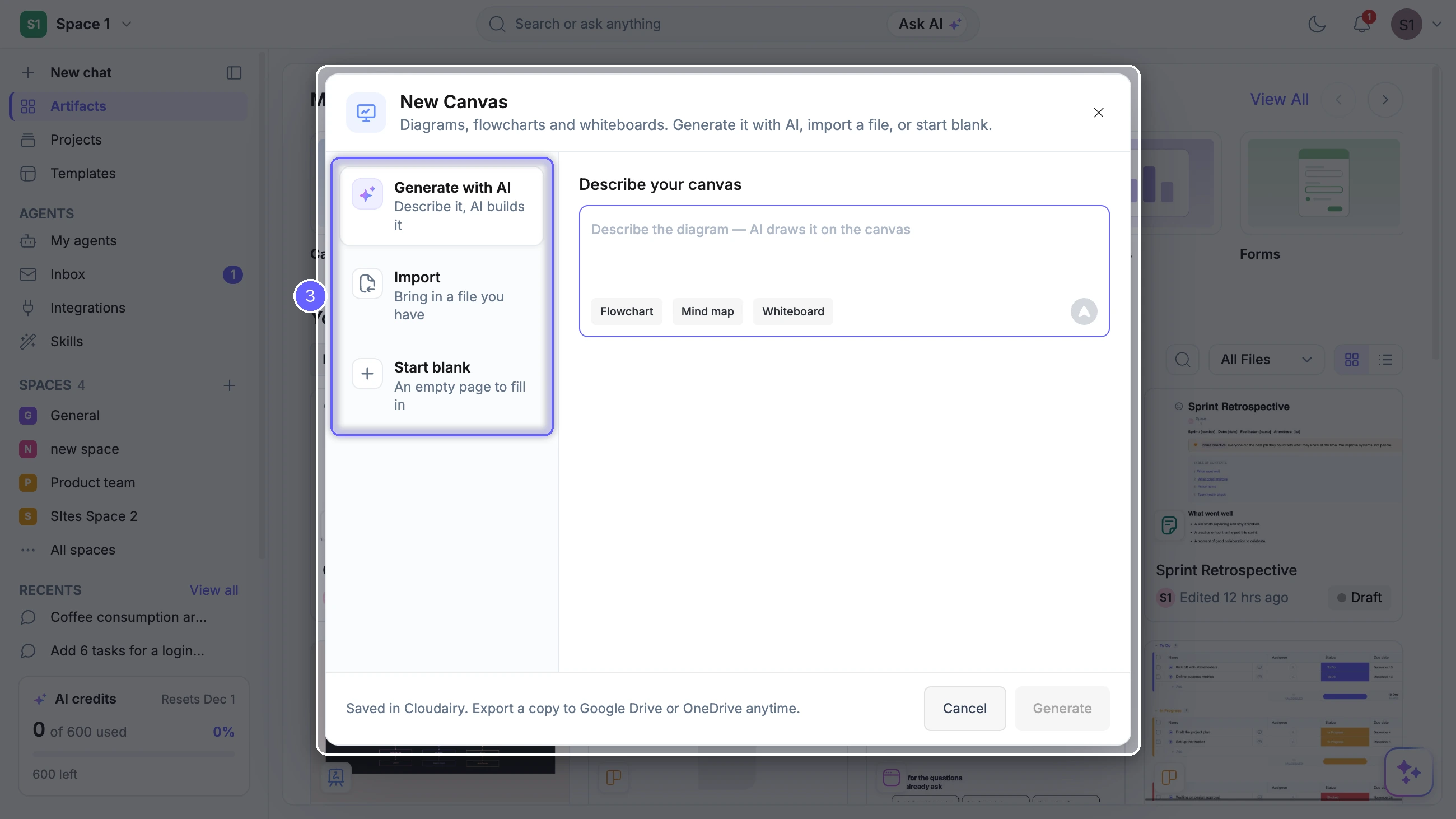
Pick how to start:
- Generate with AI: describe the diagram, for example "Checkout flow with cart, address and payment", or click Flowchart, Mind map or Whiteboard. Click Generate.
- Import: drop a file or pick one from Google Drive or OneDrive, up to 25 MB. You can convert a Lucid file (.json or .vsdx) or an org chart (.csv or .xlsx).
- Start blank: type a name, or pick a template, and click Create canvas.
The canvas opens.
In a space or a project
Open the space (left sidebar > SPACES) or the project.
Click Create new in a space, or + on a project page.
Click Canvas and choose how to start, as above.
Names must be unique in a space. If you reuse one, you see "A canvas named "…" already exists here. Choose a different name."
From a template
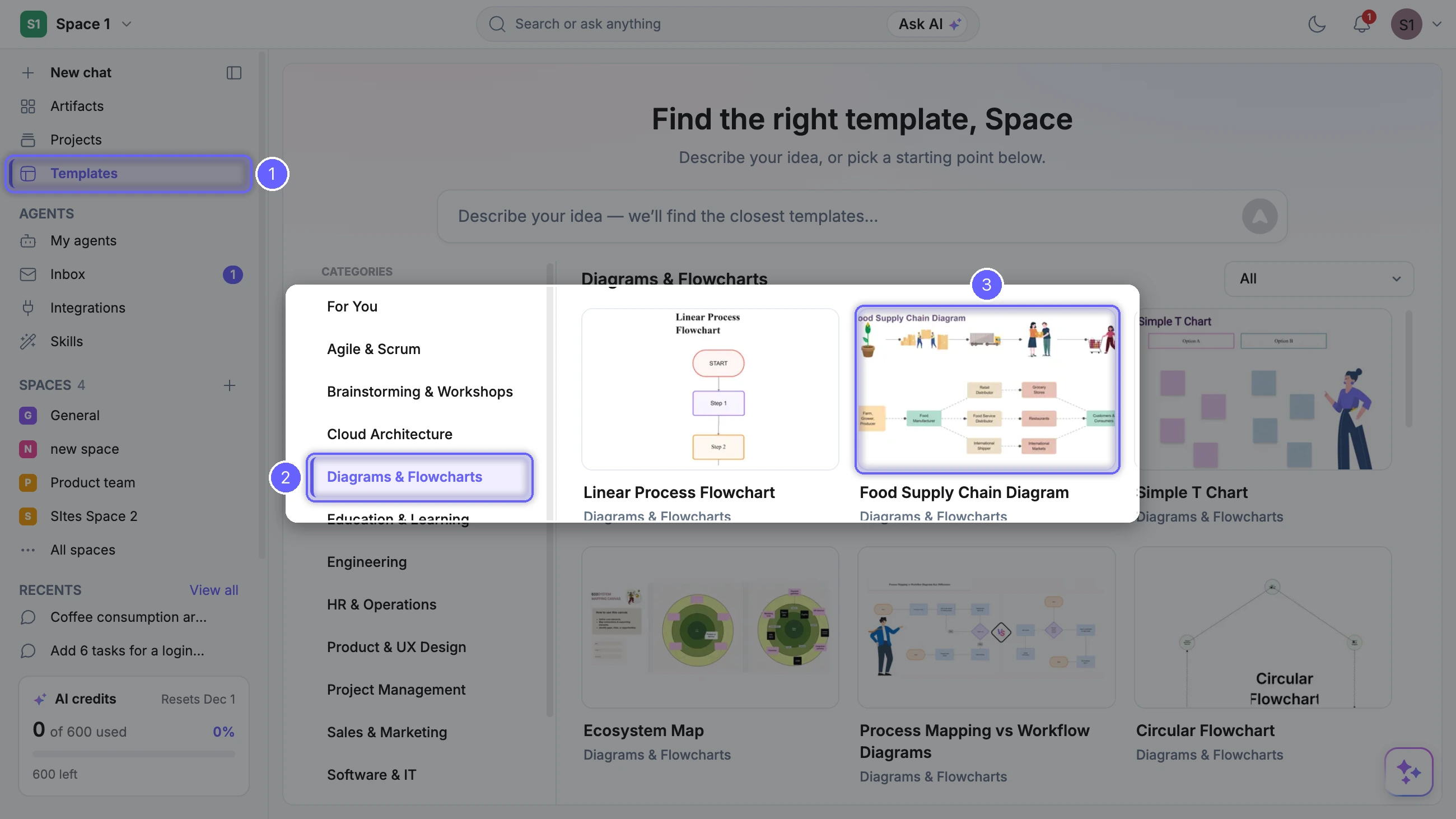
In the left sidebar, click Templates.
Filter by Canvas or Whiteboard, or describe what you need in the search box.
Hover a card and click Preview or Use. Use template makes your own copy and opens it.
Duplicate a canvas
In a space, open the canvas row's ⋯ menu and click Duplicate. The Duplicate Board dialog suggests " (copy)".