CloudairyCloudairy
Cloudairy
Templates
Get startedBuildArtifactsAgentsConnectAdministerHelp
Artifacts
CanvasCreate a canvasA tour of the canvas editorShapes, lines and iconsSticky notes, text, drawing and framesWidgets in More toolsFlowcharts, mind maps, UML and cloud diagramsPresent, comment and restore versionsImport and export a canvas
WhiteboardRun a workshop on a whiteboard
ERDBuild tables and relationshipsImport a schema and export SQL
DocsA tour of the doc editorWrite with blocks and the slash menuTables and databasesEmbeds, views, charts and layoutsComments and suggested editsImport, export and version history
WikiStart a wikiSpaces, groups and pagesSite structure and navigationCustomize your wikiPublish your wikiPreview the reader viewChange requests, Extend, Analyze and Improve
ProjectsThe project pageCreate a task boardBoard viewsThe Main Table and columnsTask cardsOverview, automations and board settings
FormsBuild a formDesign and settingsShare a form and review results
DashboardsBuild a data dashboardBuild a project dashboard
SitesBuild a siteEdit your siteSite settings and publishing
CodeWork with a code project
SlidesBuild a deckEdit and restyle a deckPresent and download a deck
InfographicsMake and edit an infographicResize and export an infographic
WireframesMake and edit wireframes
ClipsRecord a clipEdit a clip and its transcriptShare a clip and its settings
Artifacts›Wiki
View as Markdown View this page as plain text

Customize your wiki

Set your wiki's theme, layout, AI assistant and site settings, with a live preview as you go.

Open Customize

In the wiki sidebar, open Customize.

Pick Theme, Layout, AI Assistant or Configure.

Make changes. The live preview has its own Light / Dark and Desktop / Phone switches.

Click Save, or Discard to drop your changes.
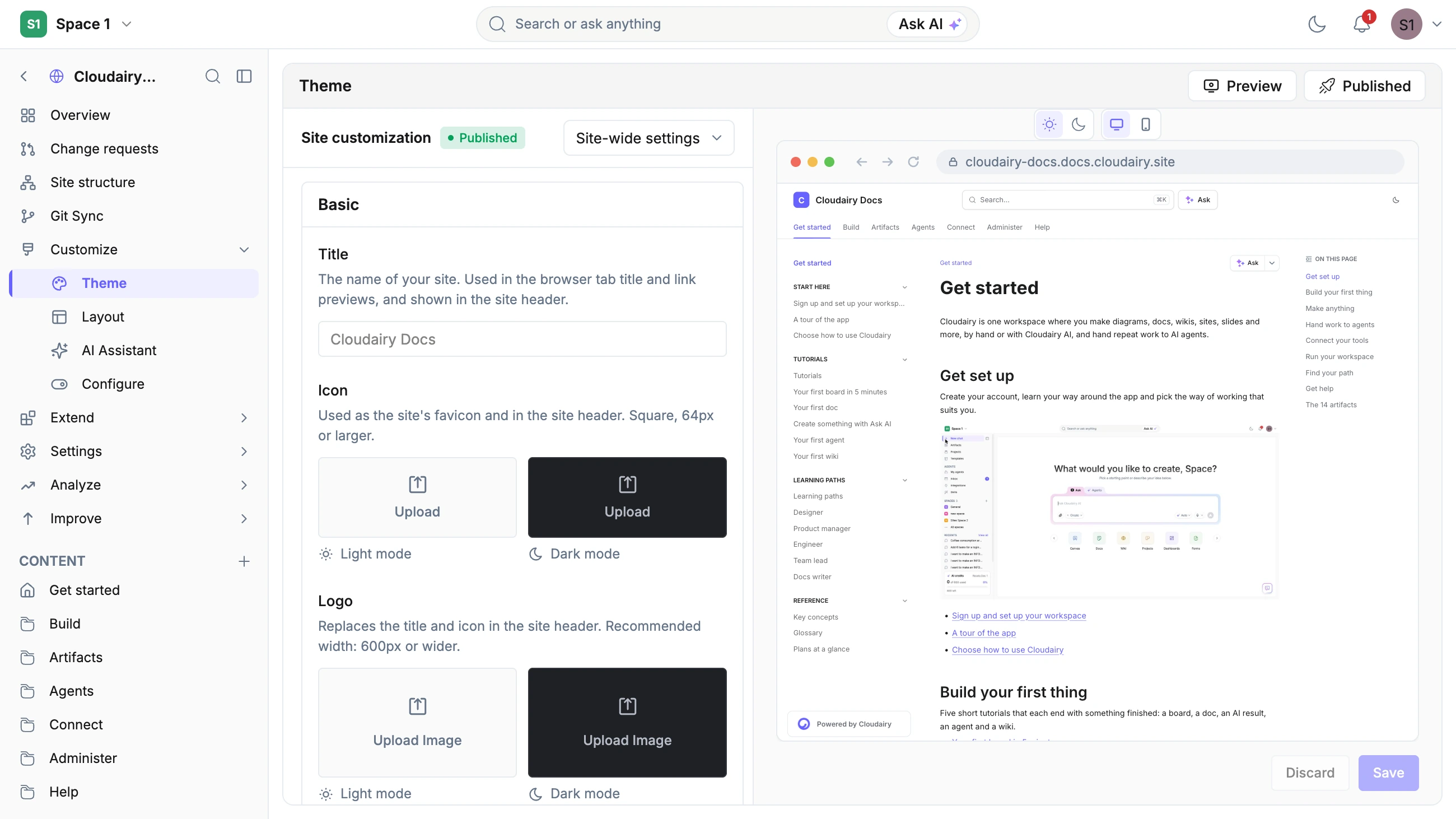
Customize Theme with a live preview
Change title, colours and fonts on the left; the live preview updates on the right.

Theme

Setting What it does
Title The site title
Logos and icon Upload images of 4 MB or smaller
Theme cards A ready look to start from
Colours Primary and other colours, and a dark base colour
Fonts The site's fonts

Layout

Setting What it does
Header search How search shows in the header
Navigation links Links in the site header
Announcement A banner at the top of the site
Pagination Previous and next links on each page
Footer Footer links and text
Social Your social accounts

AI Assistant

Set the assistant's placement, greeting, instructions and suggested questions, so readers get answers from your content.

Configure

Set the site language, how links open, and the social image used in link previews.

Next steps

  • Publish your wiki
  • Preview the reader view

Last updated November 26, 2026

Was this helpful?
PreviousSite structure and navigationNextPublish your wiki
On this page
Open CustomizeThemeLayoutAI AssistantConfigureNext steps
Was this helpful?
© 2026 Cloudairy

Product

CloudairyTemplatesPricing