

Artifacts›Canvas
A tour of the canvas editor
Learn the four parts of the canvas editor: the top bar on the left, the top bar on the right, the bottom dock and the bottom-left controls.
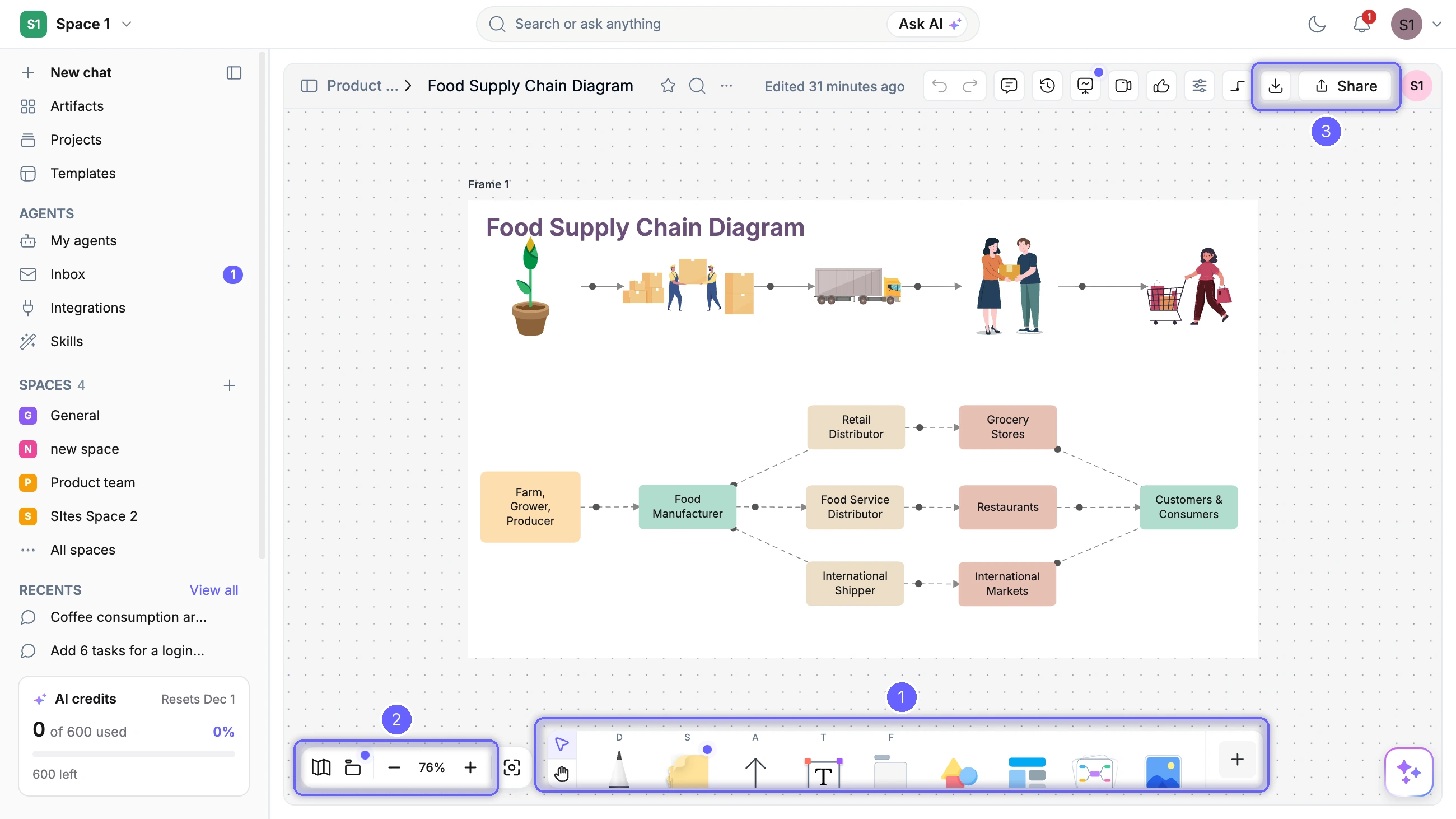
Top bar, left
| Control | What it does |
|---|---|
| AI chat toggle | Opens the AI chat next to the board. |
| Space crumb | Goes back to the space the canvas lives in. |
| Title | Click to rename. |
| Star | Adds the canvas to your favourites. |
| Find | Find and replace text on the board. |
| ⋯ Board actions | Rename, Copy link, Open in new tab, Move, Convert to Template, Save backup file, Hide shape text, Delete. |
Top bar, right
| Control | What it does |
|---|---|
| Undo and Redo | Step back or forward. |
| Comment | Click the board or a shape to add a comment. |
| Version history | Earlier saves, grouped by day. |
| Present | Show frames one at a time. |
| Record | Record your screen while you walk through the board. |
| Reactions | Send a live reaction to everyone on the board. |
| Board options | Board details, Background, Timer and the Light / Dark theme. |
| Edge animation | Animate the lines on the board. |
| Export | Download an image or PDF. |
| Share | Invite people and set link access. |
Board options
- Board details: people, owner, contributors, about and contents, in a side panel.
- Background: 10 swatches or a custom colour, and None or Dot grid.
- Timer: a shared countdown that shrinks to a pill.
- Theme: Light or Dark.
Bottom dock
| Tool | Key | What it does |
|---|---|---|
| Select / Hand | V / H | Select items, or drag to pan. |
| Draw | D | Pen, highlighter, eraser and magic pen. |
| Sticky | S | Sticky notes. |
| Connector | A | Lines between shapes. |
| Text | T | Text boxes. |
| Frames | F | Frames that group content and become slides. |
| Shapes & lines | Shapes, lines and the full shapes panel. | |
| Templates | Drop a template onto this board. | |
| Mindmap | A mind map. | |
| Images | Photo search, Make an image (AI) and upload. | |
| + More tools | Widgets, stickers and more. See Widgets in More tools. |
Bottom left
The minimap, the frames rail (Show frames), zoom and fit.
The selection toolbar
Select a shape to set border colour, font, size, bold, alignment, lists, text colour, highlight, link, lock and AI. ⋮ More (or right-click the shape) has Cut, Copy, Copy as Image, Duplicate, Add Comment, Lock, Bring to front, Send to back, Export and Delete. Select several items to set fill and text colour for all of them.
Keyboard shortcuts
| Keys | Action |
|---|---|
| V, H, D, S, A, T, F | Pick a tool |
| Esc | Put the tool away |
| Shift+K | Stickers, emoji and GIFs |
| Cmd/Ctrl+D, C, X, V, Z | Duplicate, copy, cut, paste, undo |
| Cmd/Ctrl+= / - / 0 | Zoom in, zoom out, reset |
| Shift+1 | Fit everything in view |
Next steps
Was this helpful?