CloudairyCloudairy
Cloudairy
Templates
Get startedBuildArtifactsAgentsConnectAdministerHelp
Artifacts
CanvasCreate a canvasA tour of the canvas editorShapes, lines and iconsSticky notes, text, drawing and framesWidgets in More toolsFlowcharts, mind maps, UML and cloud diagramsPresent, comment and restore versionsImport and export a canvas
WhiteboardRun a workshop on a whiteboard
ERDBuild tables and relationshipsImport a schema and export SQL
DocsA tour of the doc editorWrite with blocks and the slash menuTables and databasesEmbeds, views, charts and layoutsComments and suggested editsImport, export and version history
WikiStart a wikiSpaces, groups and pagesSite structure and navigationCustomize your wikiPublish your wikiPreview the reader viewChange requests, Extend, Analyze and Improve
ProjectsThe project pageCreate a task boardBoard viewsThe Main Table and columnsTask cardsOverview, automations and board settings
FormsBuild a formDesign and settingsShare a form and review results
DashboardsBuild a data dashboardBuild a project dashboard
SitesBuild a siteEdit your siteSite settings and publishing
CodeWork with a code project
SlidesBuild a deckEdit and restyle a deckPresent and download a deck
InfographicsMake and edit an infographicResize and export an infographic
WireframesMake and edit wireframes
ClipsRecord a clipEdit a clip and its transcriptShare a clip and its settings
Artifacts›Projects
View as Markdown View this page as plain text

The Main Table and columns

Work with groups, columns, filters and bulk actions in a board's Main Table.
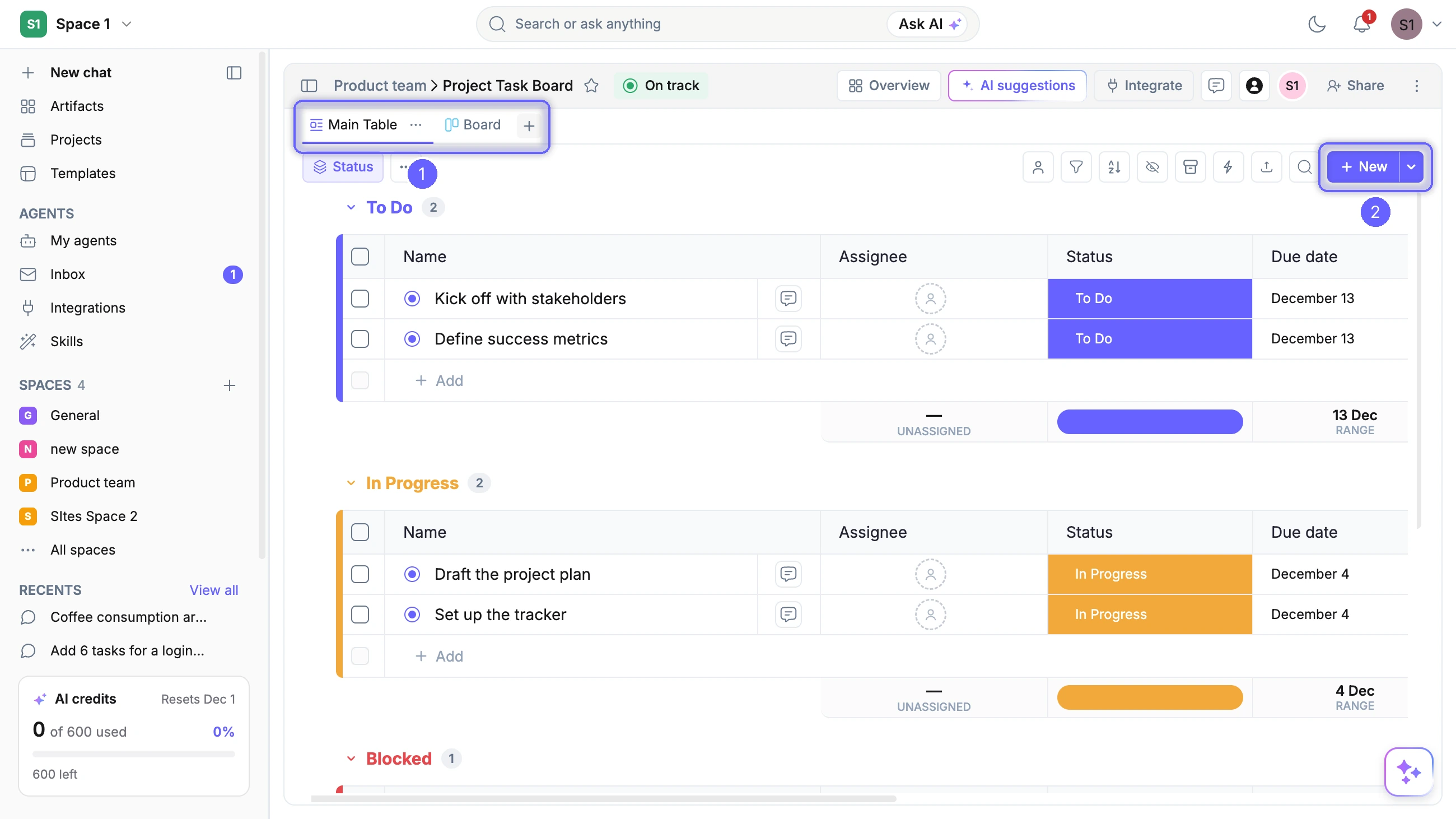
The Main Table
1 Switch or add views, 2 add a task with New.

Groups

A group's ⋯ lets you collapse or expand it, select all, add, duplicate, move, rename, recolour, export, archive or delete it.

Add a column

Click + at the end of the header row.

Pick one of 27 types: Text, Number, Money, Date, Checkbox, Person, URL, Select, Multi-select, Status, Sentiment, T-shirt Size, Rating, Voting, Signature, Files, Email, Phone, Formula, Relation, Rollup, created and edited time and by, Button and Place.

A column's ⋯ has settings (description, required, validation, restrict edit or view, hide summary), filter, sort, group, duplicate, change type, move, rename and delete.

Fill a column with AI

Open a custom column's ⋯ > AI-powered actions > Autofill this column ▸ Set a custom prompt.

Tell AI what to insert, and tick Only fill empty cells if you want.

Click Preview AI results, then Save & apply.

Row actions

A row's ⋯ has Open task, Open in new tab, Copy link, Move to, Duplicate, Create new task below, Add subitem, Convert to subitem, Archive and Delete.

Bulk actions

Tick rows to set Priority, Status, Dates or Assignees, or to Move to, Duplicate, Export, Archive or Delete them. Bulk actions apply at once.

The toolbar

Control What it does
Group by Group rows, or collapse all groups
Table options Pin columns, item height, conditional colouring, default values
Person filter, Filter Narrow the rows. Filter has Favorites only, rules, and Save to this view.
Sort, hide columns Order and tidy the table
Archived items Restore or delete archived tasks
Automation Open the automations panel
Export JSON, CSV or Excel
Search Find a task by name or #ID

No match shows "No matching tasks".

Next steps

  • Task cards
  • Overview, automations and board settings

Last updated November 26, 2026

Was this helpful?
PreviousBoard viewsNextTask cards
On this page
GroupsAdd a columnFill a column with AIRow actionsBulk actionsThe toolbarNext steps
Was this helpful?
© 2026 Cloudairy

Product

CloudairyTemplatesPricing