CloudairyCloudairy
Cloudairy
Templates
Get startedBuildArtifactsAgentsConnectAdministerHelp
Artifacts
CanvasCreate a canvasA tour of the canvas editorShapes, lines and iconsSticky notes, text, drawing and framesWidgets in More toolsFlowcharts, mind maps, UML and cloud diagramsPresent, comment and restore versionsImport and export a canvas
WhiteboardRun a workshop on a whiteboard
ERDBuild tables and relationshipsImport a schema and export SQL
DocsA tour of the doc editorWrite with blocks and the slash menuTables and databasesEmbeds, views, charts and layoutsComments and suggested editsImport, export and version history
WikiStart a wikiSpaces, groups and pagesSite structure and navigationCustomize your wikiPublish your wikiPreview the reader viewChange requests, Extend, Analyze and Improve
ProjectsThe project pageCreate a task boardBoard viewsThe Main Table and columnsTask cardsOverview, automations and board settings
FormsBuild a formDesign and settingsShare a form and review results
DashboardsBuild a data dashboardBuild a project dashboard
SitesBuild a siteEdit your siteSite settings and publishing
CodeWork with a code project
SlidesBuild a deckEdit and restyle a deckPresent and download a deck
InfographicsMake and edit an infographicResize and export an infographic
WireframesMake and edit wireframes
ClipsRecord a clipEdit a clip and its transcriptShare a clip and its settings
Artifacts›ERD
View as Markdown View this page as plain text

Build tables and relationships

Add tables and fields on the board or in the Tables panel, and link tables together.

Add a table

Open an ERD. An empty one says "No tables yet — Add a table to start your diagram."

In the bottom dock, click Add table.

Double-click the table header to name it.
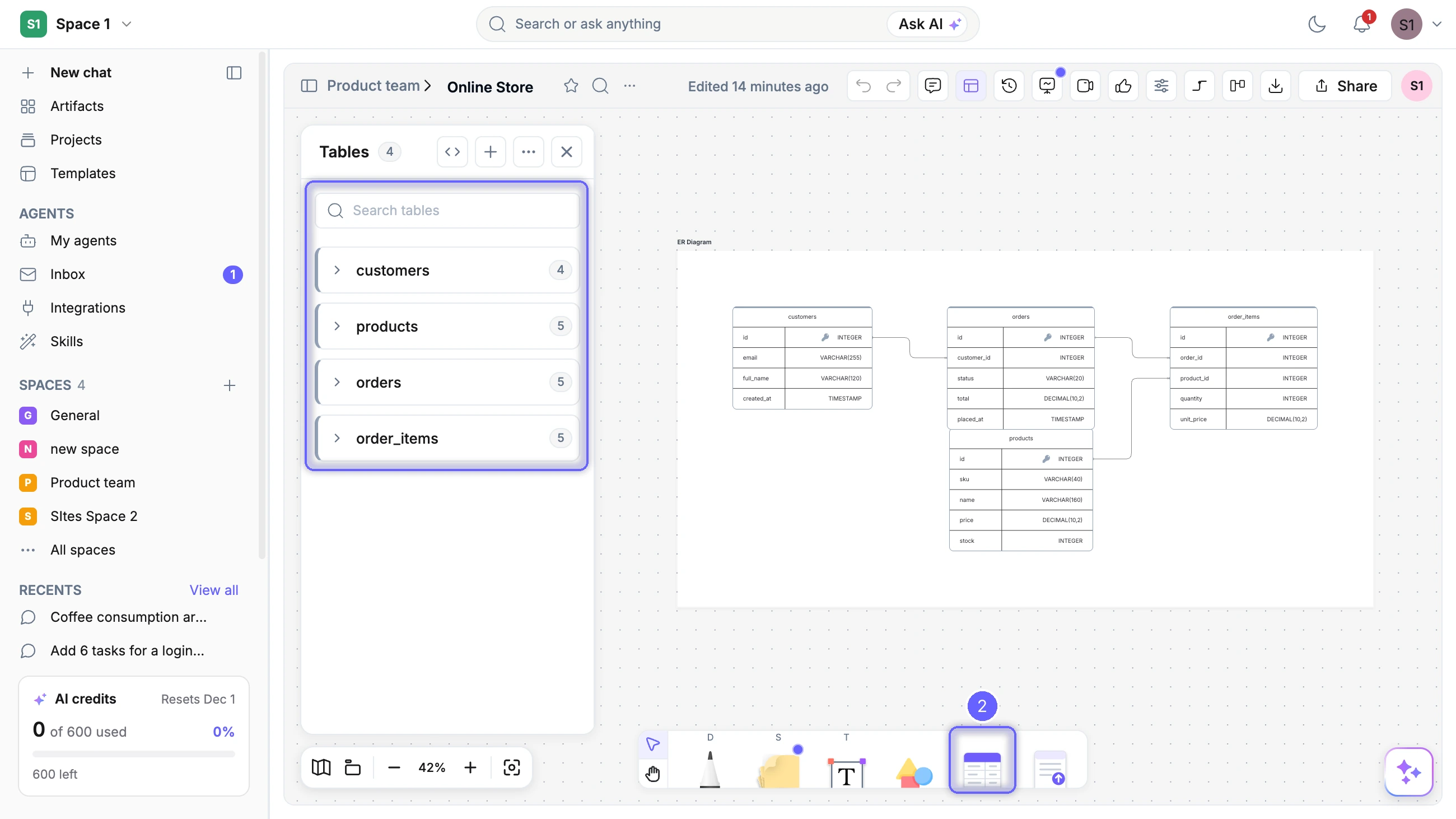
An ERD with tables on the board
Tables sit on the board with their relationships; the Tables panel lists them.

Add and edit fields

On the board:

Click + under a table to add a row.

Double-click a cell to edit the field name or type.

In the Tables panel:

Open Tables and click a table.

Under Fields, set the name, type, nullable and primary key, or click Add field.

Open a field's ⋯ for Field attributes: Unique, Array, Default value, Max length, Comments and Delete field.

Under Indexes, add indexes and set their attributes.

Use the colour chip (Table Color) to colour the table.
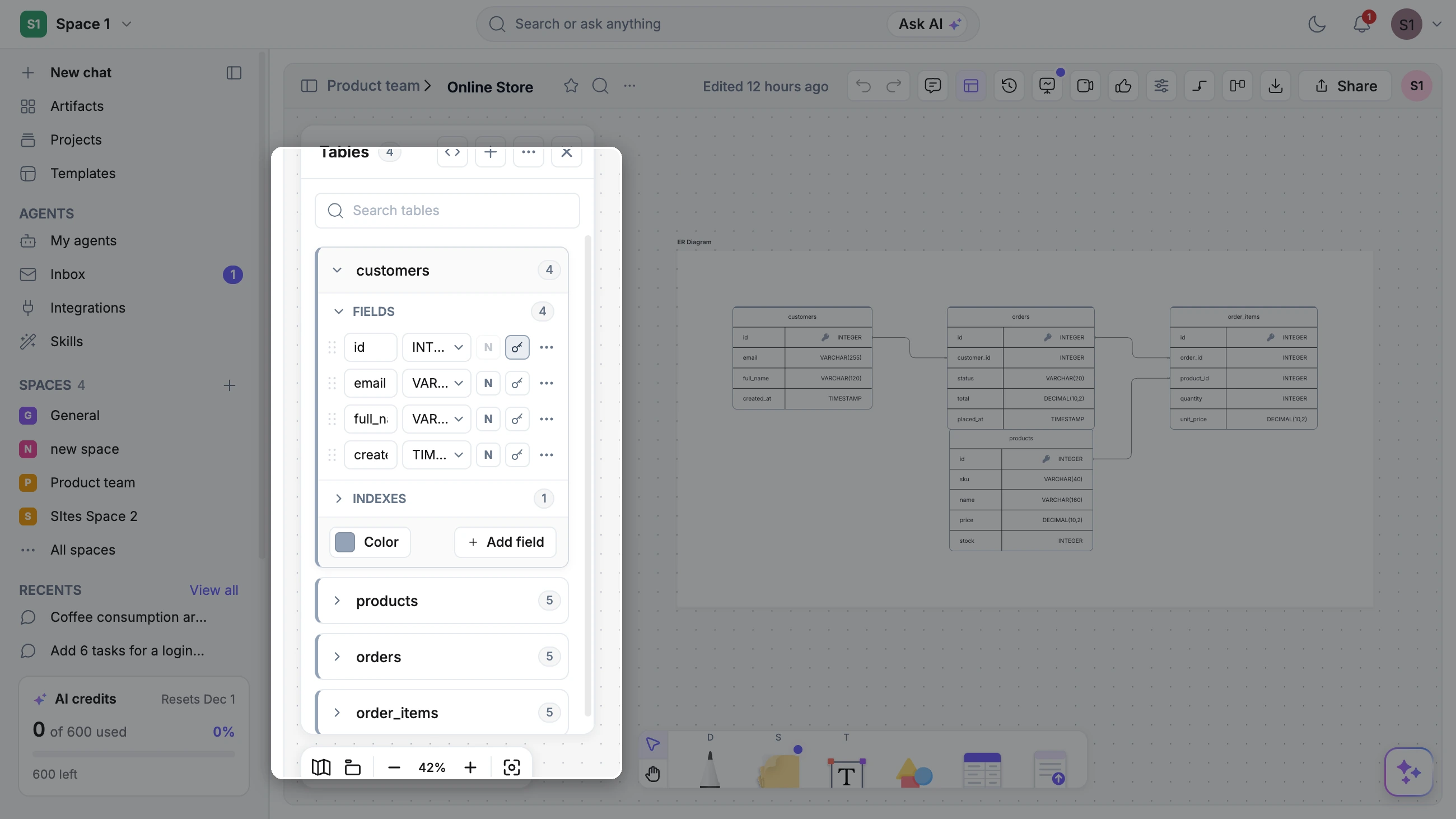
The Tables panel
Open a table to edit its fields, indexes and colour.

Manage tables

A table's ⋯ in the panel has Show on board, Rename, Add field and Delete table. Use the search box to find a table on a big diagram.

Link tables

Draw a line from one table to another to show a relationship. Click the line to set its cardinality, for example one to many.

Style a table

Click a table on the board for its toolbar: border, fill, font, size, bold, alignment, text colour, highlight, link and lock.

Edit as DBML

Click View DBML script.

Edit the script. Error lines are marked.

Click Apply to board, or Reset to undo your edits. Copy copies the script.

Next steps

  • Import a schema and export SQL
  • ERD

Last updated November 26, 2026

Was this helpful?
PreviousERDNextImport a schema and export SQL
On this page
Add a tableAdd and edit fieldsManage tablesLink tablesStyle a tableEdit as DBMLNext steps
Was this helpful?
© 2026 Cloudairy

Product

CloudairyTemplatesPricing