CloudairyCloudairy
Cloudairy
Templates
Get startedBuildArtifactsAgentsConnectAdministerHelp
Artifacts
CanvasCreate a canvasA tour of the canvas editorShapes, lines and iconsSticky notes, text, drawing and framesWidgets in More toolsFlowcharts, mind maps, UML and cloud diagramsPresent, comment and restore versionsImport and export a canvas
WhiteboardRun a workshop on a whiteboard
ERDBuild tables and relationshipsImport a schema and export SQL
DocsA tour of the doc editorWrite with blocks and the slash menuTables and databasesEmbeds, views, charts and layoutsComments and suggested editsImport, export and version history
WikiStart a wikiSpaces, groups and pagesSite structure and navigationCustomize your wikiPublish your wikiPreview the reader viewChange requests, Extend, Analyze and Improve
ProjectsThe project pageCreate a task boardBoard viewsThe Main Table and columnsTask cardsOverview, automations and board settings
FormsBuild a formDesign and settingsShare a form and review results
DashboardsBuild a data dashboardBuild a project dashboard
SitesBuild a siteEdit your siteSite settings and publishing
CodeWork with a code project
SlidesBuild a deckEdit and restyle a deckPresent and download a deck
InfographicsMake and edit an infographicResize and export an infographic
WireframesMake and edit wireframes
ClipsRecord a clipEdit a clip and its transcriptShare a clip and its settings
Artifacts›Canvas
View as Markdown View this page as plain text

Widgets in More tools

Place working widgets such as kanban boards, timelines, timers and retro boards right on your canvas.

Open More tools

In the bottom dock, click +.

Browse the panel, or type in its search box. Search also finds widgets that sit in no tab, for example Org chart, embed / iFrame, calendar and to-do.

Click a widget. Most then say "Click on the board to place · Esc to cancel".

Click the board where it should go.
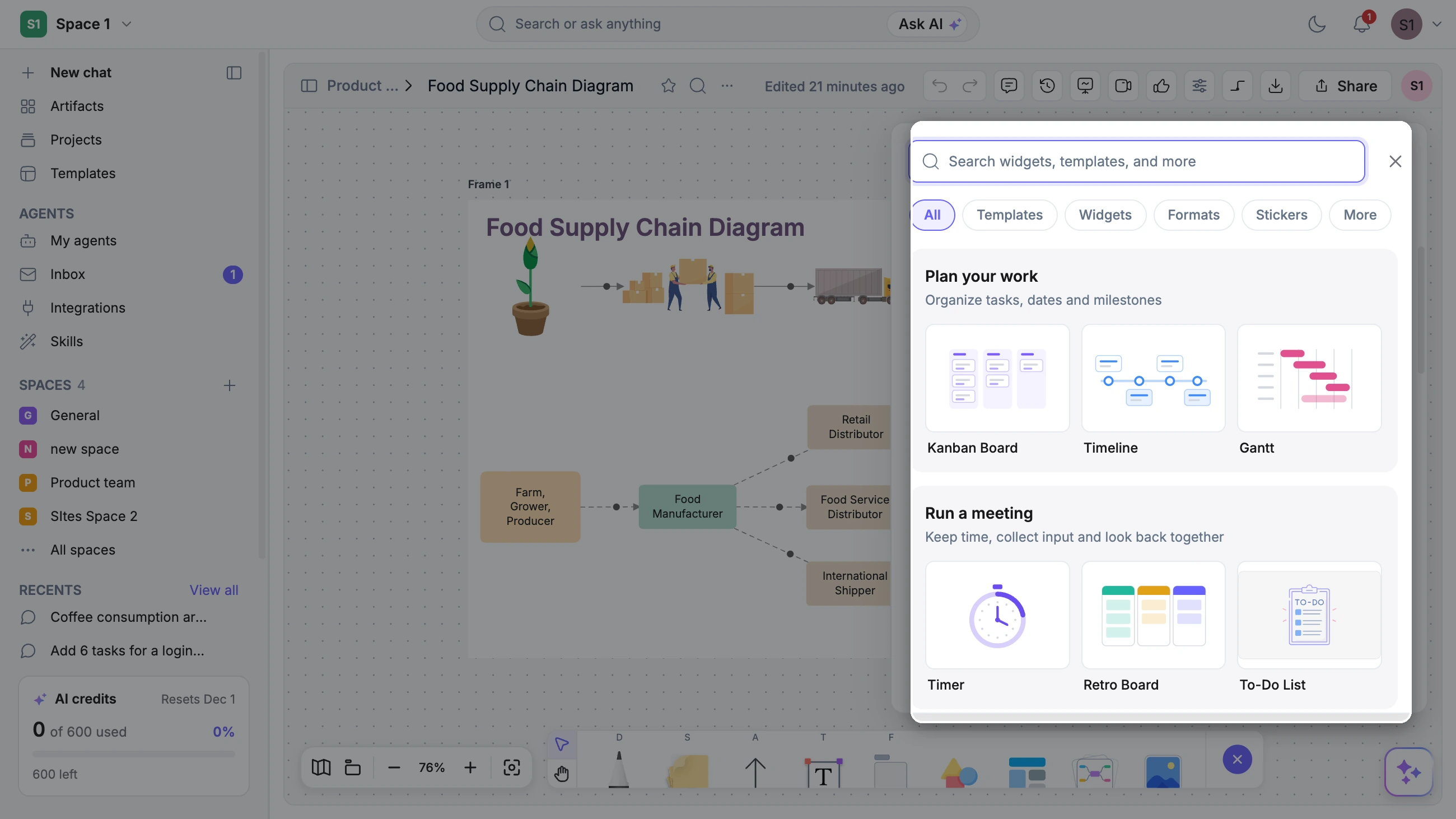
The More tools panel
Click + in the dock, then pick a widget and click the board to place it.

What is in it

Kind Widgets
Plan work Kanban, Timeline, Gantt, Task Table, To-Do, Weekly Planner, Story Point
Run a meeting Timer, Retro Board, Brainstorm, SWOT Analysis, Dot Voting, Polling, Sticky Stack
Content Doc, Banner, Callout, Quote, Code, Quick Access, People, Illustrations, Google Images
Files and embeds Upload (image, PDF, DOCX), Embed iFrame Code
Templates Popular templates
Fun Stickers, emoji and GIFs

The To-Do list

In More tools, pick To-Do List and click the board.

Click + Add task. A task detail window opens.

Switch between the Open and Done tabs. Columns show Done, Task, Due date and Owner.

The Retro Board

The Retro Board has a live poll. Click Start Poll, let everyone vote, then End poll for all.

The timer

Timer starts a countdown everyone on the board sees. Set the time with − and + or a preset, turn Sound on or off, and click Start. While it runs it shows as a pill with Pause and Stop.

Next steps

  • Whiteboard
  • Present, comment and restore versions

Last updated November 26, 2026

Was this helpful?
PreviousSticky notes, text, drawing and framesNextFlowcharts, mind maps, UML and cloud diagrams
On this page
Open More toolsWhat is in itThe To-Do listThe Retro BoardThe timerNext steps
Was this helpful?
© 2026 Cloudairy

Product

CloudairyTemplatesPricing