CloudairyCloudairy
Cloudairy
Templates
Get startedBuildArtifactsAgentsConnectAdministerHelp
Build
What an artifact isThe 13 artifact typesWorkspaces, spaces and folders
All the ways to startCreate with Ask AIChoose an AI modelArtifacts › Make something newUse the New dialogCreate in a space or a projectImport a file
Manage your filesYour Files on the Artifacts pageSpacesFoldersFavourites, recents and pinsMove itemsSearch your workArchive and delete
Find a templatePreview and use a templateSave your own template
AI inside your workAI on a canvasAI in DocsAI in boards, clips and filesWork with an AI chatProjects: group your AI chats
Keyboard shortcuts
Build
View as Markdown View this page as plain text

Build

Make, organise and improve your work in Cloudairy: every way to start an artifact, where your files live, templates, and AI inside the editors.

Understand artifacts

An artifact is anything you make in Cloudairy: a canvas, a doc, a wiki, a site and ten more. Learn the types and where they live.
  • What an artifact is
  • The 13 artifact types
  • Workspaces, spaces and folders
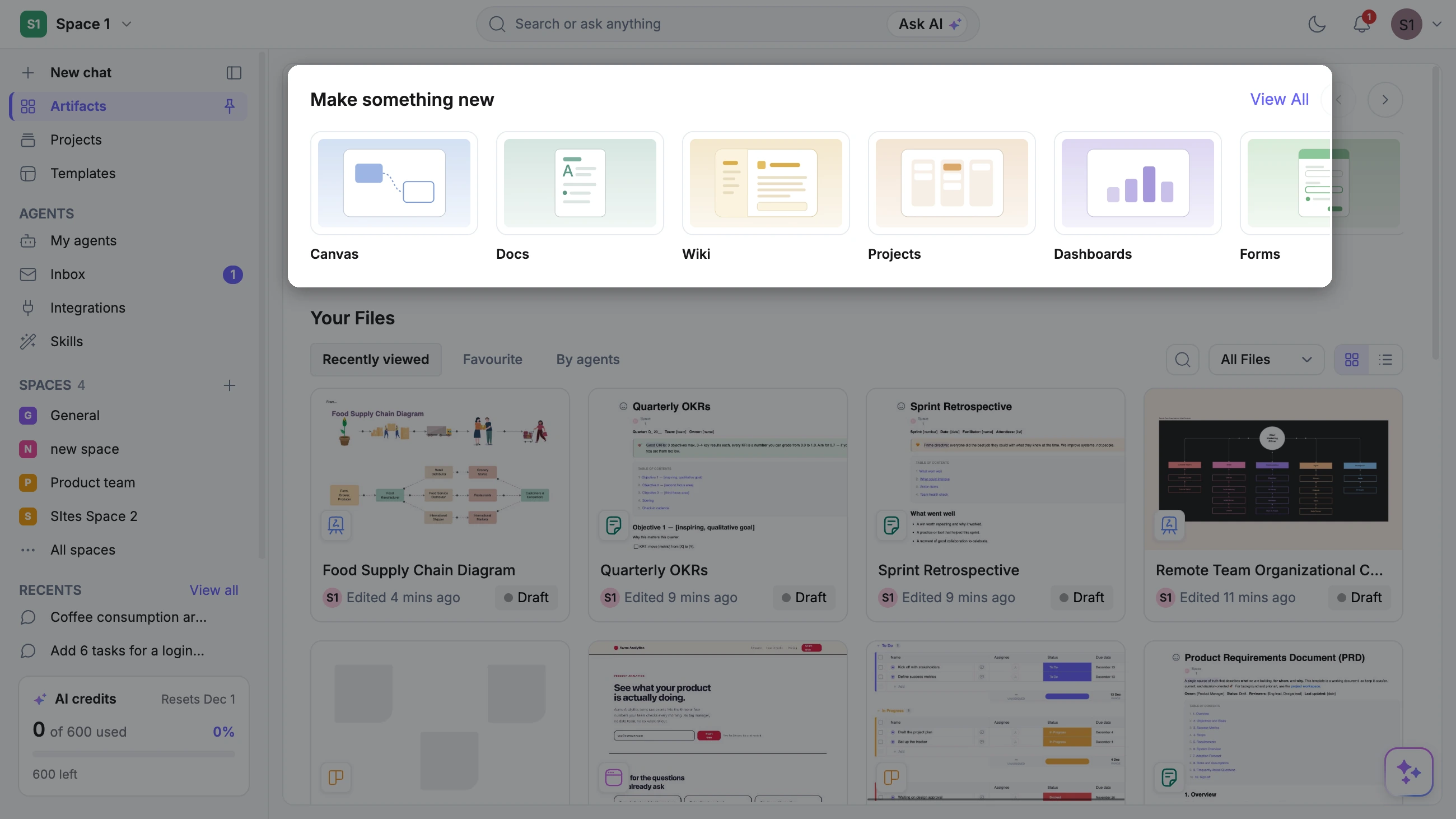
The Artifacts page
Make something new starts any artifact; Your Files lists your work.

Ways of creating

Start from a prompt, a blank page, a template or a file you already have. Every way leads to a real item you can edit.

  • All the ways to start
  • Create with Ask AI
  • Artifacts › Make something new
  • Create in a space or a project
  • Import a file
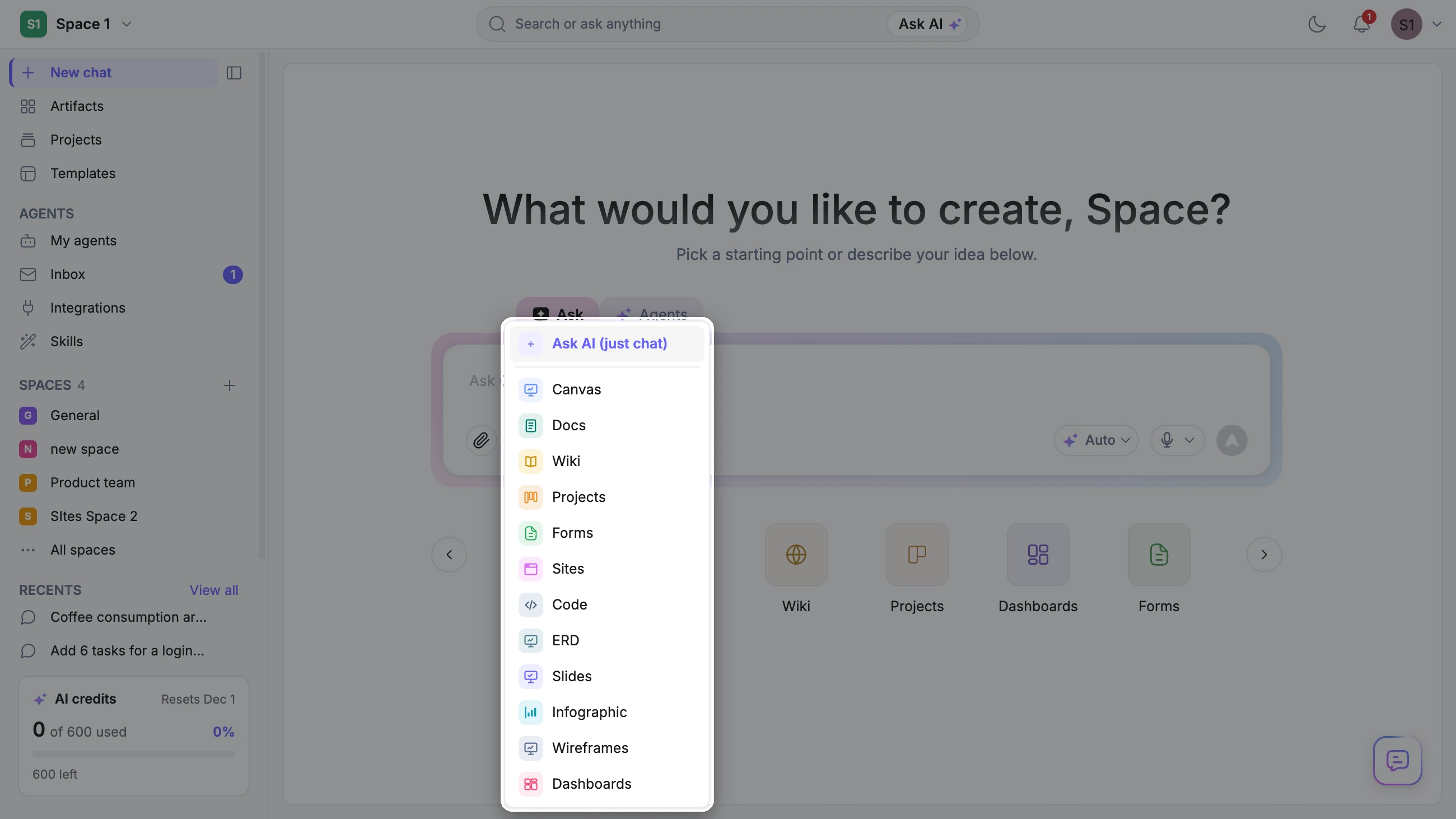
The Create menu under the Ask AI box
Pick what to make: just chat, or any artifact type.

Manage your files

Find, sort, star, move, share and clear out your work.
  • Your Files on the Artifacts page
  • Spaces
  • Folders
  • Search your work
  • Archive and delete
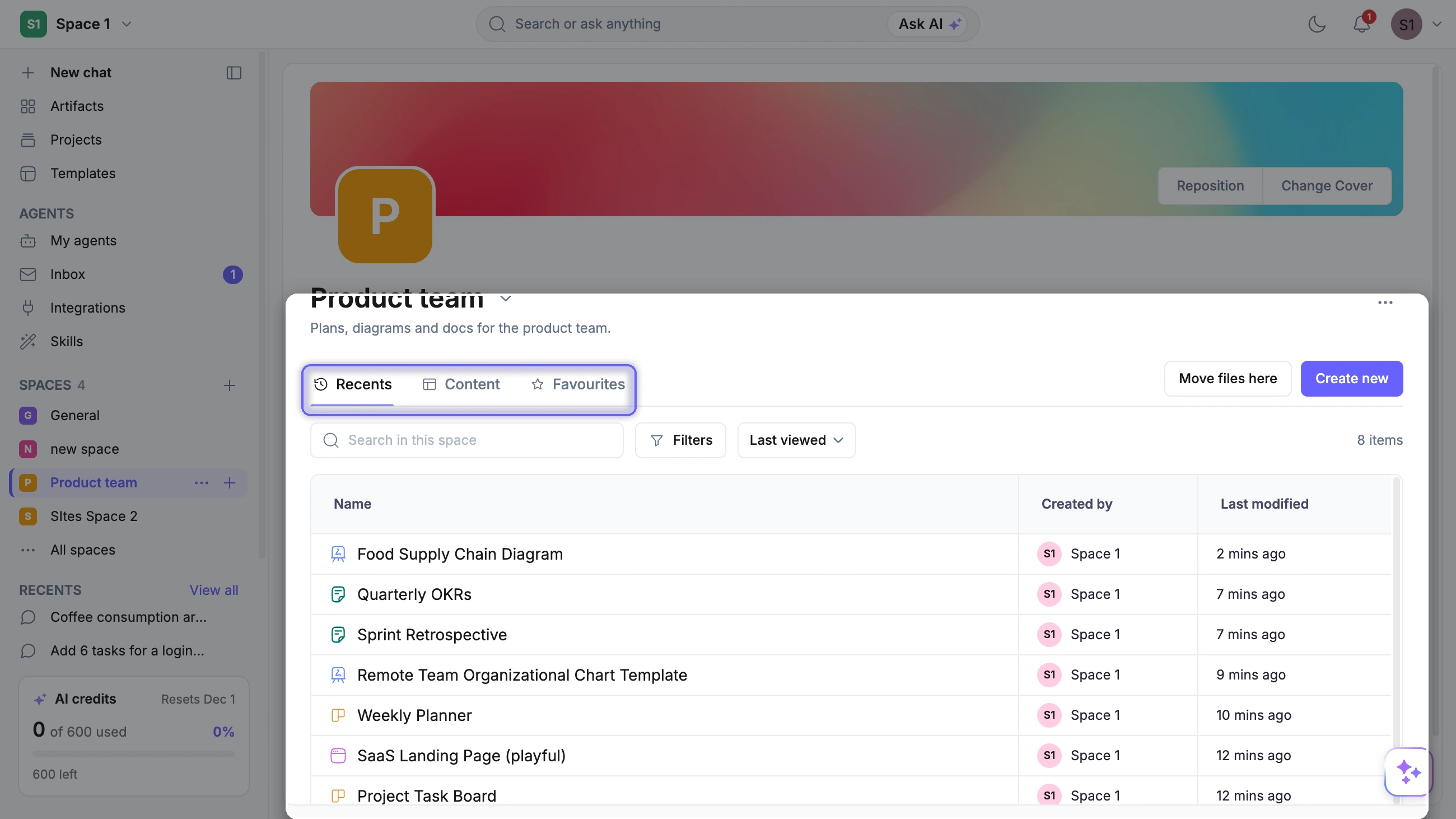
A space page with its tabs and toolbar
A space: its files, tabs for recents, content and favourites, and Create new.

Templates

Copy a ready-made board, doc, project or site, or turn your own work into a template for your team.
  • Find a template
  • Preview and use a template
  • Save your own template
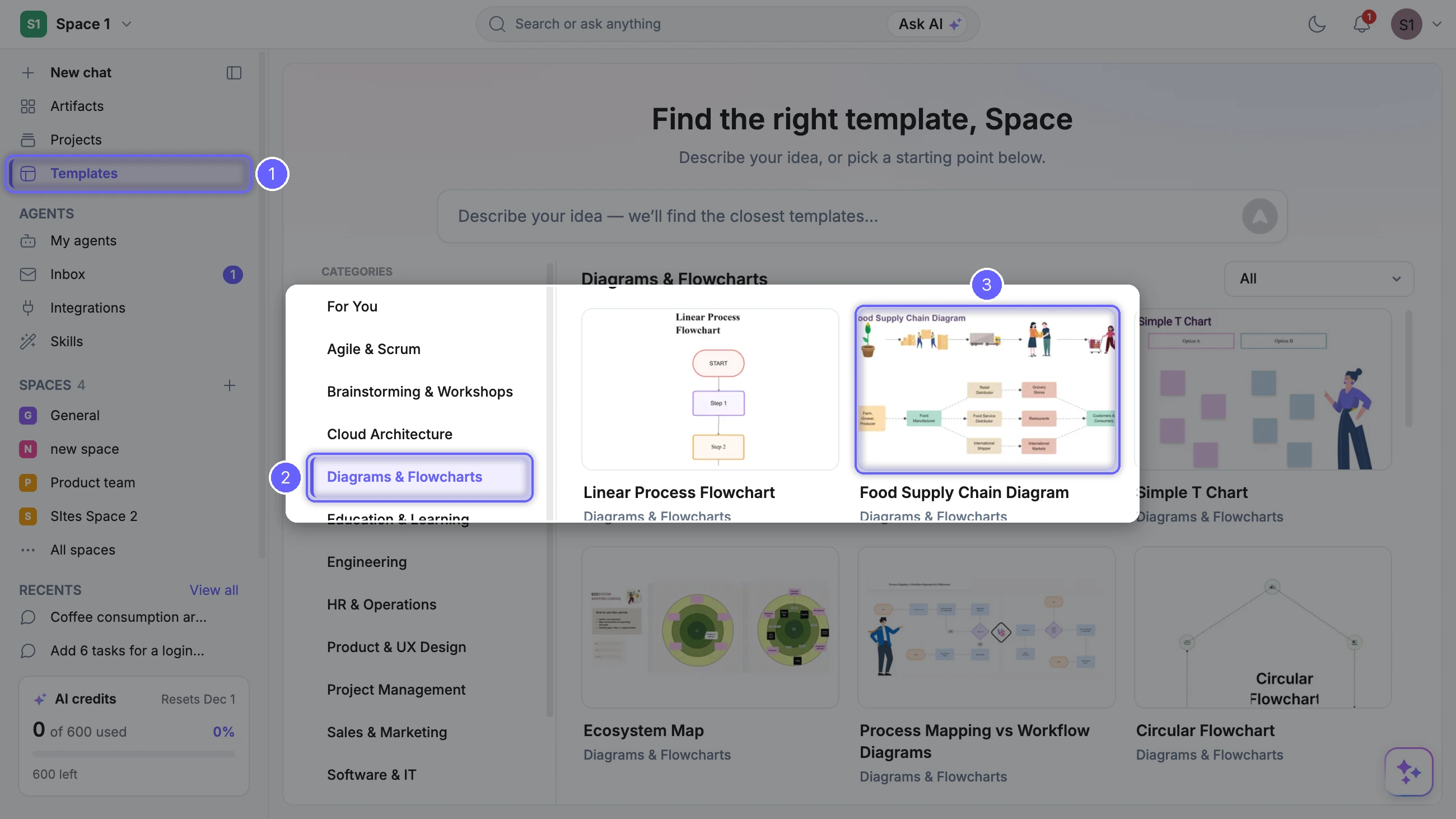
The Templates page
1 Templates, 2 pick a category, 3 preview or use a template.

Work with AI inside an artifact

Keep building with Cloudairy AI after the item exists: chat beside a canvas or doc, fix text, fill a table column, and keep chats together in Projects.
  • AI inside your work
  • AI on a canvas
  • AI in Docs
  • Work with an AI chat
  • Projects: group your AI chats
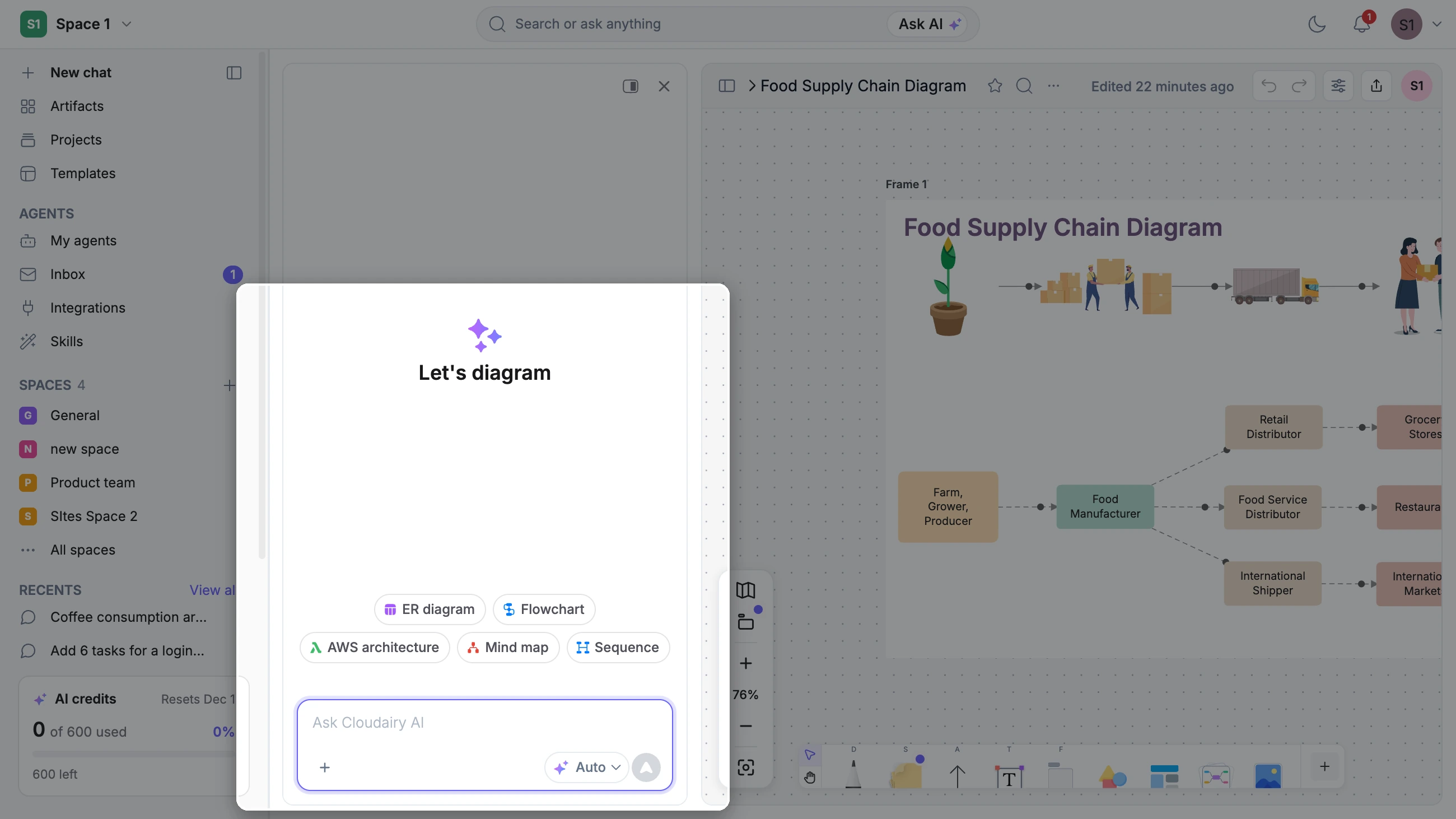
A canvas with the AI chat open
Ask Cloudairy AI to add to or change the board from the chat beside it.

Keyboard shortcuts

Search, draw, write and present without reaching for the mouse.

  • Keyboard shortcuts
The canvas bottom dock with its tool letters
Each tool shows its shortcut letter: D draw, S sticky note, A connector, T text, F frame.

Last updated November 26, 2026

Was this helpful?
PreviousPlans at a glanceNextWhat an artifact is
On this page
Understand artifactsWays of creatingManage your filesTemplatesWork with AI inside an artifactKeyboard shortcuts
Was this helpful?
© 2026 Cloudairy

Product

CloudairyTemplatesPricing