CloudairyCloudairy
Cloudairy
Templates
Get startedBuildArtifactsAgentsConnectAdministerHelp
Artifacts
CanvasCreate a canvasA tour of the canvas editorShapes, lines and iconsSticky notes, text, drawing and framesWidgets in More toolsFlowcharts, mind maps, UML and cloud diagramsPresent, comment and restore versionsImport and export a canvas
WhiteboardRun a workshop on a whiteboard
ERDBuild tables and relationshipsImport a schema and export SQL
DocsA tour of the doc editorWrite with blocks and the slash menuTables and databasesEmbeds, views, charts and layoutsComments and suggested editsImport, export and version history
WikiStart a wikiSpaces, groups and pagesSite structure and navigationCustomize your wikiPublish your wikiPreview the reader viewChange requests, Extend, Analyze and Improve
ProjectsThe project pageCreate a task boardBoard viewsThe Main Table and columnsTask cardsOverview, automations and board settings
FormsBuild a formDesign and settingsShare a form and review results
DashboardsBuild a data dashboardBuild a project dashboard
SitesBuild a siteEdit your siteSite settings and publishing
CodeWork with a code project
SlidesBuild a deckEdit and restyle a deckPresent and download a deck
InfographicsMake and edit an infographicResize and export an infographic
WireframesMake and edit wireframes
ClipsRecord a clipEdit a clip and its transcriptShare a clip and its settings
Artifacts›Canvas
View as Markdown View this page as plain text

Shapes, lines and icons

Add shapes, connect them with lines, and bring in icon libraries such as AWS and Cisco.

Add a shape

Open a canvas.

In the bottom dock, click Shapes & lines. A strip of basic and flowchart shapes opens.

Click a shape, then click the board to place it.

Double-click the shape to type in it.

Open the full shapes panel

In the Shapes & lines strip, click More shapes.

Scroll the categories or search. The panel holds Basic, Flowchart, BPMN, Dataflow, ERD, UML, icons and Cloud architecture (AWS, Cisco).

Search lists matching icons with the name of their library.
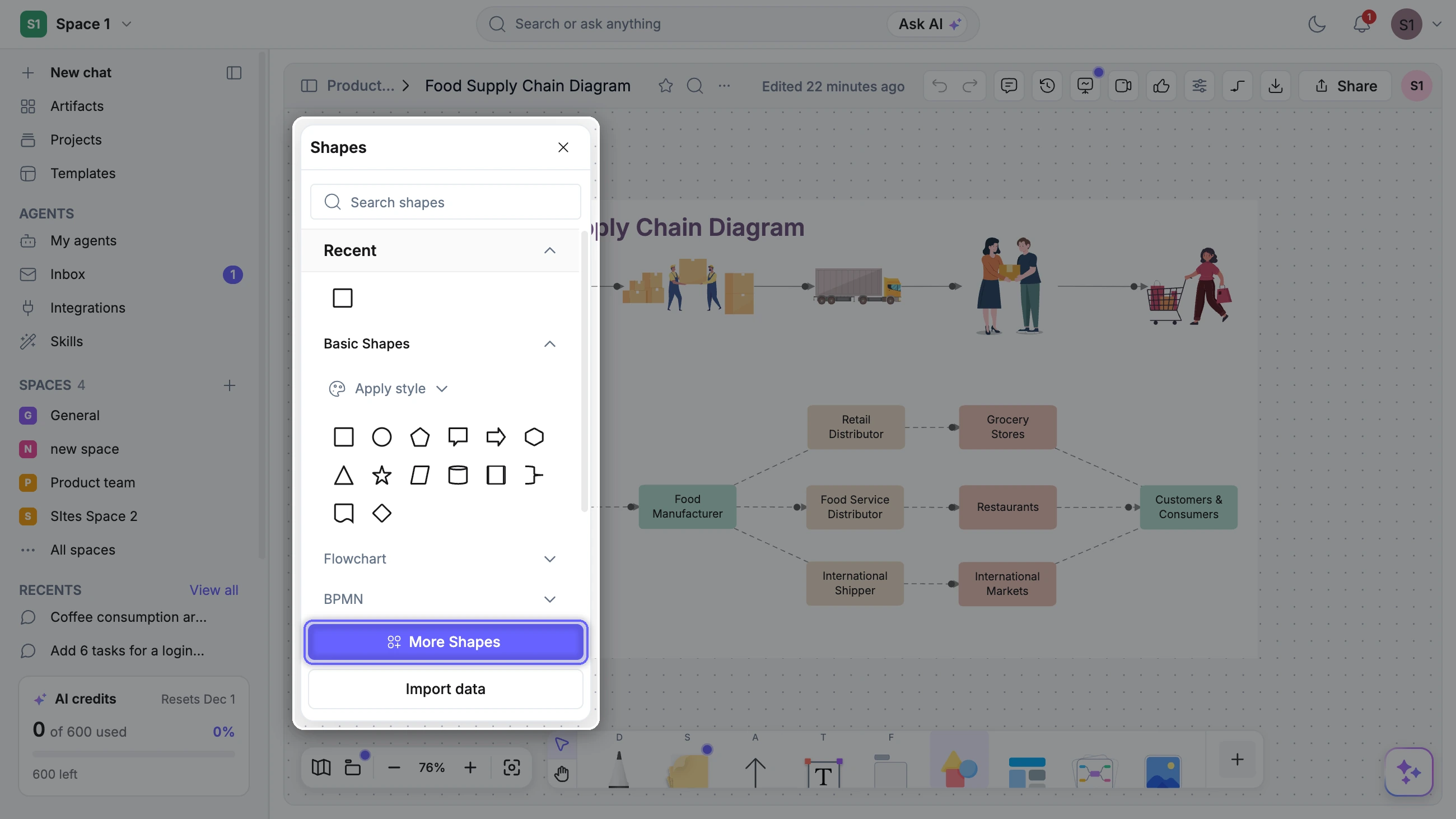
The shapes panel
More shapes: basic, flowchart, BPMN, UML, icons and cloud libraries, with search.

Add more libraries

In the shapes panel, open More Shapes.

Tick the standard libraries you want.

Close the dialog. The libraries now show in the panel.

Connect shapes

Press A or click Connector in the dock.

Pick one of the 4 line types.

Draw from one shape to another. The line stays attached when you move a shape.

Click the line to set colour, width and end markers. Double-click it to add a label.

Turn on Edge animation in the top bar to animate lines.

Add images

In the dock, click Images.

Search photos, use Make an image to ask AI for one, or upload your own.

You can also drag a PNG, JPG or SVG onto the board. Images up to 2 MB can be dropped. Click a placed image to Replace it (library, device or Upload via URL), Flip, Crop or Download.

Add a PDF or Word file

Click + (More tools) and search for "upload".

Click Upload, then Your Computer.

Pick an image, PDF or DOCX. A PDF or DOCX becomes a file node.

Click the file node to switch between Text View, Card View and Preview, or to download it.

Next steps

  • Sticky notes, text, drawing and frames
  • Flowcharts, mind maps, UML and cloud diagrams

Last updated November 26, 2026

Was this helpful?
PreviousA tour of the canvas editorNextSticky notes, text, drawing and frames
On this page
Add a shapeOpen the full shapes panelAdd more librariesConnect shapesAdd imagesAdd a PDF or Word fileNext steps
Was this helpful?
© 2026 Cloudairy

Product

CloudairyTemplatesPricing