CloudairyCloudairy
Cloudairy
Templates
Get startedBuildArtifactsAgentsConnectAdministerHelp
Artifacts
CanvasCreate a canvasA tour of the canvas editorShapes, lines and iconsSticky notes, text, drawing and framesWidgets in More toolsFlowcharts, mind maps, UML and cloud diagramsPresent, comment and restore versionsImport and export a canvas
WhiteboardRun a workshop on a whiteboard
ERDBuild tables and relationshipsImport a schema and export SQL
DocsA tour of the doc editorWrite with blocks and the slash menuTables and databasesEmbeds, views, charts and layoutsComments and suggested editsImport, export and version history
WikiStart a wikiSpaces, groups and pagesSite structure and navigationCustomize your wikiPublish your wikiPreview the reader viewChange requests, Extend, Analyze and Improve
ProjectsThe project pageCreate a task boardBoard viewsThe Main Table and columnsTask cardsOverview, automations and board settings
FormsBuild a formDesign and settingsShare a form and review results
DashboardsBuild a data dashboardBuild a project dashboard
SitesBuild a siteEdit your siteSite settings and publishing
CodeWork with a code project
SlidesBuild a deckEdit and restyle a deckPresent and download a deck
InfographicsMake and edit an infographicResize and export an infographic
WireframesMake and edit wireframes
ClipsRecord a clipEdit a clip and its transcriptShare a clip and its settings
Artifacts›Canvas
View as Markdown View this page as plain text

Import and export a canvas

Bring diagrams in from Lucid or a spreadsheet, and download a canvas as an image or PDF.

Import into a new canvas

Go to Artifacts > Make something new > Canvas.

Click Import.

Drop a file, or pick one from Google Drive or OneDrive (up to 25 MB):

Source Files
Lucid .json, .vsdx
Org chart .csv, .xlsx

Click Import.

On the Free plan you see an upgrade prompt.

Import into an open canvas

Click Shapes & lines > More shapes.

At the foot of the panel, click Import data.

Pick Org chart, Entity relationship (ERD) or Import from Lucid (JSON or VSDX). Download a sample shows the expected format.

Click Import your data, pick the file type and the file, then Import.

A broken Lucid file shows "Not a valid .vsdx…".

Export

In the top bar, click Export.

Pick PNG, JPG, SVG or PDF.

For PNG and JPG pick 1x or 2x.

To export only part of the board, select it first and tick selected only.

Pick where to save: your computer, Google Drive or OneDrive.

Click Download.
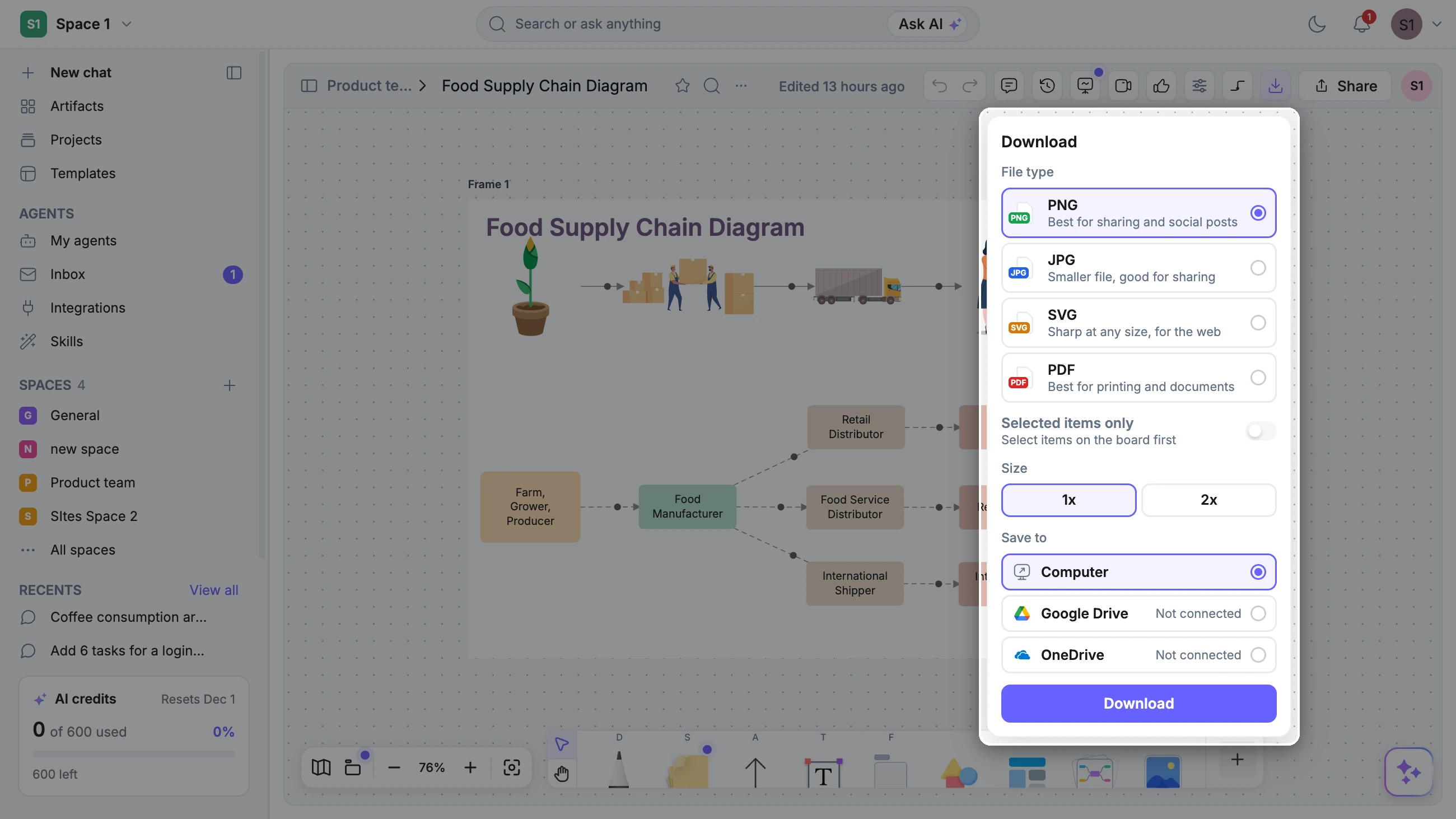
The Export panel
Pick a format and size, where to save, then Download.

SVG and PDF need a paid plan.

Keep a full copy

Open the board ⋯ menu and click Save backup file.

Save as a template

Open the board ⋯ menu and click Convert to Template.

In Publish Your Template, check the live preview, add a Template Name and description.

Pick Access: Only me, Entire Workspace or Entire account.

Next steps

  • Present, comment and restore versions
  • Connect Google Drive and OneDrive

Last updated November 26, 2026

Was this helpful?
PreviousPresent, comment and restore versionsNextWhiteboard
On this page
Import into a new canvasImport into an open canvasExportKeep a full copySave as a templateNext steps
Was this helpful?
© 2026 Cloudairy

Product

CloudairyTemplatesPricing