

Connect›Drives
Connect Google Drive or OneDrive
Connect your own Google Drive or OneDrive once, then save copies of your exports to it and import files from it.
Your work stays in Cloudairy. A connected drive only receives copies you choose to save, and gives you a place to pick files to import.
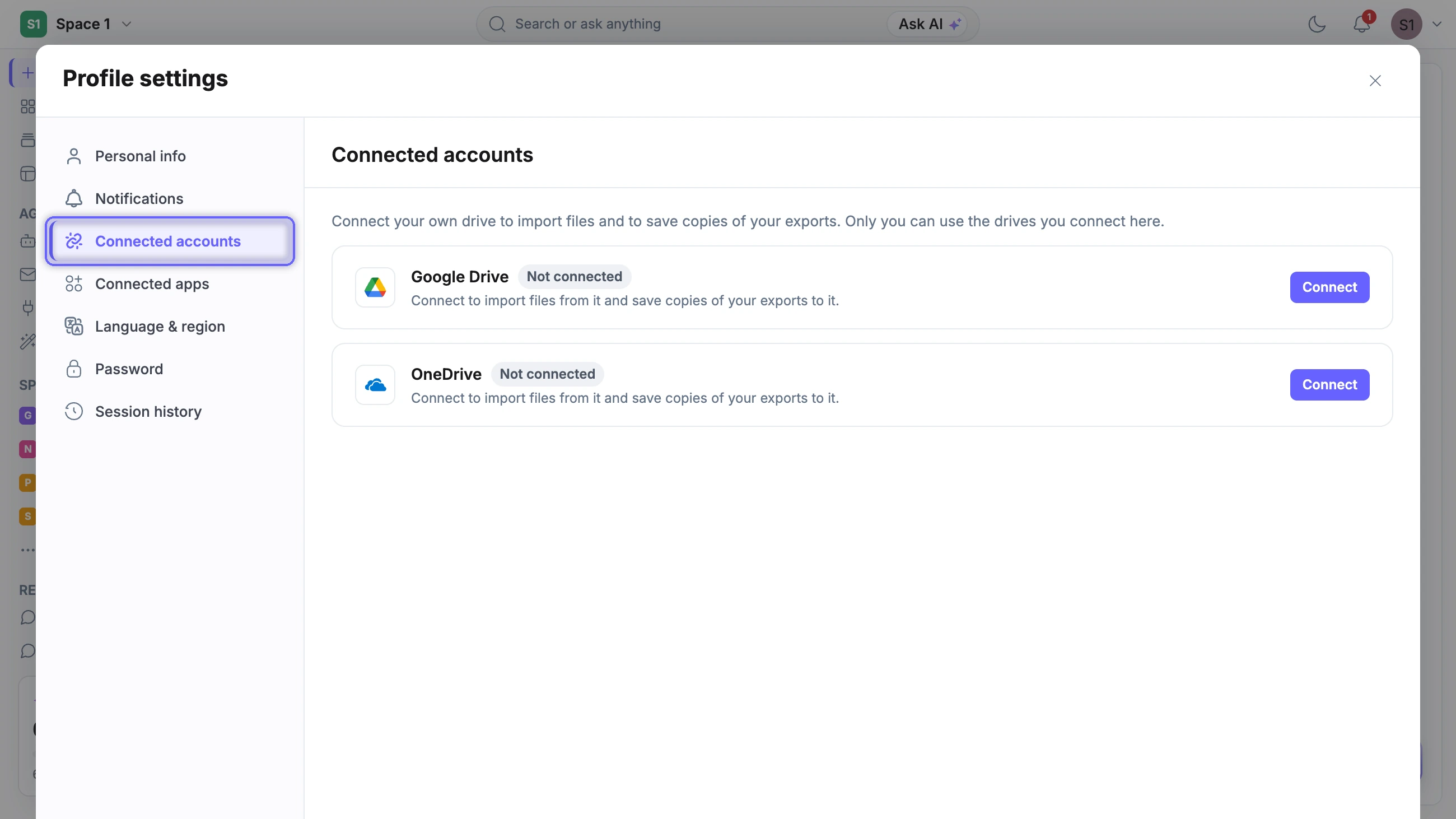
Connect a drive
You can connect a drive the first time you save or import, or ahead of time.
Click your profile picture at the top right of the app.
Choose My profile, then Connected accounts.
Next to Google Drive or OneDrive, click Connect.
Sign in to your drive and allow access.
You come back to Cloudairy, and the drive shows Connected.
Each person connects their own drive. Connecting yours doesn't give anyone else access to it.
Manage a connected drive
In My profile → Connected accounts you can:
- Change folder to set where copies go. If you don't pick one, Cloudairy uses a folder called Cloudairy.
- Disconnect the drive.
- Reconnect it if Cloudairy says access has ended.
Troubleshooting
| Message | What to do |
|---|---|
| Reconnect needed | Access to the drive has ended. Click Reconnect. |
| Allow pop-ups for Cloudairy to open OneDrive. | Allow pop-ups for Cloudairy in your browser, then try again. |
| That folder is gone. Pick another or use the Cloudairy folder. | Click Change and pick a folder. |
| Saving to a drive is not available right now. | Download to your computer for now, and try the drive later. |
| Your organisation's admin needs to approve Cloudairy | Copy the Link for your admin and send it to your IT admin. After they approve, connect the drive again. |
| Your Google Workspace admin has blocked Cloudairy | Ask your Google Workspace admin to allow Cloudairy. |
Next steps
Was this helpful?