Bring diagrams in from Lucid or a spreadsheet, and download a canvas as an image or PDF.
Go to Artifacts > Make something new > Canvas.
Click Import.
Drop a file, or pick one from Google Drive or OneDrive (up to 25 MB):
| Source | Files |
|---|---|
| Lucid | .json, .vsdx |
| Org chart | .csv, .xlsx |
Click Import.
On the Free plan you see an upgrade prompt.
Click Shapes & lines > More shapes.
At the foot of the panel, click Import data.
Pick Org chart, Entity relationship (ERD) or Import from Lucid (JSON or VSDX). Download a sample shows the expected format.
Click Import your data, pick the file type and the file, then Import.
A broken Lucid file shows "Not a valid .vsdx…".
In the top bar, click Export.
Pick PNG, JPG, SVG or PDF.
For PNG and JPG pick 1x or 2x.
To export only part of the board, select it first and tick selected only.
Pick where to save: your computer, Google Drive or OneDrive.
Click Download.
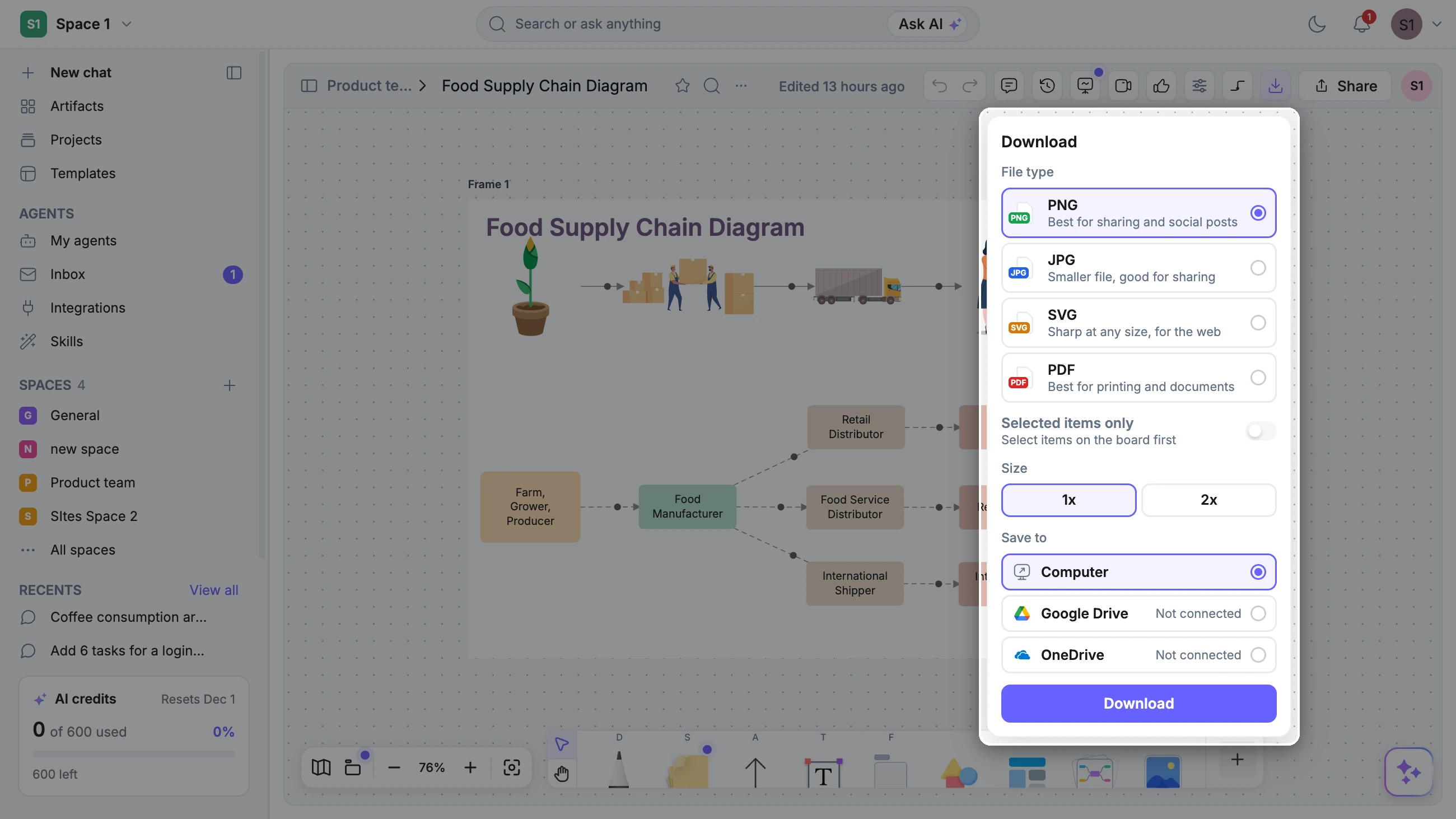
SVG and PDF need a paid plan.
Open the board ⋯ menu and click Save backup file.
Open the board ⋯ menu and click Convert to Template.
In Publish Your Template, check the live preview, add a Template Name and description.
Pick Access: Only me, Entire Workspace or Entire account.