Add any block to a doc with the slash menu, the Insert panel or the block handle.
Click an empty line and type /.
Keep typing to filter, for example /table or /callout.
Press Enter to add the block, or Esc to close.
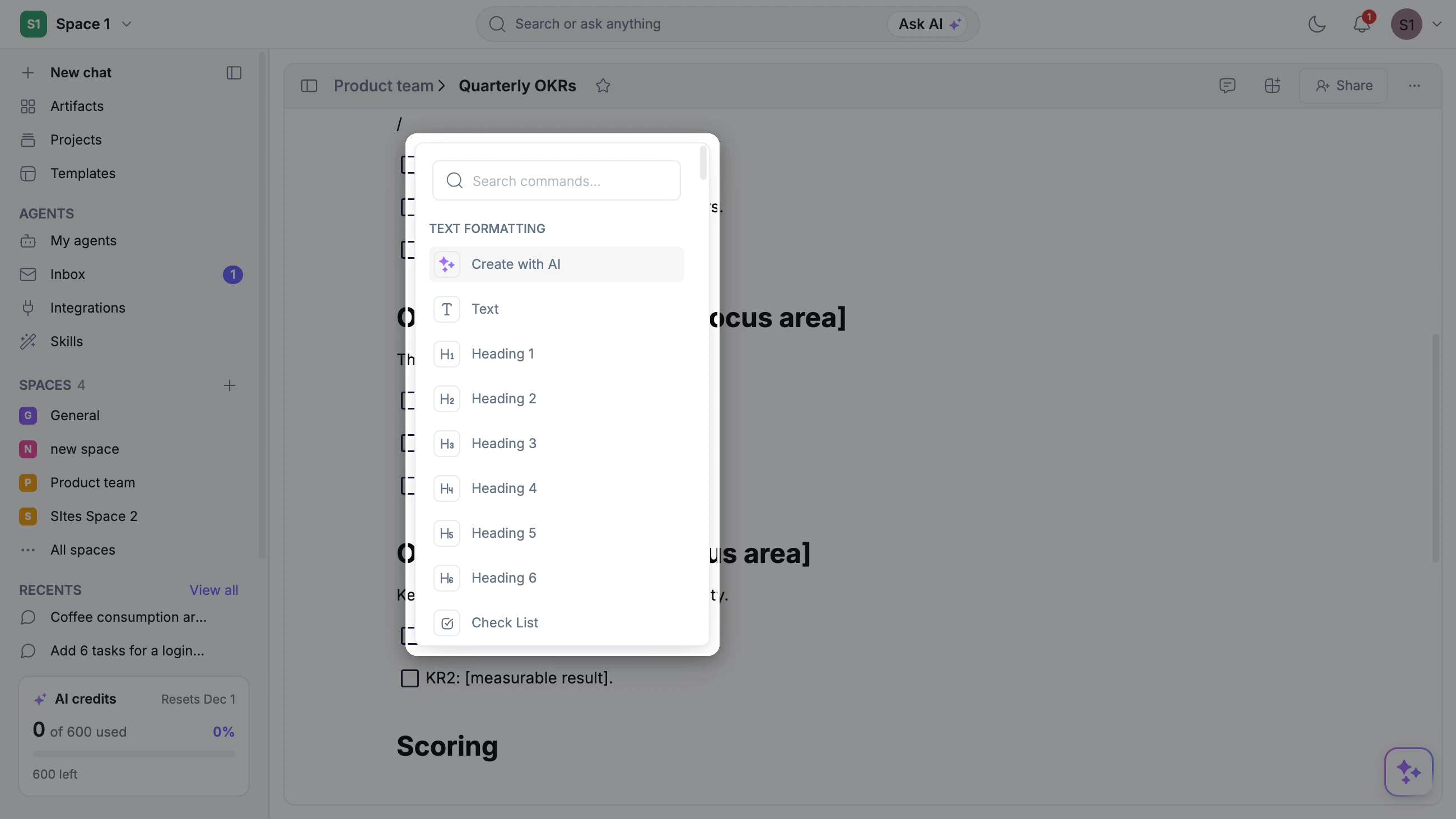
| Group | Blocks |
|---|---|
| Text formatting | Text, Heading 1–6, lists (bullet, numbered, task, toggle), Quote, Code, Banners |
| Inline | Mention a Person, Mention a Page |
| General | Table, Sticky Note, line separators, Spacer, Page Break, Button, Table of Contents, iFrame, Signature, Web Bookmark, Block Equation, Breadcrumb, Tabs, Mermaid, callouts |
| Layout | 1 Column to 4 Column |
| Media | Image, Video, Audio, File |
| Embeds | Website, Figma, Google Drive, Google Maps, Miro, Loom, YouTube, GIPHY |
| Views | Task Table, List, Board, Calendar, Timeline, Gallery, Cards, Canvas |
| Smart Layout | Card designs such as images with text |
| Charts | Area, Bar, Bubble, Line, Pie, Scatter |
| Field chips | Date, Date Range, Date and Time, Time, Reminder, Checkbox, Toggle, Slider, Scale, Progress |
Hover a block. A + (add block) and a grip appear on the left.
Drag the grip to move the block.
Click the grip for Comment, Move block up, Move block down and Delete.
Click an image for Replace image (Upload from device or Upload via URL), Flip, Crop, Align, Comment and ⋯ (Download, Border, Add caption, Duplicate, Delete). Videos have Align, a caption, View original and Download.