Work with groups, columns, filters and bulk actions in a board's Main Table.
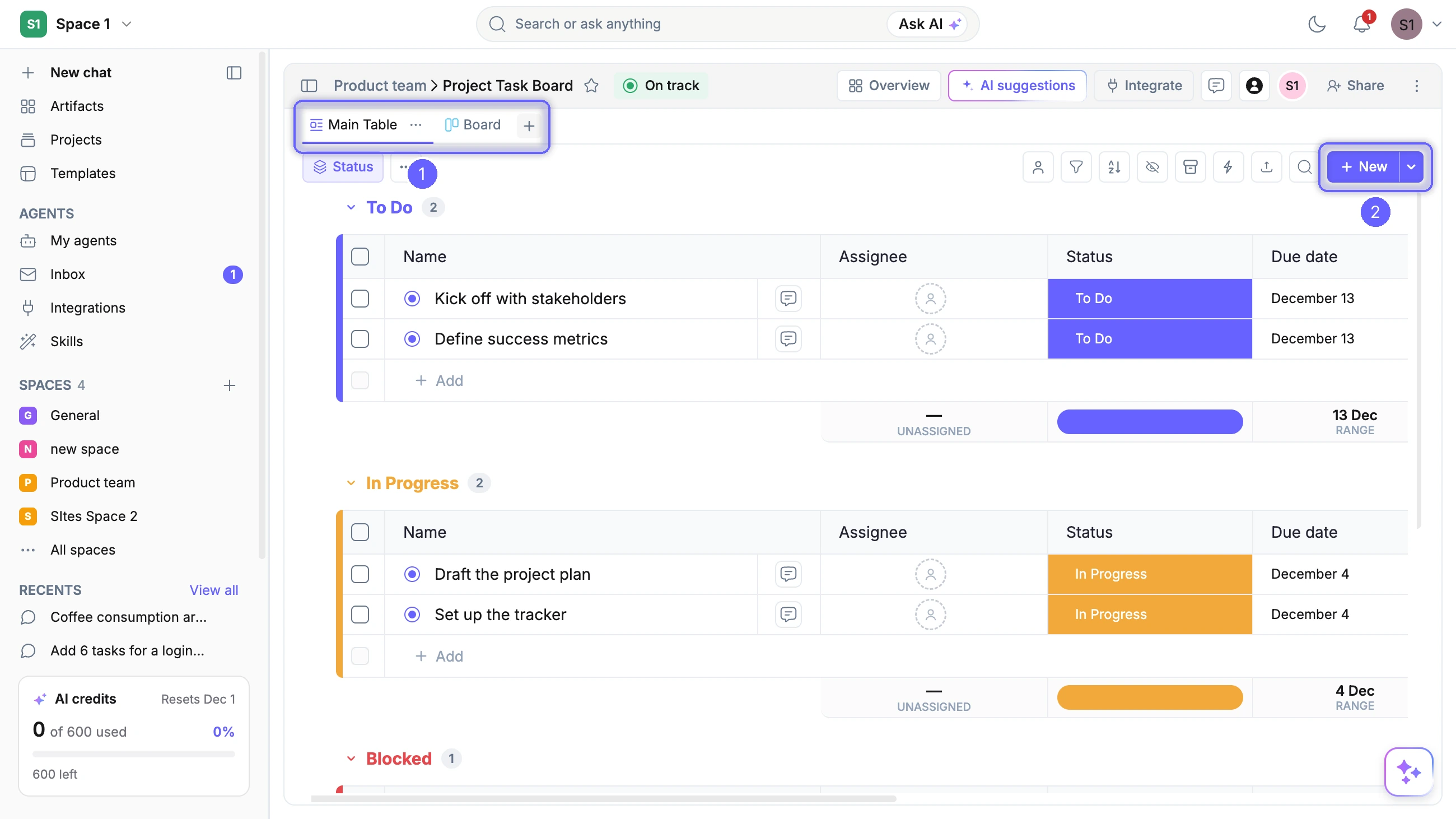
A group's ⋯ lets you collapse or expand it, select all, add, duplicate, move, rename, recolour, export, archive or delete it.
Click + at the end of the header row.
Pick one of 27 types: Text, Number, Money, Date, Checkbox, Person, URL, Select, Multi-select, Status, Sentiment, T-shirt Size, Rating, Voting, Signature, Files, Email, Phone, Formula, Relation, Rollup, created and edited time and by, Button and Place.
A column's ⋯ has settings (description, required, validation, restrict edit or view, hide summary), filter, sort, group, duplicate, change type, move, rename and delete.
Open a custom column's ⋯ > AI-powered actions > Autofill this column ▸ Set a custom prompt.
Tell AI what to insert, and tick Only fill empty cells if you want.
Click Preview AI results, then Save & apply.
A row's ⋯ has Open task, Open in new tab, Copy link, Move to, Duplicate, Create new task below, Add subitem, Convert to subitem, Archive and Delete.
Tick rows to set Priority, Status, Dates or Assignees, or to Move to, Duplicate, Export, Archive or Delete them. Bulk actions apply at once.
| Control | What it does |
|---|---|
| Group by | Group rows, or collapse all groups |
| Table options | Pin columns, item height, conditional colouring, default values |
| Person filter, Filter | Narrow the rows. Filter has Favorites only, rules, and Save to this view. |
| Sort, hide columns | Order and tidy the table |
| Archived items | Restore or delete archived tasks |
| Automation | Open the automations panel |
| Export | JSON, CSV or Excel |
| Search | Find a task by name or #ID |
No match shows "No matching tasks".