Add shapes, connect them with lines, and bring in icon libraries such as AWS and Cisco.
Open a canvas.
In the bottom dock, click Shapes & lines. A strip of basic and flowchart shapes opens.
Click a shape, then click the board to place it.
Double-click the shape to type in it.
In the Shapes & lines strip, click More shapes.
Scroll the categories or search. The panel holds Basic, Flowchart, BPMN, Dataflow, ERD, UML, icons and Cloud architecture (AWS, Cisco).
Search lists matching icons with the name of their library.
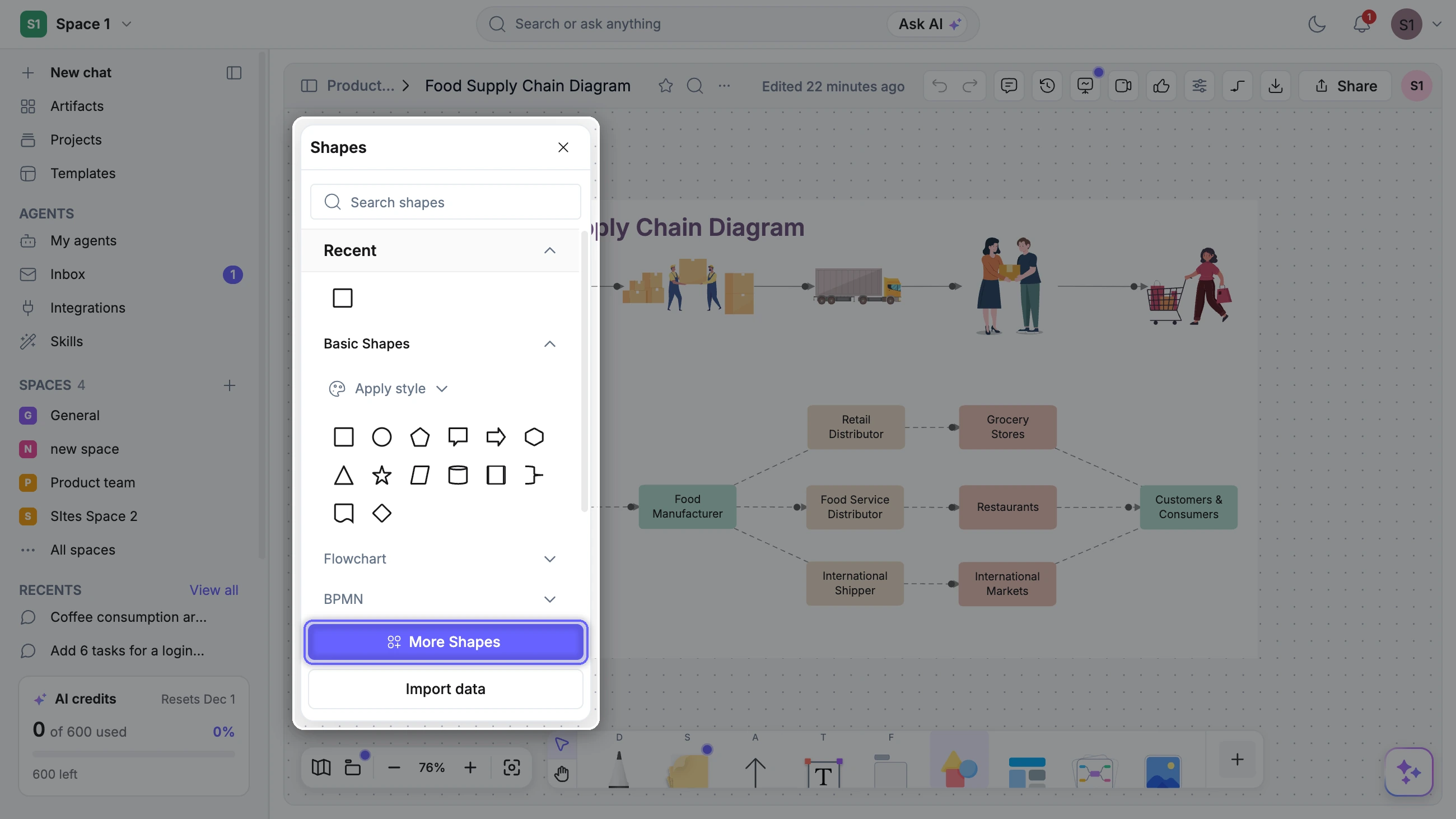
In the shapes panel, open More Shapes.
Tick the standard libraries you want.
Close the dialog. The libraries now show in the panel.
Press A or click Connector in the dock.
Pick one of the 4 line types.
Draw from one shape to another. The line stays attached when you move a shape.
Click the line to set colour, width and end markers. Double-click it to add a label.
Turn on Edge animation in the top bar to animate lines.
In the dock, click Images.
Search photos, use Make an image to ask AI for one, or upload your own.
You can also drag a PNG, JPG or SVG onto the board. Images up to 2 MB can be dropped. Click a placed image to Replace it (library, device or Upload via URL), Flip, Crop or Download.
Click + (More tools) and search for "upload".
Click Upload, then Your Computer.
Pick an image, PDF or DOCX. A PDF or DOCX becomes a file node.
Click the file node to switch between Text View, Card View and Preview, or to download it.