Add tables and fields on the board or in the Tables panel, and link tables together.
Open an ERD. An empty one says "No tables yet — Add a table to start your diagram."
In the bottom dock, click Add table.
Double-click the table header to name it.
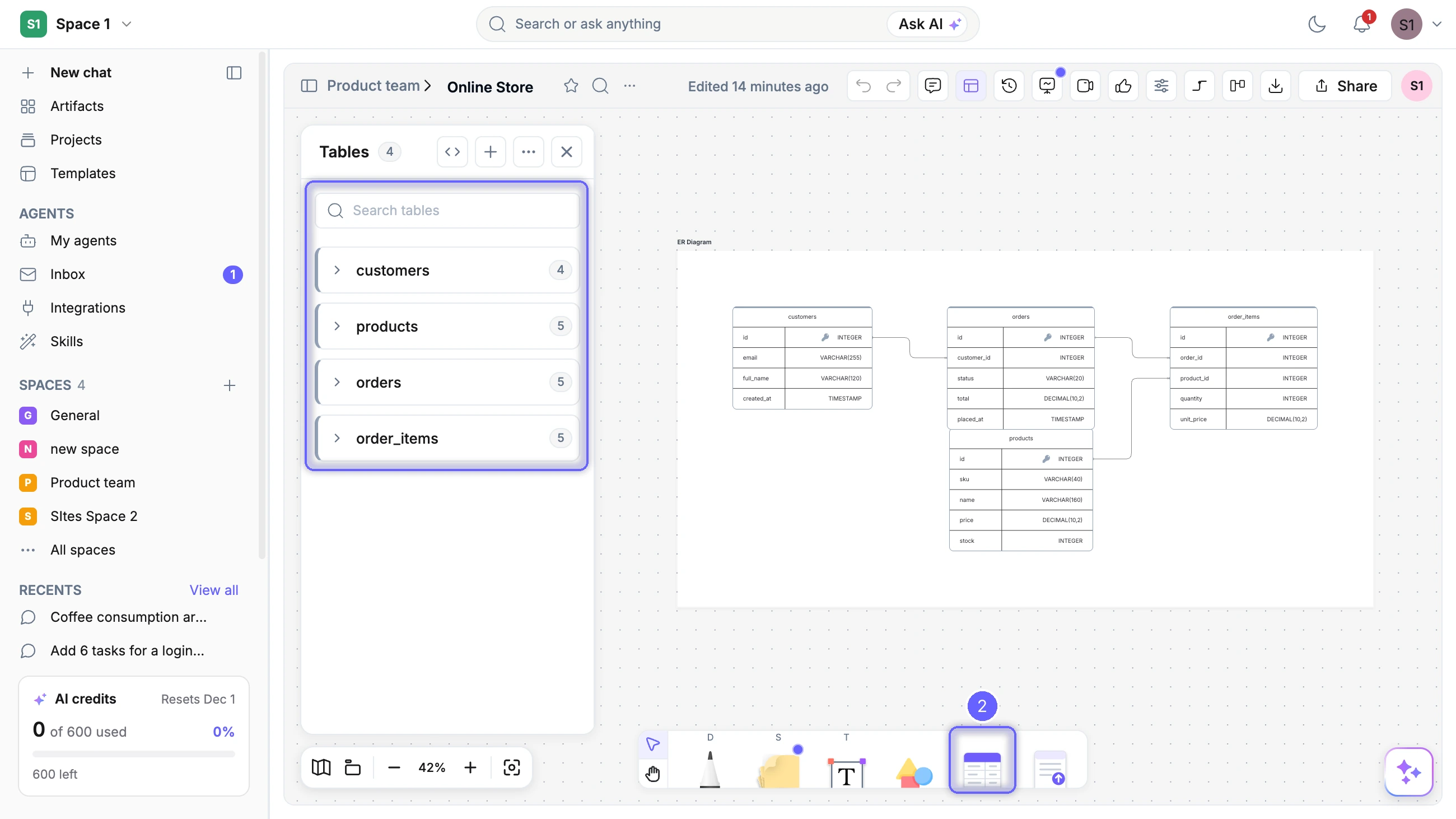
On the board:
Click + under a table to add a row.
Double-click a cell to edit the field name or type.
In the Tables panel:
Open Tables and click a table.
Under Fields, set the name, type, nullable and primary key, or click Add field.
Open a field's ⋯ for Field attributes: Unique, Array, Default value, Max length, Comments and Delete field.
Under Indexes, add indexes and set their attributes.
Use the colour chip (Table Color) to colour the table.
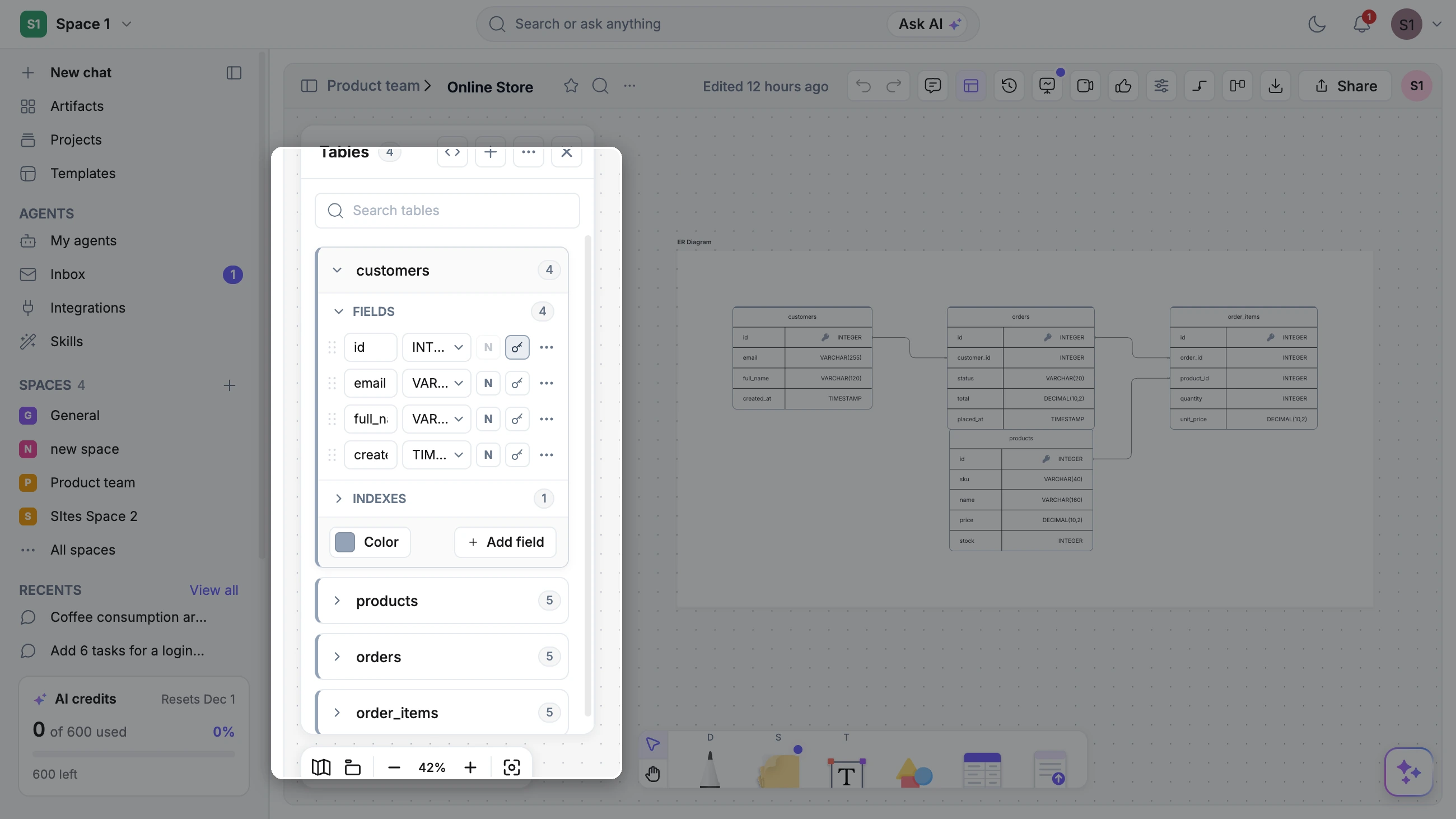
A table's ⋯ in the panel has Show on board, Rename, Add field and Delete table. Use the search box to find a table on a big diagram.
Draw a line from one table to another to show a relationship. Click the line to set its cardinality, for example one to many.
Click a table on the board for its toolbar: border, fill, font, size, bold, alignment, text colour, highlight, link and lock.
Click View DBML script.
Edit the script. Error lines are marked.
Click Apply to board, or Reset to undo your edits. Copy copies the script.