

Use the New dialog
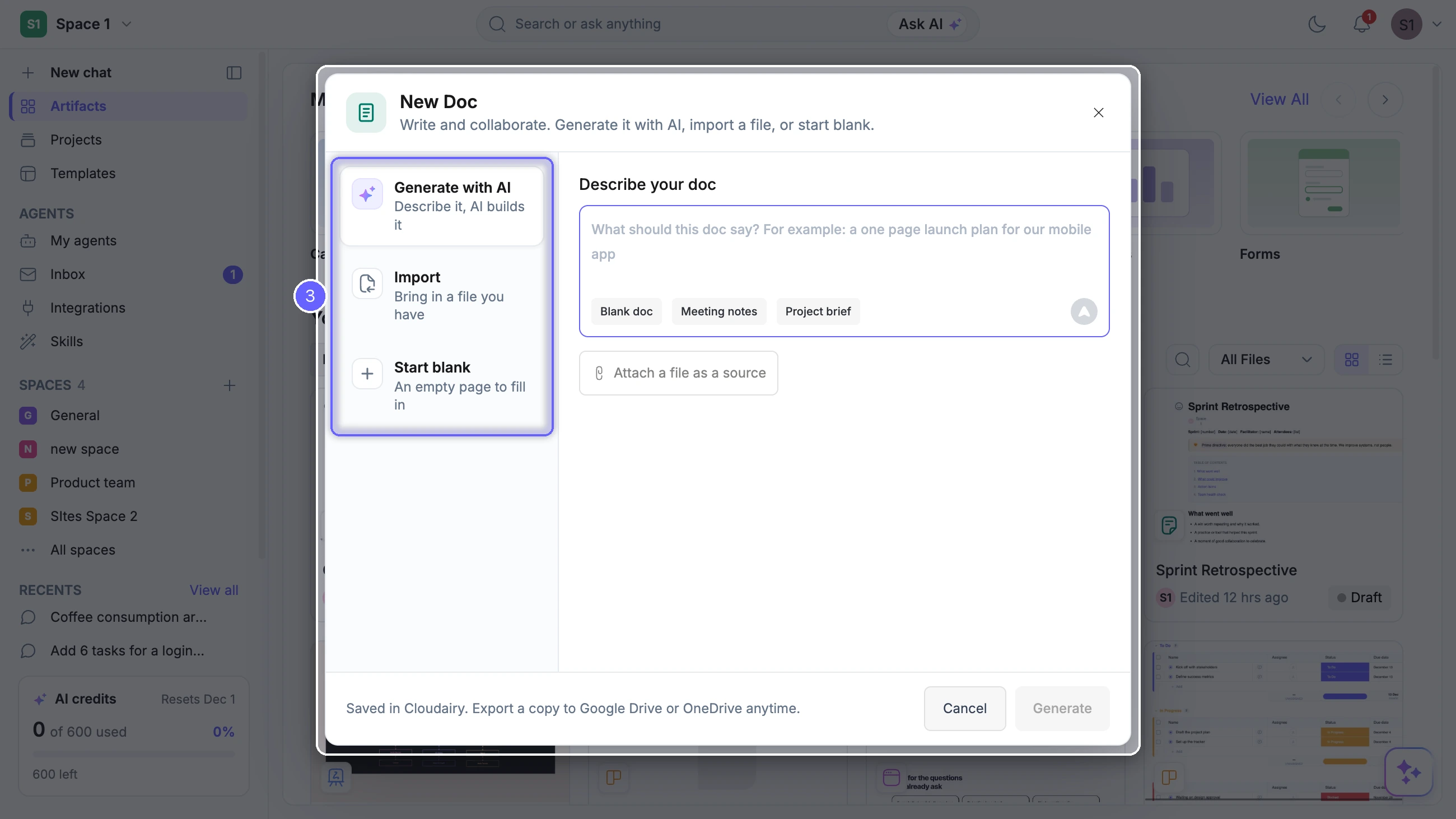
The New Canvas, New Doc, New ERD, New Dashboard and New Form dialogs give you up to three ways to start: Generate with AI, Import or Start blank.
Open the dialog
- Artifacts › Make something new › click the Canvas, Docs, ERD, Dashboards or Forms card.
- Or, in a space: Create new › Canvas, Doc, ERD or Form. The dialog then says the item will be created in that space.
Pick a way in on the left of the dialog.
The New Dashboard dialog has no Generate with AI. It has Import (a CSV or Excel file, from your computer, Google Drive or OneDrive; the dashboard opens with that data) and Start blank (the dashboard opens straight away and you add data from inside).
Generate with AI
Click Generate with AI.
Under Describe your doc (or canvas, ERD, form), type what you want, or click an example chip to fill in a worked prompt.
- New Canvas chips: Flowchart, Mind map, Whiteboard.
- New Form chips: Blank, Team, Client team.
Optional: click Attach a file as a source to add an image (PNG, JPG or WebP) for AI to read. The file shows as a chip; hover it and click Remove file to take it off. Nothing uploads until you generate.
Click Generate. It stays greyed out until you describe your item or attach a file.
Generating uses AI credits.
Import
Not offered for Forms.
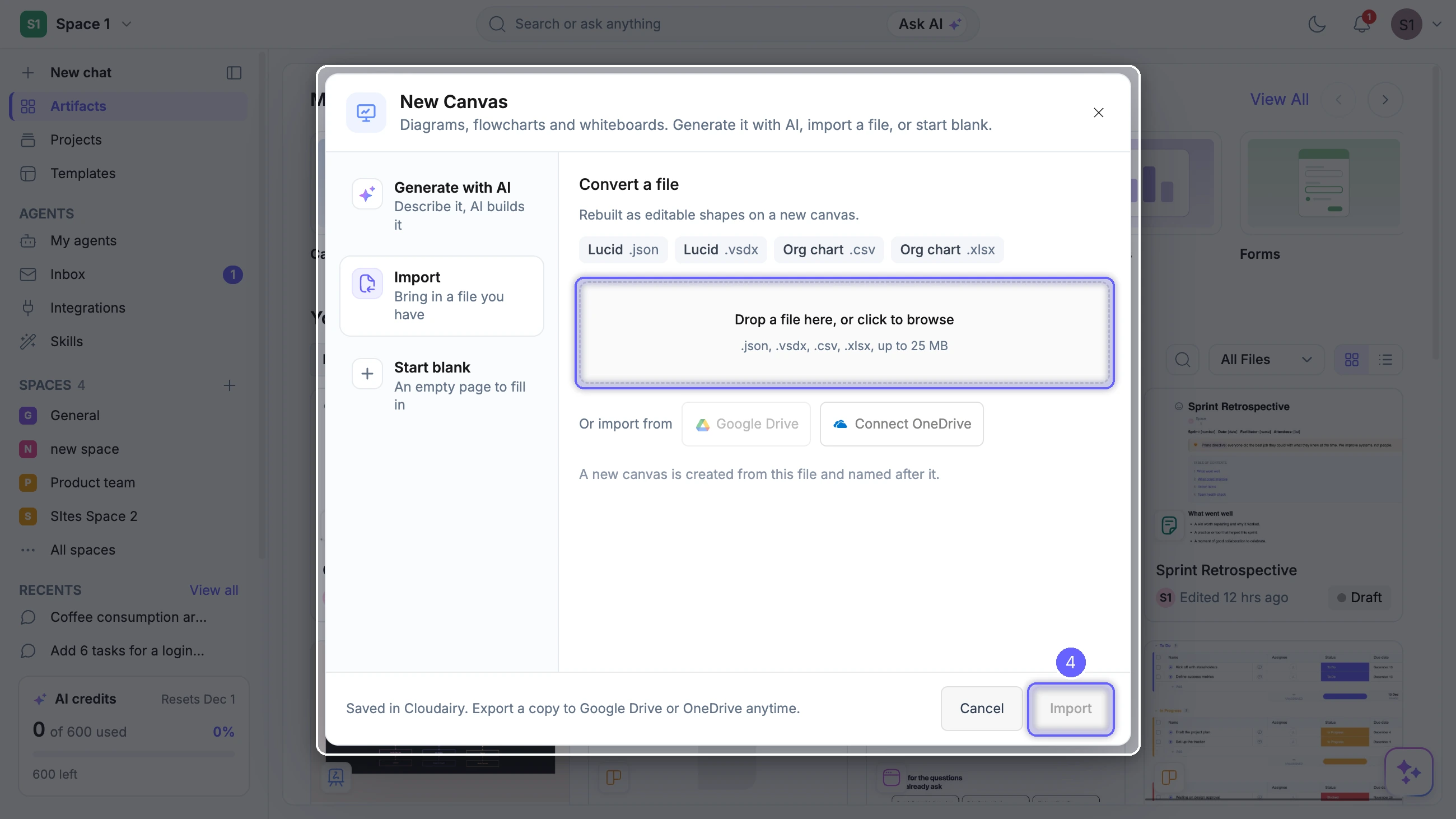
Click Import.
Choose Convert to turn a file into an editable item, or Use as a source for AI to let AI build a new item from an image.
Drop a file (up to 25 MB), or pick one from your computer, Google Drive or OneDrive.
Click Import (or Generate for a source file).
| Type | Files you can convert |
|---|---|
| Doc | Markdown, Word, CSV, Excel, PDF |
| Canvas | Lucid (.json, .vsdx), Org chart (.csv, .xlsx) |
| ERD | Excel, CSV, SQL |
Importing into a canvas or an ERD is on paid plans. On the Free plan you see an upgrade prompt. More in Import a file.
Start blank
Click Start blank.
Type a name, for example Q4 roadmap. A blank doc starts as "Untitled doc".
Optional: pick a template starter under Or start from a template, or click Browse templates.
Click Create canvas, Create doc or Create form (the button names the type).
The new item opens. A new doc opens with the AI panel beside it ("Let's write"), so you can ask for a first draft. See AI in Docs.
Names must be unique in a space. If a canvas of that name exists there already, the dialog asks you to choose a different name.
A blank ERD made this way uses no AI credits.