

Create with Ask AI
Describe what you want in the Ask AI box, pick the type in the Create menu, and Cloudairy AI builds a real item you can edit.
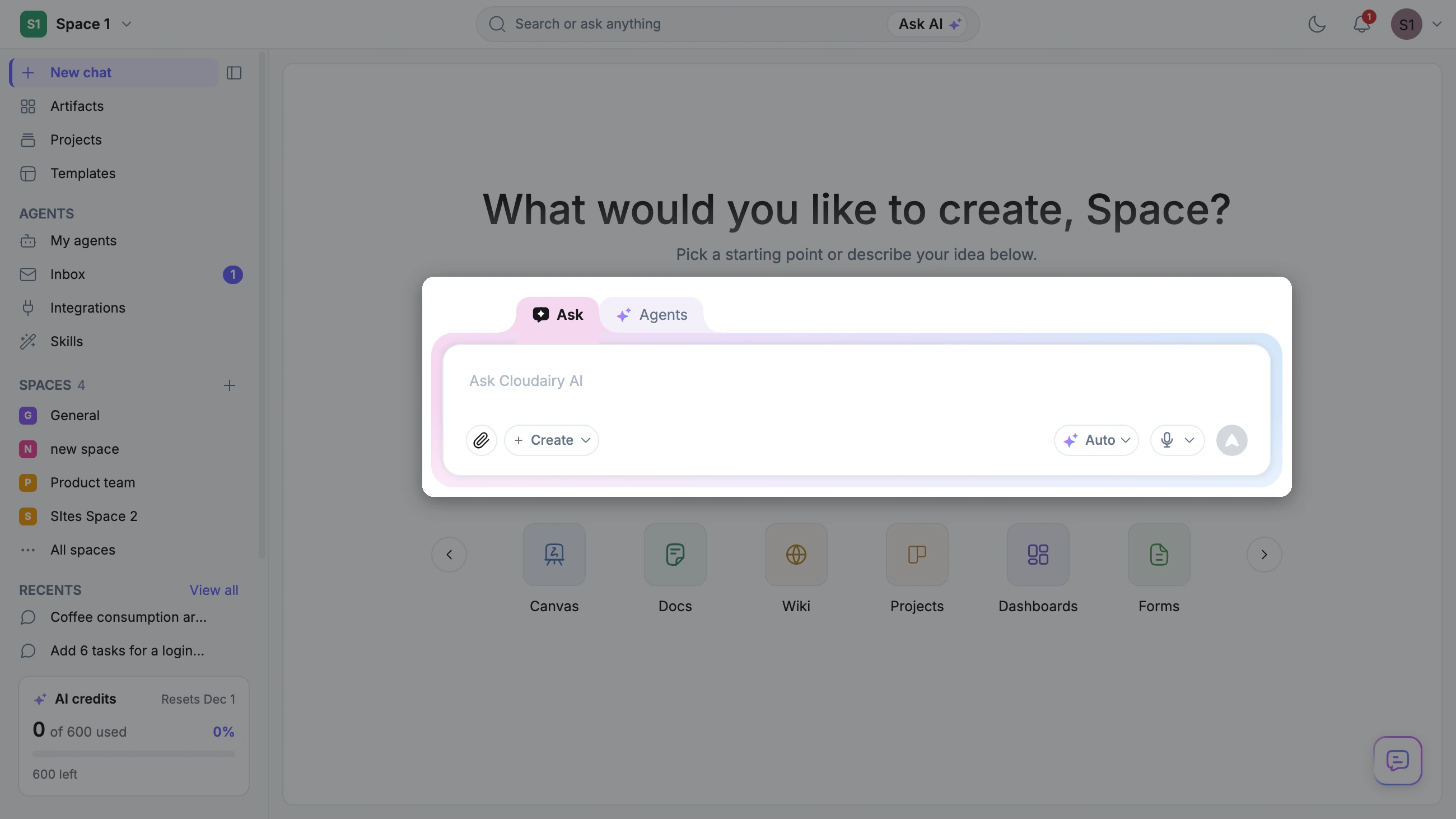
Create something
In the left sidebar, click New chat. This is the app home, with the Ask AI box.
Make sure the Ask tab above the box is selected. (The Agents tab is for AI agents. See Agents.)
Click Create ▾ under the box and pick a type: Canvas, Docs, Wiki, Projects, Forms, Sites, Code, ERD, Slides, Infographic, Wireframes or Dashboards.
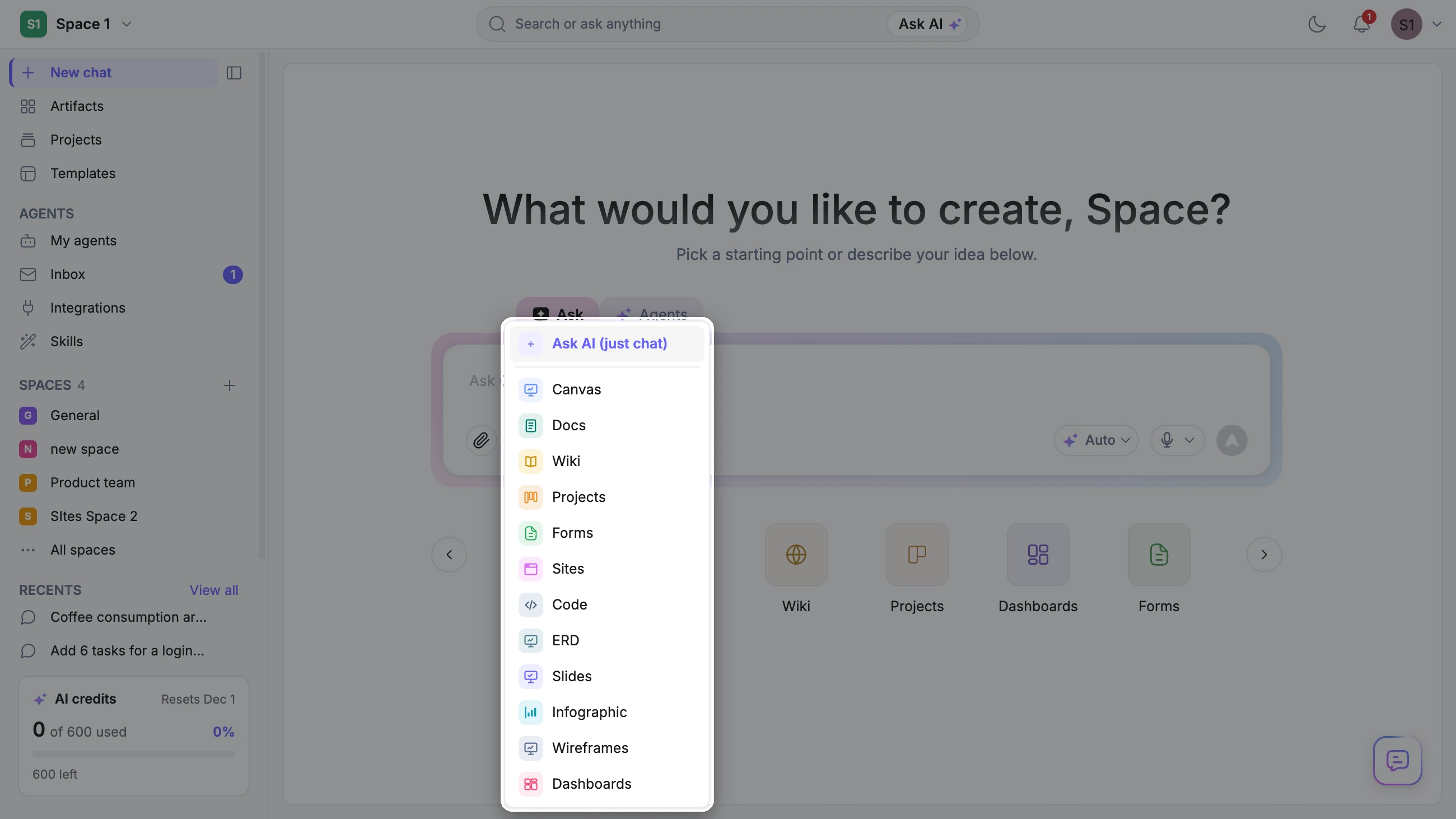
Describe what you want in plain words. Say who it is for and what to include.
Press Enter to send. (Shift+Enter starts a new line.)
Cloudairy AI opens a chat and works on it. When the item is ready, it shows as a card in the chat. Open it from the card to keep editing.
To go back to a plain conversation, open Create ▾ again and pick Ask AI (just chat).
"A three-tier AWS web app with a load balancer, two app servers and a managed database" gets a better diagram than "AWS diagram".
What each choice makes
| Create choice | What you get | Try a prompt like |
|---|---|---|
| Canvas | A diagram on an infinite canvas: flowcharts, mind maps, cloud architecture, UML, sequence diagrams | "Architecture for a serverless order system on AWS with a queue and a database" |
| Docs | A written document, drafted for you | "A one-page product brief for a mobile expense app" |
| Wiki | A planned wiki with its pages written | "An internal wiki for new engineers: setup, coding standards, release process" |
| Projects | A project with tasks you can track | "A launch plan for our webinar in three weeks" |
| Forms | A form or survey people fill in | "A customer feedback survey with a 1 to 5 rating" |
| Sites | A website built from your description | "A landing page for a yoga studio with classes and prices" |
| Code | A code project, opened in a code workspace | "A Python script that renames photos by the date they were taken" |
| ERD | Database tables and the relationships between them | "Tables for a library: books, members, loans" |
| Slides | A slide deck you can edit and present | "Ten slides introducing our Q3 results to the board" |
| Infographic | Facts and figures laid out as a visual poster | "5 steps to onboard a new employee" |
| Wireframes | Low-fidelity app and website screens | "Sign up, login and settings screens for a fitness app" |
| Dashboards | Charts and numbers from a CSV or Excel file you add | Attach a sales CSV and write "Monthly revenue by region" |
For websites, pick Sites, not Code. Code is for scripts and programs.
Forms is part of the Enterprise plan. On other plans the request can't create a form.
If you leave the menu on Ask AI and your request clearly belongs in a product ("write a project brief"), Cloudairy AI can still make it. Picking the type yourself is faster and more predictable.
Attach files
Click the paperclip to add files. You can add several at once.
| File | What Cloudairy AI does with it |
|---|---|
| PNG, JPG or WebP image | Reads the picture as context. Attach a photo of a whiteboard sketch and ask for a clean diagram. |
| CSV, XLSX or XLS spreadsheet | Shows a "Spreadsheet · builds a dashboard" chip and builds a data dashboard from it, unless you picked another type. |
Click the x on a file to remove it before you send.
Speak instead of typing
Click the microphone next to the model picker and speak. Your words appear in the box as text, and nothing is sent until you send it. The first time, your browser asks to use the microphone. The small arrow beside it opens Microphone options.
Pick a model
The Auto ▾ button picks the AI model. Auto is right for most requests. See Choose an AI model.
Start from the product strip
Under the box is a strip of products, with ‹ › arrows to scroll it. Click one to start that type.
Keep going in the chat
Each prompt starts a chat, listed under RECENTS in the left sidebar. Ask for changes in plain words: "Add a legend", "Make the second section shorter". If Cloudairy AI needs more detail, it asks a short question with options to click. Every answer shows the AI credits it used. See Work with an AI chat.
Plan limits that can stop a create
- On the Free plan you can have 3 items in total. When you reach that, AI can't create another item until you delete one or upgrade.
- Each create uses AI credits. When they run out, Cloudairy AI tells you and offers an upgrade.