

Choose an AI model
The model picker in the Ask AI box lets you choose which AI model does the work, or leave it on Auto.
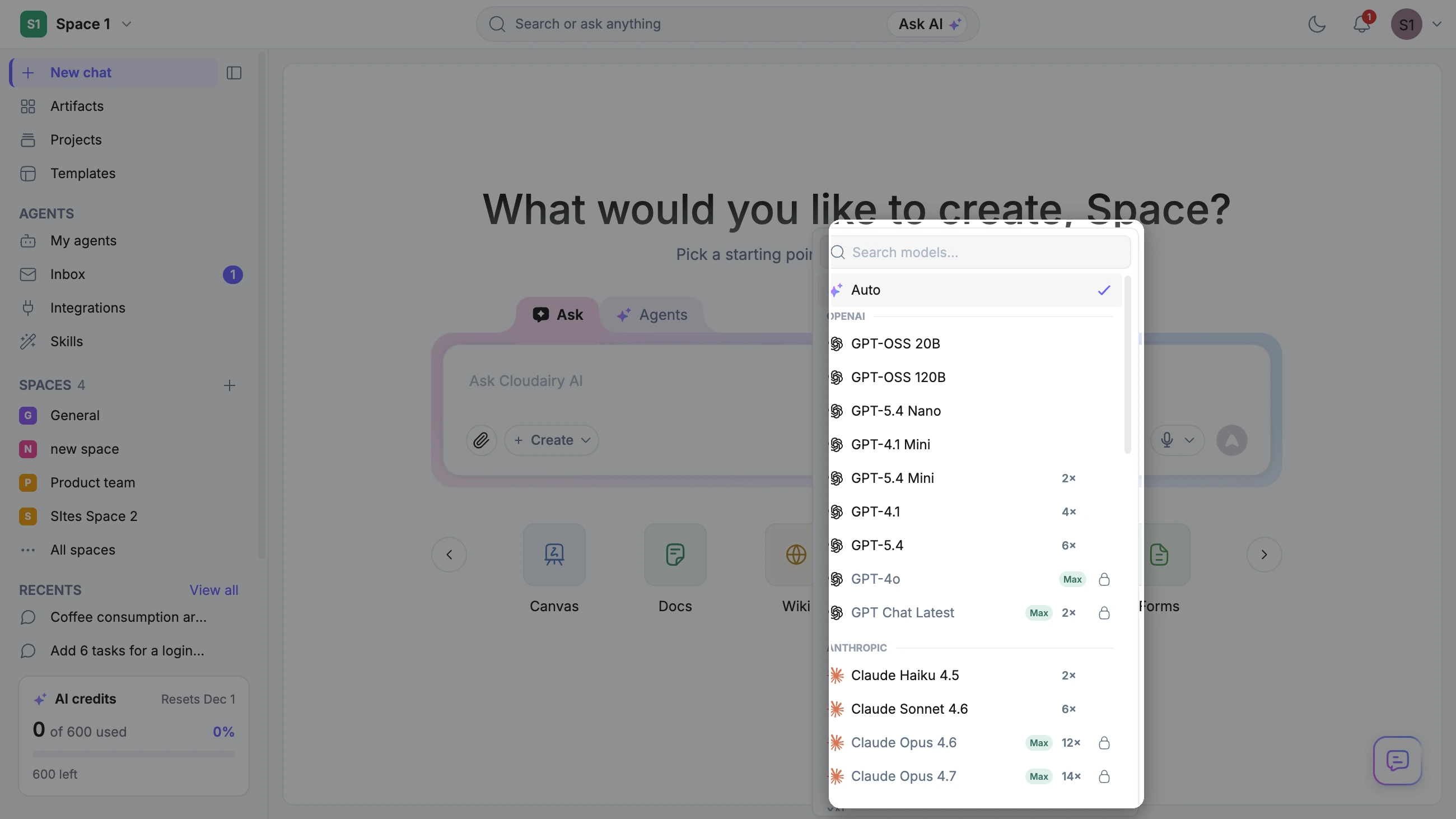
Pick a model
In the Ask AI box on the app home or in a chat, click the model button. It reads Auto ▾ until you pick a model, then shows the model's name.
The list opens, grouped by provider. Type in Search models… to filter it.
Hover a model to see what it is best for and what it costs per request.
Click a model to use it. A tick marks your choice.
Your choice stays selected for your next prompts in this browser until you change it.
The same Auto pill sits in the AI chat on a canvas. See AI on a canvas.
When to use Auto
Auto is the first row and the default. With Auto, Cloudairy picks a model for each kind of request. Use it unless you have a reason not to.
Pick a model yourself when:
- You want a quick answer and lower credit use: choose a faster, lighter model.
- The job is large or detailed, such as a complex architecture or a long document: choose a more capable model.
Credits per model
Some models cost more than the base rate. The list shows a credit multiplier (N×) on those models, and the hover card shows the cost per request. Models with no multiplier cost the base rate. Each answer shows the credits it used, so you can compare. See AI credits.
Models and your plan
Which models you can use depends on your workspace's plan.
| Plan | Models |
|---|---|
| Free | Fast |
| Pro | Fast + mid-size |
| Business | All |
| Enterprise | All + your own model keys |
A model your plan doesn't include shows a lock, and the most capable ones carry a Max badge. Click a locked model to see your upgrade options. See Plans.
Good to know
- The model you choose applies to the main work in the request, such as drawing the diagram or writing the doc.
- Agents have their own model setting. See Agents.