

Import a file
Bring work you already have into Cloudairy, from your computer, Google Drive or OneDrive, as a new artifact or as a task board.
There are four ways in:
| You have | Use |
|---|---|
| A doc, a Lucid diagram, an org chart or a database file | New dialog › Import |
| A spreadsheet or an export from another tool, and want a task board | A space or project › + › Import data ▸ |
| A Markdown file to add to a doc you have open | The doc's ⋯ › Import |
| Files or a whole site to turn into a wiki | A new wiki › Import |
Import into a new artifact
Click Artifacts in the left sidebar.
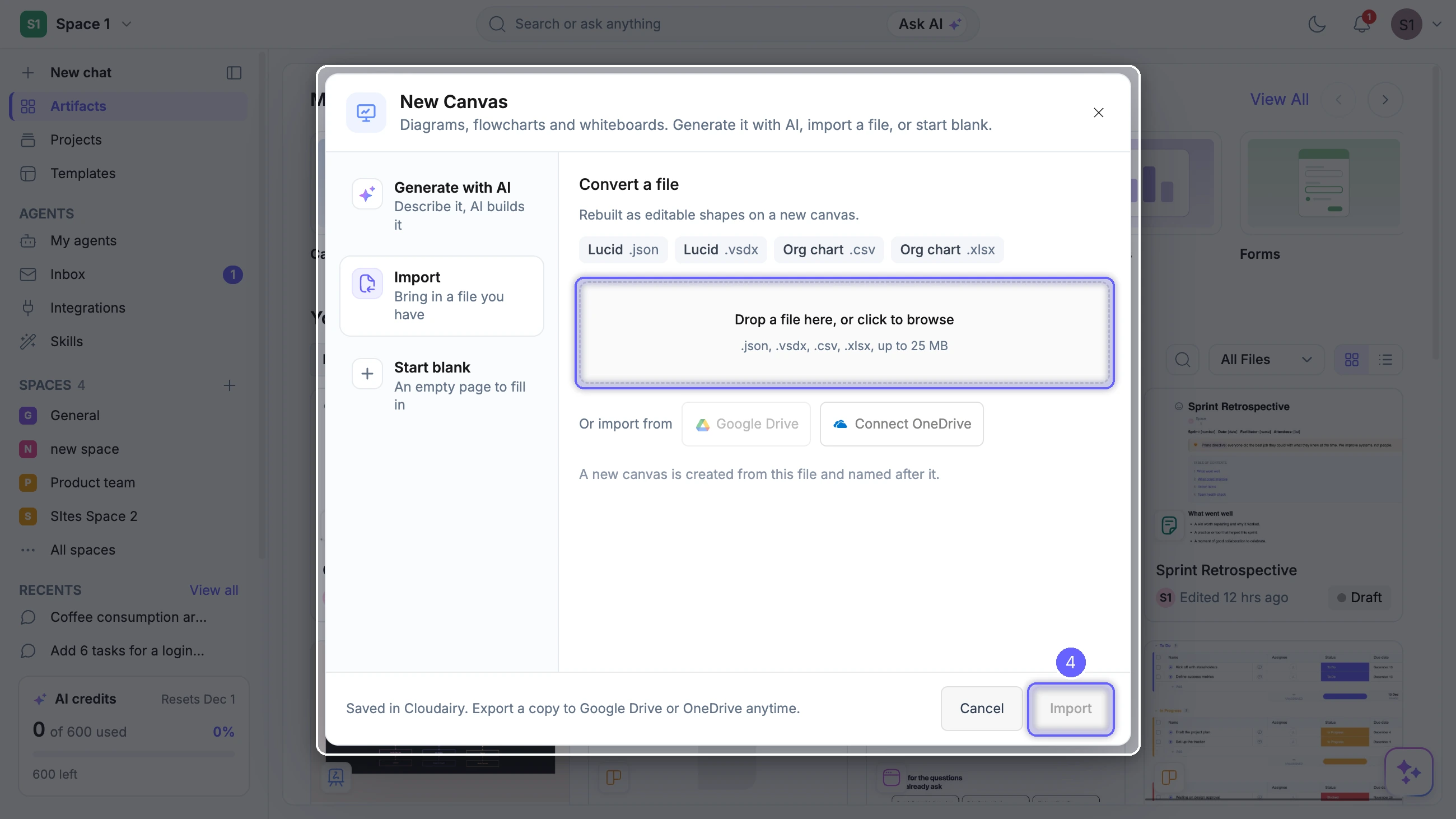
Under Make something new, click Docs, Canvas or ERD.
In the dialog, choose Import.
Choose Convert (keep the file as an editable item) or Use as a source for AI (let AI build a new item from an image).
Drop a file in the box (up to 25 MB), or choose one. To use a file from your drive, pick Google Drive or OneDrive.
Click Import.
| Artifact | Files you can convert | What you get |
|---|---|---|
| Doc | Markdown (.md), Word (.docx), CSV, Excel (.xlsx), PDF | A doc named after the file ("Imported ") |
| Canvas | Lucid (.json or .vsdx), Org chart (.csv or .xlsx) | Editable shapes on a new canvas |
| ERD | Excel, CSV, SQL | Tables and relationships read from the file |
Importing into a canvas or ERD is on paid plans. A file over 25 MB gives "This file is larger than 25 MB."
Google Drive or OneDrive
The first time, the button reads Connect Google Drive or Connect OneDrive. Click it, sign in to your drive and allow access. You come back to the same dialog. Each person picks from their own drive. Manage your drives in avatar › My profile › Connected accounts. See Connect.
Import data into a space or project
Use this to start a task board from a spreadsheet or another tool.
Open a space (or a project).
Click + (or Create new) and choose Import data, then pick a source.
If the source is another app, follow the short guide to export your data from it first.
Upload the file.
Answer the three steps:
- What is your first row? This row becomes the column titles.
- What is your first column? This column becomes the title of each task.
- Customize your columns. Choose what each column becomes on the board.
Click Create Board.
Sources: Excel / CSV, Google Sheets, Asana, Trello, Basecamp, Meta Ads, Zendesk, Jira and Jira Server. Every source works through a file today: for Google Sheets and the other apps, export your data as .xlsx or .csv first. The guide in Cloudairy shows you where to click in that app.
Put your column titles in the first row (Task, Status, Assignee, Due date) so Cloudairy recognises them.
Import more into something you have open
- A doc: ⋯ › Import takes .md, .markdown, .mdx or .txt.
- A canvas: Shapes & lines › More shapes › Import data at the foot of the shapes panel: Org chart, Entity relationship (ERD) or Import from Lucid (JSON or VSDX).
- A canvas, by upload: "+" More tools › Upload takes images, PDF and DOCX files. You can also drag images (PNG, JPG or SVG, up to 2 MB) onto the board.
- A wiki: a new wiki's Import reads files (drop zone, Browse files, Choose folder) or Online docs (a site URL, then Read the site).
Each is covered in its artifact's pages: Docs, Canvas, Wiki.