

Spaces
Spaces are shared folders for a team or a topic, so everything for one piece of work is in one place.
Your spaces are listed under SPACES in the left sidebar. Click All spaces to see every space as a card, with Search spaces and Add space.
Create a space
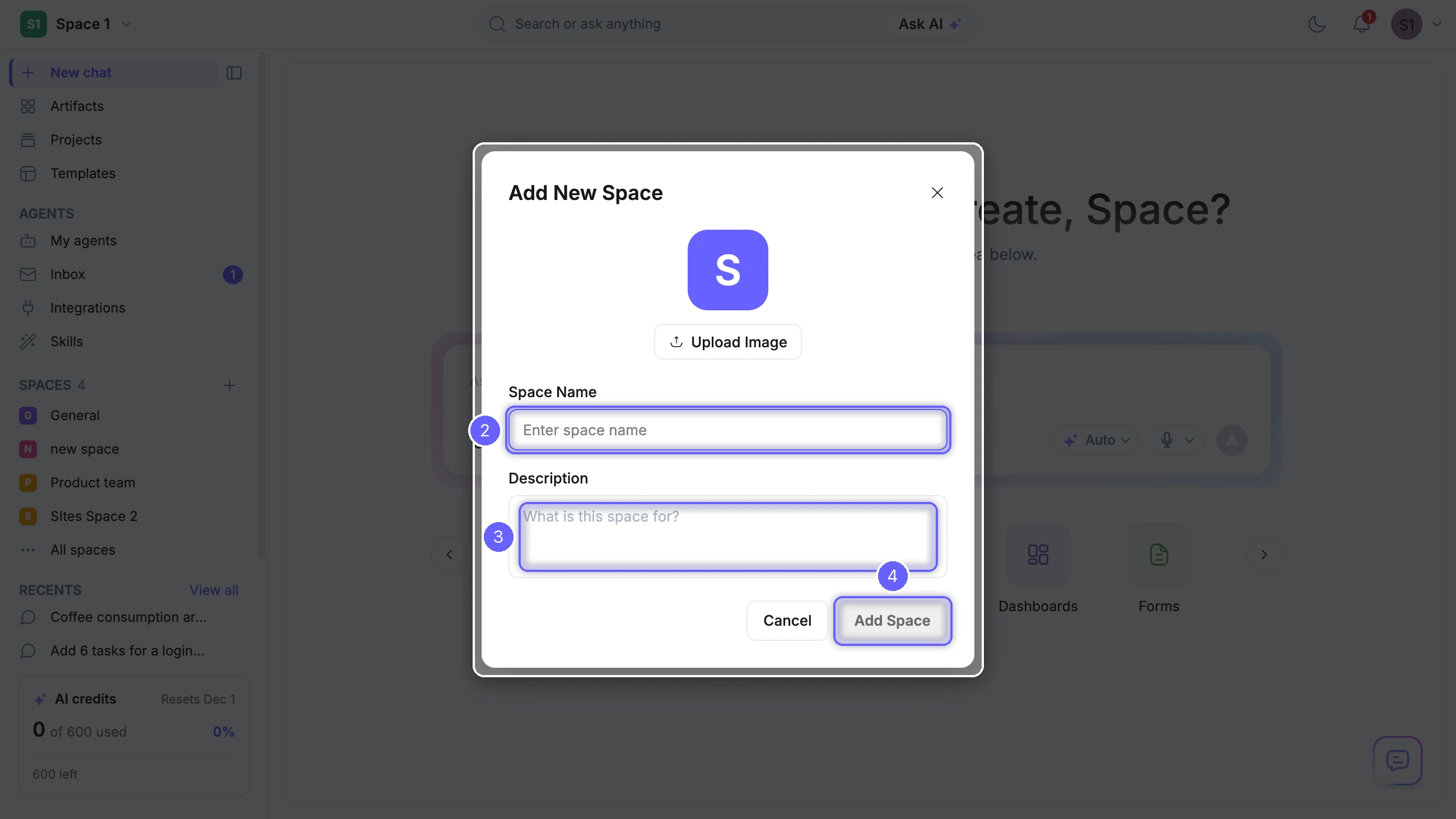
In the left sidebar, point at SPACES and click +. (Or open All spaces and click Add space.)
In Add New Space, type a Space Name.
Optional: add a Description and an image with Upload Image (JPG, PNG or WEBP, under 2 MB).
Click Add Space. You see "Space created successfully."
New spaces are open spaces.
Find your way around a space
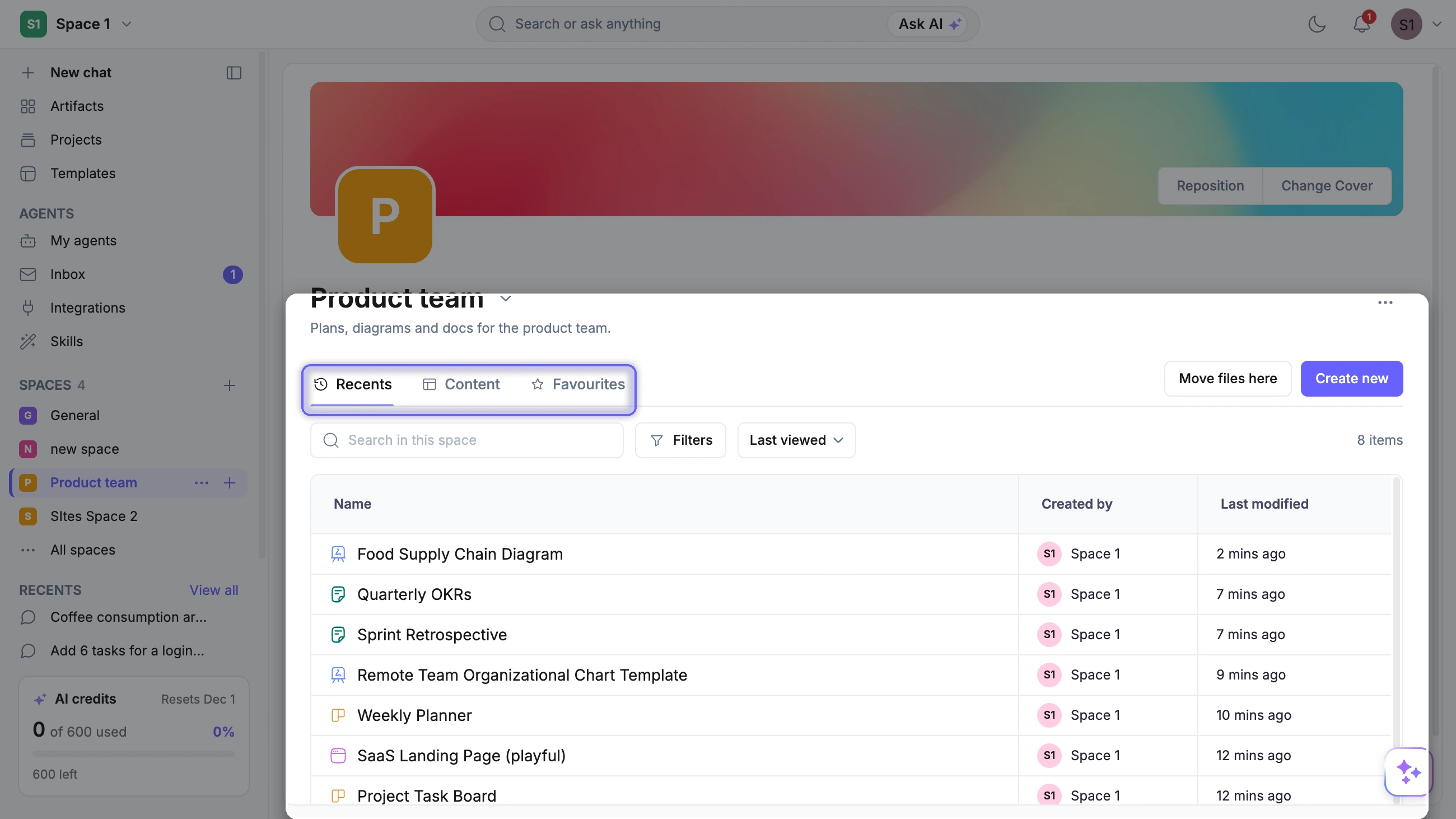
Click the space under SPACES. The space page has:
- Cover: hover it for Reposition (drag, then Save) or Change Cover (Gallery, Upload, Link, Search Images, Remove).
- Avatar, name and description. Hover the avatar to upload an image. Click the ⌄ by the name for space info: type, members, and + to add members.
- Tabs:
| Tab | Shows |
|---|---|
| Recents | Files you opened in this space |
| Content | Everything in this space. Click a row to open it. |
| Favourites | Files you starred in this space |
- Toolbar: Search files in this space, Filters, sort, the file count, Move files here and Create new.
An empty space says This space is empty, with Create new and Move files here.
Filter a space
Click Filters.
Set any of: Favorites only, Type, Created by, Membership, Last modified, Created (Is, Is not, Today … Date range) and Not modified in.
Click Apply.
If nothing matches, you see "No files match", with Clear search and filters.
Add work to a space
- Click Create new and pick what to make. See Create in a space or a project.
- Click Move files here to bring existing files in. See Move items.
Edit, share or delete a space
Hover the space in the left sidebar and click ⋯, or open the space and click ⋯ at the top of the page.
| Action | What it does |
|---|---|
| Edit space | Change the name, description or image. |
| Change cover | Set the cover image (on the space page's ⋯). |
| Share space | Invite people to the whole space by email, see Who has access, set link settings and Copy Link. |
| Delete space | Delete the space and everything in it. |
Delete a space
Click ⋯ next to the space and choose Delete space.
Read the Delete Space message carefully: everything in the space is deleted too, and this can't be undone.
Confirm.
Before you delete a space, move anything you want to keep. See Move items.