Spaces are shared folders for a team or a topic, so everything for one piece of work is in one place.
Your spaces are listed under SPACES in the left sidebar. Click All spaces to see every space as a card, with Search spaces and Add space.
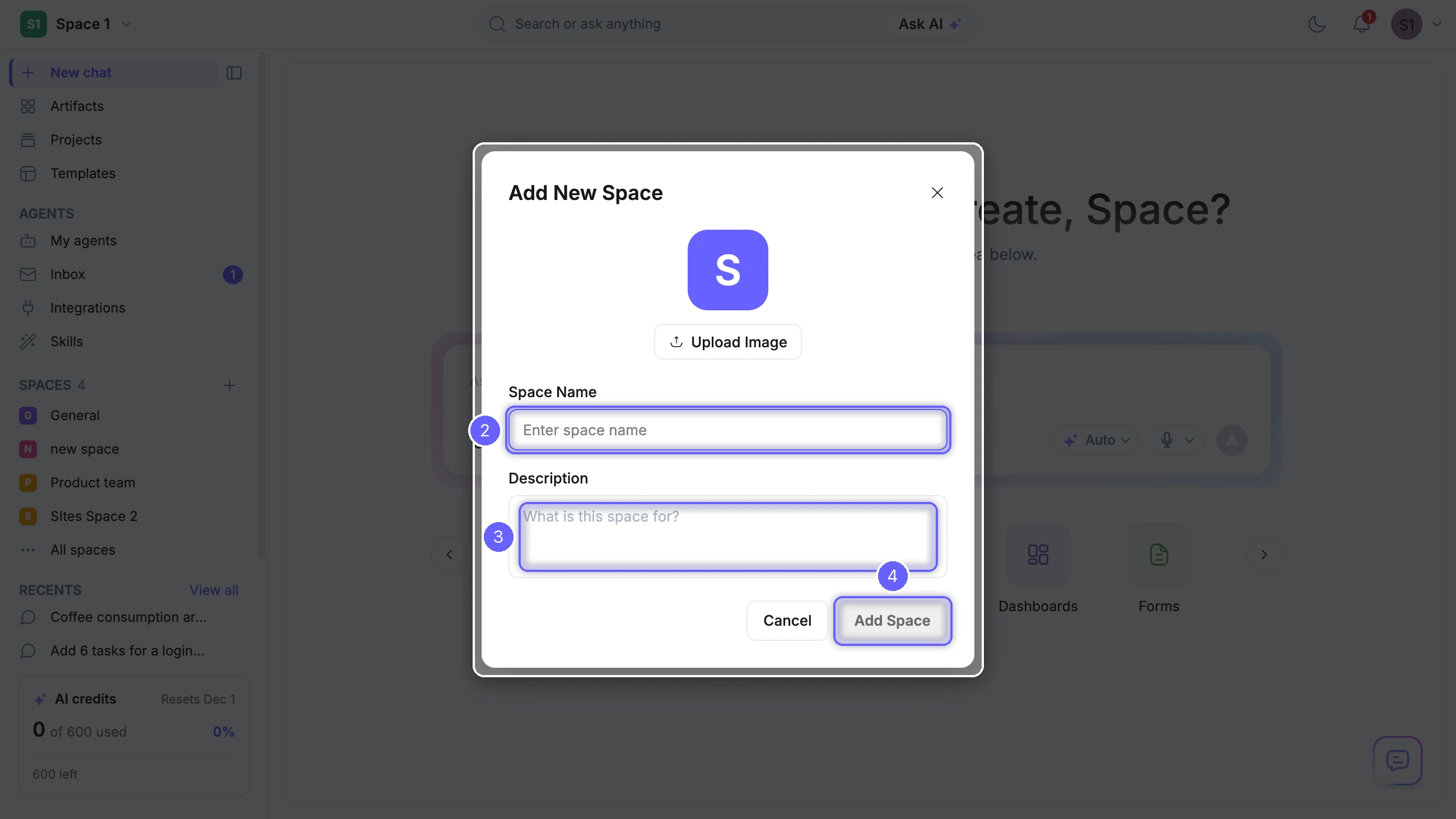
In the left sidebar, point at SPACES and click +. (Or open All spaces and click Add space.)
In Add New Space, type a Space Name.
Optional: add a Description and an image with Upload Image (JPG, PNG or WEBP, under 2 MB).
Click Add Space. You see "Space created successfully."
New spaces are open spaces.
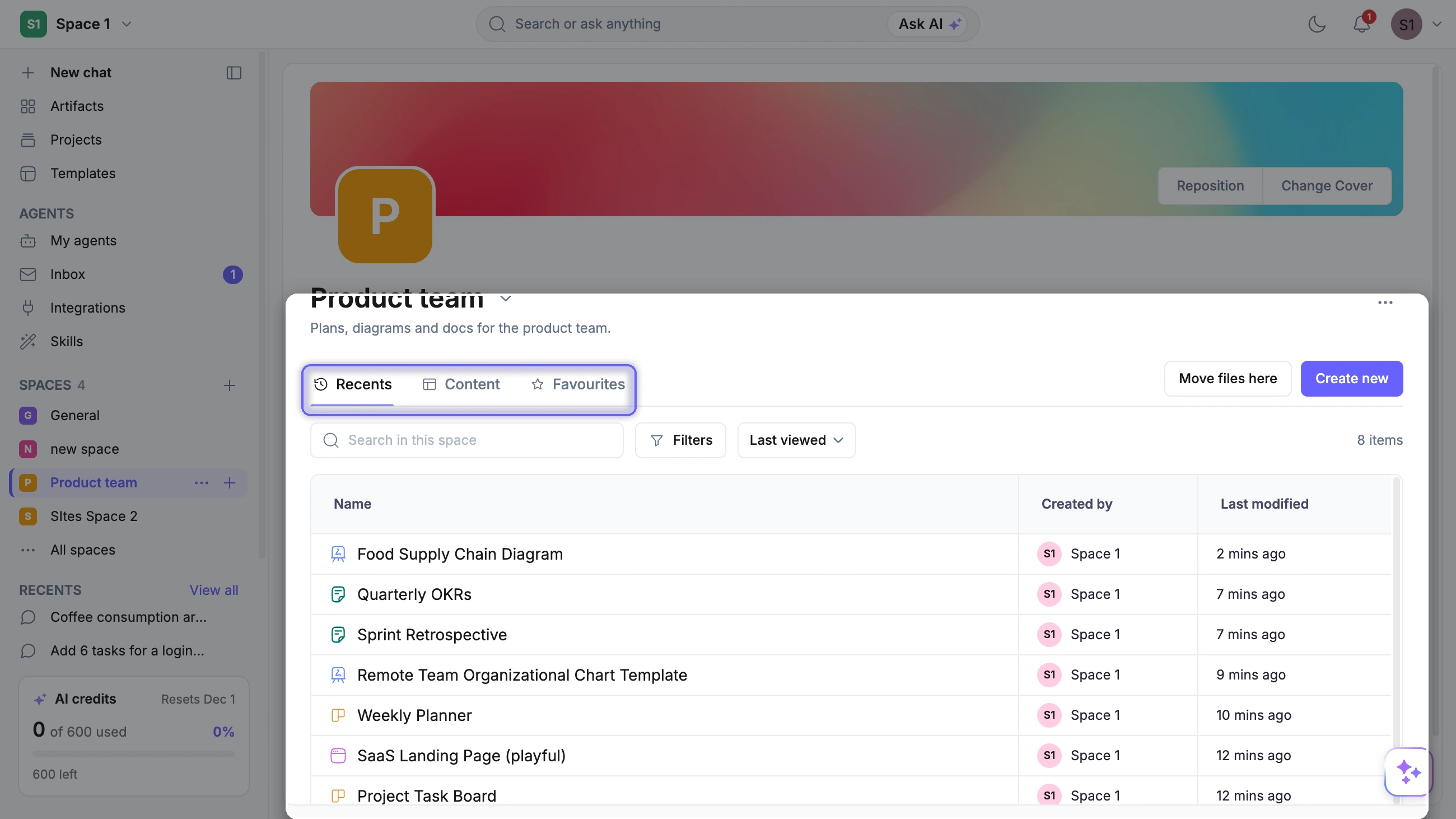
Click the space under SPACES. The space page has:
| Tab | Shows |
|---|---|
| Recents | Files you opened in this space |
| Content | Everything in this space. Click a row to open it. |
| Favourites | Files you starred in this space |
An empty space says This space is empty, with Create new and Move files here.
Click Filters.
Set any of: Favorites only, Type, Created by, Membership, Last modified, Created (Is, Is not, Today … Date range) and Not modified in.
Click Apply.
If nothing matches, you see "No files match", with Clear search and filters.
Hover the space in the left sidebar and click ⋯, or open the space and click ⋯ at the top of the page.
| Action | What it does |
|---|---|
| Edit space | Change the name, description or image. |
| Change cover | Set the cover image (on the space page's ⋯). |
| Share space | Invite people to the whole space by email, see Who has access, set link settings and Copy Link. |
| Delete space | Delete the space and everything in it. |
Click ⋯ next to the space and choose Delete space.
Read the Delete Space message carefully: everything in the space is deleted too, and this can't be undone.
Confirm.
Before you delete a space, move anything you want to keep. See Move items.