

Administer›Users and access
Users and access
Decide who is in your workspace, what each person can do, and who pays for a seat.
Inviting members is on paid plans. Free is for one person.
Two kinds of access
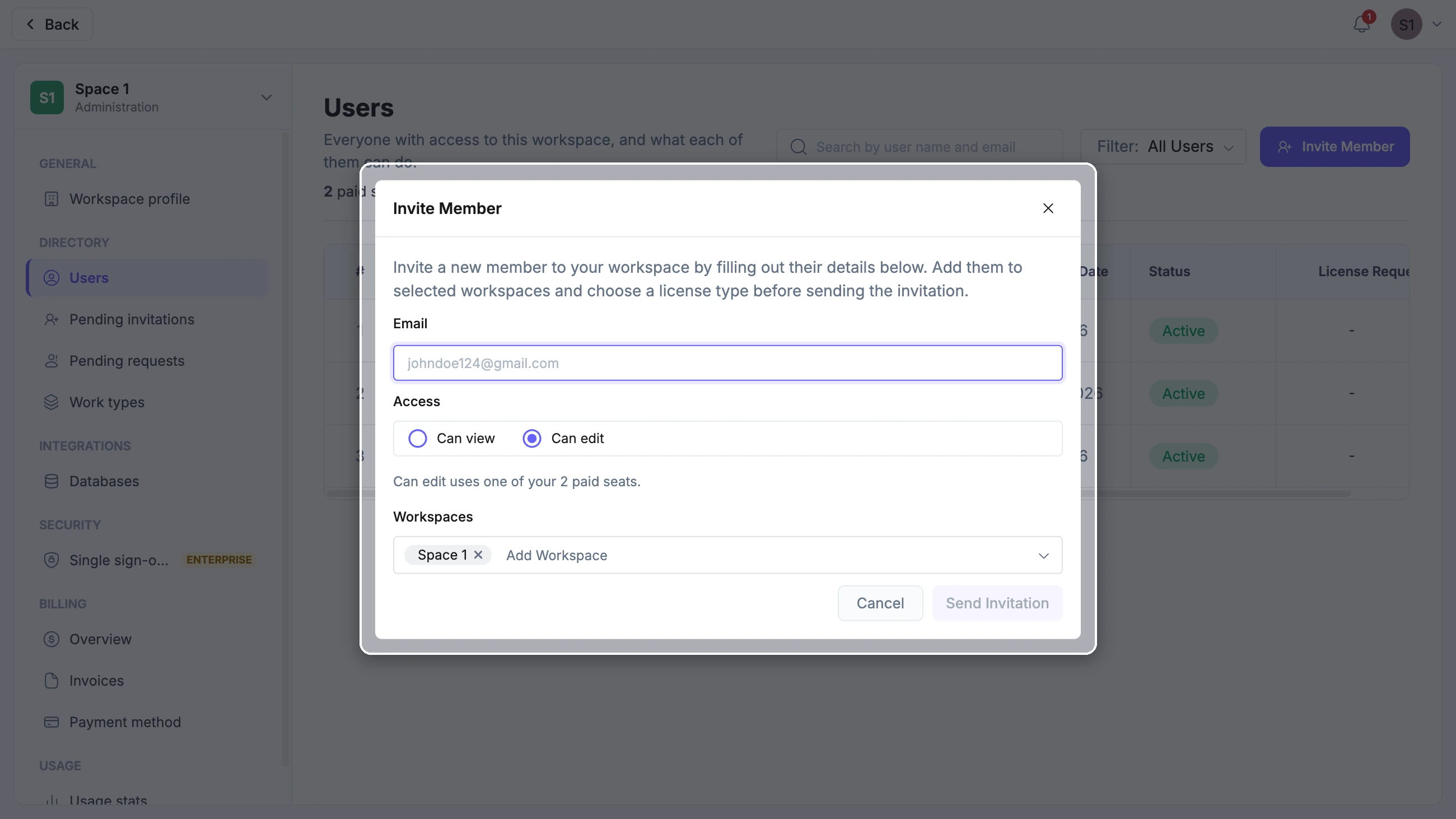
When you invite someone, you choose their access for the whole workspace.
| Access | What they can do | Seat | Shows in Users as |
|---|---|---|---|
| Can edit | Create, edit and use AI. | Uses one paid seat | Editor |
| Can view | Look at everything shared with them, but not edit, create or use AI. | Free | Guest |
The workspace owner shows as Owner. People who have not accepted yet show as Pending.
Roles
| Role | Who it is | What they can do |
|---|---|---|
| Owner | The person who owns the workspace and its billing. | Everything, always. Only the owner can delete the workspace. |
| Admin | Someone who manages the workspace with the owner. | Open Administration: billing, seats, users and SSO. |
| Member | Everyone else. | Work in the workspace with the access they were given. |
| Guest | A member with Can view access. | Look at what is shared with them, and ask for edit access or a licence. |
The Teams sheet shows Owner, Admin and Member. SSO uses Admin, Member and Guest as the default role for people it adds. See Set up SSO.
Sharing rules
- Sharing an item and inviting members are on paid plans. On Free you see Sharing is on paid plans or Inviting members is on paid plans.
- In an item's Share dialog, each person gets Can Edit or Can View on that item.
- Only the space's creator or a workspace admin can share a space.
- People with view access can ask to edit. Guests who try to create something are asked to request a licence.
For sharing one item, links and public links, see Build and Connect.
In this section
- See who is in your workspace
- Invite people
- Invitations and access requests
- Change the number of seats
Next steps
Was this helpful?