

Administer›Users and access
See who is in your workspace
The Users page lists everyone with access to the workspace, with their role, seat and status.
Users is on paid plans. Only the workspace owner and admins can open it.
Open Users
Click your avatar in the top bar, then click Administration.
Under Directory, click Users.
Or click the workspace switcher, then Invite people.
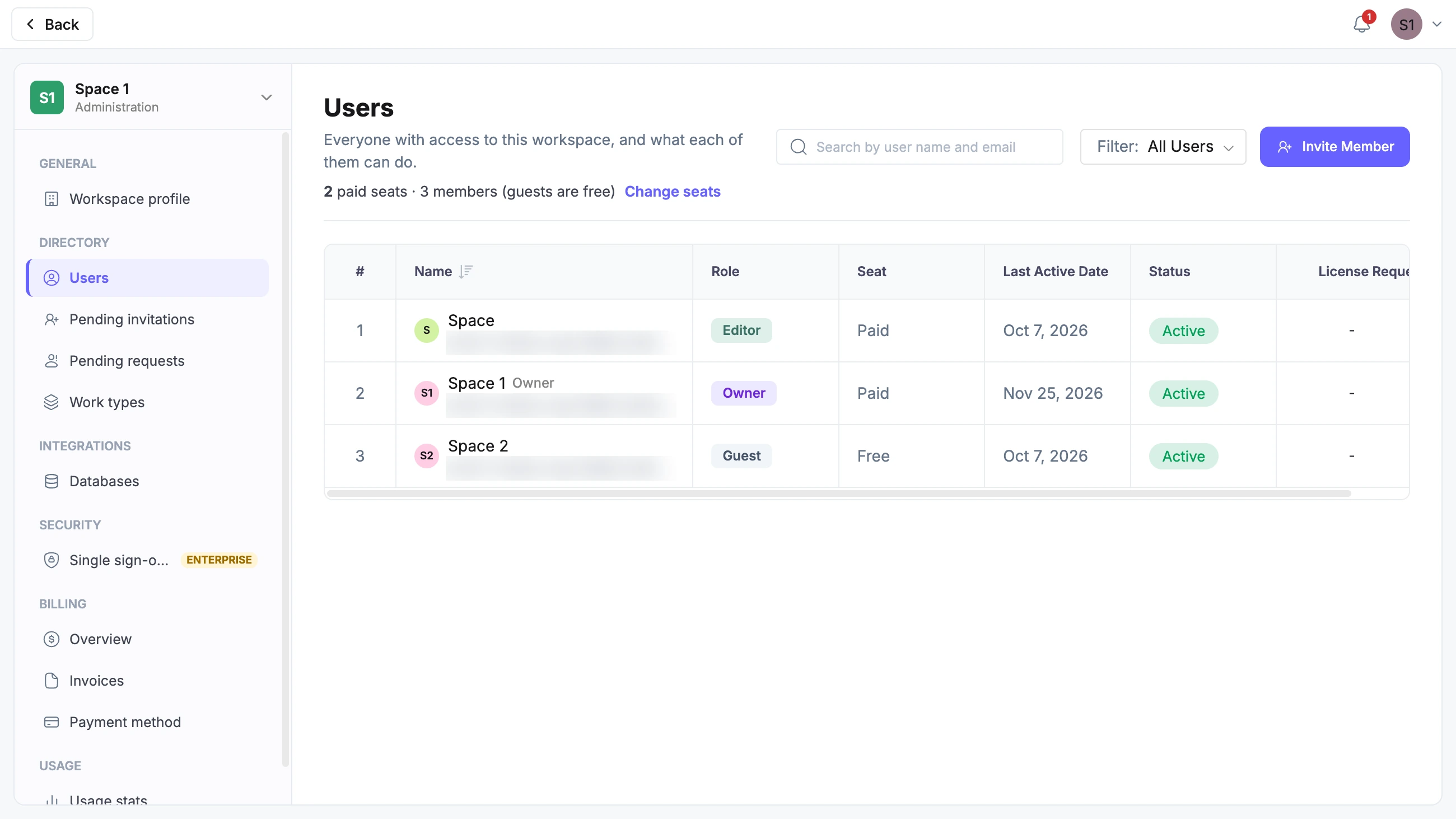
Read the page
Under the title, a line shows how many paid seats are used, for example 4 of 5 paid seats used · 1 open seat to invite into, or all seats filled. Click Change seats next to it to add or remove seats. See Change the number of seats.
The table has these columns:
| Column | What it shows |
|---|---|
| User Names | The person's name. |
| Their email address. | |
| Role | Owner, Editor, Guest or Pending. |
| Seat | Whether they use a paid seat, a free one, or are still pending. |
| Last Active Date | When they last used Cloudairy. |
| Status | Whether they have joined. |
Find someone
- Type in Search by user name and email. The list filters as you type. If nobody matches, you see No Workspace Users.
- Open Filter and choose All Users, Free Users, Paid Users or Invited Users. Owners and admins also see Pending License Request.
Row actions
Point at a row and click ⋯:
- Copy email copies the address. You see Email copied to clipboard.
- View user details opens that person's details. It shows for active members on a paid plan, to the workspace owner.
Invite from here
Click Invite Member at the top of the page. See Invite people.
Next steps
Was this helpful?