

Single sign-on (SSO)
Single sign-on lets your team sign in to Cloudairy with your company identity provider instead of a Cloudairy password.
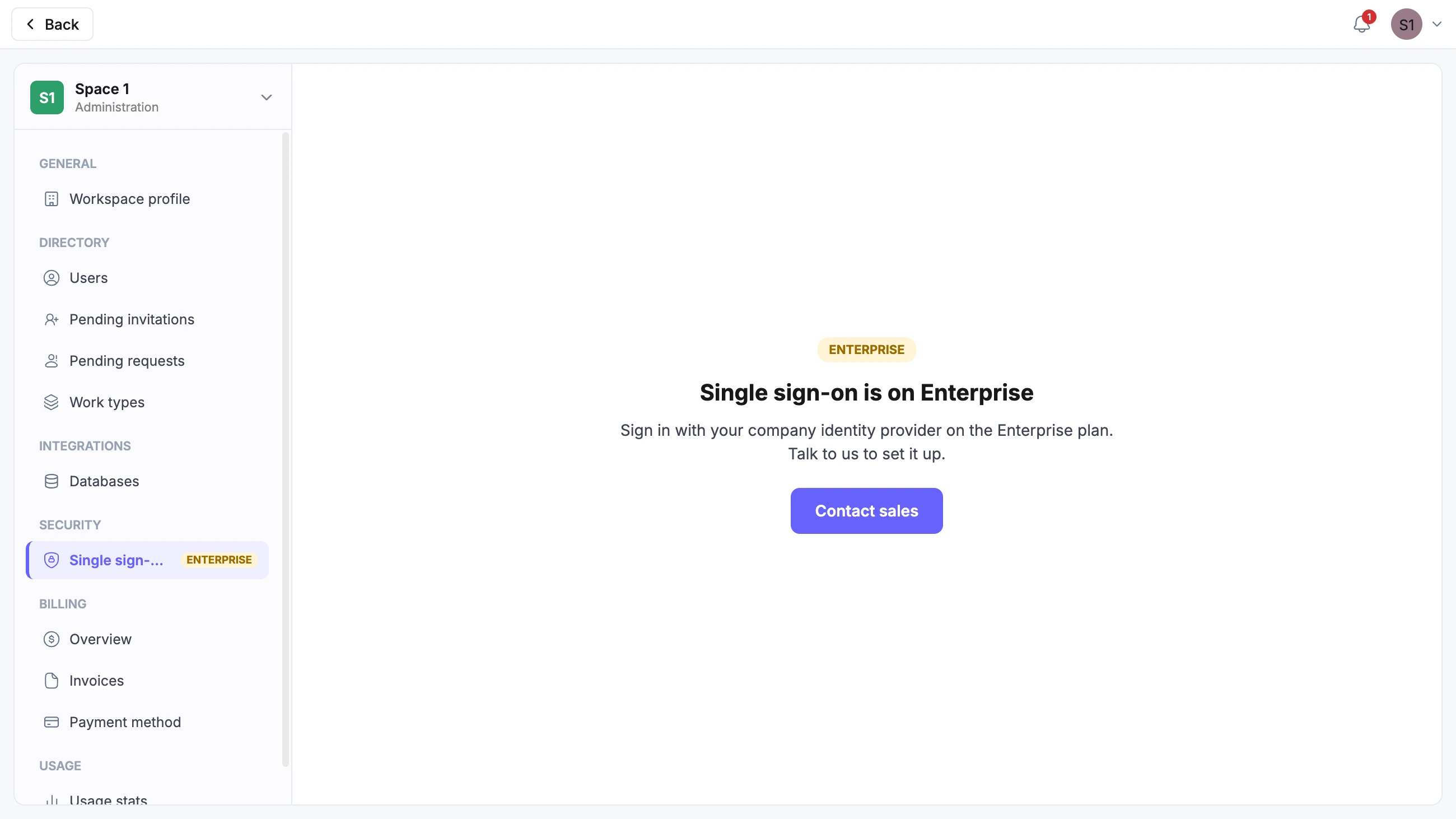
SSO is on the Enterprise plan. On other plans, Single sign-on (SSO) in Administration shows an ENTERPRISE label. To set it up, click Contact sales on the Enterprise card of the plans screen.
Only the workspace owner or a workspace admin can manage SSO.
What it works with
Cloudairy supports SAML 2.0 and OpenID Connect. The page has setup steps for:
- Microsoft Entra ID
- Okta
- Google Workspace
- OneLogin
- Ping
- JumpCloud
- Keycloak
- Any other SAML 2.0 provider
How it works
The SSO page shows the five steps across the top:
Verify your email domain. Add a DNS TXT record to prove you own it.
Create a connection. One connection per identity provider.
Set up the app in your identity provider. Copy a few values from Cloudairy into it.
Import its metadata. Bring the provider's details back into Cloudairy.
Test, then activate. A connection must pass a test before you can turn it on.
The Setup guide ↗ link on the page opens the full guide in a new tab.
Nothing changes for your team until you activate the connection. After that, anyone who signs in with an email on your verified domain is sent to your identity provider.
Key concepts
| Term | Meaning |
|---|---|
| Identity provider (IdP) | The service your company signs in with, such as Entra ID or Okta. |
| Verified email domain | A domain, such as yourcompany.com, that you proved you own. |
| Connection | The link between Cloudairy and one identity provider. It is Draft until you activate it. |
| SP entity ID and ACS URL | Values Cloudairy gives you to paste into your identity provider. |
| Metadata | A file or URL from your identity provider with its sign in address and certificate. |
| Require SSO | Blocks password, magic link and social sign in for the domain. |
| SCIM | Lets your identity provider add, update and remove users for you. |
How your team signs in
On the Cloudairy sign in page, click the key button (Sign in with SSO).
Enter your work email and continue.
Sign in on your company's page. You come straight back to Cloudairy.
If Allow IdP-initiated sign-in is on, people can also open Cloudairy from the app tile in their identity provider's portal, such as Microsoft My Apps.
Turn SSO off
A connection is Draft, Active or Disabled. To turn SSO off, open the connection and click Disable. Your team can sign in with passwords again straight away. Delete connection removes it completely. Your domains stay verified but are no longer bound to a connection.