

The Administration area
Administration is the full-screen area where workspace owners and admins manage the workspace, its users, security and billing.
Only the workspace owner and workspace admins see it. Other members do not have the menu item.
Open Administration
Click your avatar in the top bar.
Click Administration. On a paid plan it is marked "Billing · members". On Free it has a crown and "Upgrade".
Administration opens on the Billing overview.
You can also click the workspace switcher, then Settings.
To go back to where you were, click Back at the top left.
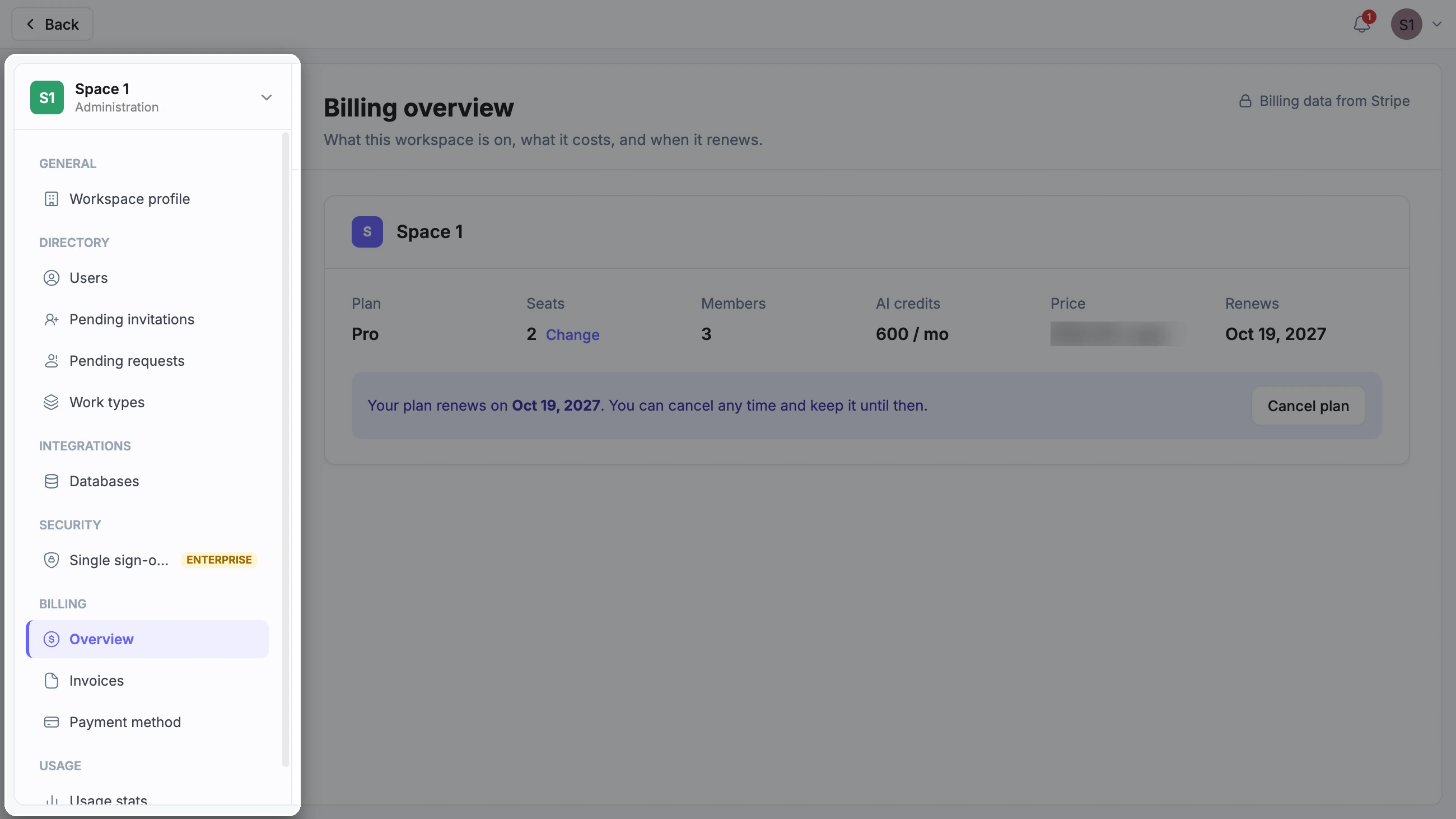
Choose the workspace
Most pages are about one workspace. Its name sits at the top of the left navigation. Click it to switch to another workspace you manage. You stay in Administration.
What is in Administration
| Group | Page | What you do there |
|---|---|---|
| General | Workspace profile | Name, description and icon. Leave or delete the workspace. |
| Directory | Users | See everyone in the workspace, their role, seat and status. |
| Directory | Pending invitations | See invites that have not been accepted yet. |
| Directory | Pending requests | Approve or decline people asking for access or a licence. |
| Directory | Work types | Set what a task can be, and what it can belong to, for every board in the workspace. |
| Integrations | Databases | Connect a database once so anyone can pull its tables into an ERD. |
| Security | Single sign-on (SSO) | Let people sign in with your identity provider. |
| Billing | Overview | Plan, seats, price and renewal. Cancel or keep the plan. |
| Billing | Invoices | Download invoices. |
| Billing | Payment method | Update the card and billing contact. |
| Usage | Usage stats | What the workspace has used against its plan. |
On a phone, the navigation turns into a row of tabs you can scroll sideways.
Locked pages
Pages your plan does not include stay in the list with a label: UPGRADE on Free (Users, Pending invitations, Pending requests and Databases) and ENTERPRISE for Single sign-on (SSO) below Enterprise. Click one to see how to unlock it. See When you reach a plan limit.
During a trial
A dark strip across the top says how many days are left on your Business trial, with a Choose a plan link.