

Connected accounts and apps
Connect your Google Drive or OneDrive, and manage the AI apps you have allowed to use Cloudairy.
Both sections are in Profile settings. Click your avatar in the top bar, then My profile.
Connected accounts: Google Drive and OneDrive
Connect a drive to import files from it and to save copies of your exports to it.
In Profile settings, click Connected accounts.
On the drive you want, click Connect.
Sign in to that service and allow access.
Back in Cloudairy, the drive shows Connected as your email.
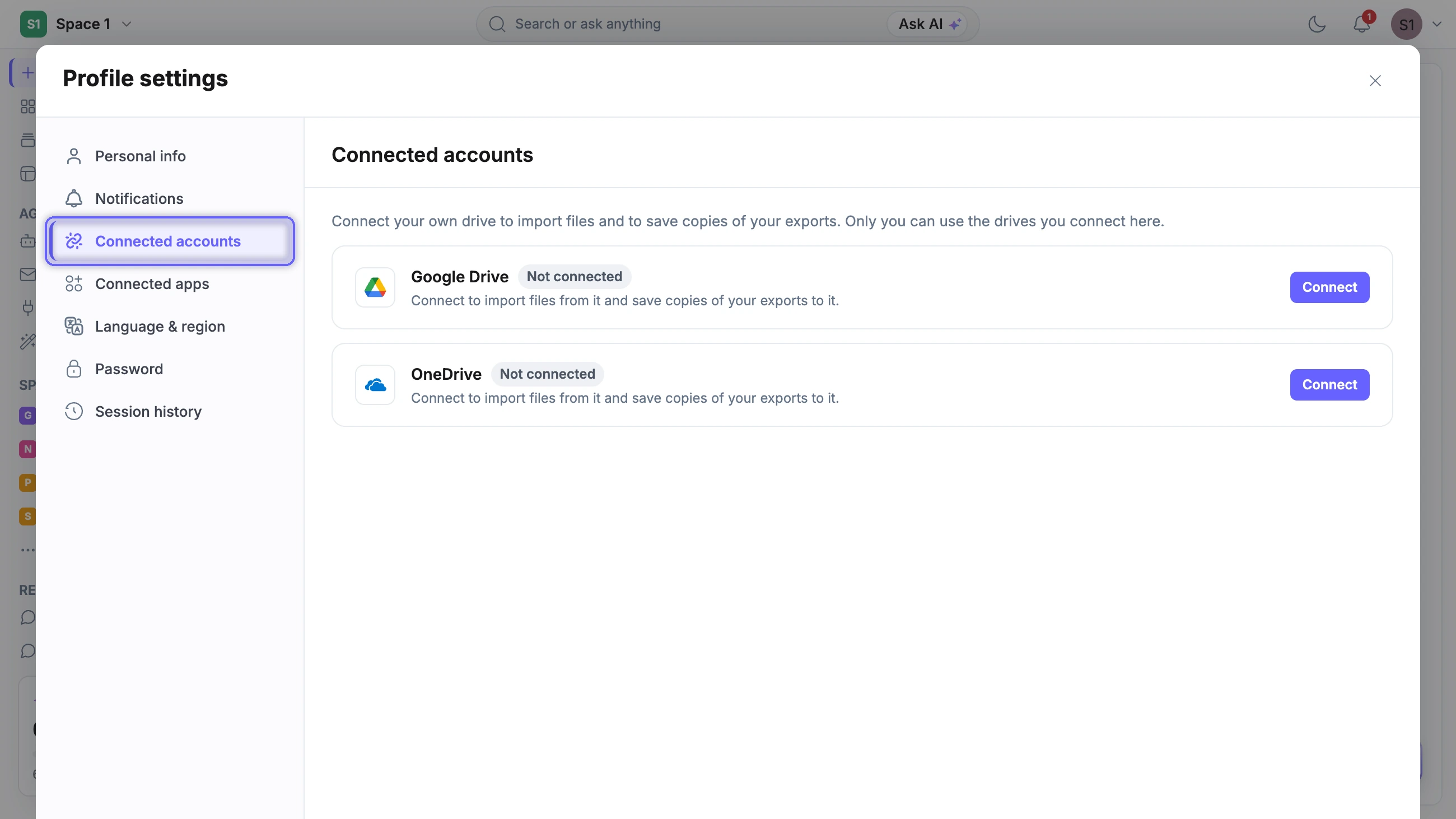
Once connected you can:
- Click Change folder to pick the folder where copies are saved.
- Click Disconnect to remove the link. Cloudairy stops importing from it and saving to it. Files already saved there stay in your drive.
If a drive shows Reconnect needed, access has ended. Click Reconnect.
Saving to Drive or OneDrive is on paid plans. Free exports PNG and JPG only.
Connected apps
When you allow an AI app to use Cloudairy, it shows here.
In Profile settings, click Connected apps.
Each app shows when it was connected and when it was last used.
To remove one, click Disconnect and confirm.
The app loses access to your Cloudairy account straight away. To use it again you need to connect it again.
Allow Cloudairy AI from connected apps
This setting decides whether apps your members connect can generate with Cloudairy AI. When it is on, that AI uses your workspace's AI credits. Use the Allow Cloudairy AI from connected apps switch to turn it on or off. Only people who manage the workspace see this switch.