

Workspaces
A workspace is your team's home in Cloudairy: it has its own members, spaces, Inbox and plan, and you can belong to several.
Some menus call a workspace a team. They mean the same thing.
See the workspace you are in
The workspace switcher sits at the top left of the top bar. It shows the workspace's name and plan.
Switch workspace
Click the workspace switcher at the top left.
Find the workspace under Private (workspaces you own) or Shared (workspaces you were invited to). Each row shows its member count. Type in Search workspaces if the list is long.
Click the workspace.
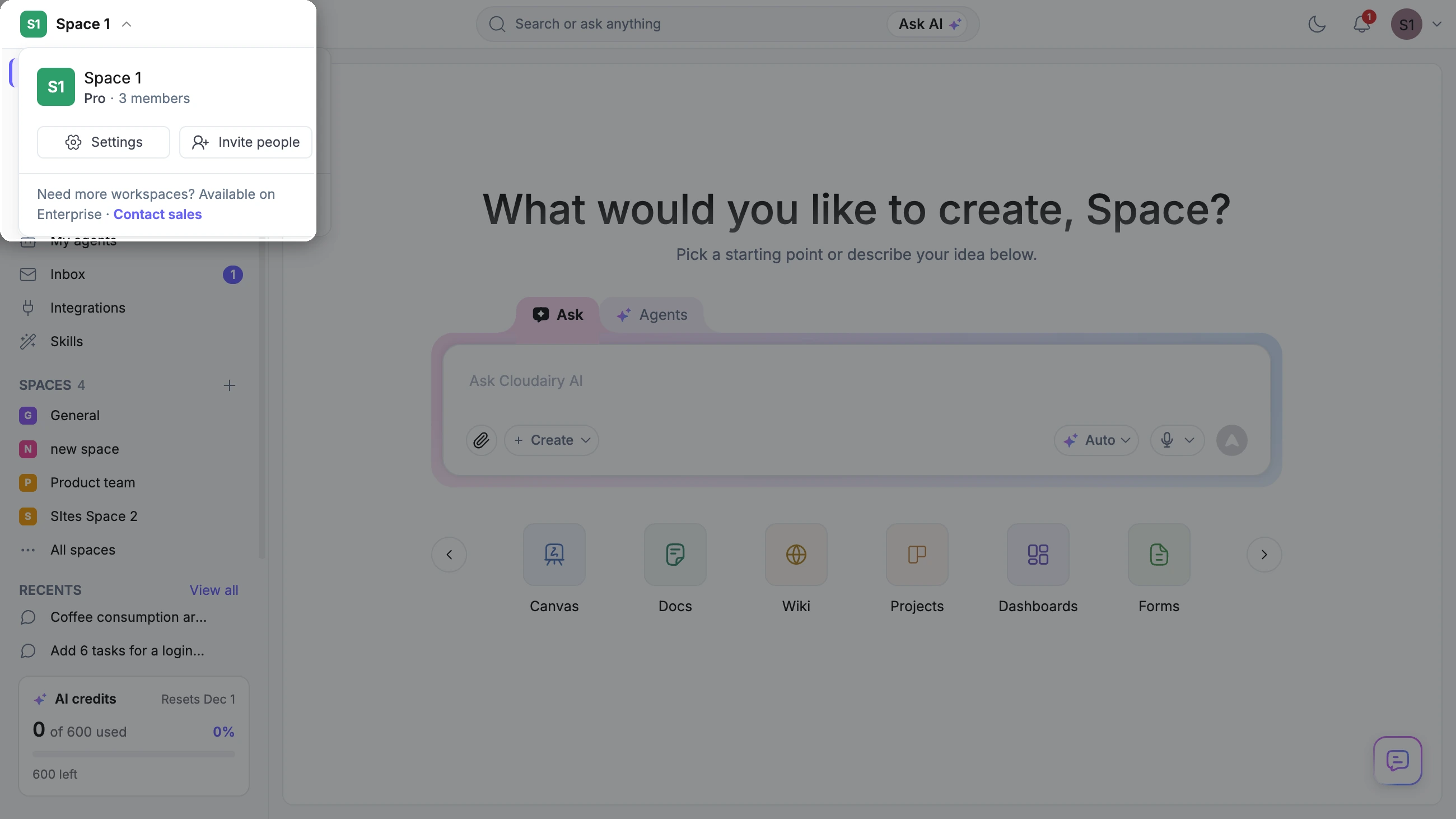
Cloudairy opens that workspace. Its spaces, files and Inbox replace the ones you saw before.
You can also switch from your profile menu: click your avatar at the top right, then point at Switch team. The Your teams list shows each workspace and its plan, with the current one highlighted.
See all your workspaces
Click your avatar at the top right.
Choose Teams.
The Teams sheet lists every workspace you belong to. Type in Search teams to filter. Pick one to see its members, their Role (Owner, Admin or Member) and when they Joined. Click Manage on your current workspace to open Administration, or Switch to this team on another.
Manage the current workspace
Workspace owners and admins manage a workspace from the switcher:
Click the workspace switcher.
Click Settings to open the Workspace profile, or Invite people to open Users.
Both open Administration. See The Administration area.
Leave a shared workspace
If you are a guest in a shared workspace, its row in the switcher has a Leave workspace button. Admins can also leave from the Workspace profile. See Workspace profile.