

Workspace profile
Give your workspace a name, a description and an icon, or leave or delete it.
Open the workspace profile
Click your avatar in the top bar, then click Administration.
Under General, click Workspace profile.
Or click the workspace switcher, then Settings.
See the overview
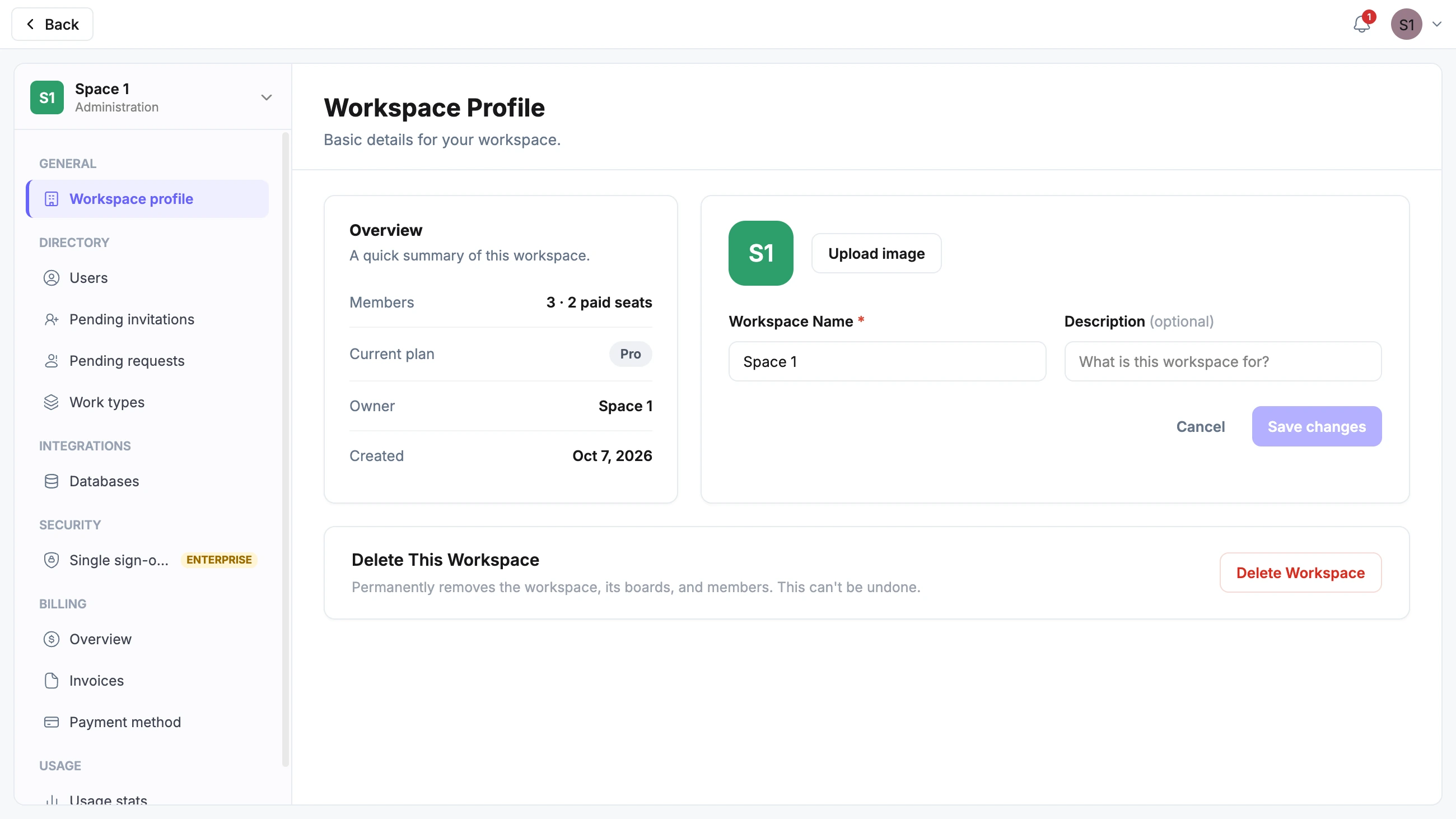
The Overview card is a quick summary of the workspace: Members, Current plan, Owner and Created.
Change the name, description or icon
Type a new Workspace Name. It cannot be empty.
Add a Description if you like. It is optional ("What is this workspace for?").
To change the icon, click Upload image and pick a JPG, PNG or WEBP file under 2 MB. Click Remove to take an icon off.
Click Save changes. Cancel puts back what was there.
You see Workspace updated.
Leave a workspace
If you are not the owner, you can leave a workspace you no longer need. The owner cannot leave their own workspace.
On Workspace profile, find Leave This Workspace.
Click Leave Workspace and confirm.
You lose access to the workspace's boards. The owner can invite you again later.
Delete a workspace
Deleting a workspace permanently removes it, its boards and its members. This cannot be undone.
Only the workspace owner sees this option.
On Workspace profile, find Delete This Workspace.
Click Delete Workspace.
Confirm in the dialog.
You see Workspace deleted.
Cancelling a plan does not delete anything. See Cancel your plan or keep it.