Decide who is in your workspace, what each person can do, and who pays for a seat.
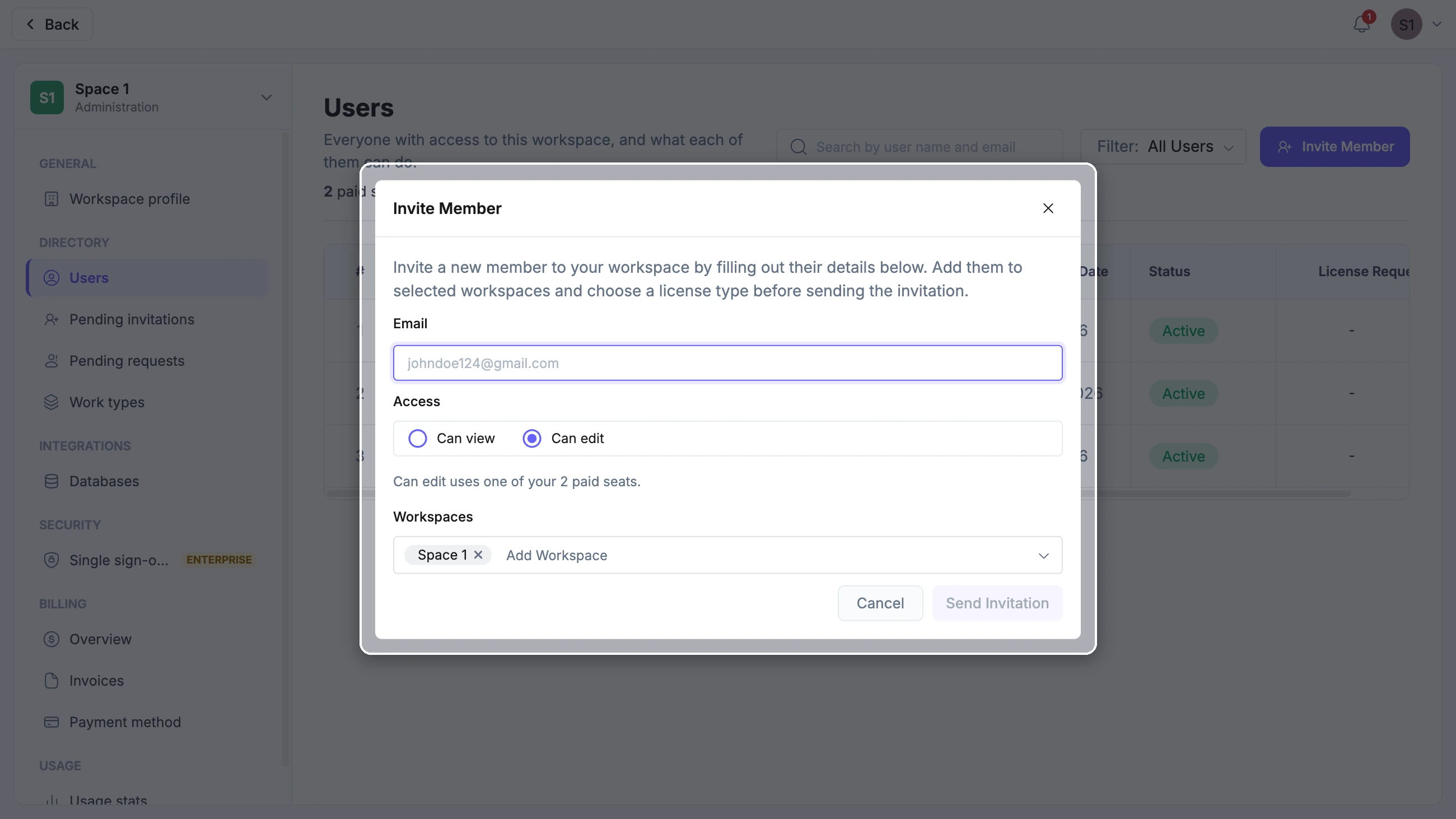
Inviting members is on paid plans. Free is for one person.
When you invite someone, you choose their access for the whole workspace.
| Access | What they can do | Seat | Shows in Users as |
|---|---|---|---|
| Can edit | Create, edit and use AI. | Uses one paid seat | Editor |
| Can view | Look at everything shared with them, but not edit, create or use AI. | Free | Guest |
The workspace owner shows as Owner. People who have not accepted yet show as Pending.
| Role | Who it is | What they can do |
|---|---|---|
| Owner | The person who owns the workspace and its billing. | Everything, always. Only the owner can delete the workspace. |
| Admin | Someone who manages the workspace with the owner. | Open Administration: billing, seats, users and SSO. |
| Member | Everyone else. | Work in the workspace with the access they were given. |
| Guest | A member with Can view access. | Look at what is shared with them, and ask for edit access or a licence. |
The Teams sheet shows Owner, Admin and Member. SSO uses Admin, Member and Guest as the default role for people it adds. See Set up SSO.
For sharing one item, links and public links, see Build and Connect.