

Your first doc
Write a one page doc: give it a title, add a heading, a checklist and a table, and let AI draft a section for you.
What you need: a Cloudairy account. Time: about 5 minutes.
Start a new doc
- In the left sidebar, click Artifacts.
- Under Make something new, click Docs.
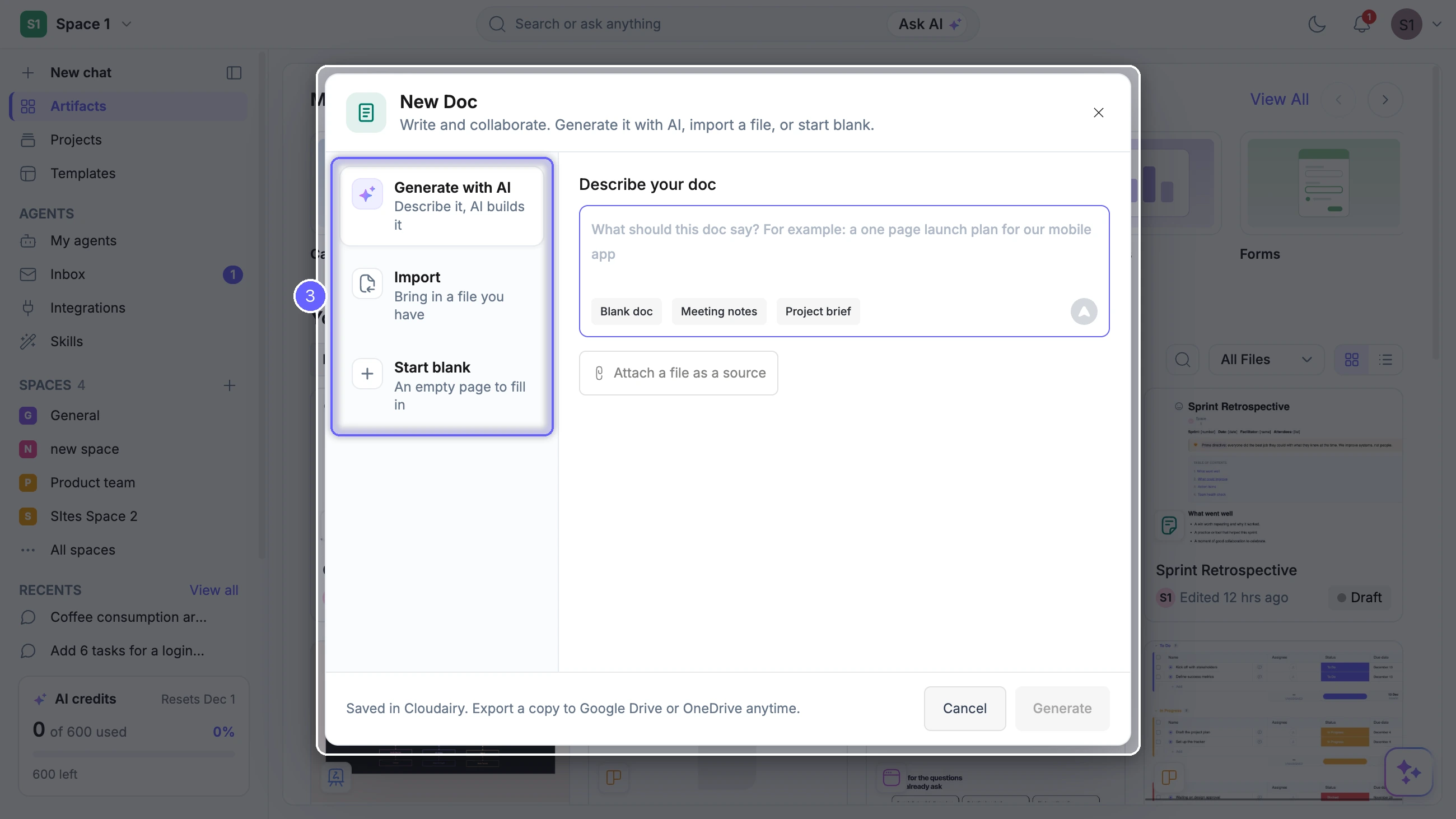
- The New Doc dialog opens. Under How to start you see three options:
| Option | Use it when |
|---|---|
| Generate with AI | You want AI to write a first draft from your description. |
| Import | You already have the content in a file. |
| Start blank | You want an empty page to fill in. |
For this tutorial, click Start blank, type a name such as "Team onboarding", and click Create doc.
Add a title
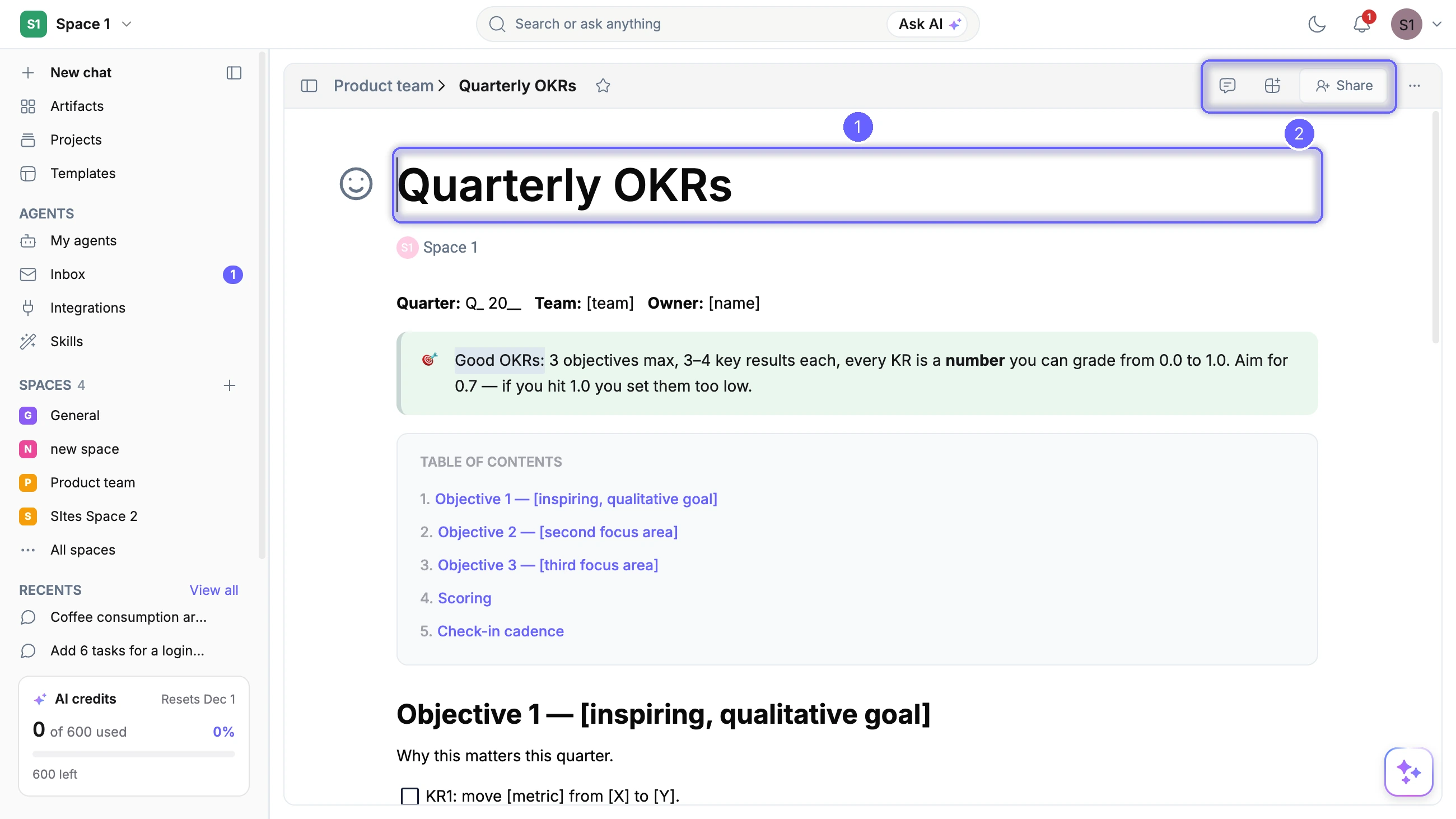
The doc opens with the cursor at the top, where it says Add page title.
- Type "Team onboarding".
- Press Enter to move to the body.
The AI side panel may be open next to the doc. You can close it for now and reopen it with Show AI chat at the top left.
Add blocks with the / menu
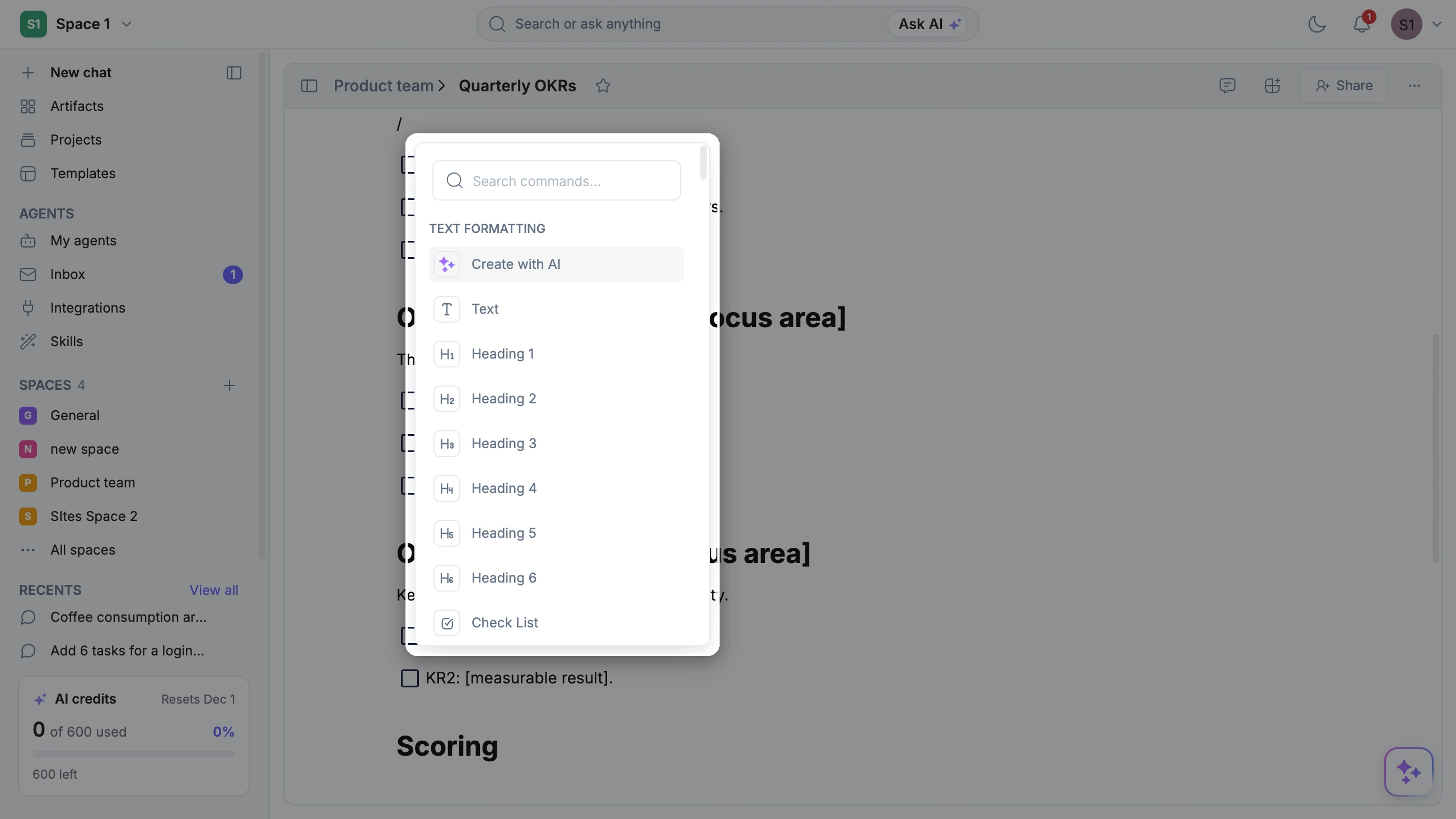
Every line in a doc is a block, such as a paragraph, a heading or a list. Type / to choose one.
- Type / and choose Heading 2. Type "First week".
- Press Enter, type / and choose Check List.
- Add three items: "Get your laptop", "Join the team chat", "Meet your buddy". Press Enter after each one.
- Press Enter twice to leave the list.
Keep typing after / to filter the menu. For example, /tab finds Table.
Add a table
- Type / and choose Table.
- Click into the cells and fill in a small table, for example:
| Day | Who to meet |
|---|---|
| Monday | Your manager |
| Tuesday | Your buddy |
Let AI write a section
- On a new line, type / and choose Create with AI.
- Describe what you want, for example "A short welcome paragraph for new team members".
- Send it, then read the result. Keep it, or ask for changes.
AI uses your workspace's AI credits. The AI credits card at the bottom of the sidebar shows how many are left.
Share the doc
- Click Share at the top of the doc.
- Invite a teammate by email, or copy the link.
Cloudairy saves your doc as you type.
Other ways to start a doc
Generate the whole doc with AI
In the New Doc dialog, click Generate with AI.
Describe the doc, for example "a one page launch plan for our mobile app".
Or click a chip to start from an example: Meeting notes or Project brief.
Click Generate.
You can attach an image for the AI to read while it writes.
Import a file
In the New Doc dialog, click Import.
Under How should we bring it in?, pick one:
- Convert: a faithful copy of your file's content and layout. Works with Markdown, Word, CSV, Excel, PDF and HTML files.
- Use as a source for AI: AI reads your file and writes a new doc from it. Works with images.
Choose a file from your computer, Google Drive or OneDrive. Files can be up to 25 MB.
Click Import (or Generate for a source file).
What you learned
- Start a doc from Artifacts, then pick Generate with AI, Import or Start blank.
- Type / to add headings, lists, tables and more.
- Use / then Create with AI to draft a section.