

Your first board in 5 minutes
Make a small flowchart on a canvas: add shapes, connect them, label them and share the result.
What you need: a Cloudairy account. Time: about 5 minutes.
Start a new canvas
- In the left sidebar, click Artifacts.
- Under Make something new, click Canvas.
- The New Canvas dialog opens. Under How to start, click Start blank.
- Type a name, for example "Signup flow", or keep the suggested name.
- Click Create canvas.
The canvas opens. It is infinite, so you never run out of room.
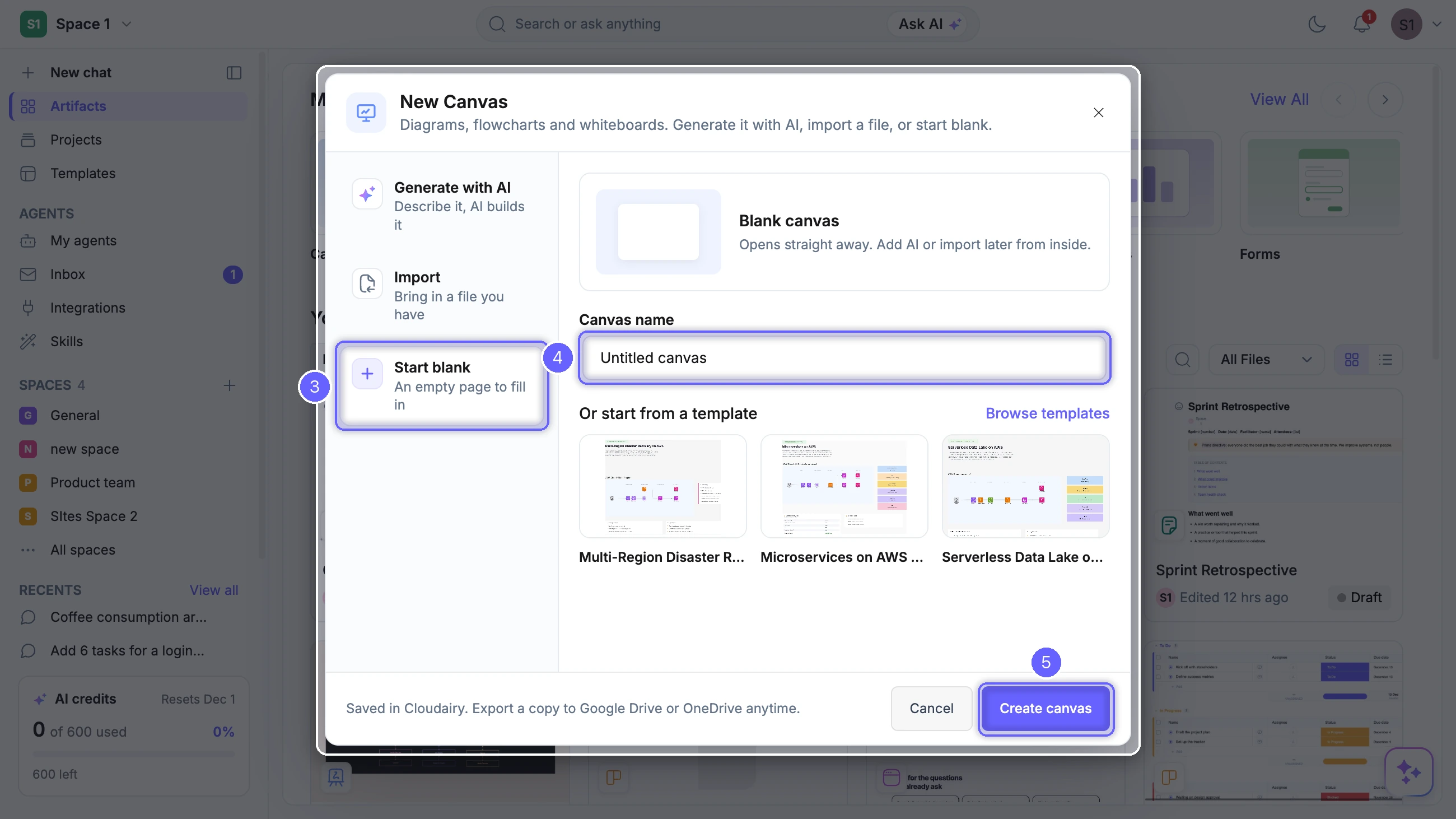
Want AI to draw a first draft instead? Choose Generate with AI, describe the diagram and click Generate. The chips Flowchart, Mind map and Whiteboard fill in an example you can edit.
Find your way around the canvas
| Where | What is there |
|---|---|
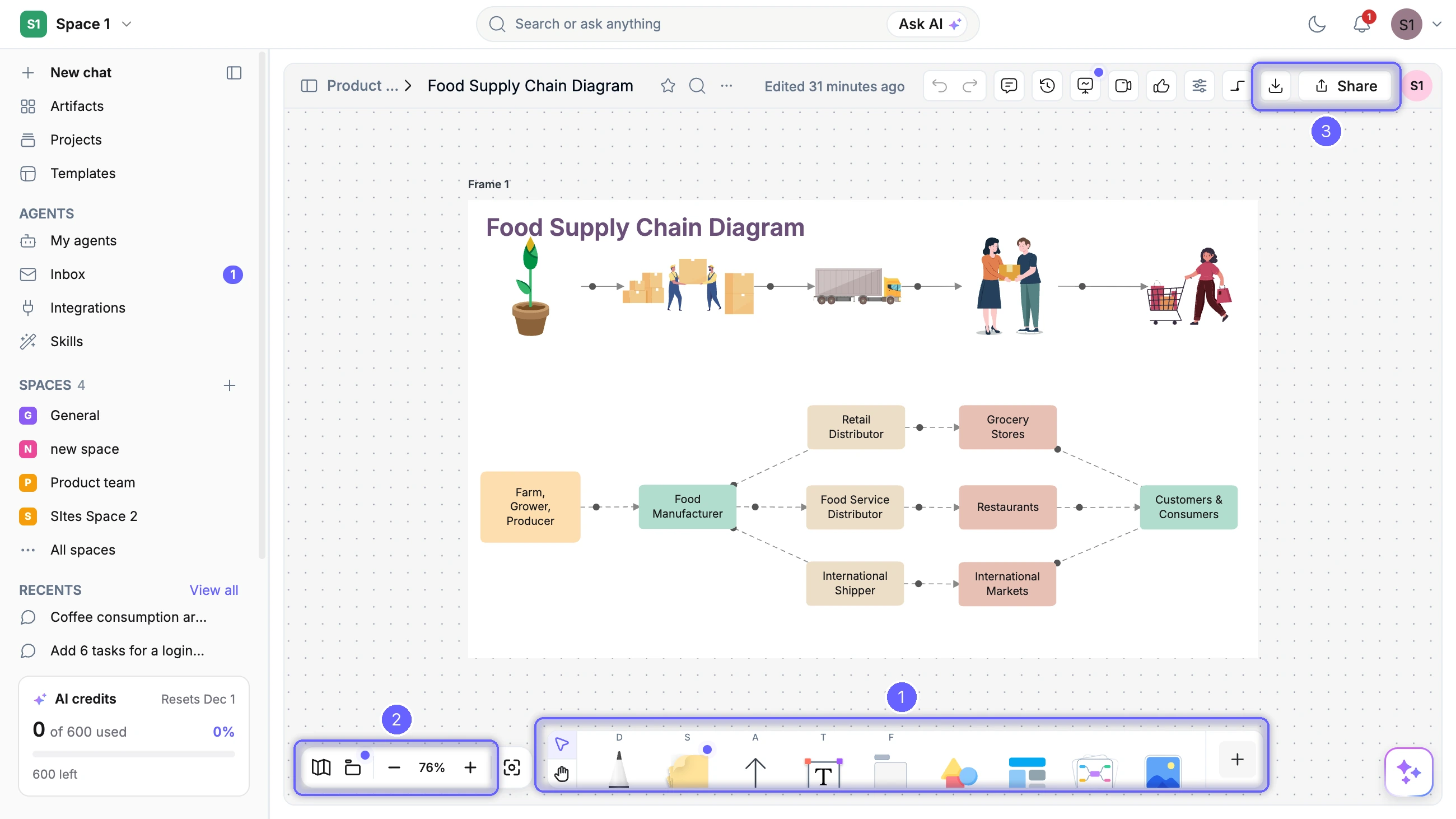
| Top left | Show AI chat, the canvas name (click it to rename), the star, Find and the board actions menu. |
| Top right | Comment, Version history, Present, Board options, Export and Share, among others. |
| Bottom | The toolbar with your tools: Select, Hand tool, Draw, Sticky note, Connector, Text, Frames, Shapes & lines, Templates, Mindmap, Images and + for more tools. |
| Bottom left | Zoom, Fit to screen and the minimap. |
Hover any tool to see its name and its keyboard shortcut.
Add three shapes
- In the bottom toolbar, click Shapes & lines.
- Pick a rectangle and place it on the canvas.
- Add two more shapes the same way, in a row from left to right.
To move a shape, choose Select (or press V) and drag the shape. To move around the canvas, choose Hand tool (or press H) and drag.
Name each step
- Double click the first shape and type "Sign up".
- Double click the second shape and type "Verify email".
- Double click the third shape and type "Welcome".
- Click an empty part of the canvas when you are done.
Connect the shapes
- In the bottom toolbar, click Connector (or press A).
- Drag from "Sign up" to "Verify email".
- Do the same from "Verify email" to "Welcome".
You now have a three step flowchart.
Add a note
- Click Sticky note (or press S).
- Click near "Verify email" to place a note.
- Type "Send the code by email".
Made a mistake? Press Ctrl+Z (Cmd+Z on a Mac) to undo, and Ctrl+Shift+Z to redo.
Check the result
- Click Fit to screen at the bottom left to see the whole diagram.
- To rename the canvas, click its name at the top left and type a new one.
Cloudairy saves your changes as you go, so there is no save button. Every save is kept in Version history, where you can preview and restore an earlier one.
Share it
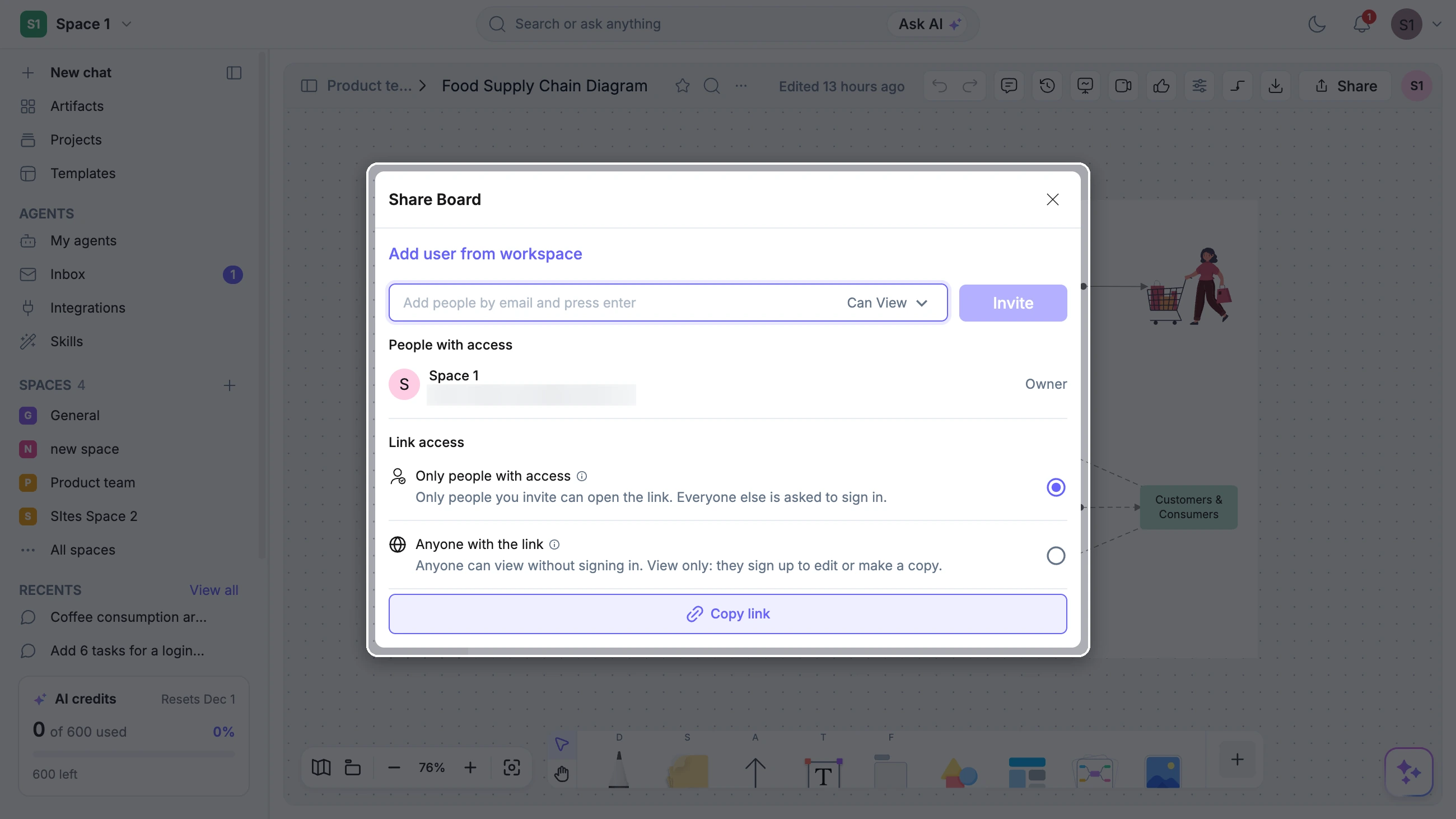
- Click Share at the top right.
- Type a teammate's email address and press Enter, choose Can Edit or Can View, and click Invite. Or click Copy link.
Under link access, choose whether only people with access or anyone with the link can open it.
Find your canvas again
Click Artifacts in the left sidebar. Your canvas is under Recently viewed.
What you learned
- Start a canvas from Artifacts with Start blank.
- Add shapes with Shapes & lines, label them, and link them with Connector.
- Undo with Ctrl+Z and see everything with Fit to screen.
- Share with Share.