

Choose how to use Cloudairy
There are five ways to start something in Cloudairy: ask AI, start blank, use a template, import a file, or hand the job to an agent.
| Way | Pick it when | Where |
|---|---|---|
| Ask AI | You can describe what you want in a few sentences. | New chat › Create ▾, or the Code, Sites, Slides, Infographic and Wireframes cards on Artifacts |
| Start blank | You want to build it yourself from an empty page. | Start blank in a New dialog, or the Wiki and Projects cards, which create an empty item at once |
| Template | Your work looks like something common, such as a retro or a PRD. | Templates in the sidebar |
| Import | The content already exists in a file or another tool. | Import in a New dialog, or in a wiki or project |
| Agent | The same job comes back again and again. | Agents tab on the home page, or My agents |
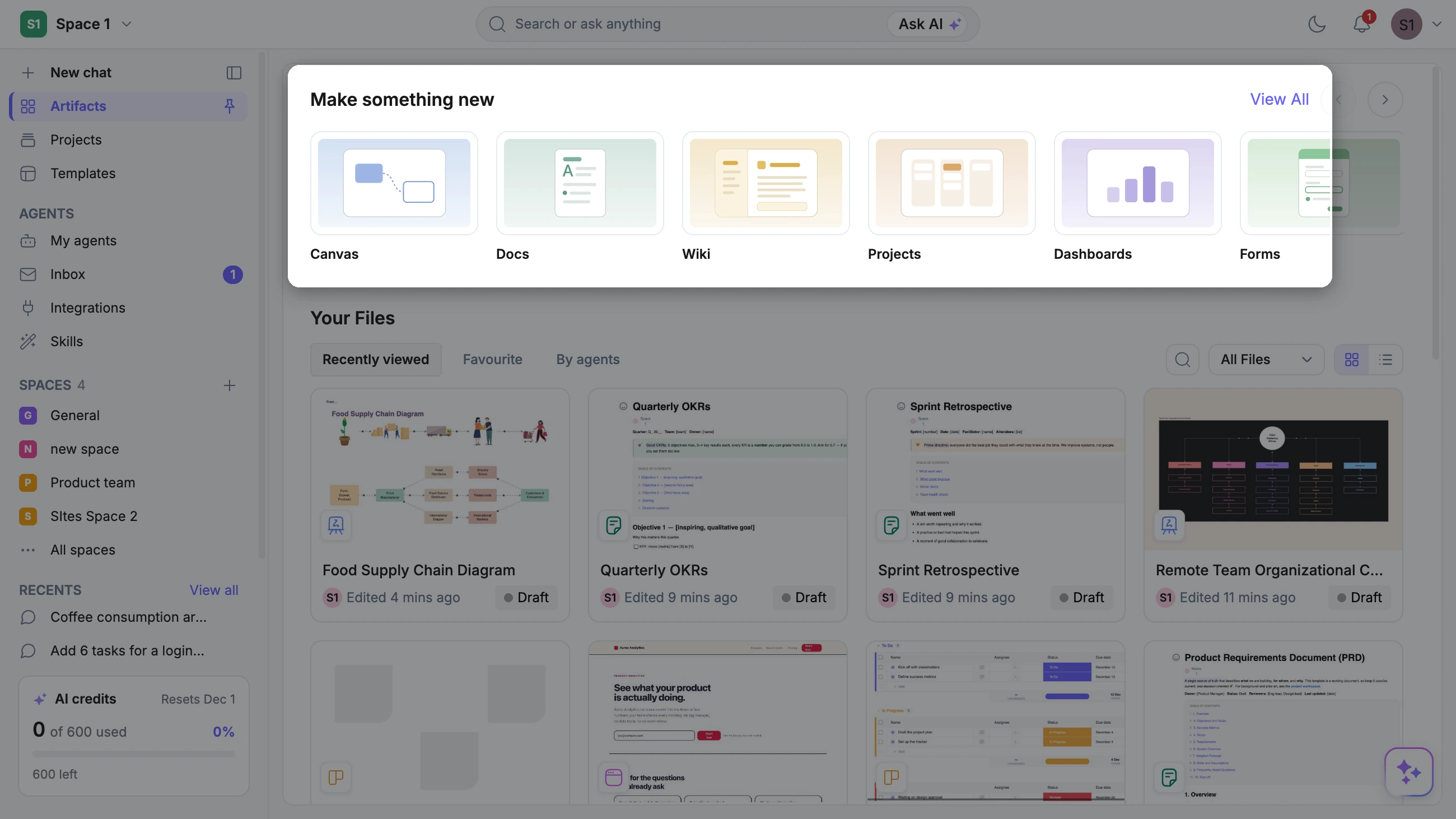
Ask AI
Click New chat in the left sidebar.
Click Create in the Ask AI box and pick what to make, or click a type in the strip under the box.
Describe it, attach a file if it helps, and send.
Cloudairy AI may ask a short question first. When the result is ready, open it and keep editing. Try it in Create something with Ask AI.
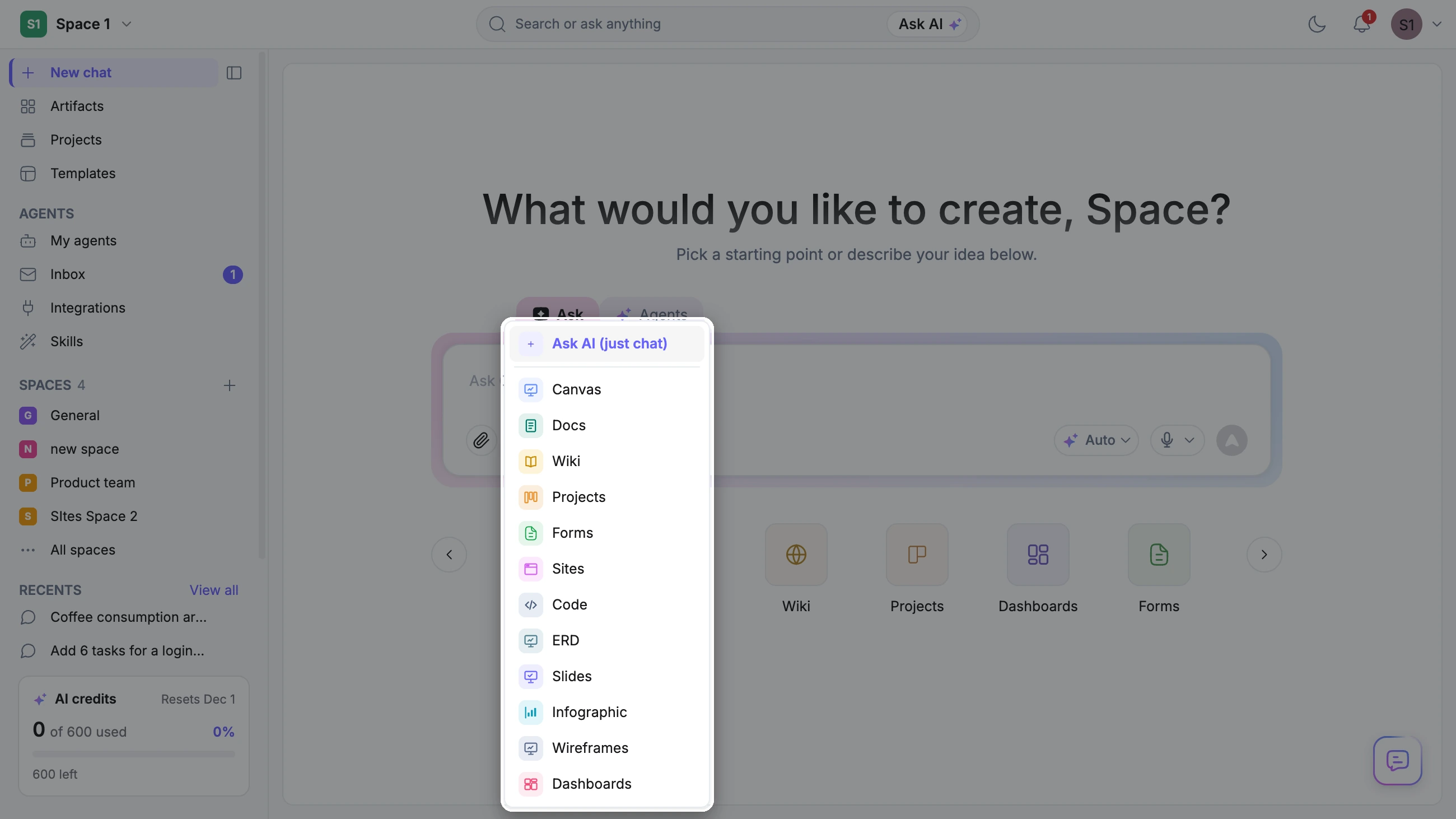
Start from an artifact card
On Artifacts, under Make something new, click a card. There are no hover buttons; each card has one way in.
| Artifact | Clicking the card |
|---|---|
| Canvas, Docs, ERD, Dashboards | Opens a New dialog: Generate with AI, Import or Start blank |
| Forms | Opens the New Form dialog: Generate with AI or Start blank |
| Wiki | Creates "Untitled wiki" and asks how you want to start |
| Projects | Creates "Untitled project" at once |
| Code, Sites, Slides, Infographic, Wireframes | Opens New chat with that type picked, so you describe it |
| Clips | Opens the screen recorder |
A Whiteboard uses the Canvas editor. Start it from the Whiteboard chip under Generate with AI in the New Canvas dialog, or from a whiteboard template.
You can also start work inside a space (Create new on the space page) or inside a project (+ on the project page). The new item then lives in that space or project.
Start from a template
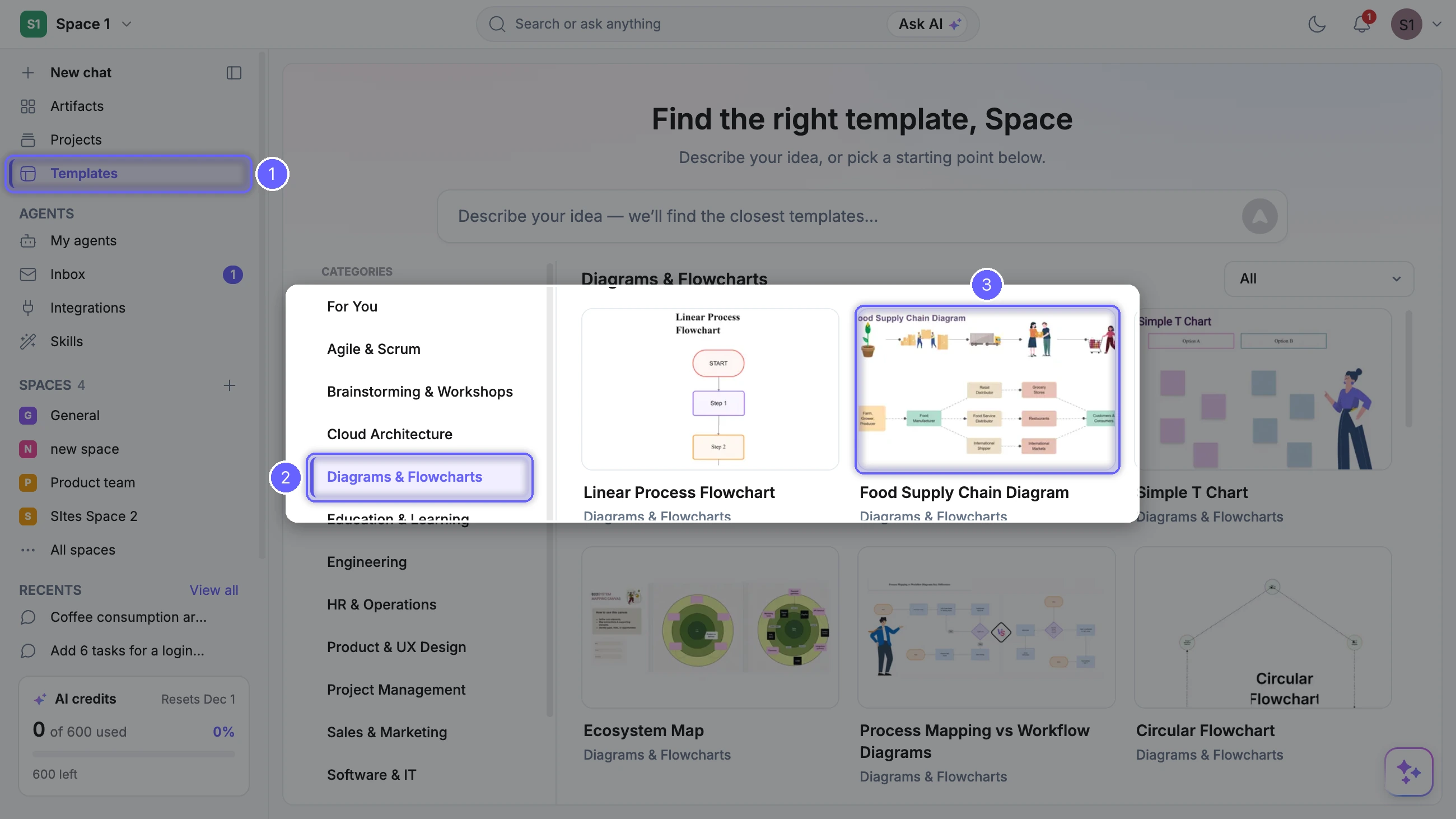
Click Templates in the left sidebar.
Pick a category, such as Brainstorming, Engineering or Project Management, or filter by type: Canvas, Whiteboard, Projects, Docs or Sites. You can also describe what you need in the box at the top.
Hover a card and click Preview to look inside, or Use to make your own copy straight away.
Premium templates show a crown. The New Canvas and New Doc dialogs also offer a few templates under Start blank.
Import what you have
| Into | What you can bring in |
|---|---|
| A doc | Convert a Markdown, Word, CSV, Excel, PDF or HTML file, or use an image as a source for AI. Up to 25 MB, from your computer, Google Drive or OneDrive. |
| A canvas | Lucid .json or .vsdx files, and org charts from .csv or .xlsx. |
| An ERD | A schema as JSON, SQL, DBML, CSV or Excel. |
| A wiki | Markdown, HTML or Word files, a folder, or an online docs site. |
| A project | Excel or CSV, Google Sheets, Asana, Trello, Basecamp and more, from + > Import data. |
| A dashboard | A CSV or Excel file up to 50 MB, from Add data. |
Hand it to an agent
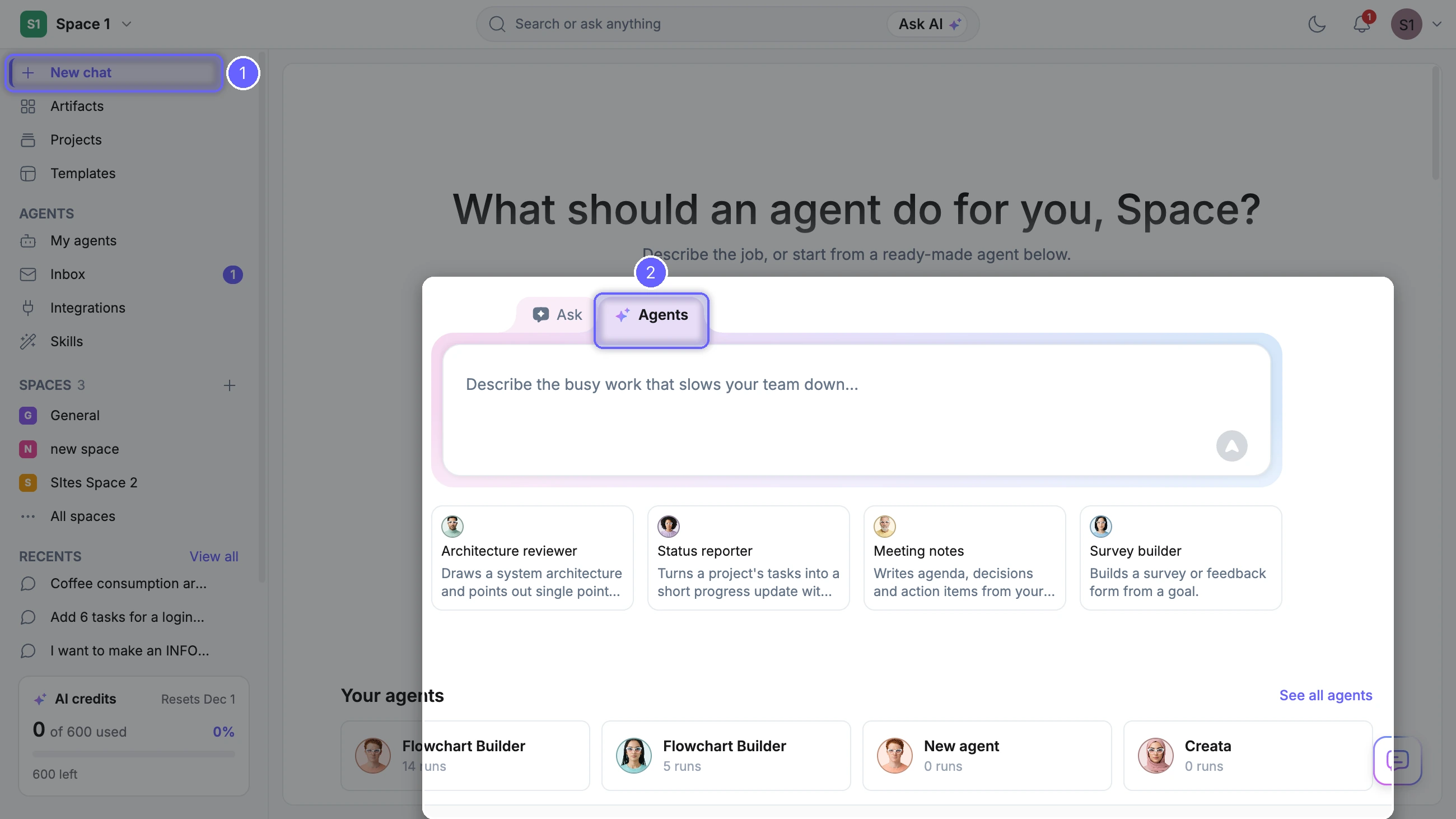
If you do the same job every week, such as a status report or meeting notes, let an agent do it.
Click New chat, then the Agents tab above the box.
Describe the job, or click a sample to fill the box with a ready-made agent.
Send. Cloudairy builds the agent and opens its chat.
Follow the steps in Your first agent.
Mix them
Most work uses more than one way. A common pattern: let AI draft a first version, then finish it by hand, and save it as a template your team can reuse.