

Your first agent
Make an AI agent that does a repeat job for you, give it its first piece of work and set it up the way you like.
What you need: a Cloudairy account. Time: about 5 minutes.
An agent remembers its instructions and makes diagrams, docs and boards for you. Every plan includes agents: Free 1, Pro 5, Business 50 and Enterprise unlimited.
Open the Agents tab
- Click New chat at the top of the left sidebar.
- Above the box, click Agents.
The box now says "Describe the busy work that slows your team down…". Under it are sample agents, apps you can connect, and ready-made agents grouped by topic, such as Projects, Meetings and Writing.
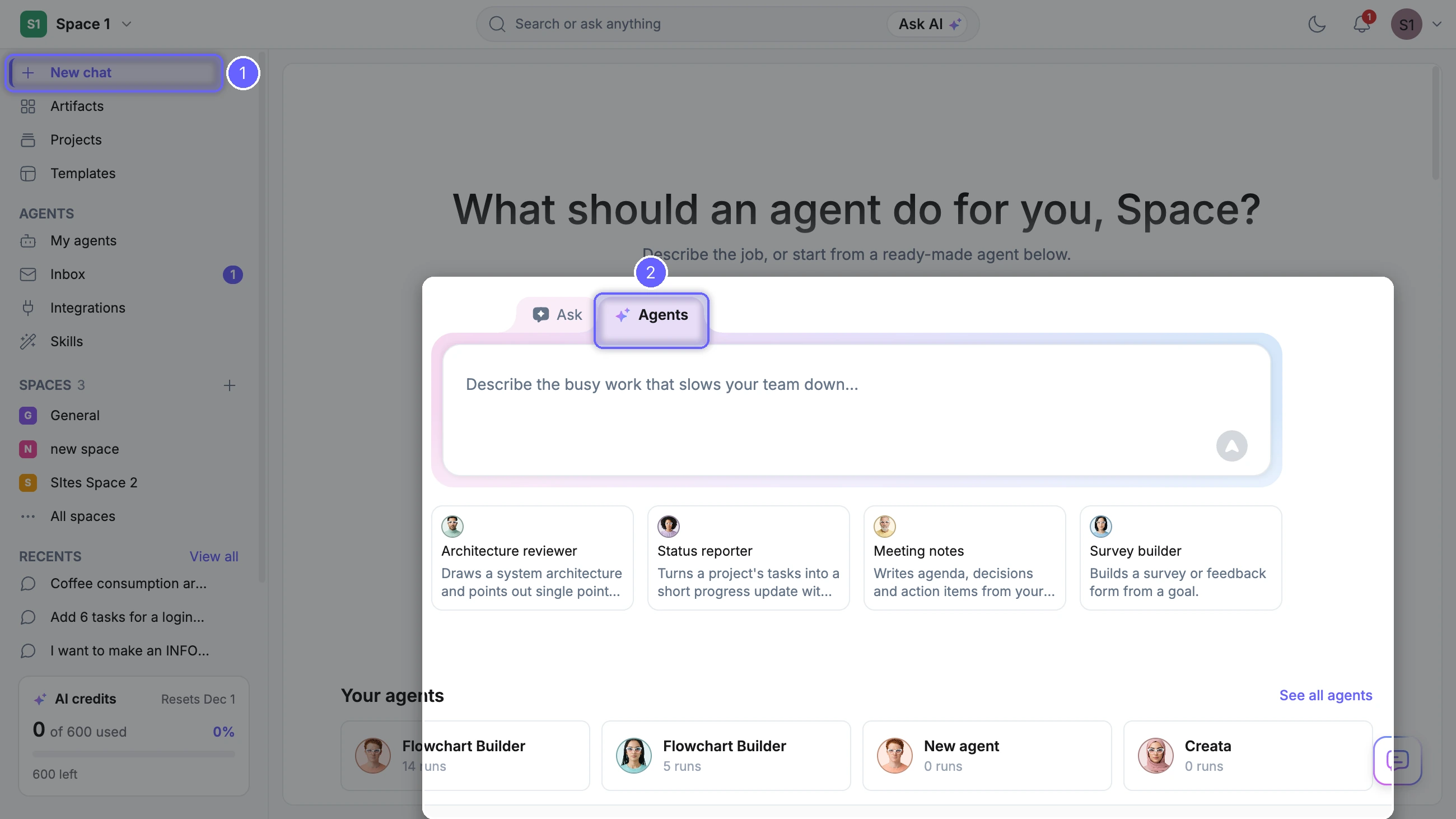
Pick a sample or describe your own
You have two ways to start:
- Use a ready-made agent. Click a sample card, or Try now on a ready-made agent. The box fills with a prompt that starts "Build me a…". Send it unchanged, and Cloudairy makes that exact agent straight away and opens its chat.
- Describe your own. Type the job in your own words, for example "Turn pasted meeting notes into a decisions document and a task board of action items with owners." Send it. The agent builder asks a few questions, then designs the agent. Answer them, or say "you decide".
For this tutorial, pick a sample such as Meeting notes.
Other ways in: click My agents in the left sidebar, then New agent, or open the Prebuilt agents tab there and click Use as a starting point.
Give the agent its first job
The agent's chat opens and asks "What would you like to do?".
- Type the work, or click one of the starter cards.
- To give it a file, click + in the box. Files over 10 MB are refused.
- Send.
The agent replies in the chat. What it makes, such as a doc or a board, is saved for you.
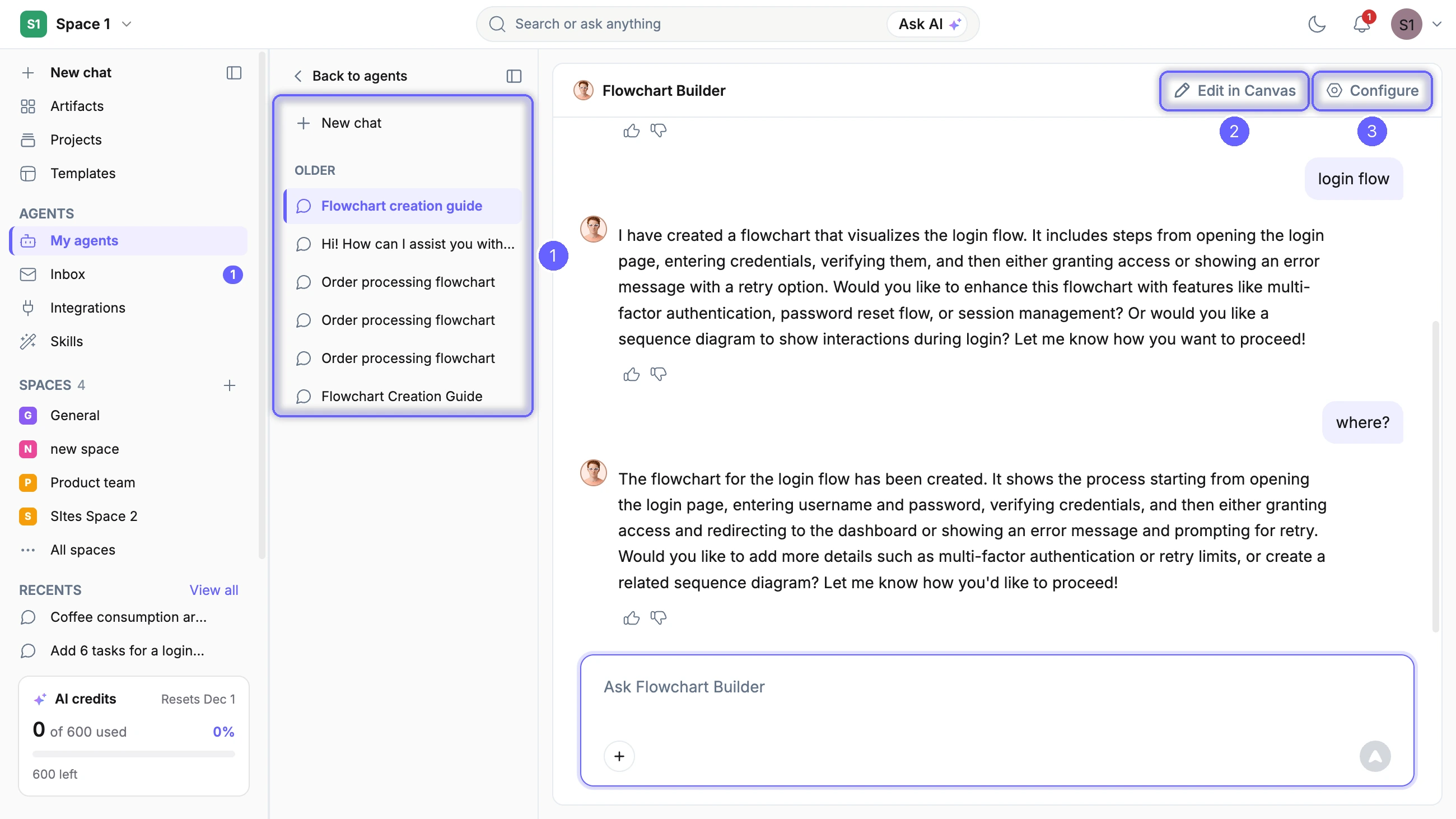
Set it up
- At the top of the chat, click Configure.
- Look through the sections and change what you need:
| Section | What you set |
|---|---|
| Identity | The agent's face, name and description. |
| Sharing | Private, or the whole Workspace. |
| Connections | The apps and storage accounts the agent may use. |
| Knowledge | Its instructions, the skills it uses and its memory. |
| Conversation starters | The cards shown when someone opens its chat. |
| Schedules | Run a task every few minutes, daily, weekly, monthly or on a custom schedule. |
| Triggers | Run when something happens in an app it can watch, such as Gmail, Outlook, Slack, Jira, Linear or Notion. |
| Advanced | The AI model and the version. |
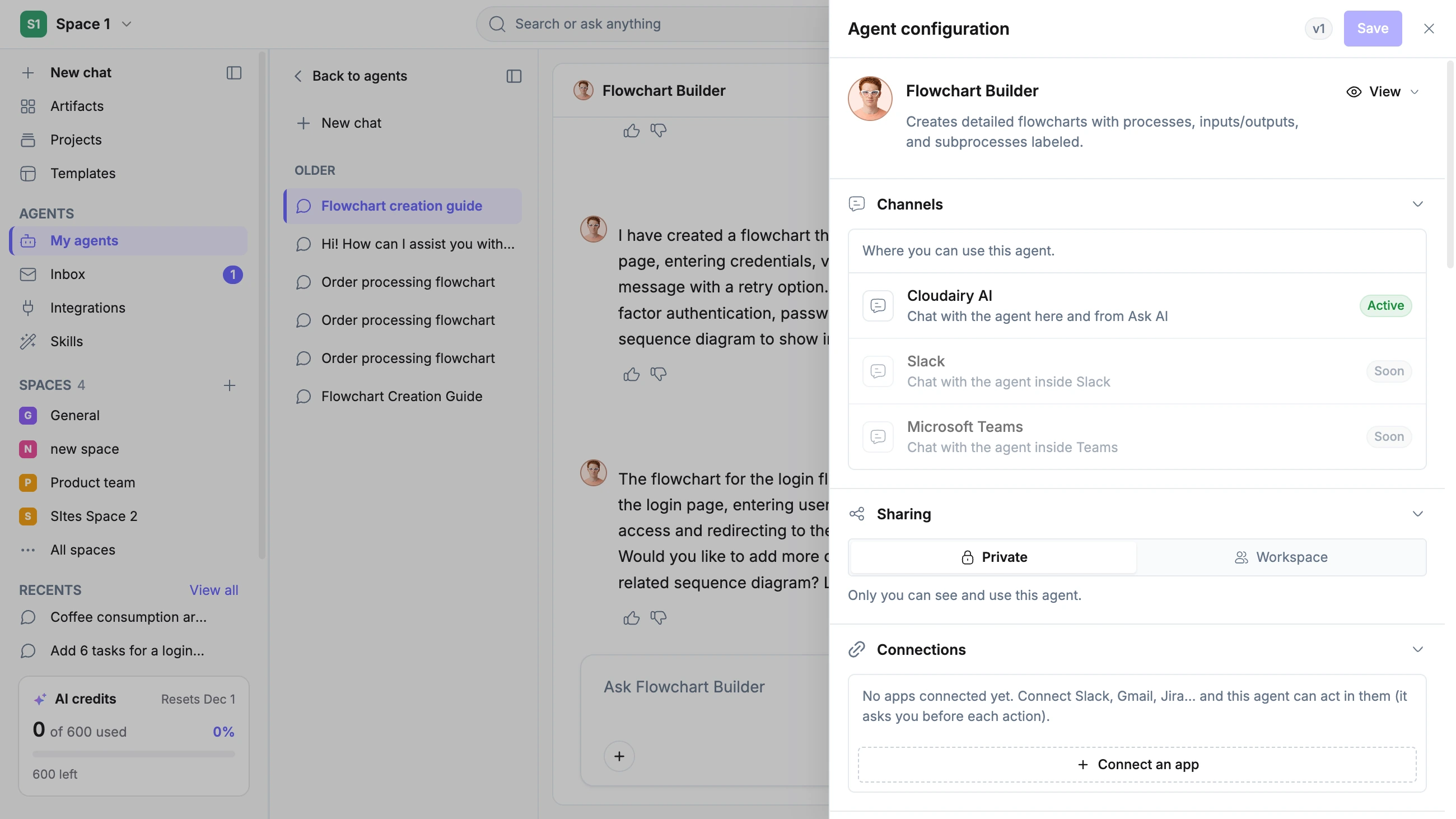
Find it and its work later
- My agents in the left sidebar lists every agent in your team. The counter shows how many you have out of your plan's limit.
- Artifacts > By agents lists the files your agents made, grouped per agent.
- Inbox > Approvals shows agent steps that wait for your say-so.
What you learned
- Start an agent from the Agents tab with a sample or your own description.
- Give it work in its chat, with files if needed.
- Set its sharing, knowledge, schedules and triggers in Configure.