There are five ways to start something in Cloudairy: ask AI, start blank, use a template, import a file, or hand the job to an agent.
| Way | Pick it when | Where |
|---|---|---|
| Ask AI | You can describe what you want in a few sentences. | New chat › Create ▾, or the Code, Sites, Slides, Infographic and Wireframes cards on Artifacts |
| Start blank | You want to build it yourself from an empty page. | Start blank in a New dialog, or the Wiki and Projects cards, which create an empty item at once |
| Template | Your work looks like something common, such as a retro or a PRD. | Templates in the sidebar |
| Import | The content already exists in a file or another tool. | Import in a New dialog, or in a wiki or project |
| Agent | The same job comes back again and again. | Agents tab on the home page, or My agents |
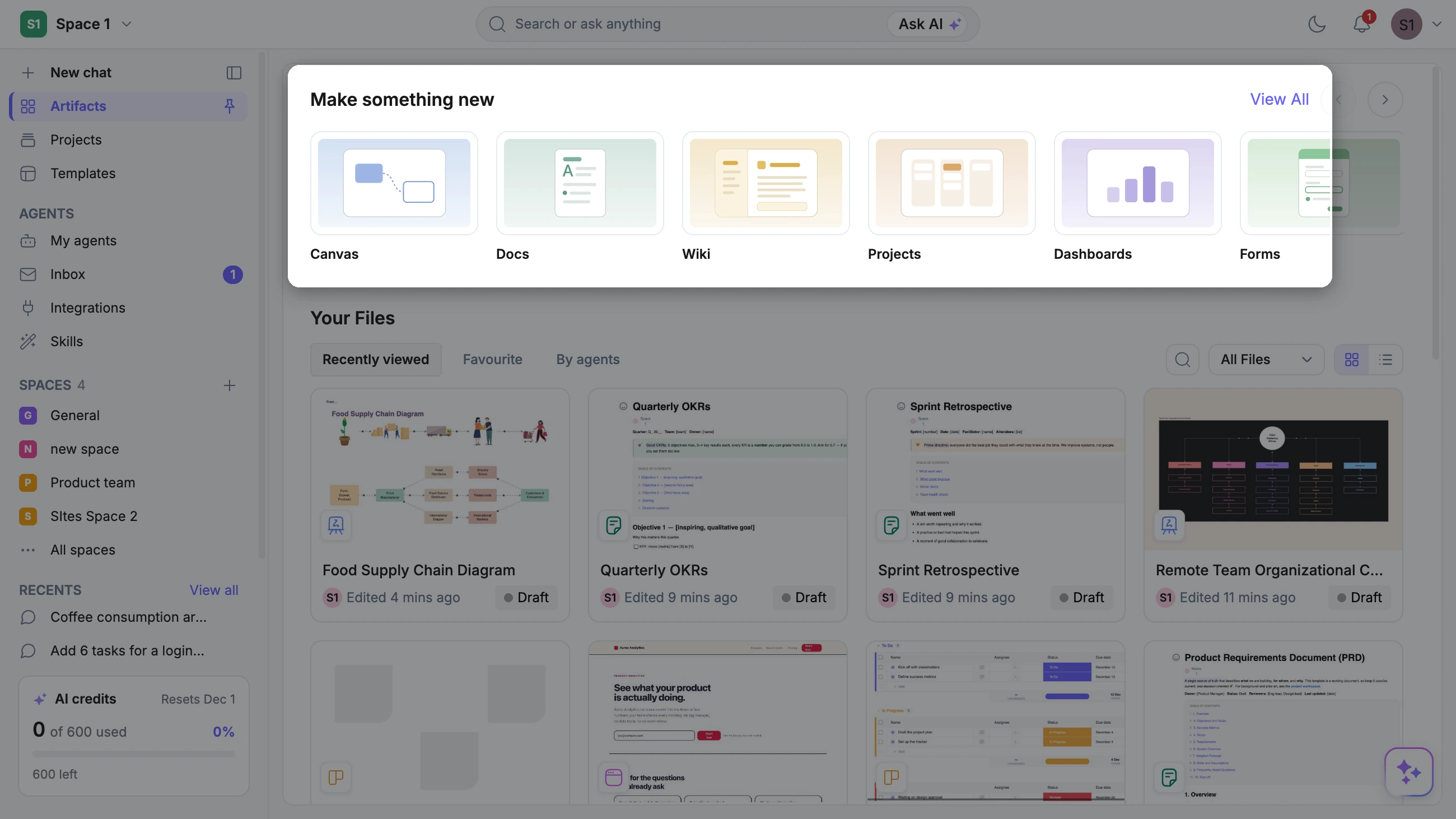
Click New chat in the left sidebar.
Click Create in the Ask AI box and pick what to make, or click a type in the strip under the box.
Describe it, attach a file if it helps, and send.
Cloudairy AI may ask a short question first. When the result is ready, open it and keep editing. Try it in Create something with Ask AI.
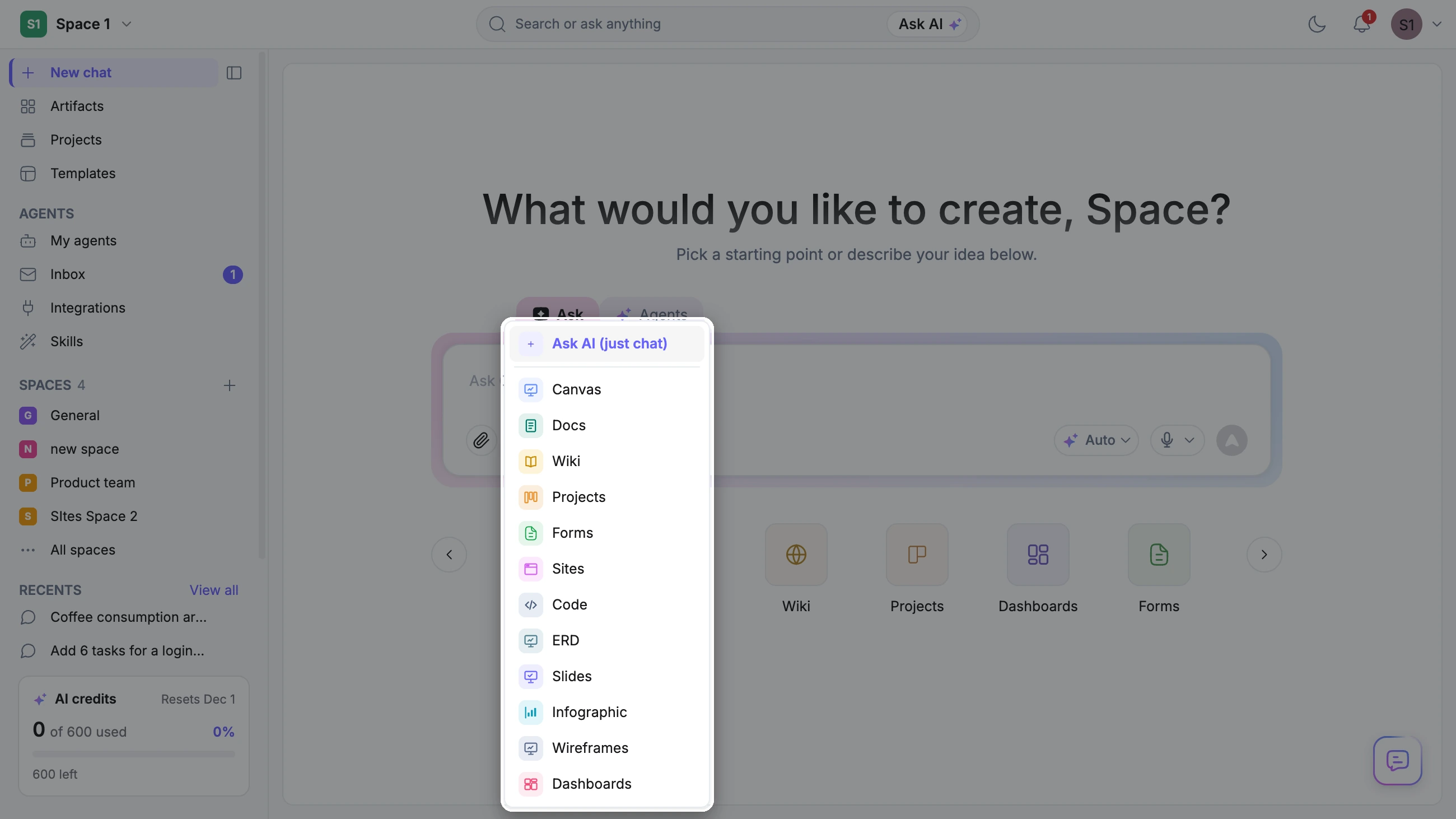
On Artifacts, under Make something new, click a card. There are no hover buttons; each card has one way in.
| Artifact | Clicking the card |
|---|---|
| Canvas, Docs, ERD, Dashboards | Opens a New dialog: Generate with AI, Import or Start blank |
| Forms | Opens the New Form dialog: Generate with AI or Start blank |
| Wiki | Creates "Untitled wiki" and asks how you want to start |
| Projects | Creates "Untitled project" at once |
| Code, Sites, Slides, Infographic, Wireframes | Opens New chat with that type picked, so you describe it |
| Clips | Opens the screen recorder |
A Whiteboard uses the Canvas editor. Start it from the Whiteboard chip under Generate with AI in the New Canvas dialog, or from a whiteboard template.
You can also start work inside a space (Create new on the space page) or inside a project (+ on the project page). The new item then lives in that space or project.
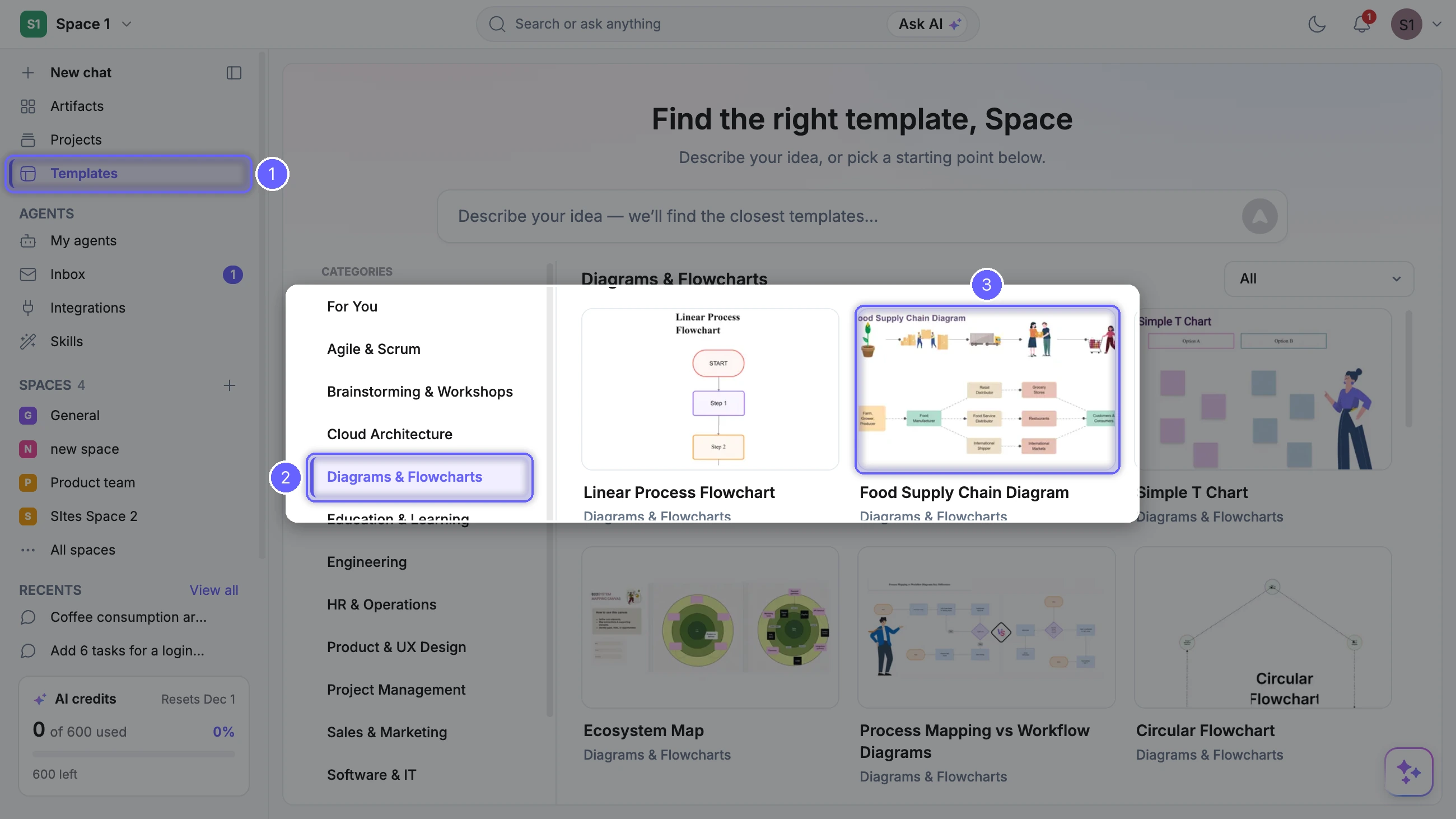
Click Templates in the left sidebar.
Pick a category, such as Brainstorming, Engineering or Project Management, or filter by type: Canvas, Whiteboard, Projects, Docs or Sites. You can also describe what you need in the box at the top.
Hover a card and click Preview to look inside, or Use to make your own copy straight away.
Premium templates show a crown. The New Canvas and New Doc dialogs also offer a few templates under Start blank.
| Into | What you can bring in |
|---|---|
| A doc | Convert a Markdown, Word, CSV, Excel, PDF or HTML file, or use an image as a source for AI. Up to 25 MB, from your computer, Google Drive or OneDrive. |
| A canvas | Lucid .json or .vsdx files, and org charts from .csv or .xlsx. |
| An ERD | A schema as JSON, SQL, DBML, CSV or Excel. |
| A wiki | Markdown, HTML or Word files, a folder, or an online docs site. |
| A project | Excel or CSV, Google Sheets, Asana, Trello, Basecamp and more, from + > Import data. |
| A dashboard | A CSV or Excel file up to 50 MB, from Add data. |
If you do the same job every week, such as a status report or meeting notes, let an agent do it.
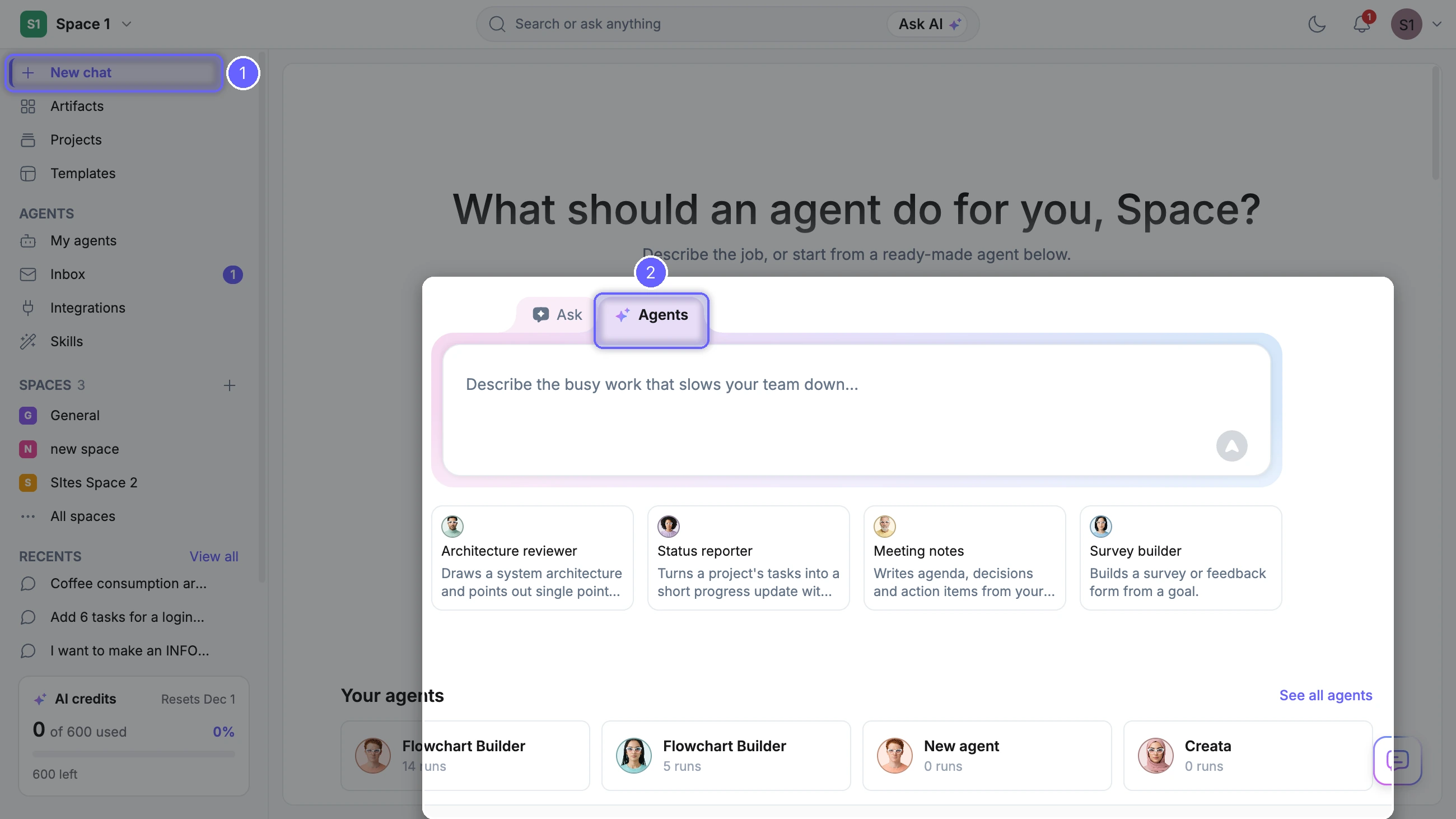
Click New chat, then the Agents tab above the box.
Describe the job, or click a sample to fill the box with a ready-made agent.
Send. Cloudairy builds the agent and opens its chat.
Follow the steps in Your first agent.
Most work uses more than one way. A common pattern: let AI draft a first version, then finish it by hand, and save it as a template your team can reuse.