

Create a GitHub token for Git Sync
Git Sync signs in to GitHub with a fine-grained personal access token. The token lets Cloudairy write to one repository and nothing else. It takes about two minutes to make.
Before you start
- The repository must already exist on GitHub. It can be empty, or hold only a README.
- You need write access to it.
- If the repository belongs to an organization, the organization must allow fine-grained tokens. Some organizations also require an owner to approve each token. See If your organization approves tokens.
Create the token
In Cloudairy, open your wiki, click Git Sync, and pick GitHub as the provider. Under Access token, click Create a fine-grained token. GitHub opens New fine-grained personal access token.
You can also go there yourself: on GitHub, click your picture › Settings › Developer settings › Personal access tokens › Fine-grained tokens › Generate new token.
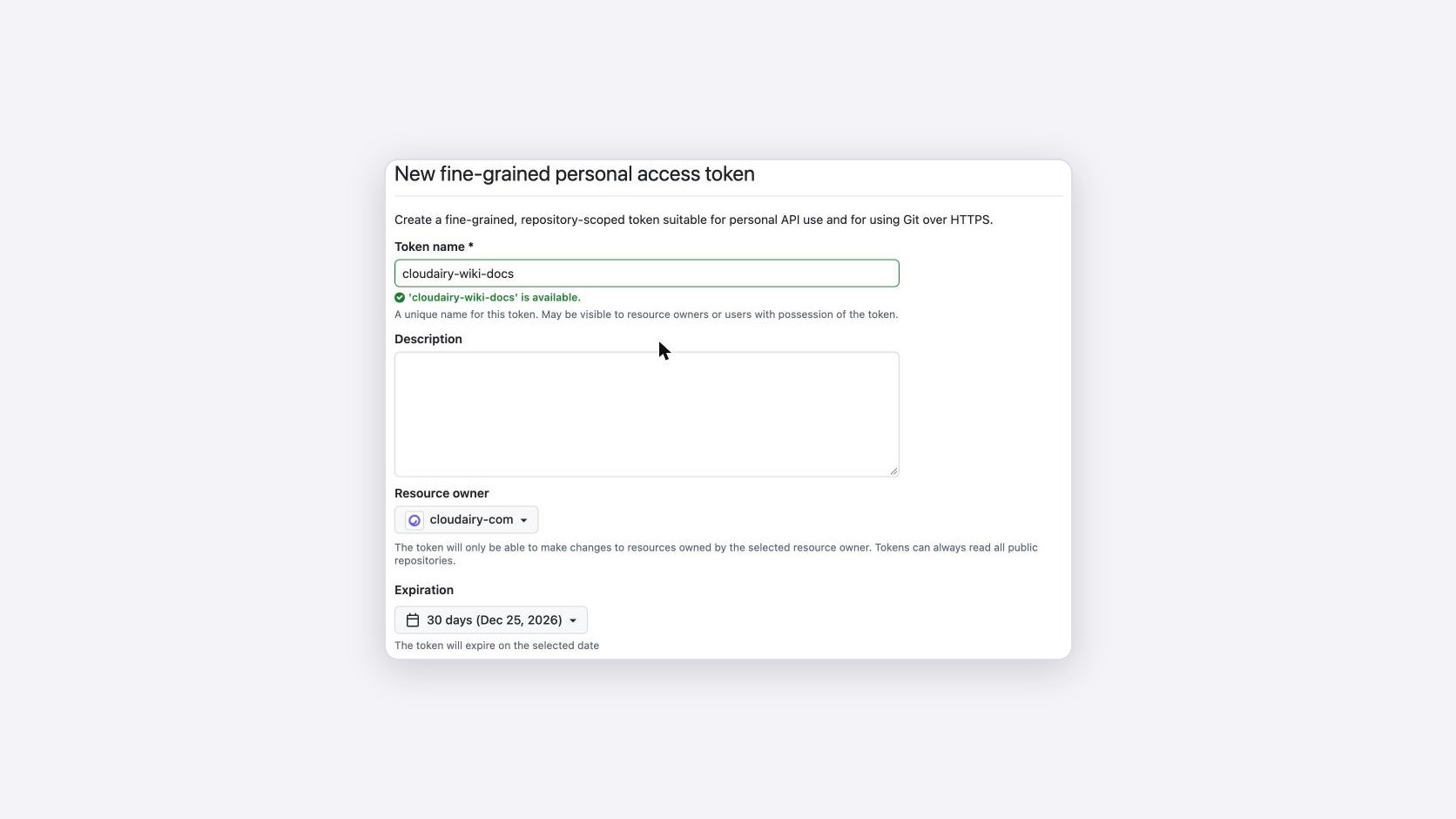
Under Token name, type a name you'll recognise later, for example cloudairy-wiki-docs.
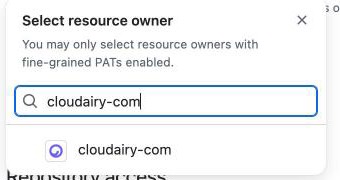
Under Resource owner, pick the account that owns the repository. For a company repository that's the organization, not your own name. Type the organization's name in the search box to find it.
Under Expiration, pick how long the token works. When it expires, the sync stops until you paste a new one.
Under Repository access, choose Only select repositories, open Select repositories, and tick the repository the wiki will sync with.
Under Permissions, click Add permissions, tick Contents, then set it to Access: Read and write. Metadata is added as Read-only on its own. Leave it that way.
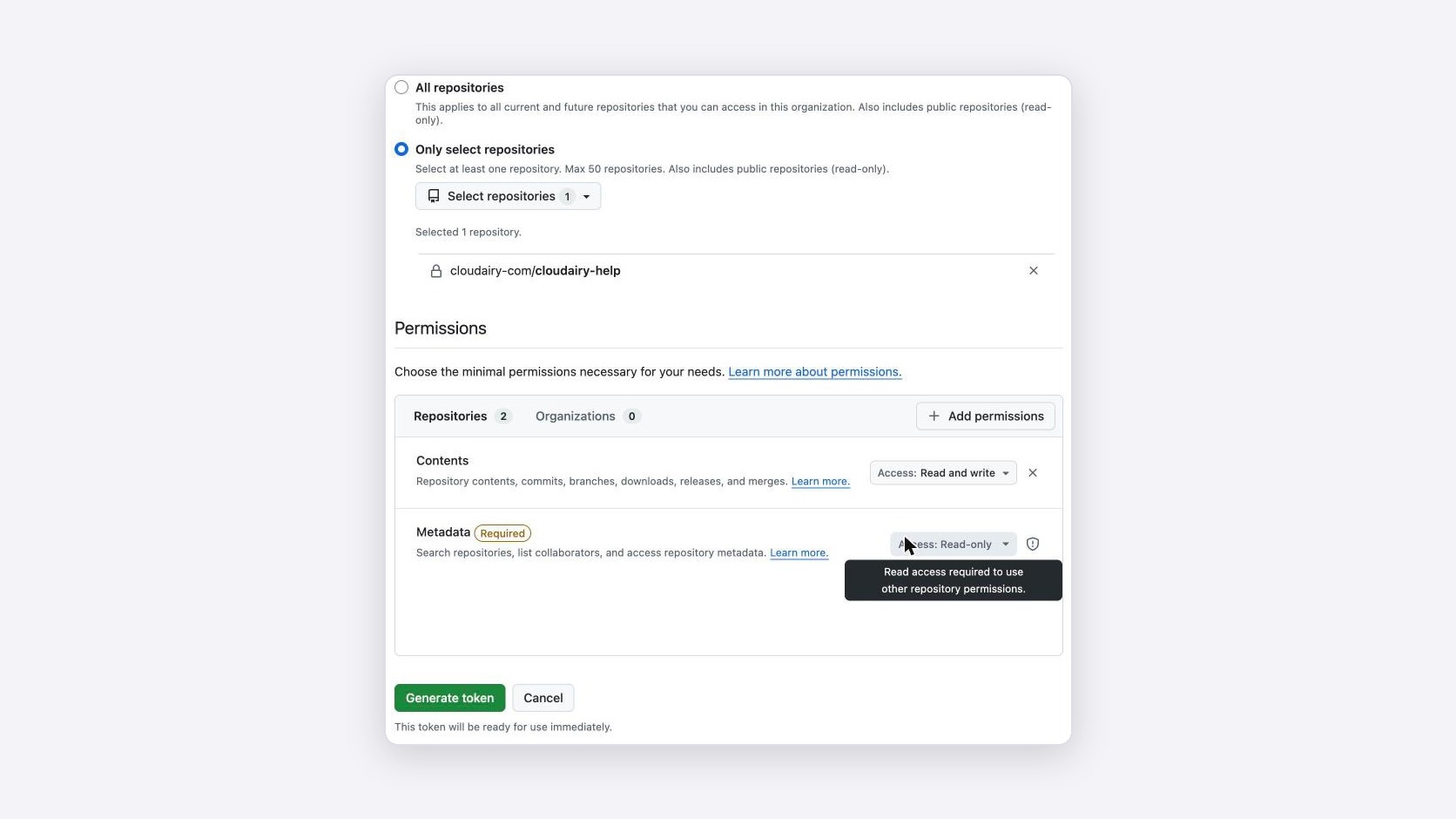
Click Generate token.
GitHub shows the token once. Click the copy button next to it. If you lose it, you'll have to make a new one.
A token is a password. Paste it only into the Access token box in Cloudairy. Don't send it in chat or email, and don't save it in a document.
Paste it into Cloudairy
Back in the wiki's Git Sync page, paste the token into Access token.
Fill in Repository (owner/repository), Branch and Direction, then click Connect repository.
The card shows Connected. Cloudairy keeps the token and never shows it again: the box reads Saved — leave blank to keep it.
Next: Sync a wiki to GitHub.
If your organization approves tokens
When an organization requires approval, the token is made but stays pending until an organization owner approves it. Git Sync can't use it until then.
An organization owner approves it on GitHub: the organization's Settings › Personal access tokens › Pending requests.
If something goes wrong
| What you see | What to do |
|---|---|
| The repository isn't in Select repositories | The Resource owner is wrong. Pick the account or organization that owns the repository. Two organizations can have very similar names. |
| The organization isn't in Resource owner | The organization doesn't allow fine-grained tokens yet. Ask an organization owner to allow them in the organization's settings. |
| Connect repository fails | Check that Contents is Read and write, that the token is still valid, and that the repository name is exactly owner/repository. |
| Syncs stop working after a while | The token expired. Make a new one and paste it into Access token, then click Save. |
GitLab instead
On GitLab, make a personal access token with the api, read_repository and write_repository scopes. If the branch is protected, you also need the Maintainer role on the project. In Cloudairy, pick GitLab as the provider and click Create a token to open GitLab's token page.