

Connect a repository
Link a wiki to a GitHub or GitLab repository, run a sync, and disconnect it again when you no longer need it.
Connect
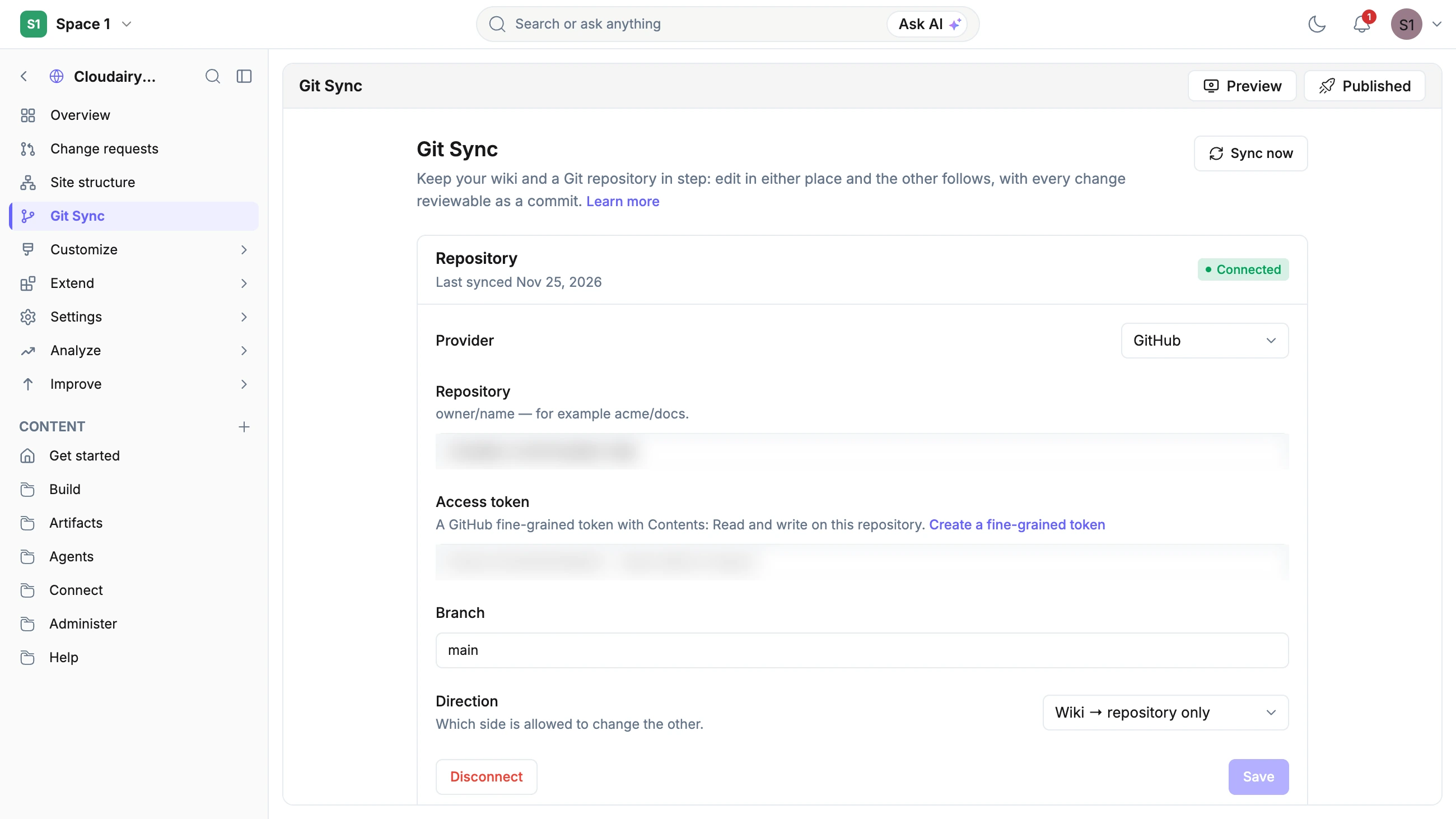
Open your wiki and click Git Sync in the wiki sidebar.
In the Repository card, pick a Provider: GitHub or GitLab.
If you see Authorize, click Connect GitHub (or Connect GitLab) and give Cloudairy access to the repositories you want to sync.
Under Repository, type the repository as owner/repository, for example acme/docs.
Under Access token, paste your token. Click Create a fine-grained token (GitHub) or Create a token (GitLab) to make one on the provider's site. Step by step: Create a GitHub token for Git Sync.
Under Branch, type the branch to follow. It starts as main.
Pick a Direction: Two-way, Repository → wiki only or Wiki → repository only.
Click Connect repository.
You see Repository connected, and the card shows Connected.
Sync now
Once connected, click Sync now at the top of the page. You see Sync started. The sync runs in the background, and the card shows Last synced when it is done, without reloading the page.
Recent syncs lists the latest runs with their status.
Change the settings
Change the provider, repository, branch or direction, then click Save. You see Git Sync updated.
The token is saved. Leave the Access token box blank to keep it. You need a new token only when you switch to another provider or repository.
To undo changes you haven't saved, click Cancel.
Disconnect
Click Disconnect in the Repository card.
In Disconnect the repository?, click Disconnect.
The wiki and the repository stop following each other. Nothing is deleted on either side.