

Test your agent
Try a new agent on a real request before you share it or put it on a schedule, either on the design canvas or in its chat.
Test on the design canvas
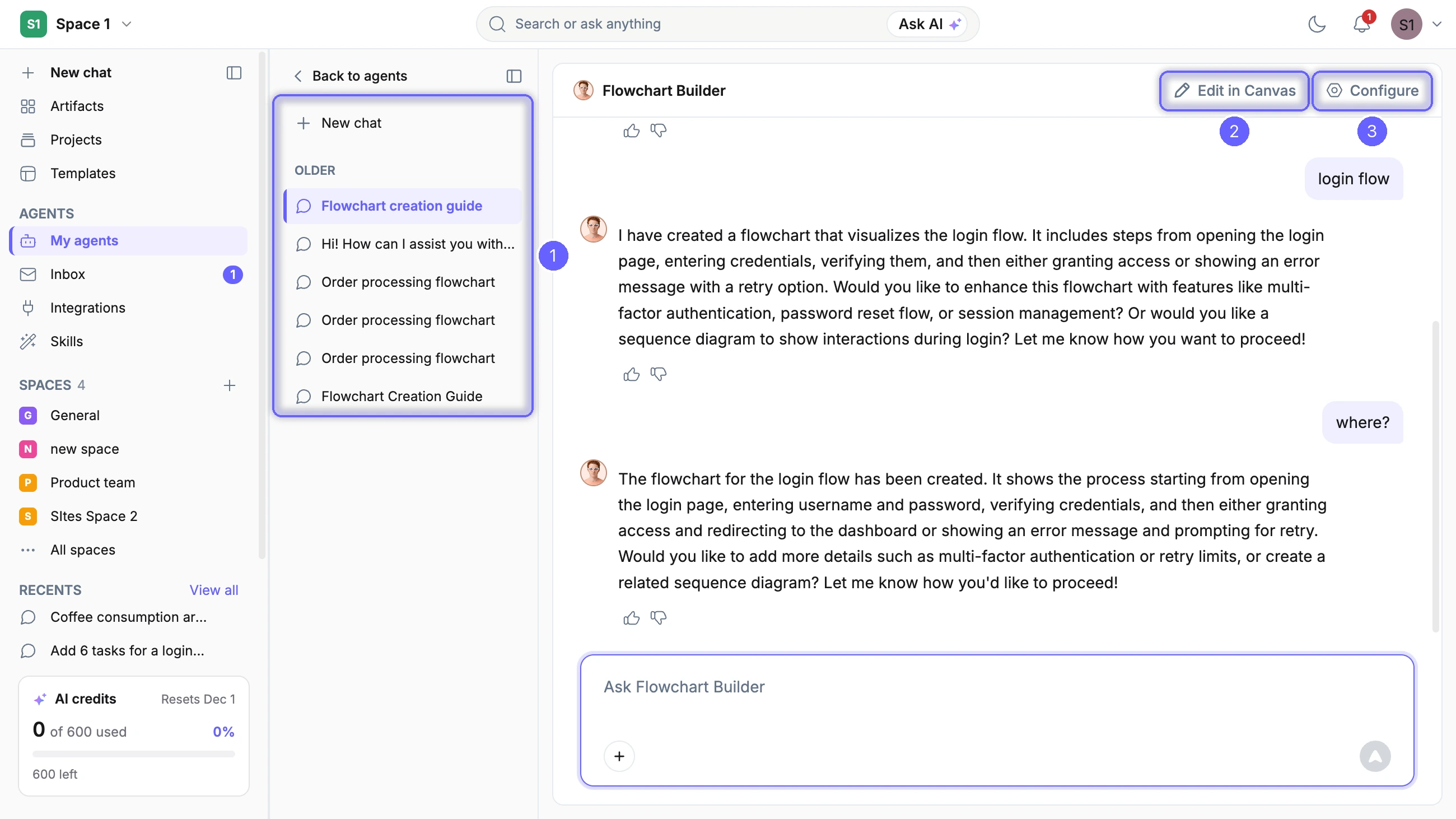
Open the agent and click Edit in Canvas.
Click Try now (the play button in the header). It runs the agent as saved.
The Ask AI · Try (agent name) drawer opens with "Let's test" and three starter prompts.
Click a starter, or type in Message the agent… and press Enter.
Read the reply. Use Expand for more room, and Close (or Esc) when you are done.
Try now runs with real models, so it uses AI credits.
Test in the agent chat
In the left sidebar, under Agents, click My agents, then the agent.
A new chat asks "What would you like (agent name) to do?" and shows its conversation starters.
Click a starter or type a request, and press Enter.
If it makes something, a card such as Created document appears. Click Open to check the item.
Fix what you see
- Wrong steps or order: ask for the change in the build chat on the design canvas. See Edit an agent in Canvas.
- Wrong tone, format or content: edit the Instructions under Configure > Knowledge.
- Acts without asking: set that skill to Ask. See Configure an agent.
- Can't reach an app: connect it and switch it on under Connections. See Connect an app.
The agent may also offer Update my instructions? in the chat. Click Apply to save the change as a new version.