

Chat with an agent
Open an agent, tell it what you need, and it does the job: it writes, draws or plans, and asks you before any step you marked for approval.
Open an agent
In the left sidebar, under Agents, click My agents.
On the My agents tab, find the agent. Use Search agents, or the All, Created by me and Shared with me filters. In list view you see each agent's Name, what it Makes, its Access, its Runs and when it was Last modified.
Click the agent to open its chat.
Give it a task
A new chat asks "What would you like (agent name) to do?" and shows its conversation starters.
Click a starter, or type your own request. For example: "Write this week's status update for the Mobile project."
To give it material, click + to attach files, or paste a file into the box. Files over 10 MB are refused.
Press Enter to send. Shift+Enter adds a new line.
The agent works through the job and replies in the chat. Ask for changes in plain words, just as you would in Ask AI.
Open what it made
When the agent creates something, the chat shows a card such as Created document, Created diagram, Created board, Created site or Created form. Click Open to open the item in its editor. The item is saved in your workspace.
Approve or answer a step
Some steps wait for you:
- Needs your approval: the agent wants to create, change or run something you set to Ask. Click Approve to let it go ahead, or Deny to stop that step.
- Needs your answer: the agent needs a choice from you before it can carry on.
You can answer these from the Inbox too. A step answered there shows Answered in your inbox in the chat. See Inbox and approvals.
When the agent learns something
During a chat the agent may offer to:
- Update my instructions? Click Apply to save the change as a new version, or Dismiss.
- Remember for future chats? Click Save to add it to the agent's memory.
What it may save depends on the agent's memory setting. See Configure an agent.
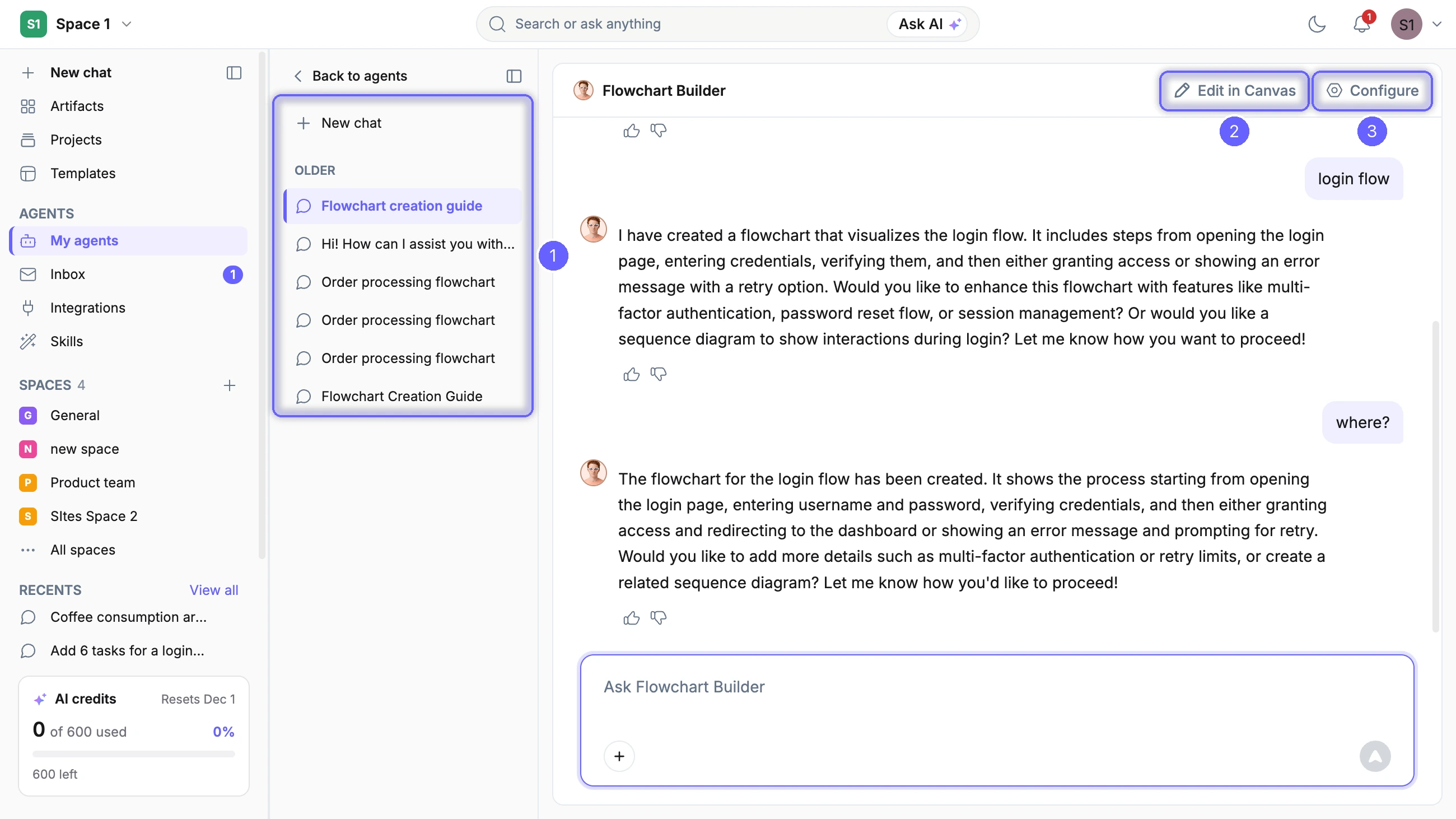
The chat page
| Control | What it does |
|---|---|
| Show chat history / Hide chat history | Opens or closes the list of past chats, grouped as Today, Yesterday, Previous 7 days and Older. |
| New chat | Starts a clean conversation. |
| Back to agents | Returns to My agents. |
| The agent's name | Hover it for a card with what the agent does, its skills and schedules, and Configure, Share and Delete. |
| Edit in Canvas | Opens the design canvas. See Edit an agent in Canvas. |
| Configure | Opens the Agent configuration panel. See Configure an agent. |
To make the chat column wider or narrower, drag the thin line at its left or right edge.