

Start from the Agents tab on Home
The Agents tab on Home is a box for describing the job, four sample agents under it, and a gallery of ready made agents grouped by kind of work.
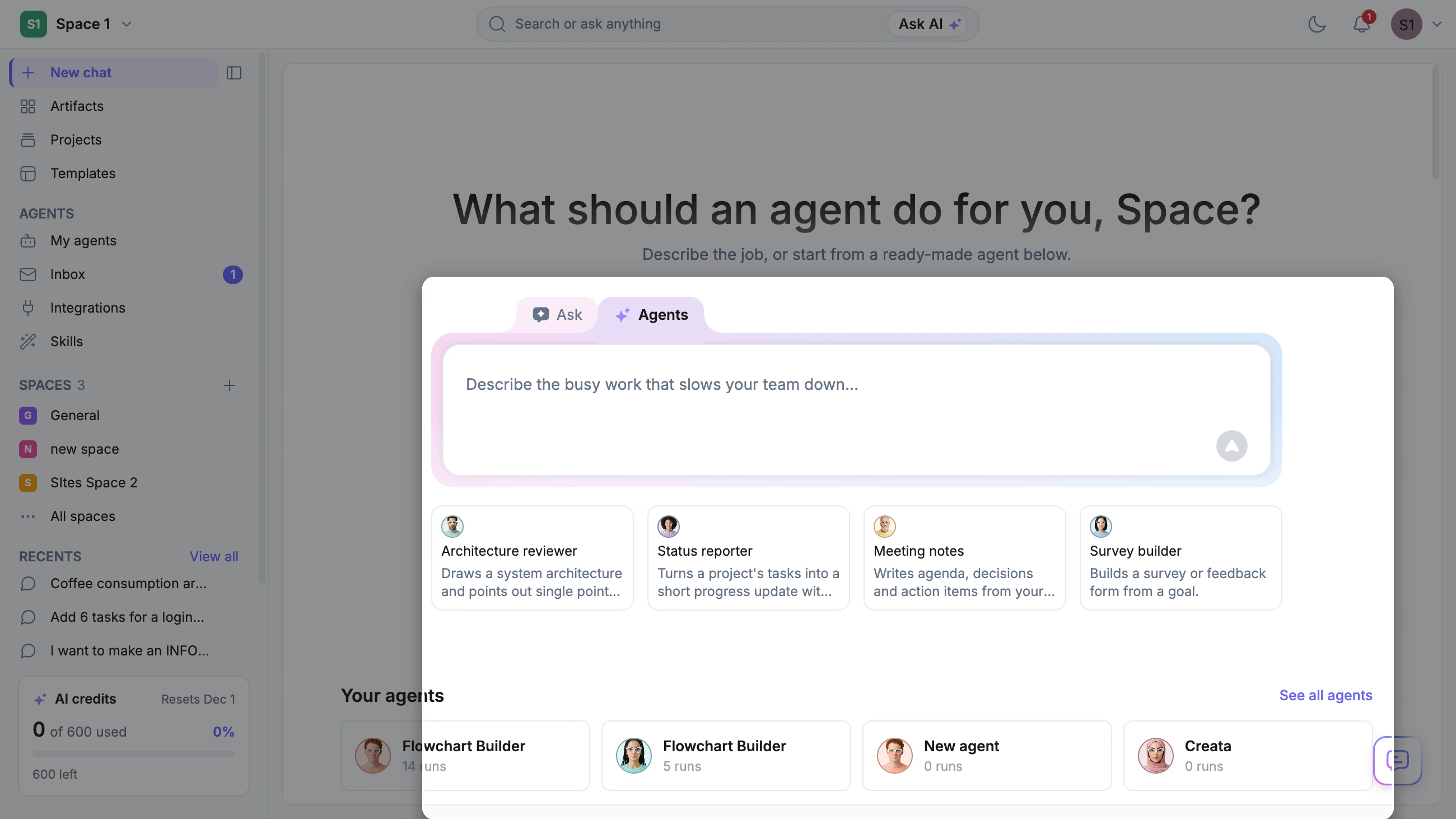
Open the Agents tab
In the left sidebar, click New chat.
Click the Agents tab above the box. The page asks "What should an agent do for you".
You land here too when you click New agent on the My agents page.
Describe the job
Click the box ("Describe the busy work that slows your team down…").
Type the job in plain words. Say what it should make, from what, and how often.
Press Enter. The agent builder opens with your words. See Answer the agent builder.
Use a sample card
Four sample agents sit under the box, one per kind of item they make.
Click a card. The box fills with a ready prompt, for example "Build me a "Status reporter" agent: …".
Then either:
- Send it unchanged to get that ready made agent straight away. Its chat opens, with no builder questions.
- Change the words first (add your team, format or project) and send. The agent builder takes it from there.
Browse the agent gallery
Scroll down the Agents tab for more:
The chip bar at the top jumps to a section: Apps, then one chip per kind of work.
Apps: a Cloudairy card and the apps agents can work in, connected ones first, each with its count of Superpowers (things an agent can do there). Click an app to open Integrations.
Sections of ready made agents. Each starts with a banner. Hover it and click Try now, or click any agent card. Both put that agent's prompt in the box at the top, ready to send or edit.
Build your own (Start building →), the last card in most sections, opens an empty Build a new agent page.
Your agents, once you have some, with See all agents.
Ask for an agent we don't have
At the bottom of the Agents tab, under "Need a different agent?", click Request an agent. It opens an email to Cloudairy Support so you can describe the job.