Turn your canvas, doc or project board into a template, and choose who can use it.
Open the canvas.
At the top left, click ⋯ (board actions) next to the canvas name, then Convert to Template. The Publish Your Template dialog opens.
Check the Live preview of your canvas.
Enter a Template Name. A new template starts with the canvas's own name.
Write a description of what the template is for.
Under Access, choose who can use it: Only me, Entire Workspace or Entire account.
Click Publish Template.
You see "Template published successfully". Click Cancel to leave without publishing.
Open the doc.
Click Doc actions and settings (⋯) at the top, then Save as Template. The Publish Your Template dialog opens. On Free, the menu item shows a crown.
Fill it in as for a canvas, then click Publish Template.
Open the project board.
Open the board menu (⋮), point at More actions, then click Save as template. The Publish Your Template dialog opens.
Enter a Template Name and the other details, then click Publish Template.
Click Templates in the left sidebar.
In the type filter, choose Created by you to see the templates you made.
Choose Shared with you to see templates that teammates shared with you.
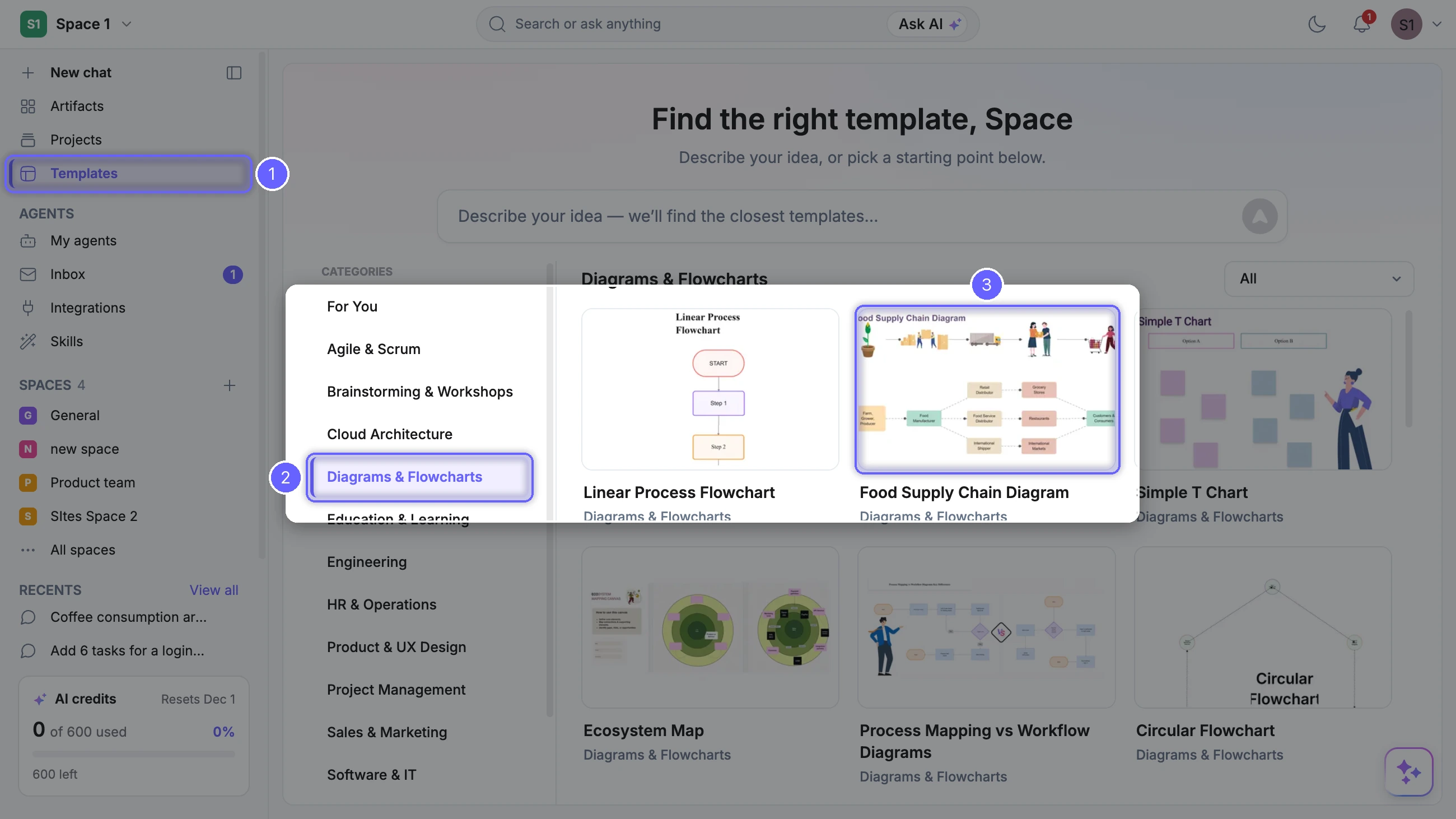
On the Templates screen, point at a template and click Preview.
Click Copy link.
Paste the link into your message.
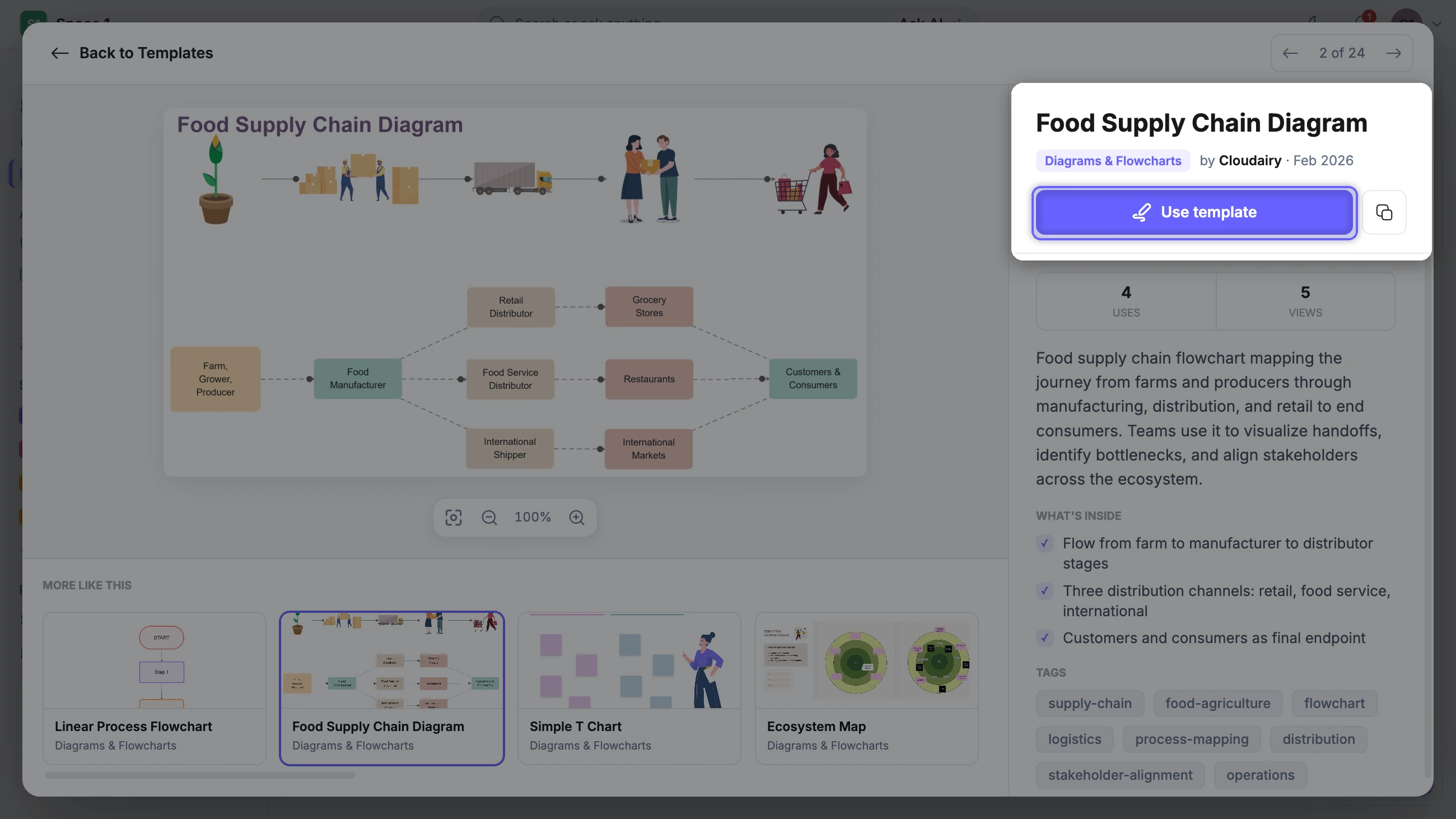
The preview also shows how many times the template was used and viewed. Clicking Use template makes your own copy and opens it.