Create the wiki
- In the left sidebar, click Artifacts.
- Under Make something new, click the Wiki card.
Cloudairy creates "Untitled wiki" and opens it on Choose how you want to start.
| Card | What it does |
|---|---|
| Start from a template | A complete docs site with spaces, pages, theme and layout. Preview it, then make it yours. |
| Import | Bring in Markdown, HTML or Word files, a folder, or an online docs site. |
| Blank | One empty page, and you build the rest yourself. |
| Page templates | Pick a single page from the template gallery. |
| Sync with Git | Keep your pages in step with a GitHub or GitLab repository. |
Start from a template
- Click Start from a template.
- Pick a template and look at its preview.
- Click Use this template.
Cloudairy shows Building your wiki for a few seconds while it creates the spaces and pages. Then the editor opens on the wiki's home page.
Edit a page
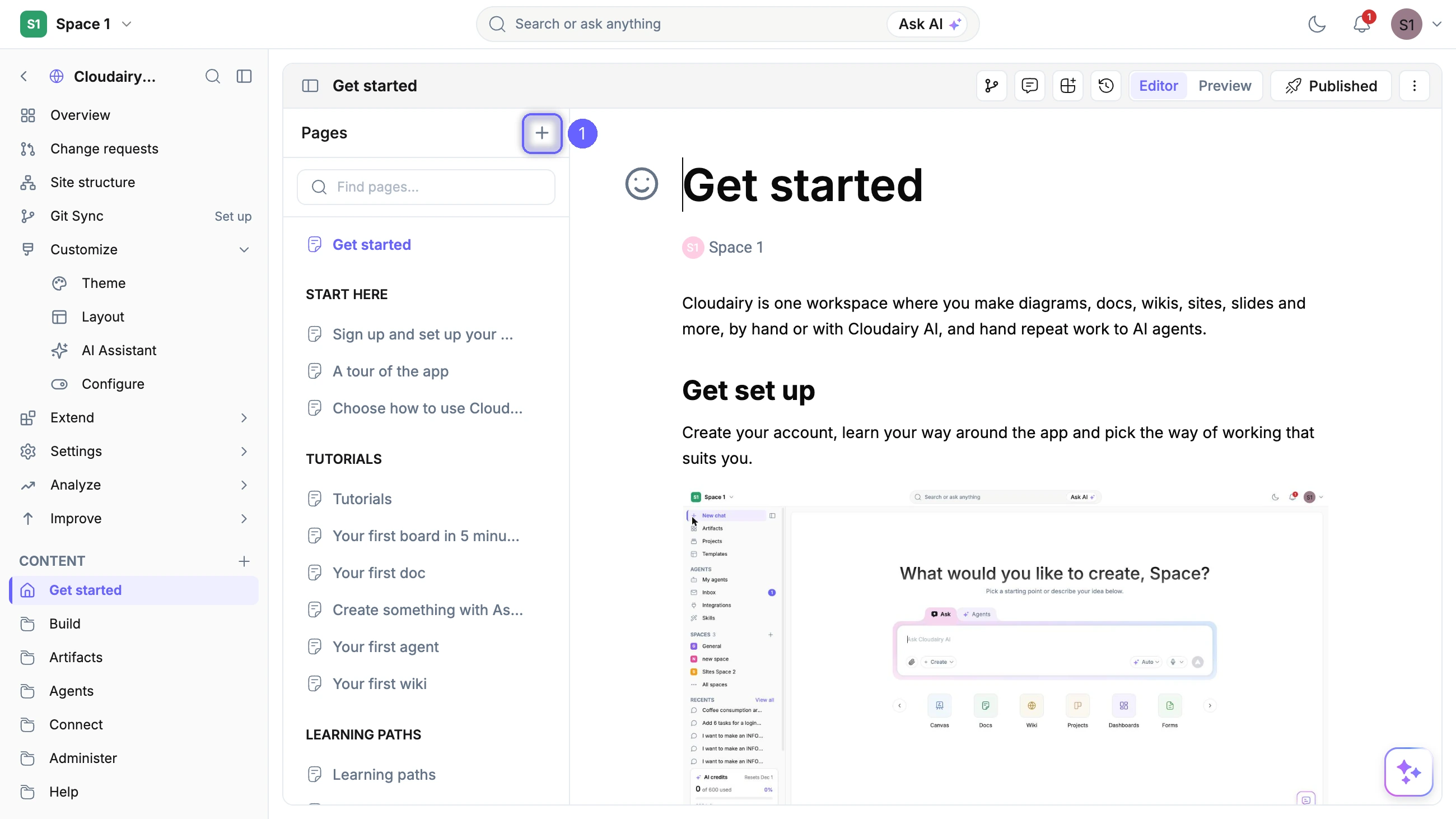
The pages panel on the left lists the spaces and pages of your wiki.
- Click a page to open it.
- Click into the text and change it. Pages use the same editor as docs, so type / to add a heading, a table, a callout and more.
- To add a page, click + in the pages panel and choose Create Doc. New Group adds a group, and Import brings in more content.
- Drag a page row to change the order.
Each page row has a ... menu with Rename, Duplicate, Hide page, Export as PDF and Move to trash.
Give it a name and a look
- In the wiki's sidebar, open Settings > General and rename the wiki.
- Open Customize > Theme to set the title, logos, colours and fonts. A live preview shows the result, with Light and Dark and Desktop and Phone switches.
- Click Save.
Preview it as a reader
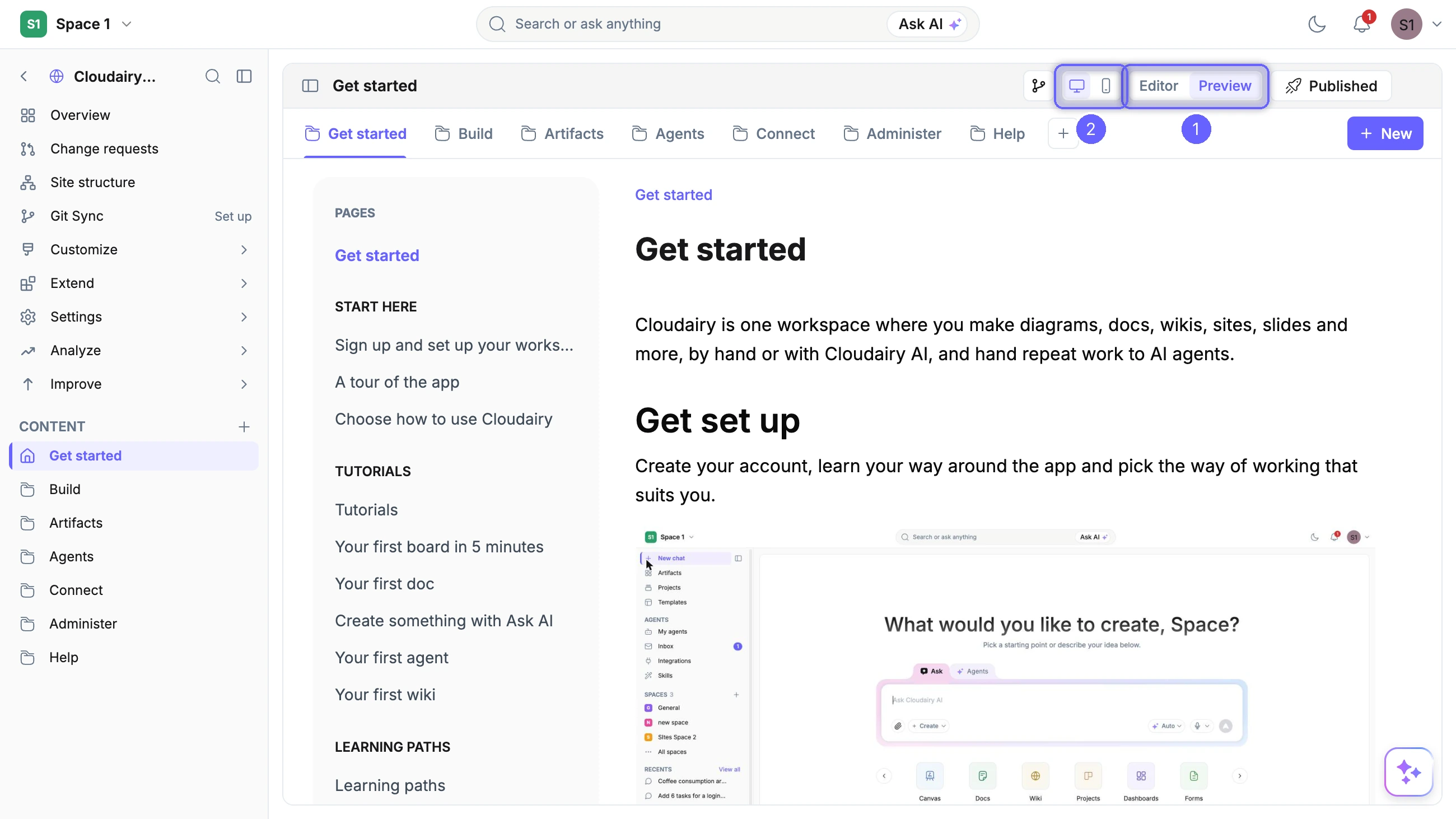
Click Preview in the wiki's sidebar. You see the site the way your readers will: space tabs, the page tree with search, "On this page" links and the page actions.
Publish
- Click Publish in the card at the top of the wiki's sidebar.
- Under Who can read it, choose Public (anyone with the link) or Private.
- Click Publish. The dialog shows the wiki's address, with Copy and Open.
Once published, the card says Published. To change who can read it later, open Settings > Audience. Analyze shows traffic once the wiki is published.