Go to the home page
Click New chat at the top of the left sidebar. The home page opens with the Ask AI box in the middle. Make sure the Ask tab above the box is selected.
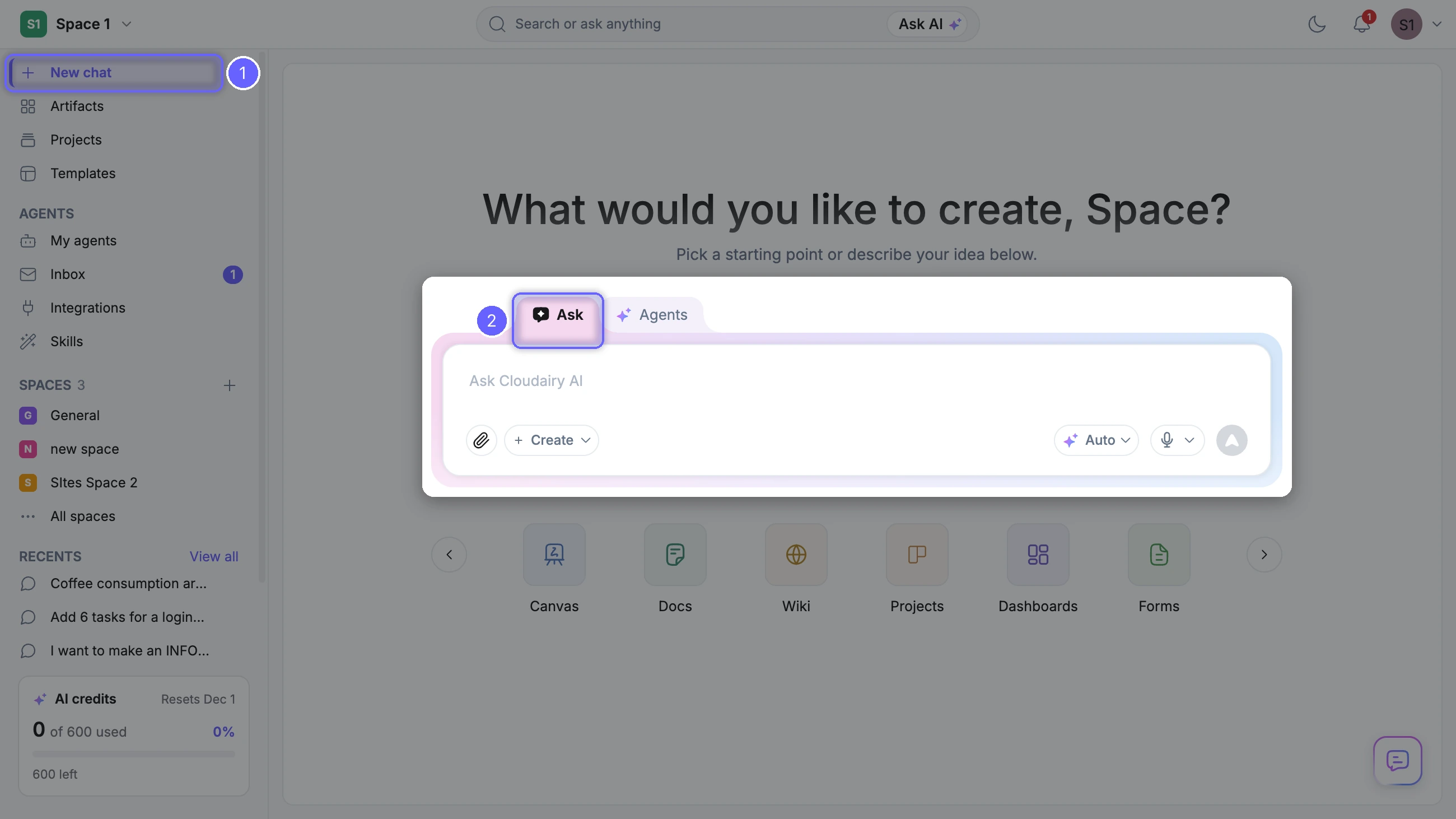
Choose what to create
Tell Cloudairy AI what kind of artifact to make. There are two ways:
- Click Canvas in the strip of artifact types under the box.
- Or click Create in the box and choose Canvas from the list.
To go back to a plain chat, open the same list and choose Ask AI (just chat).
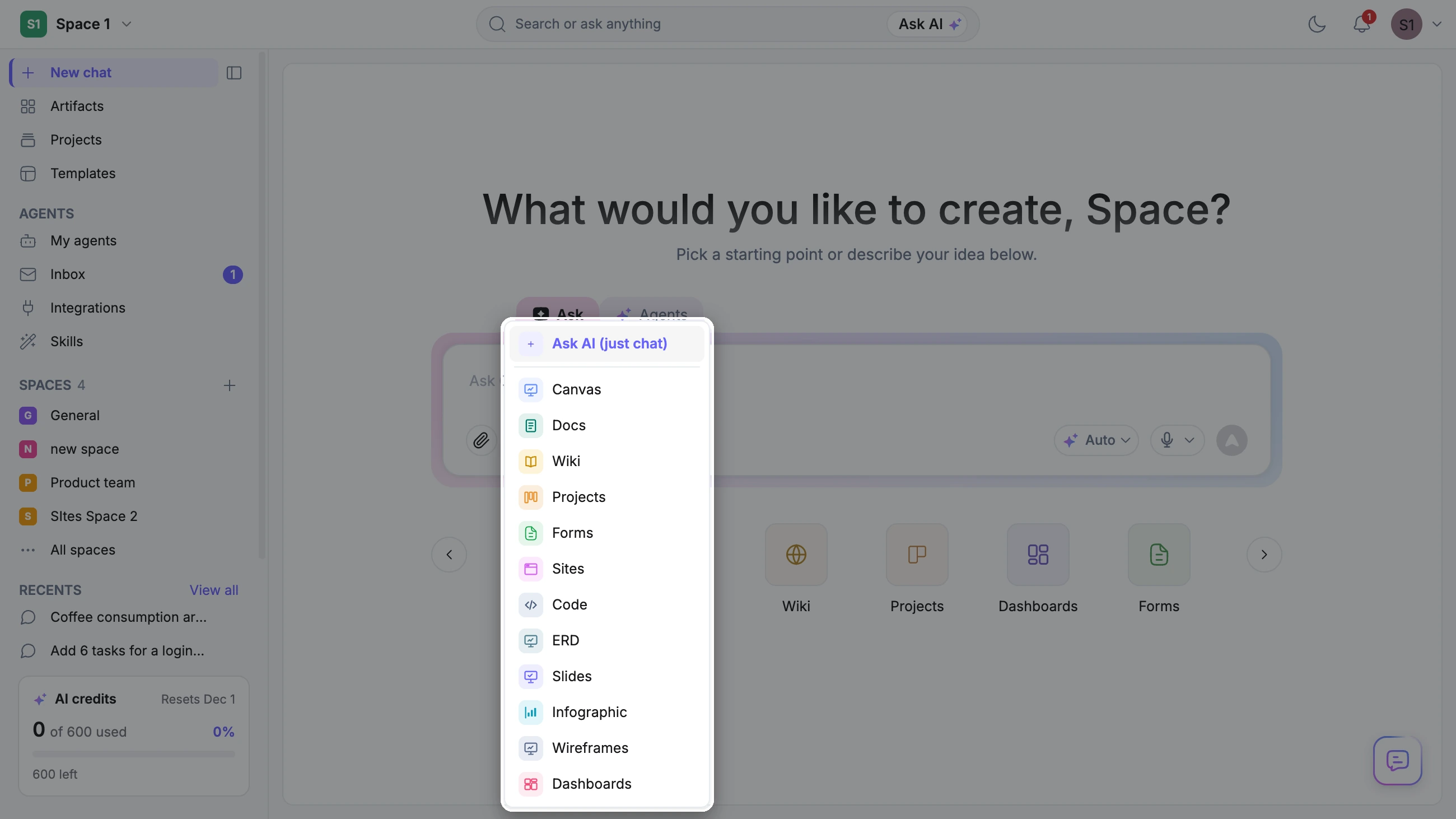
| Choose | To get |
|---|---|
| Canvas | A diagram, flowchart or whiteboard |
| Docs | A written document |
| Wiki | A wiki with spaces and pages |
| Projects | A project with its board, docs and diagrams |
| Forms | A form with questions |
| Sites | A live website |
| Code | Scripts, APIs or infrastructure code |
| ERD | A database diagram |
| Slides | A slide deck |
| Infographic | A visual poster of facts and figures |
| Wireframes | App or website screens |
| Dashboards | Charts from data |
Describe it
Type a clear description. Say what the diagram is about, what steps or parts it needs, and anything special. For example:
A flowchart for user onboarding: sign up, verify email, set up a profile, then open the dashboard. Add a decision for a failed verification that lets the user try again.
Tips for a good prompt:
- Name the steps or parts you want to see.
- Mention decisions, loops or groups.
- Keep it to a few sentences. You can refine it later.
Add a file (optional)
Click the paperclip to add a file for Cloudairy AI to read. You can attach images (PNG, JPG, WEBP) and spreadsheets (CSV, XLSX, XLS). A photo of a whiteboard sketch is a good way to turn a rough drawing into a clean diagram. A spreadsheet builds a dashboard.
Choose a model (optional)
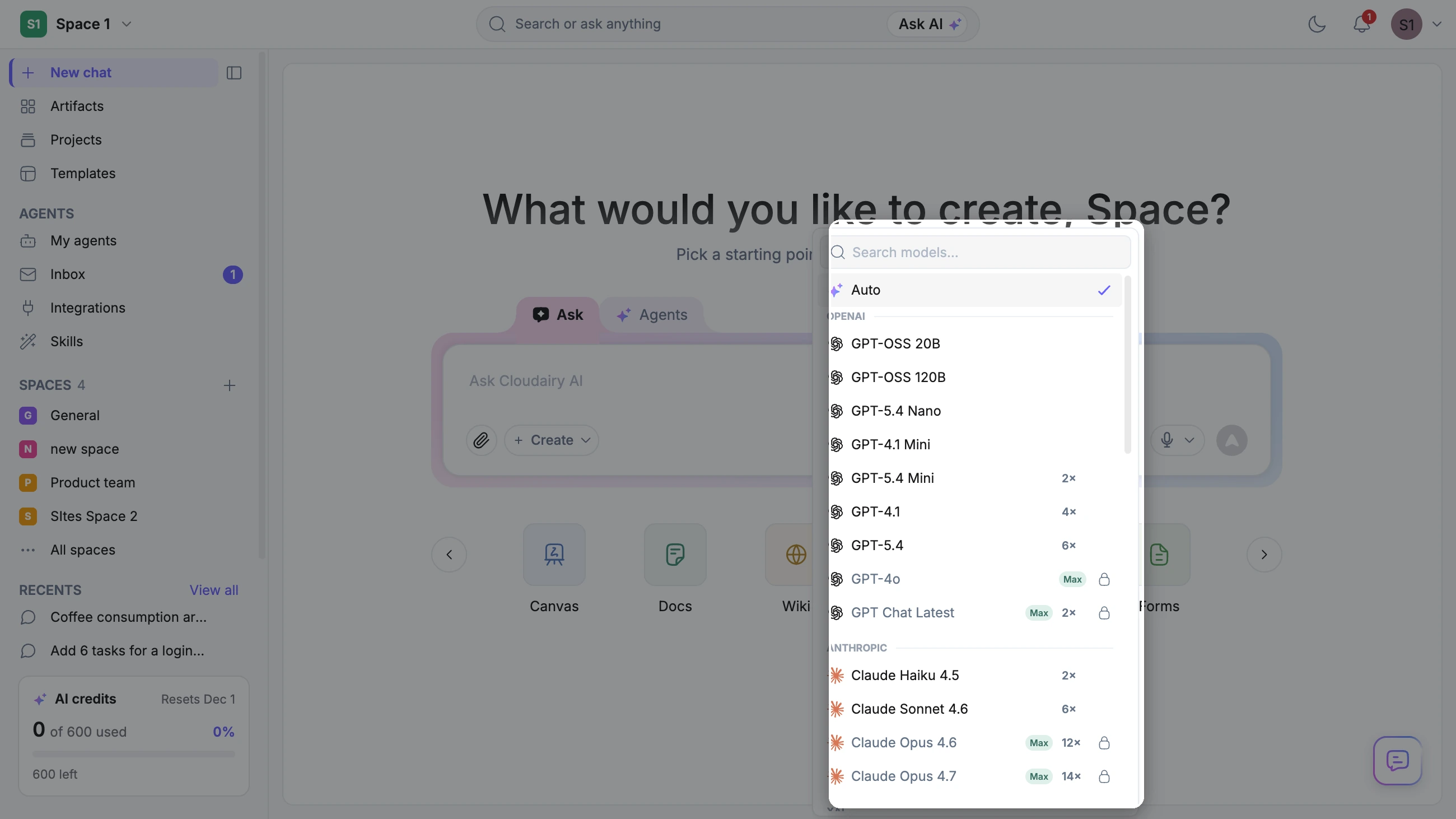
Leave the model picker on Auto, or click it to choose another AI model. Each model shows how many credits it uses. Models your plan does not include are locked.
Send
Press Enter or click the send button. A chat opens. Cloudairy AI may ask you a short question first. Answer it to get a better result.
When the diagram is ready, the chat shows a preview. Click Edit in canvas to open it as a new canvas.
Make it yours
The new canvas is a normal canvas. You can:
- Move, add and relabel shapes by hand. See Your first board in 5 minutes.
- Click Show AI chat at the top left of the canvas to ask for more changes.
- Click Share to show it to your team.