A quick look at the main parts of Cloudairy: the left sidebar, the home page with the Ask AI box, the top bar, the profile menu and the AI credits card.
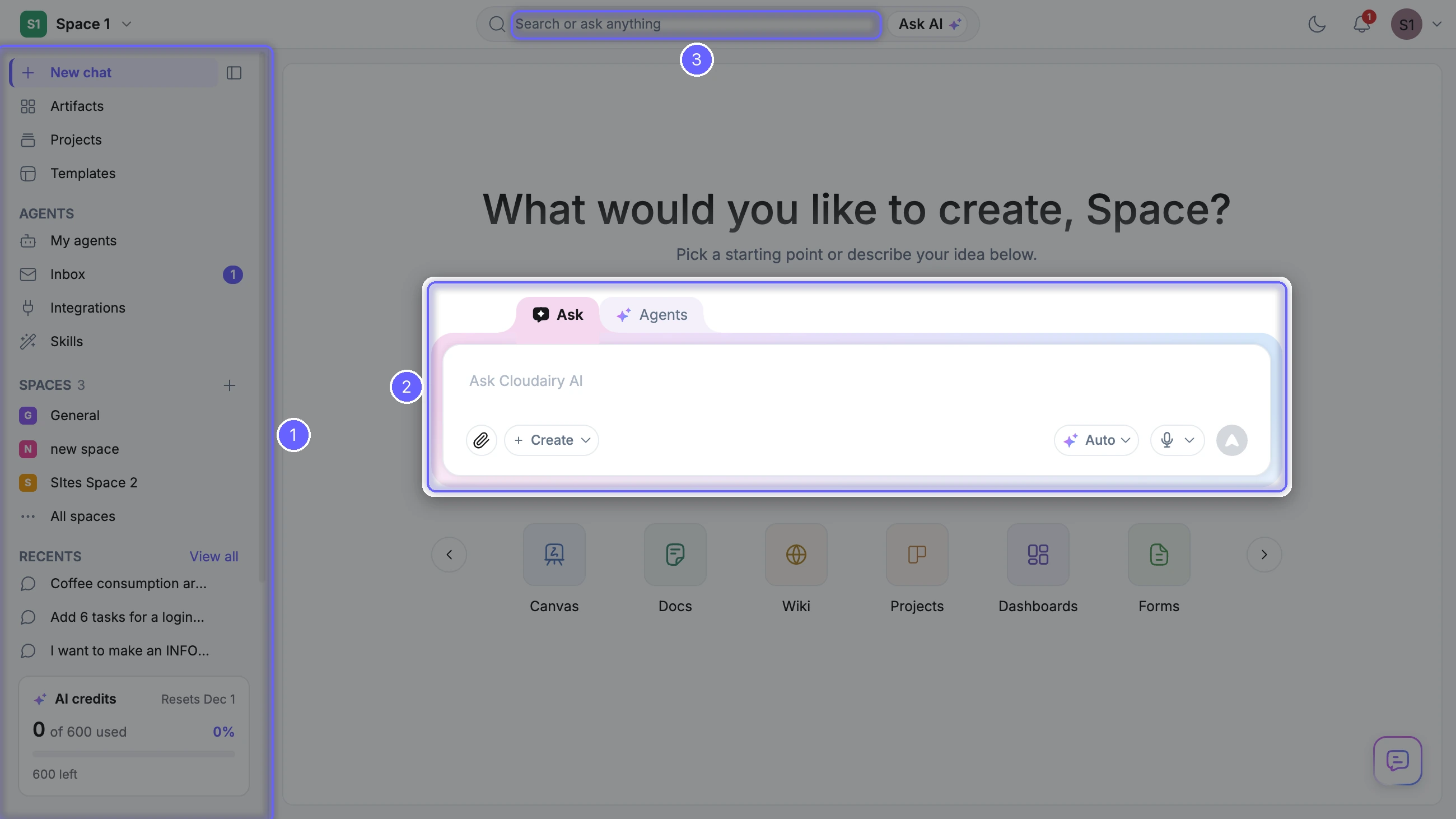
The sidebar on the left is the starting point for everything. From top to bottom:
| Item | What it does |
|---|---|
| New chat | Goes to the home page and starts a new Ask AI chat. |
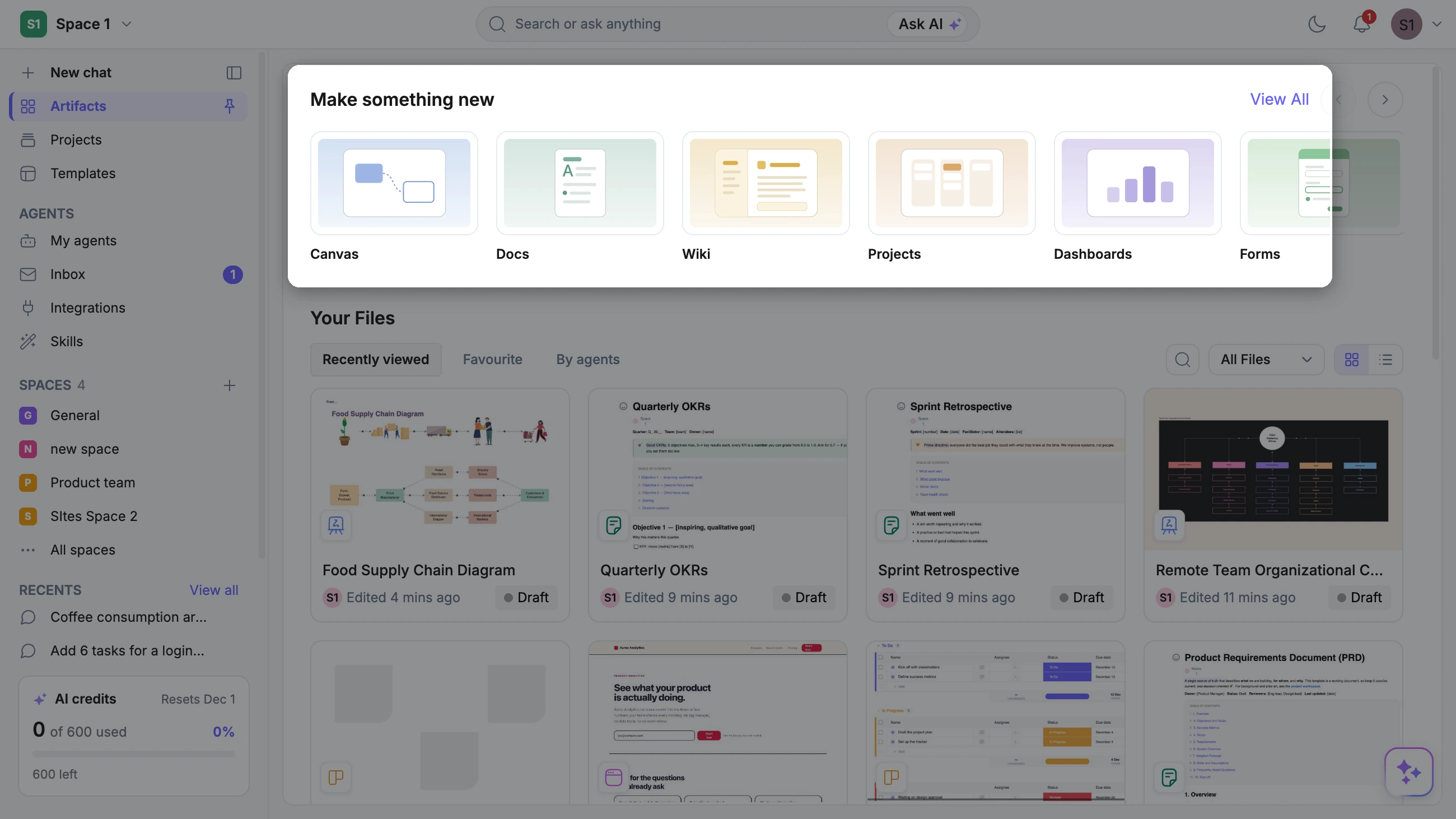
| Artifacts | Everything you make. Start new work from Make something new. |
| Projects | Keep related AI chats, files and instructions together around one goal. |
| Templates | Ready made boards, docs, projects and sites to start from. |
| My agents | Your team's AI agents. Under the Agents heading. |
| Inbox | Mentions, assignments, approvals and agent runs in one list. |
| Integrations | Connect the apps your agents can work in. |
| Skills | Reusable know-how that every agent in your workspace can use. |
| Spaces | Your spaces. Click + to add one, or All spaces to see them all. |
| Pinned | Chats you pinned. Shows only once you pin one. |
| Recents | Your latest Ask AI chats. Click View all to search every chat. |
Enterprise workspaces can also see Forms and Knowledge base in this list.
To make room, click the panel icon next to New chat. The sidebar folds into a row of icons. Hover an icon to see its name, and click the top icon to unfold it again.
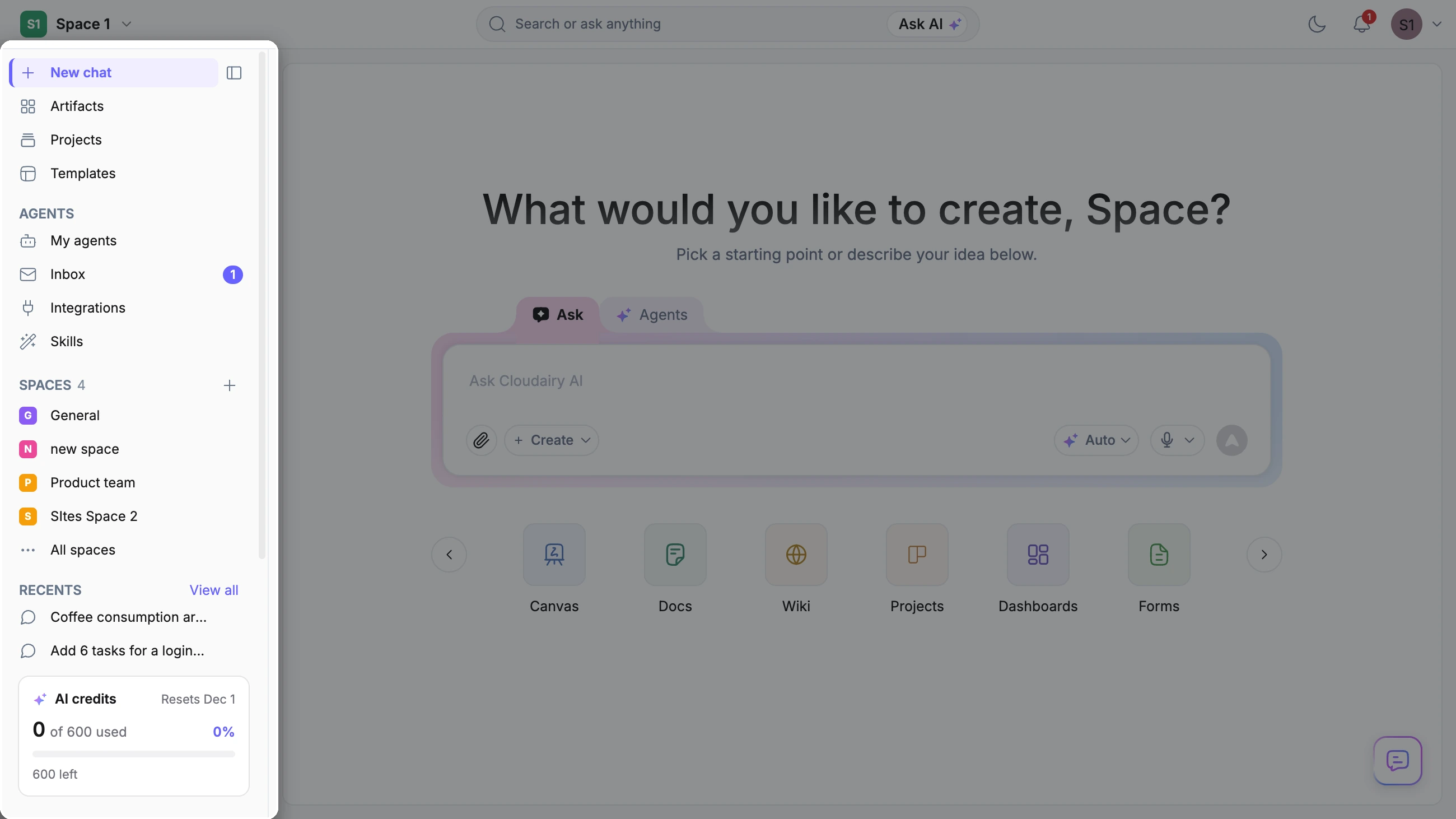
To keep a row or a chat at the top, hover it and click the pin. Pinned rows can be dragged into the order you like.
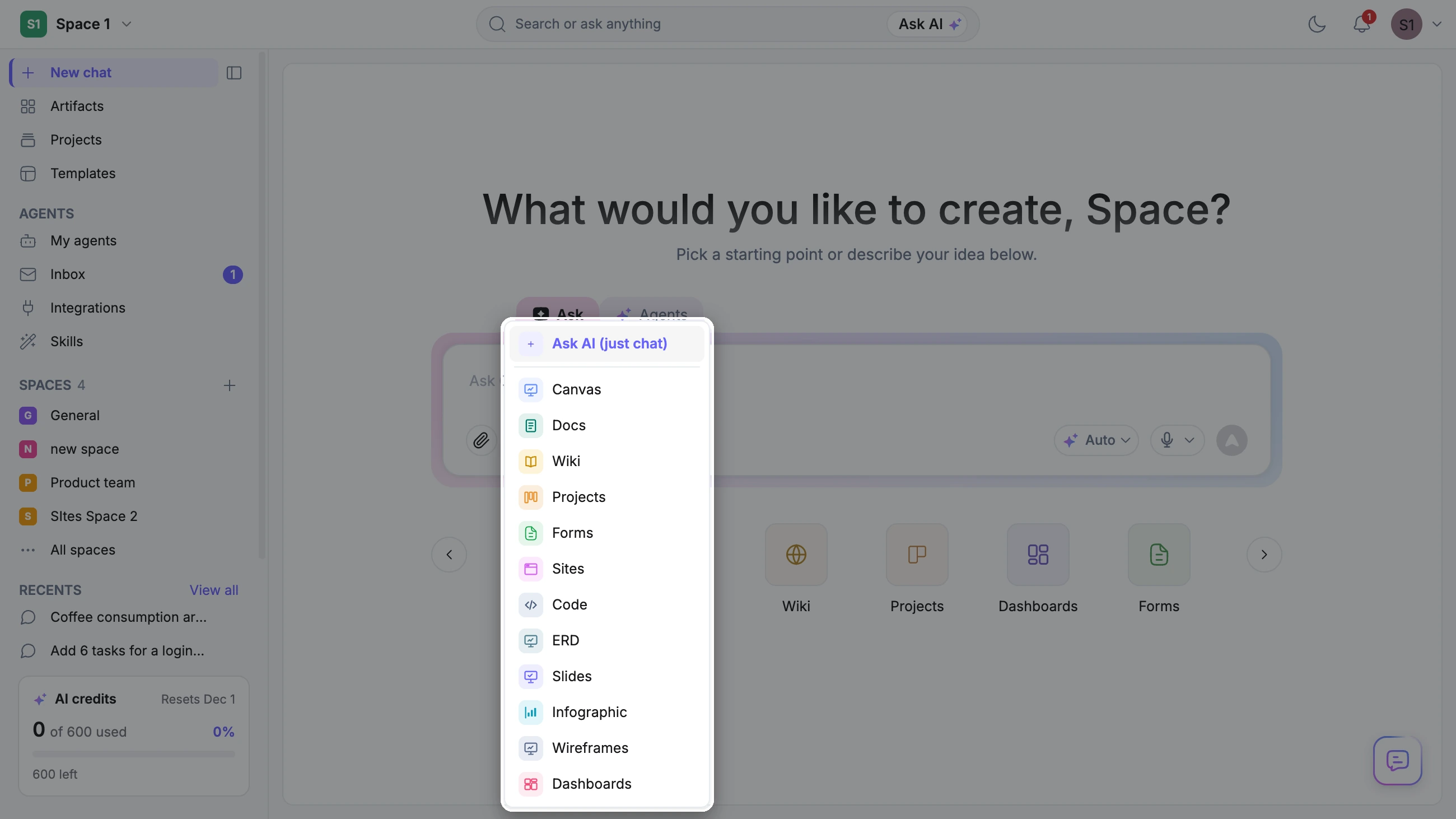
The home page opens when you click New chat. The Ask AI box sits in the middle, with two tabs above it:
| Control | What it does |
|---|---|
| Text box | Type your question or describe what you want. Enter sends, Shift+Enter adds a new line. |
| Paperclip | Attach images (PNG, JPG, WEBP) or spreadsheets (CSV, XLSX, XLS). A spreadsheet chip says it builds a dashboard. |
| Create | Choose what to make: just chat, or Canvas, Docs, Wiki, Projects, Forms, Sites, Code, ERD, Slides, Infographic, Wireframes or Dashboards. |
| Model picker | Choose which AI model answers. Models are grouped by provider and show how many credits they use. Which you can pick depends on your plan. |
| Send | Sends your message. |
Below the box is a strip of artifact types with arrows. Click one to set it as what you want to create.
Every chat is saved under Recents. In a chat, each reply has Good and Bad buttons, Copy, Export and Regenerate, and shows the credits it used. The ... menu at the top right of a chat has Rename, Export and Delete.
Click Artifacts to see everything you make.
| Item | What it does |
|---|---|
| Workspace name (left) | Shows your plan and member count, with Settings and Invite people. |
| See plans | Shows while your workspace is on the Free plan or the Business trial. |
| Search or ask anything | Finds boards, docs, kanban boards and spaces. Press Ctrl+K (Cmd+K on a Mac). The top row asks Cloudairy AI instead. |
| Light/Dark button | Switches the theme. |
| Bell | A quick look at your inbox, with Open inbox and What's new. |
| Profile picture (right) | Opens the profile menu. |

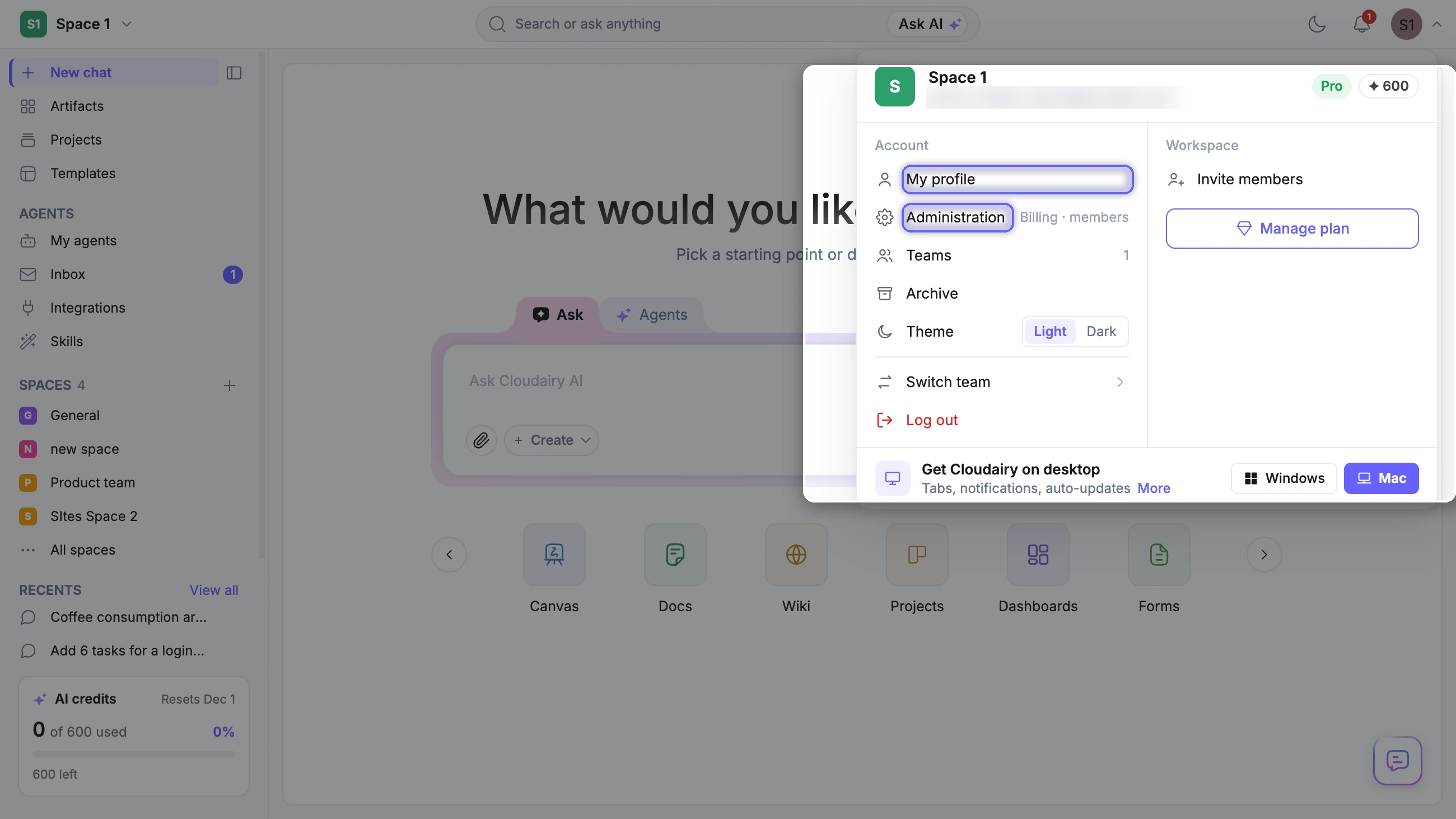
Click your profile picture. The menu shows your name, email, plan and credits left, then My profile, Administration, Teams, Archive, Theme, Switch team and Log out. It also has Invite members and a plan button: Upgrade on Free, Choose a plan during the Business trial, and Manage plan on a paid plan. Some items show only if you have the right role.
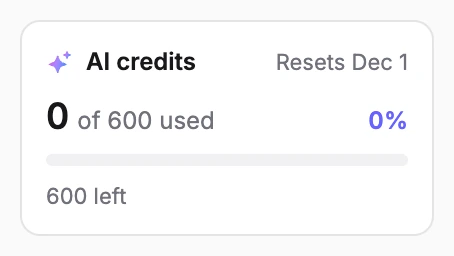
At the bottom of the sidebar, the AI credits card shows how many credits your workspace has used this month, out of how many, and when they reset.
Enterprise workspaces have no monthly cap, so they do not see this card.
The round Ask Support button at the bottom right of most pages opens the support chat. See Help.