Turn on a view only link so anyone can look at your work, even without a Cloudairy account.
A public link is safe for showing work. People who open it can view only. To edit or make their own copy, they sign up.
Sharing is on paid plans.
| Item | Public link |
|---|---|
| Canvas | Yes |
| ERD | Yes |
| Doc | Yes |
| Slides | Yes |
| Infographic | Yes |
| Wireframes | Yes |
| Project and other item types | No. Share them by invite. Copy link copies the private link. |
| Sites, wikis, clips and spaces | These keep their own share settings. A wiki or site goes public when you publish it. |
Open the item and click Share.
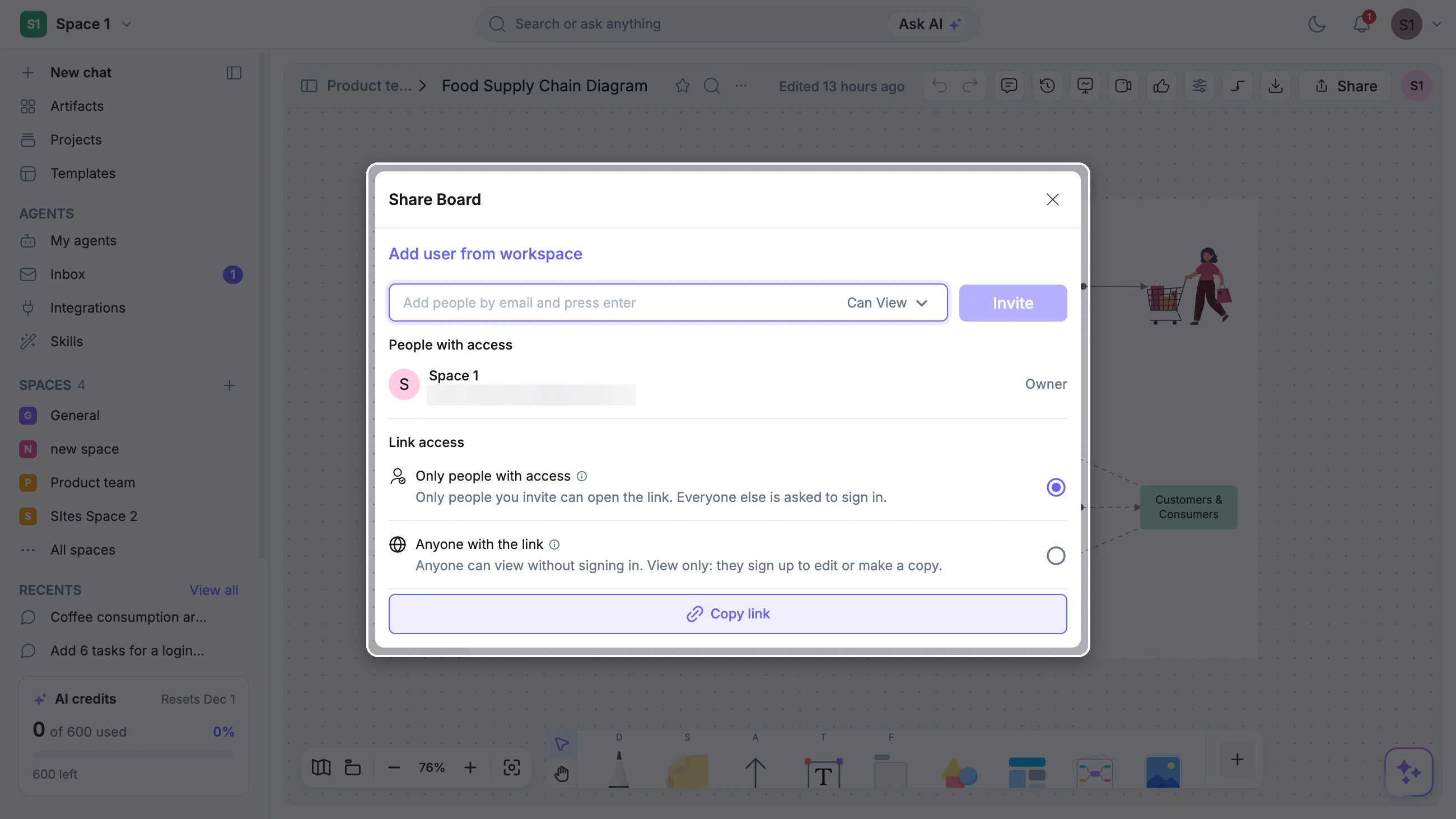
Under Link access, choose Anyone with the link.
Cloudairy confirms: Anyone with the link can view.
Click Copy link and paste it wherever you like.
You need edit access to change Link access. People with view access don't see this setting.
Open the item and click Share.
Under Link access, choose Only people with access.
Now only people you invited can open the link. Everyone else is asked to sign in.
| Setting | Who can open the link |
|---|---|
| Only people with access | Only people you invite. Everyone else is asked to sign in. This is the default. |
| Anyone with the link | Anyone. View only: they sign up to edit or make a copy. |
Wikis and sites have a Publish button instead. Publishing puts them online at their own address, and you can choose who can read them and add your own domain. See Publish your wiki and Site settings and publish.