Look inside a template before you copy it, then make it yours in one click.
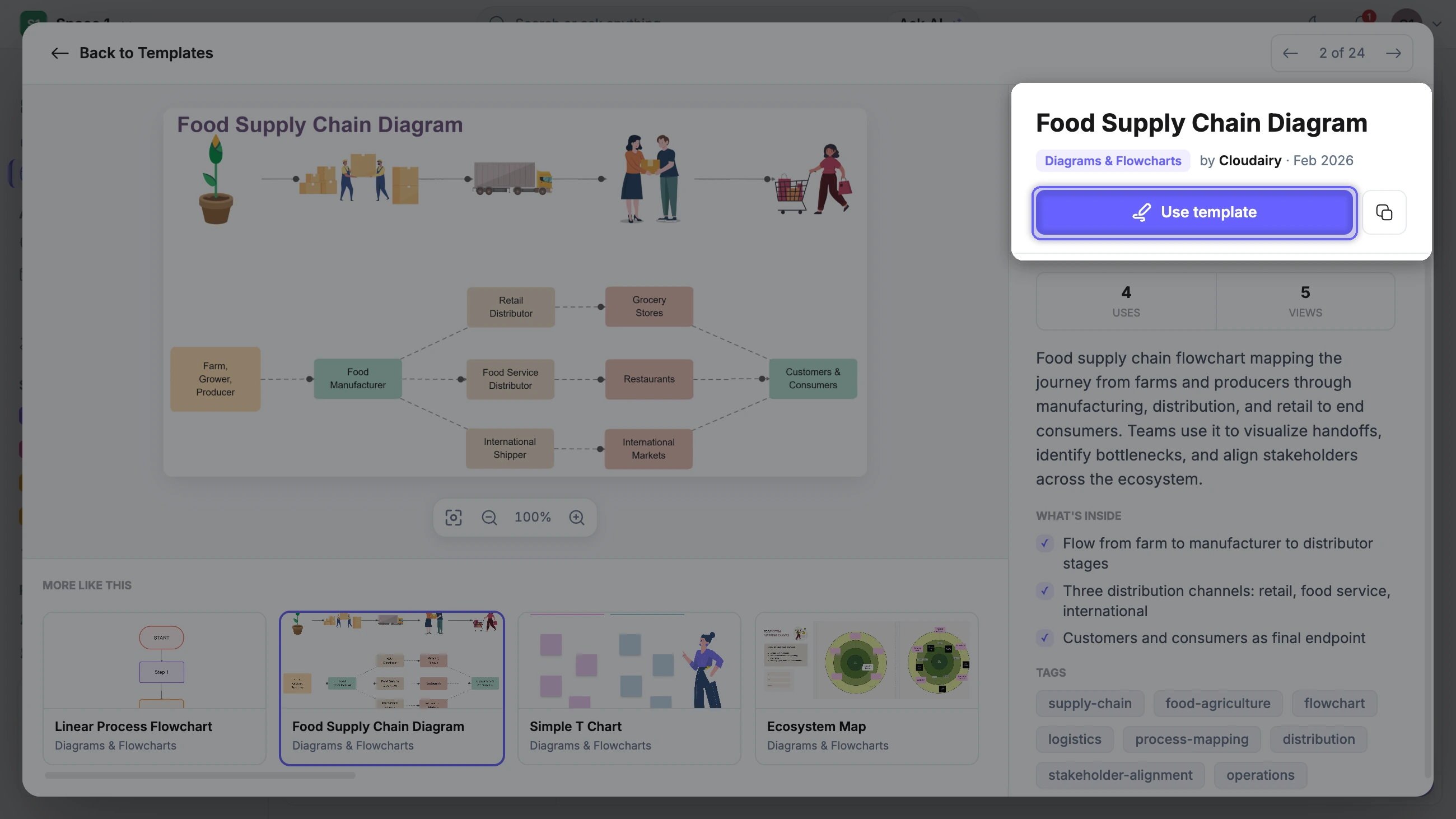
On the Templates page, hover a template card and click Preview.
Look through it:
Use the zoom bar to look closer. Tall templates, such as long web pages, scroll.
The side panel shows the description, What's inside, Tags, and how many Uses and Views it has. Copy link copies a link to the template.
Click Use on the card, or Use template in the preview. (A doc template's preview has Open document.)
Cloudairy shows "Creating your board from the template" while it makes your copy.
Your copy opens. Edit it like any other item. The template itself does not change.
Your copy is listed in Artifacts › Your Files like everything else you make.
In the canvas bottom dock, click Templates.
Search with "What would you like to create?", or browse.
Pick a template to drop it onto your board.
See Canvas.